Die besten OneDrive-Alternativen für Unternehmen im Jahr 2026
8 Min. Lesezeit · 29.09.2026
Unser Blog / how-to-set-up-nextcloud-on-macos-for-files-calendars-and-contacts
← Zurück zur Übersicht
The Nextcloud desktop client for macOS allows the automatic sync of files stored locally on your Mac with files on your Nextcloud server. Once connected, changes made on either side are reflected automatically, which makes it easy to work across devices without manually uploading or downloading files.
The macOS operating system also supports the synchronization of calendars and contacts using the standard protocols. This means you can sync your calendar entries and contacts directly with Nextcloud, even without installing the desktop client.
If you also use an iPhone, you can keep your data in sync there as well by connecting Nextcloud to iOS.
This guide first walks through the installation and configuration of the client and then explains how to connect calendars and contacts using macOS system settings.
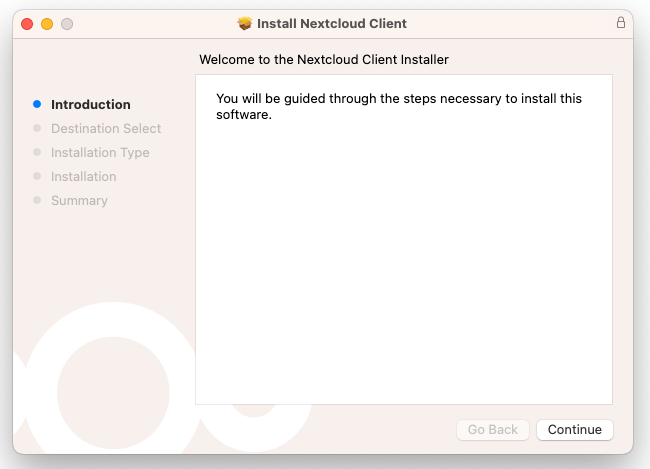
To begin, download the macOS installation package from the official Nextcloud website and open it on your Mac. The installer will guide you through the installation process and place the Nextcloud Desktop client in your Applications folder. At this stage, no additional configuration is required.
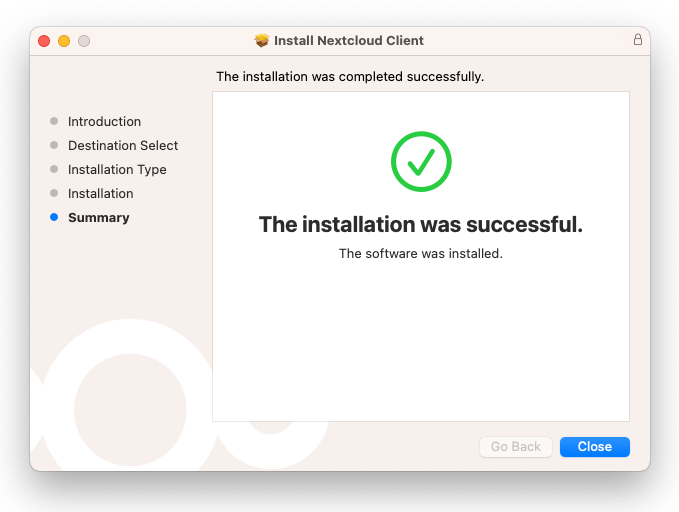
Once the installation is complete, you will see a confirmation screen:
Now you can start the Nextcloud Desktop client from the Applications menu.
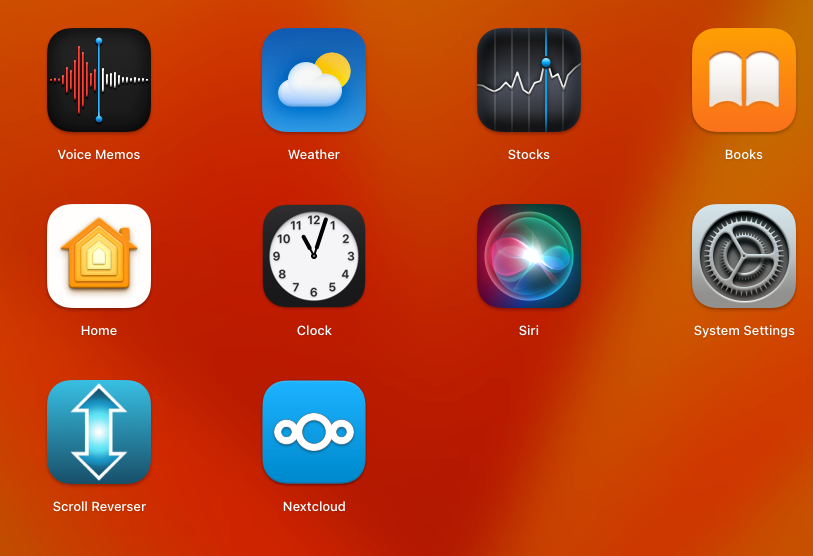
Now, opening the Nextcloud Desktop application shows the initial login screen for connecting to a Nextcloud server.
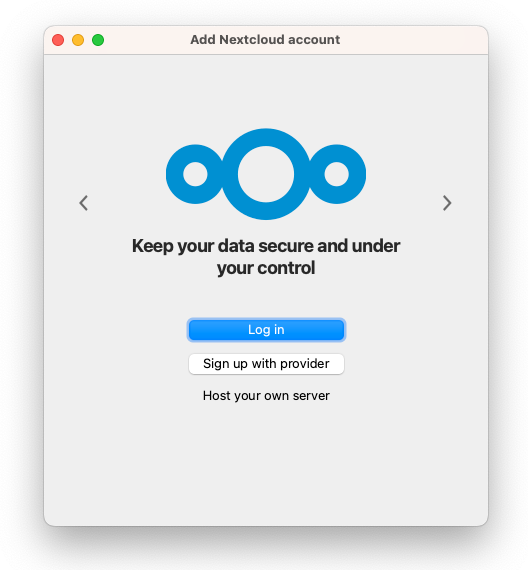
Click on "Log in", and next you will be asked for your server address. This should be the same address you normally use to access Nextcloud in your web browser.
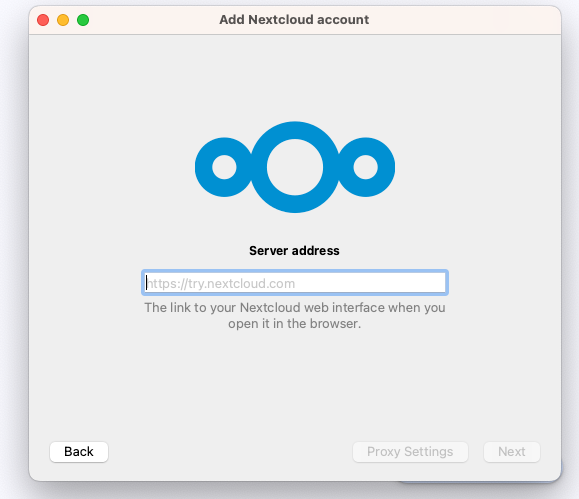
After confirming the server address, you will be prompted to the following interface, which, by the way, opens up the browser automatically to authenticate on your nextcloud. Or alternatively, you can click on the "Open Browser" or click on "Copy Link" and open it in a browser manually.
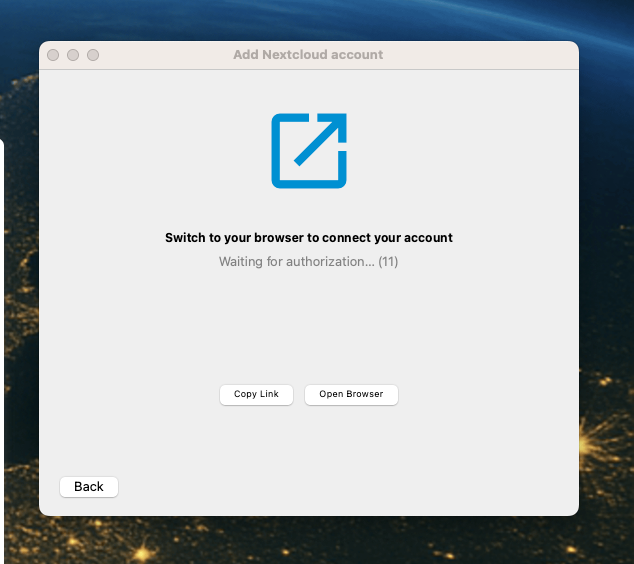
After clicking on the "Open Browser", Nextcloud asks you to log in with your account credentials in the browser.
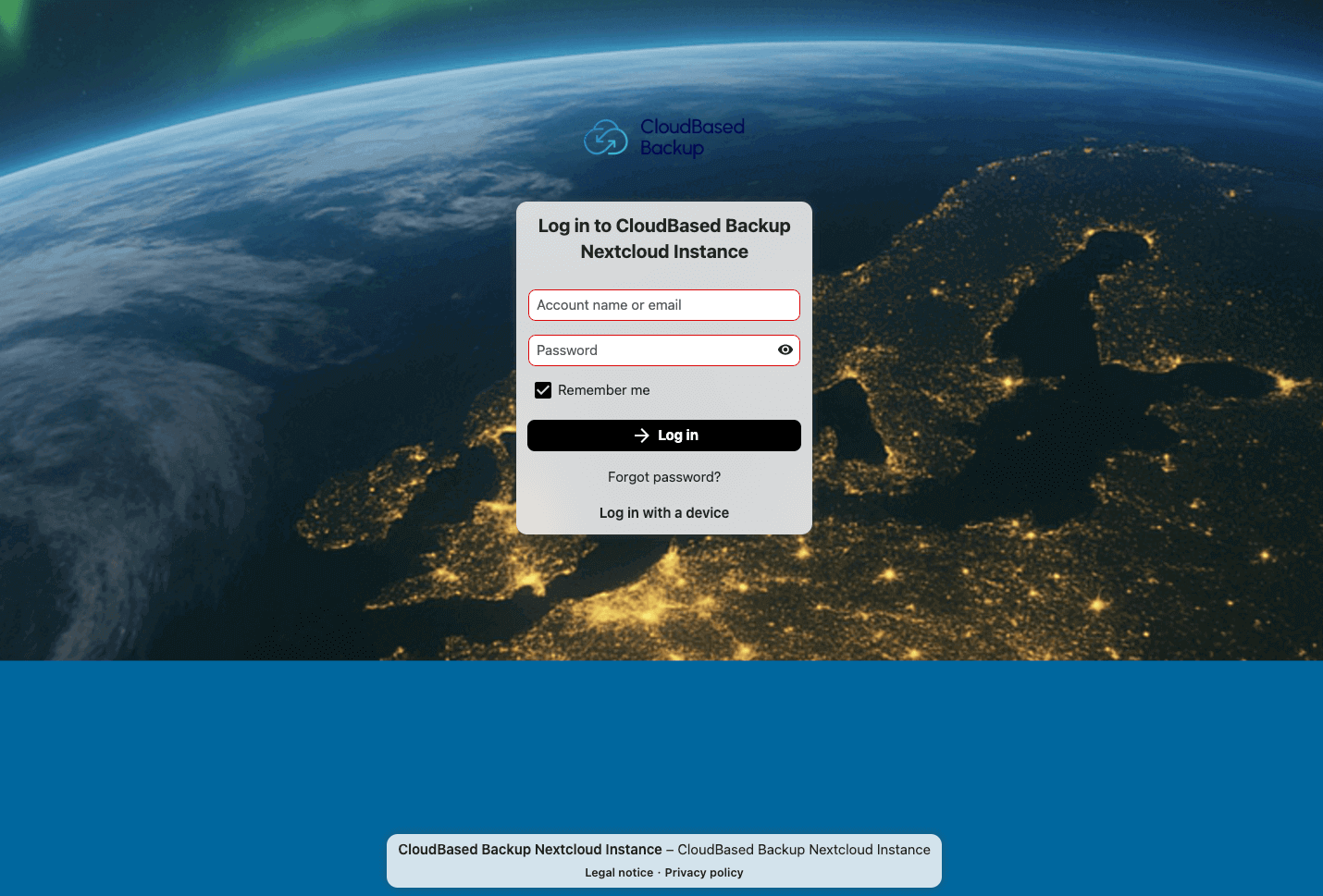
Or, for the users who are already logged in to Nextcloud in the browser, the following screen will appear:
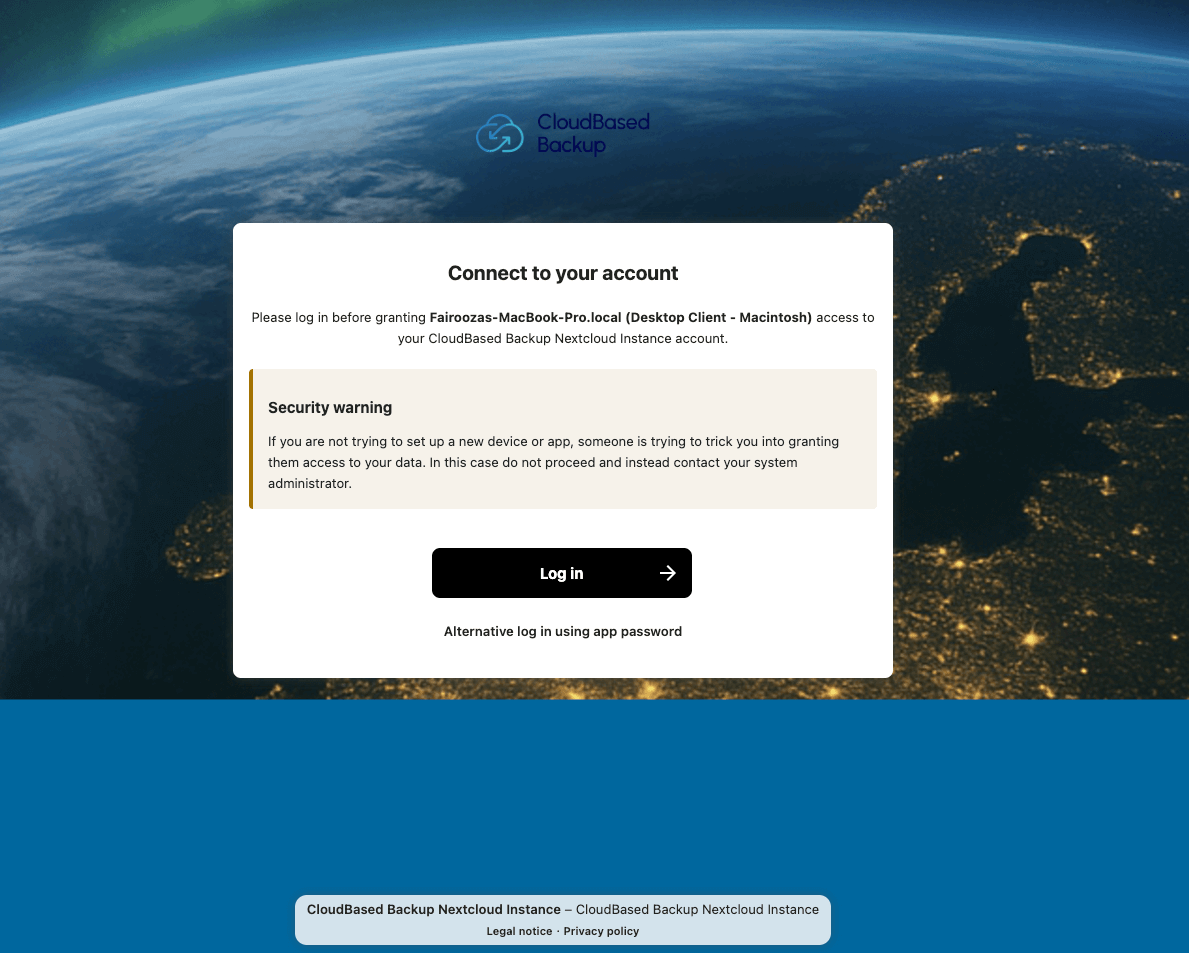
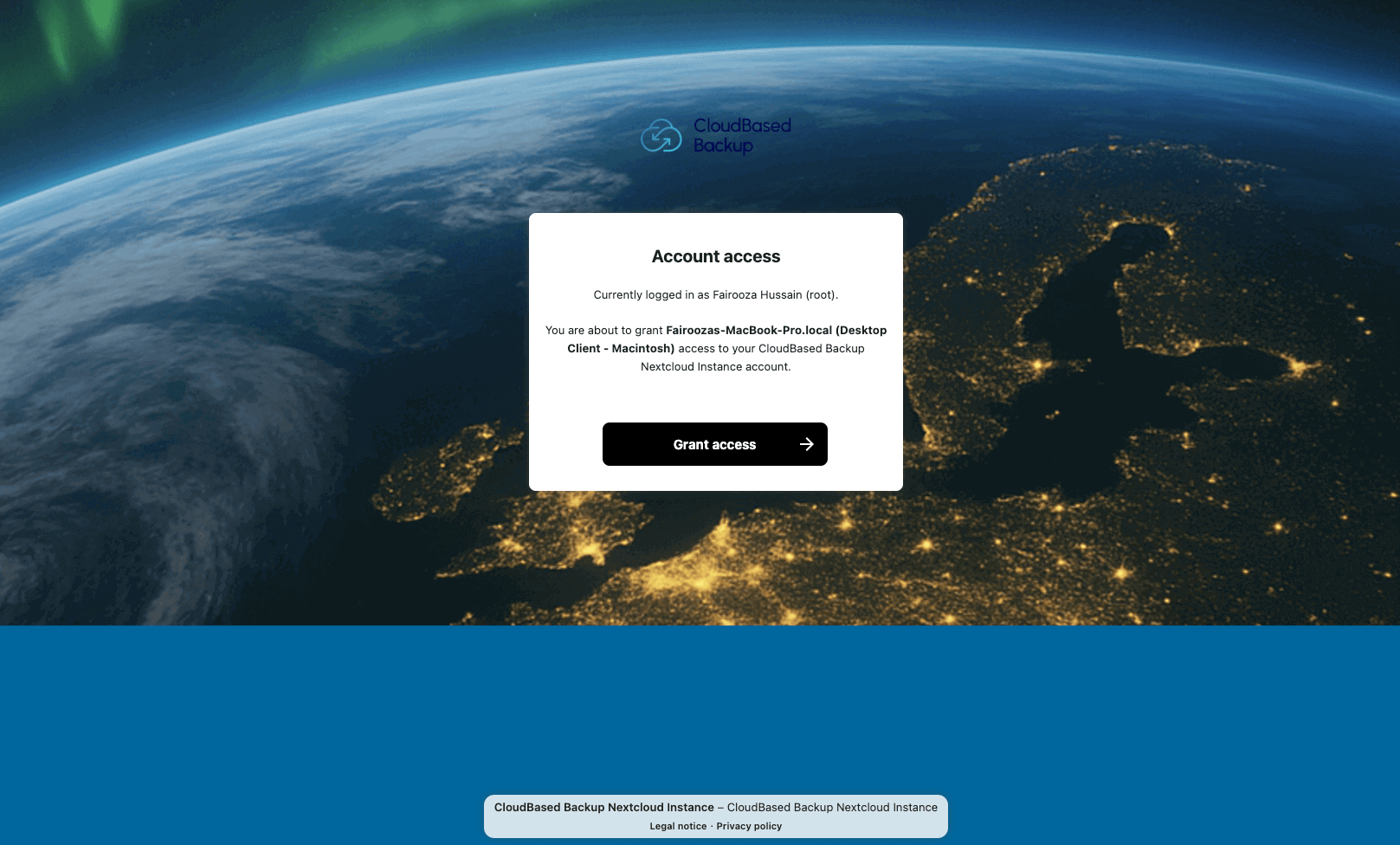
After signing in, Nextcloud shows a confirmation screen where you approve access for the desktop client. Here, click on "Grant access" to continue.
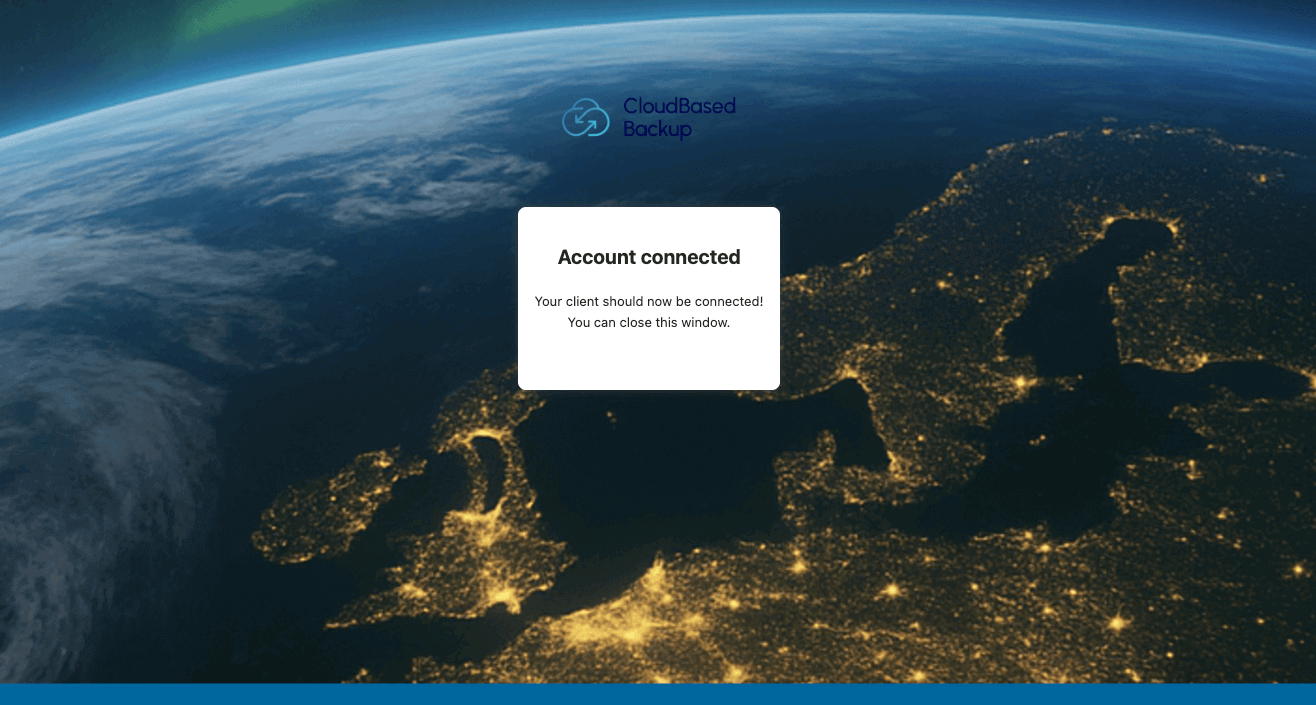
After granting access, Nextcloud confirms that the desktop client is successfully connected.
The desktop client now lets you choose the local folder and decide which files should be synchronized.
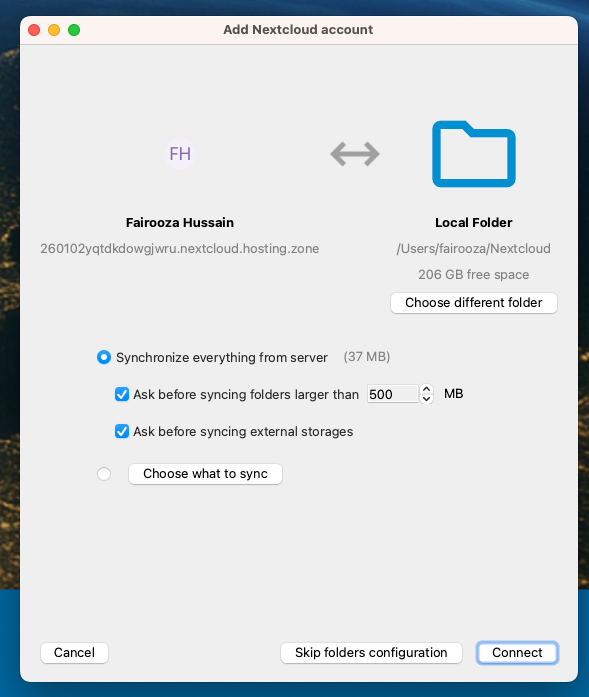
At this point, you can choose the location where Nextcloud should sync files on your computer. You can also keep the default folder or select a different location if needed.
And you can choose to be asked before syncing any large folders or external storage. Additionally, you can further limit which files and folders are synced from the cloud.
Finally, click on "Connect" and this will start syncing your files with Nextcloud.
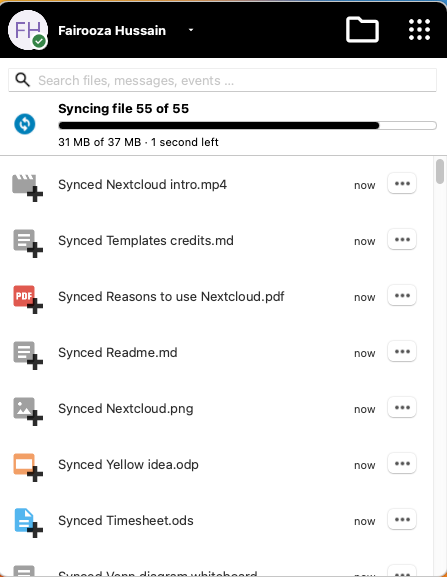
Once syncing is complete, the client looks like this.
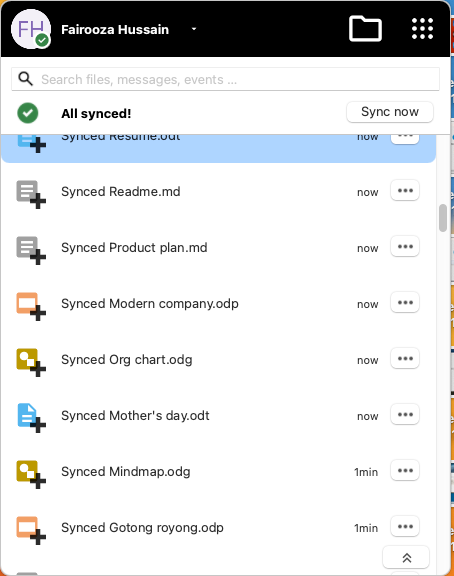
And now you can find the Nextcloud folder listed in the Finder sidebar, making it easy to access.
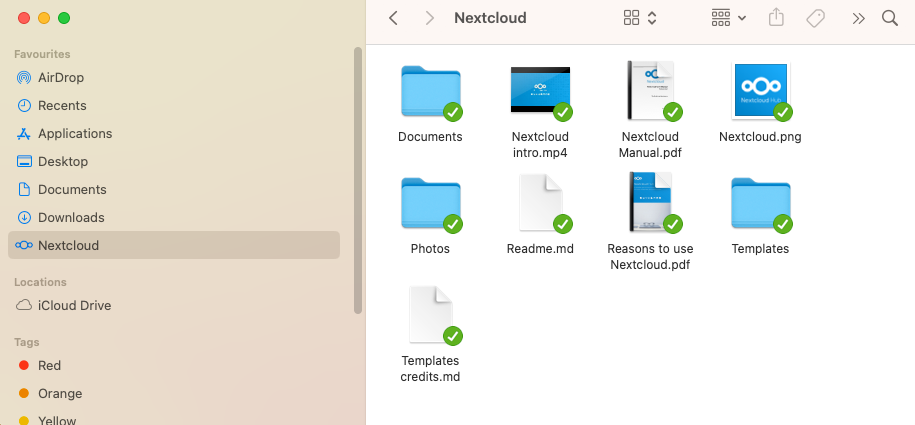
If the Nextcloud folder does not appear in the Finder sidebar, then use the "Go" menu in the menu bar and select "Home" to access it.
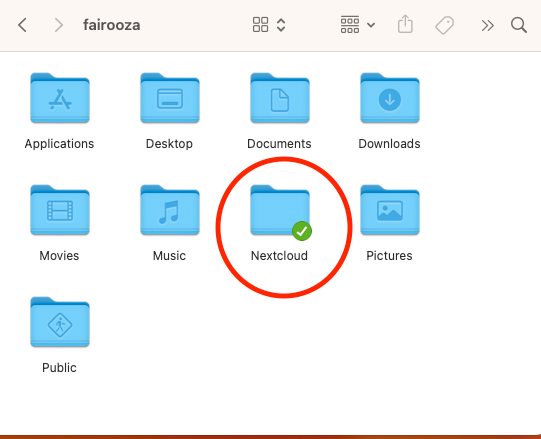
To make sure everything is working correctly, you should then compare the list of files on your computer with those in the Nextcloud web interface.
At this stage, file synchronization is fully set up. Your files will now stay in sync automatically in the background.
Even without installing the Nextcloud application, it is possible to sync calendar and contact data from macOS. Calendar entries and reminders are synchronized via CalDAV, while contacts are synchronized using CardDAV. This works independently of the Nextcloud Desktop client.
We have also explained how to sync Nextcloud calendars and contacts with Thunderbird using CalDAV and CardDAV.
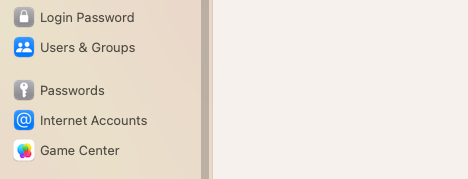
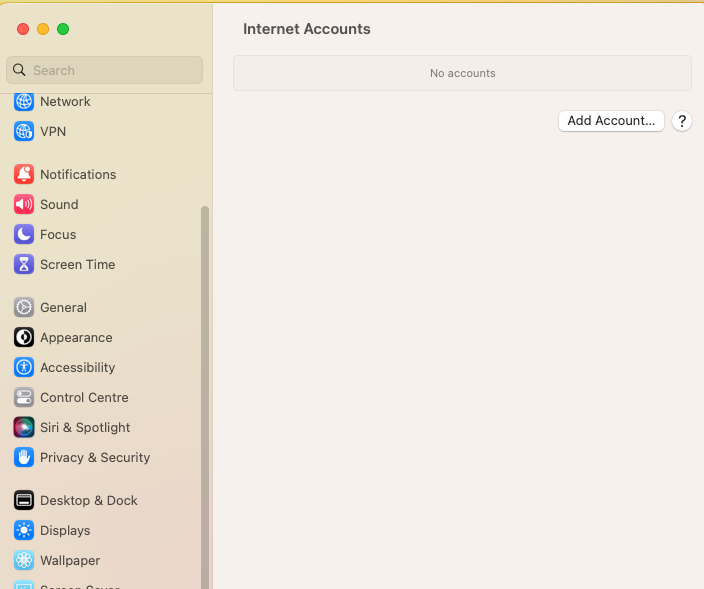
To set this up, open "System Settings" and navigate to "Internet Accounts" on your macOs device.
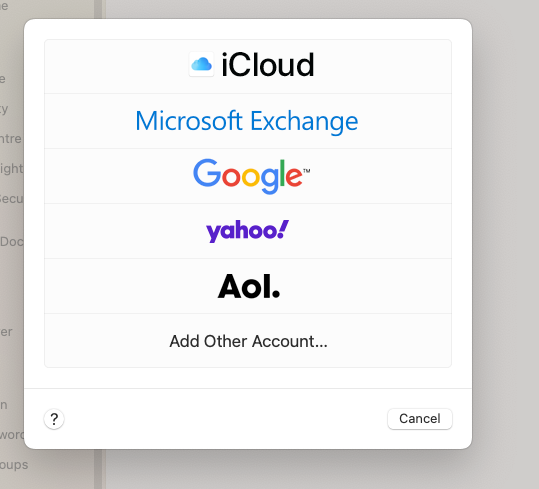
Now click on "Add Account..."
Then select the "Add Other Account...".
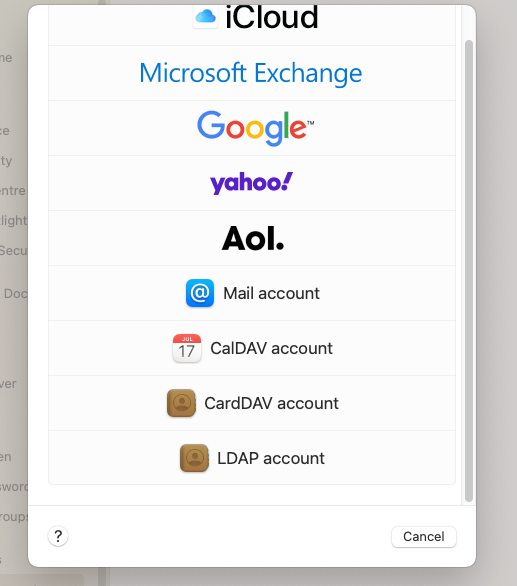
Here, select the "CardDAV account".
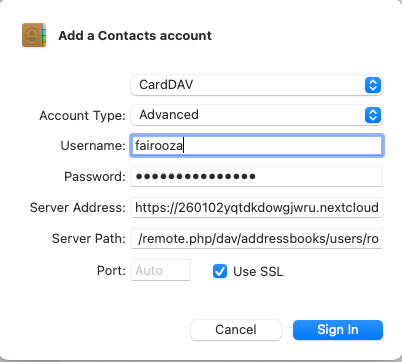
Then a form will appear:
Once this is done, now go back to the following view:
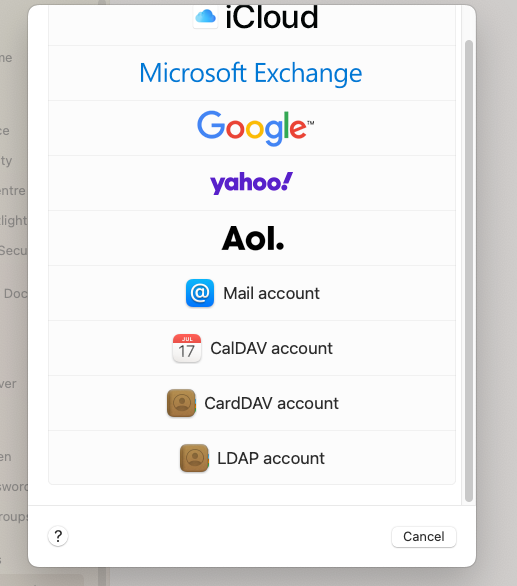
Select the option "CalDAV account" here.
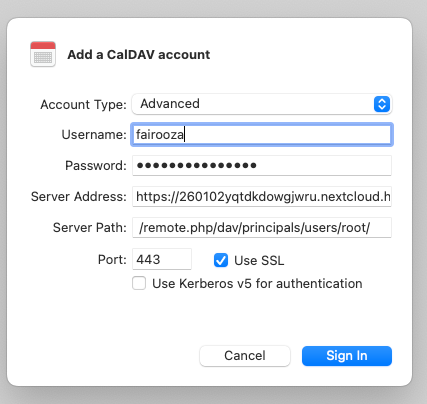
Now, click "Sign In" and you will be asked what you want to sync. And it’s best to enable both calendars and reminders so that everything stays in sync.
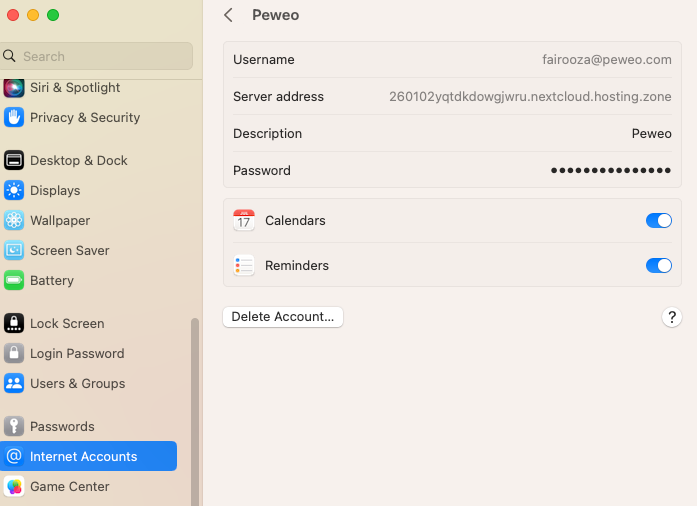
Finally, open the Calendar app and make sure everything is syncing correctly by comparing the events on your Mac with those shown in the Nextcloud web interface.
8 Min. Lesezeit · 29.09.2026
9 Min. Lesezeit · 23.09.2026
5 Min. Lesezeit · 14.09.2026
Gehostet in
Deutschland
4,3auf G2