How to Connect AI Tools to Nextcloud with MCP
6 min read · 12.10.2026
Our Blog / what-is-nextcloud-deck-kanban-project-management-in-nextcloud
← Back to overview
Nextcloud Deck is a built-in project management app inside Nextcloud that uses a Kanban-style approach to organize work visually. It allows teams to manage tasks, track progress, and collaborate without relying on external SaaS tools like Trello or Asana.
Instead of using separate tools for tasks, files, and communication, everything stays connected in one place. This reduces the need to switch between platforms and helps teams keep their work organized.
This guide explains how Nextcloud Deck works, how teams use it in practice, and whether it can replace traditional project management tools.
Nextcloud Deck is a Kanban-style project management app designed for task organization and team collaboration inside Nextcloud.
At a basic level, it lets you create visual boards where work is organized into stages. But it goes beyond simple to-do lists. Deck is built for managing workflows, assigning responsibilities, and tracking progress across a team.
The structure is simple.
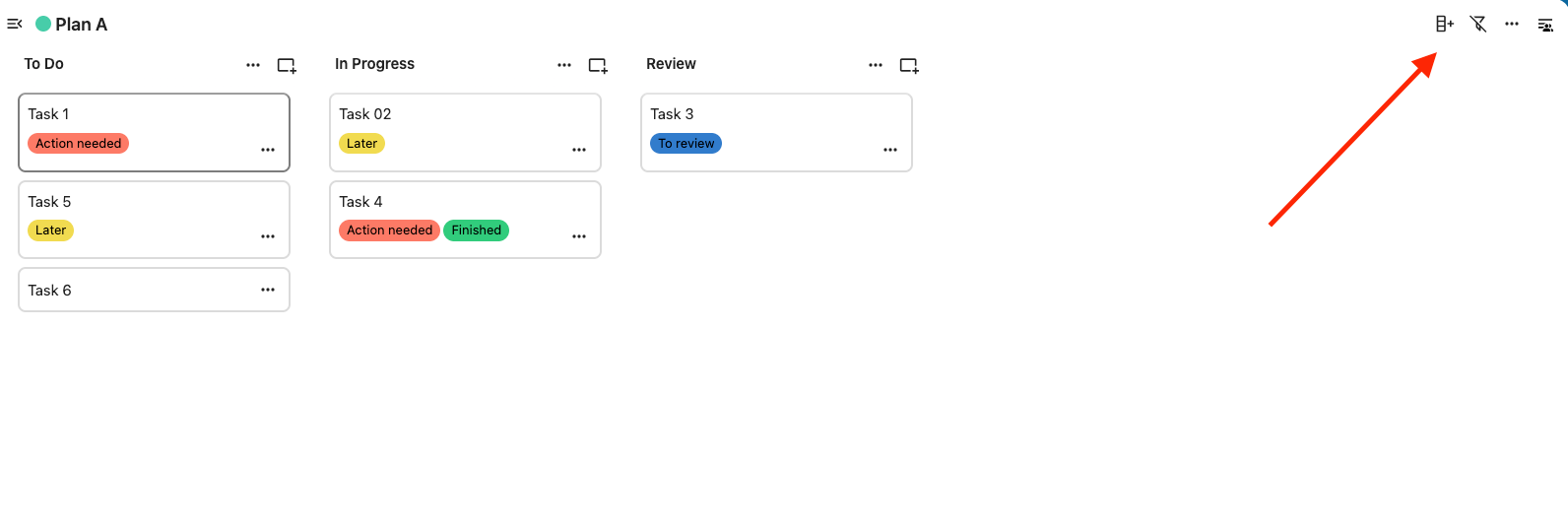
A board represents a project or area of work. Inside that board, you create lists, which act as stages in your workflow. These are often named things like To Do, In Progress, and Done. Within each list, you create cards, which represent individual tasks.
This structure comes from the Kanban method, which focuses on visualizing work and moving tasks through different stages rather than planning everything around rigid timelines. It is especially useful for teams that want flexibility and clarity at a glance.
Using Deck starts with creating a board. This could represent anything from a marketing campaign to a product launch or internal operations.
Once the board is created, you define your workflow by adding lists. A simple setup might include To Do, In Progress, and Done, but teams often customize this based on how they work.
Tasks are added as cards inside these lists. Each card is more than just a title. It acts as a central place for all task-related information. You can assign users to a card so the responsibility is clear. Due dates help track deadlines and keep work on schedule. Labels can be added to categorize or prioritize tasks.
Each card also supports detailed descriptions, often written in Markdown, which makes it easy to add structured notes. Teams can discuss tasks directly through comments, reducing the need for separate conversations in chat tools.
Attachments allow you to link or upload files directly from Nextcloud, so everything related to a task stays connected. Checklists can be used to break larger tasks into smaller steps.
As work progresses, cards are moved from one list to another. This simple action gives everyone a clear, real-time view of what is being worked on, what is blocked, and what is completed.
There is also an activity stream and timeline that helps teams track changes and understand how tasks evolve over time.
Deck uses a visual board system where tasks move across columns that represent different stages of work. This makes it easy to understand progress without digging through reports or spreadsheets.
Each task lives inside a card that can include descriptions, due dates, labels, attachments, and comments. Instead of scattering information across tools, everything related to a task is stored in one place.
Deck is designed for shared work. You can assign tasks to team members, mention users in comments, and collaborate directly within the board. This reduces back-and-forth communication and keeps discussions tied to the work itself.
One of Deck’s biggest strengths is how it connects with the rest of Nextcloud. Files can be attached directly from storage. Conversations can be linked. Tasks with deadlines can appear in calendars. This creates a more connected workflow compared to standalone tools.
Because Deck runs inside Nextcloud, it inherits its privacy model. You can use it in a self-hosted setup or through a managed environment. Either way, your data stays under your control rather than being stored in third-party SaaS platforms.
This combination of visual task management and integration makes Nextcloud Deck more than just a Kanban board. It becomes part of a system where work stays connected and easier to manage.
Using Nextcloud Deck starts from a very simple place. When you open the app, you’ll see all your boards listed on the left side. This is where every project begins.
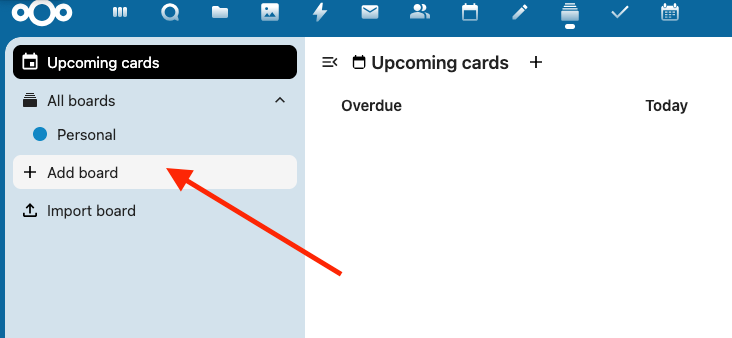
To create a new project, click on “Add board” and enter a name. Once created, the board appears in the sidebar and can be opened instantly. A newly created board is empty, so the next step is to define how your workflow will look.
Deck prompts you to create your first list. Lists represent stages of work. You can start with something simple, like To Do, In Progress, and Done, or customize it based on your process. Once you add a list, you can continue adding more to reflect your workflow.
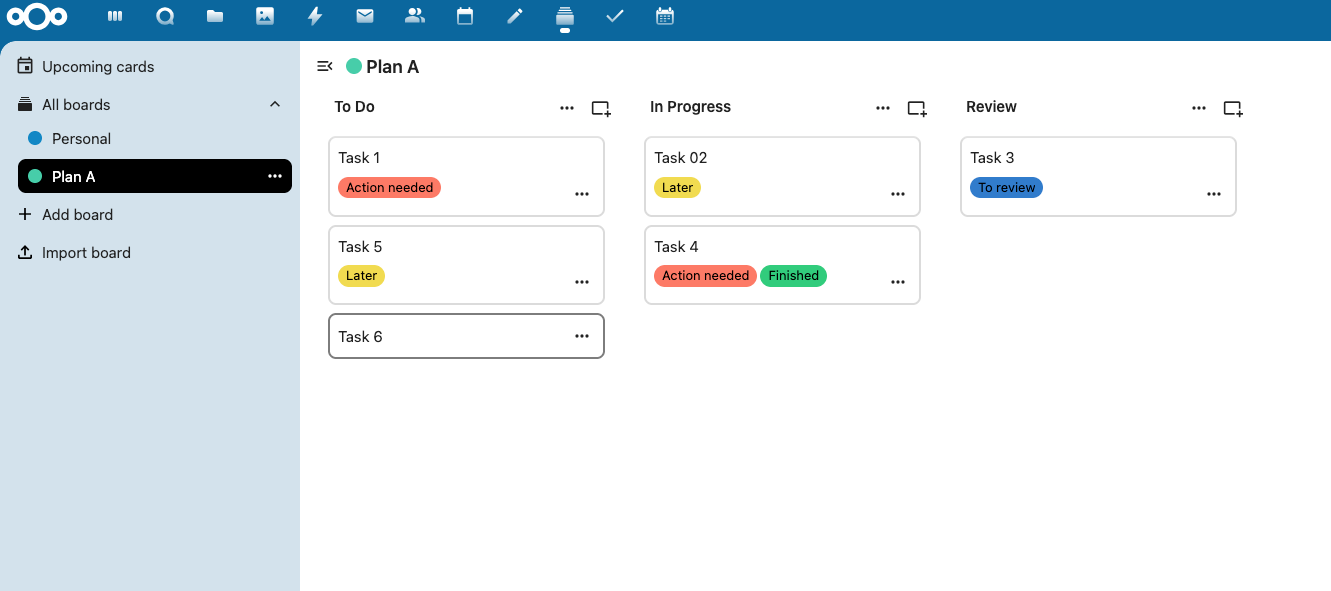
Tasks are created as cards inside these lists. Adding a card is quick. You simply enter a task name under a list and save it. At this stage, it’s just a basic task, but clicking on it opens a much more detailed view.
Inside a card, you can add everything related to that task. You can assign it to team members, set a due date, and organize it with labels such as “Action needed” or “To review.” The description field supports structured writing, making it easy to add notes, instructions, or context.
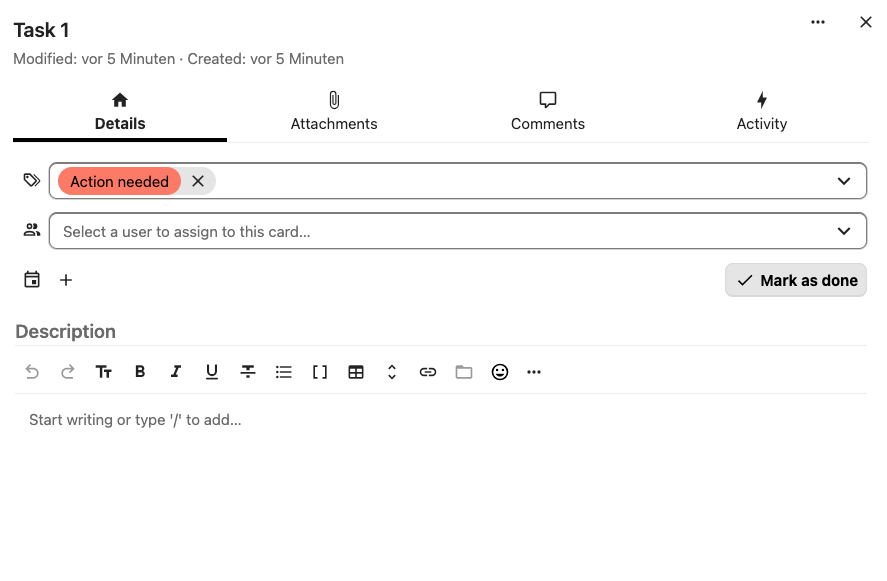
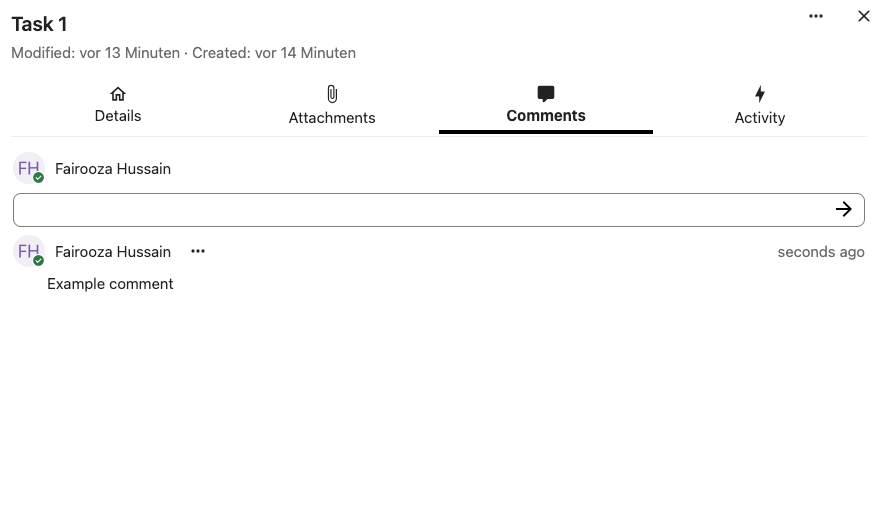
Deck also keeps collaboration close to the task. Each card has a comment section where team members can discuss progress or share updates. Instead of switching to another tool, conversations stay tied to the work itself.
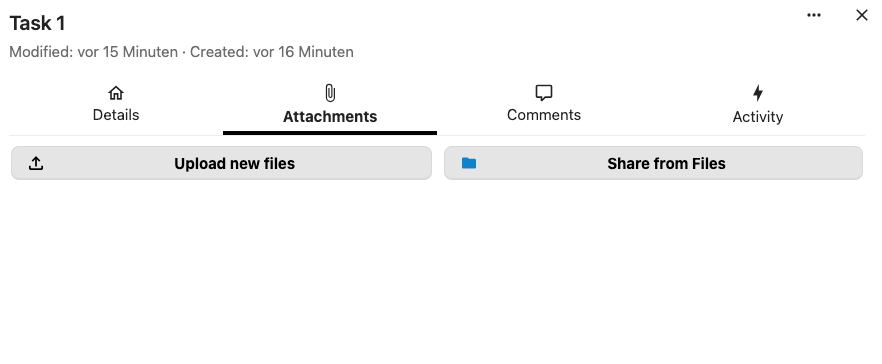
Files can be attached directly from your Nextcloud storage. This makes it easy to link documents, images, or other resources without leaving the platform. Everything stays connected in one place.
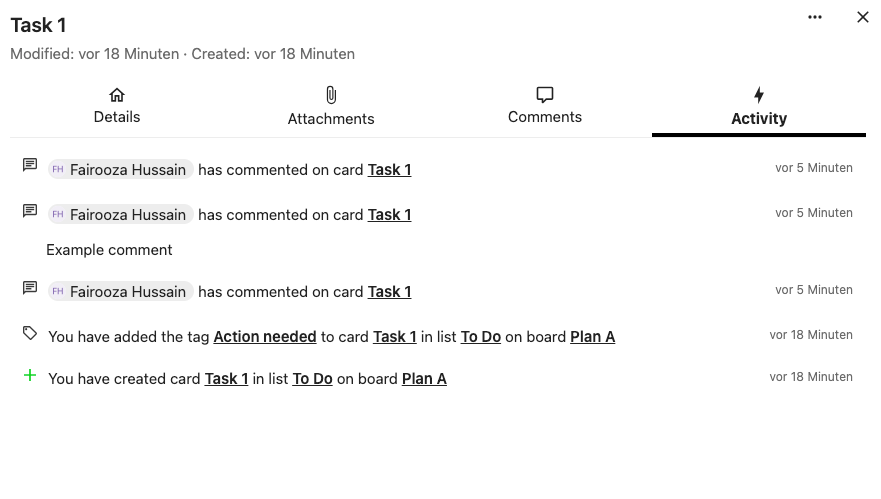
Each card also includes an activity view, which shows what has changed over time. This helps teams stay informed and track updates without confusion.
As work moves forward, tasks are simply dragged from one list to another. For example, a card might move from To Do to In Progress, then to Done. This movement gives a clear visual understanding of progress without needing reports or dashboards.
Once you start using Deck this way, it becomes more than just a task board. It turns into a central workspace where planning, execution, and collaboration all happen together.
Beyond basic task management, Deck also includes controls that help you organize and filter your work more effectively. From the top-right area of the board, you can filter tasks by tags, assigned users, status, or due dates. This becomes especially useful as your board grows and you need to focus on specific tasks.
You can also adjust how cards are displayed, switch to a more compact view, or show additional details like cover images. Archived cards can be accessed when needed, keeping your active board clean without losing past work.
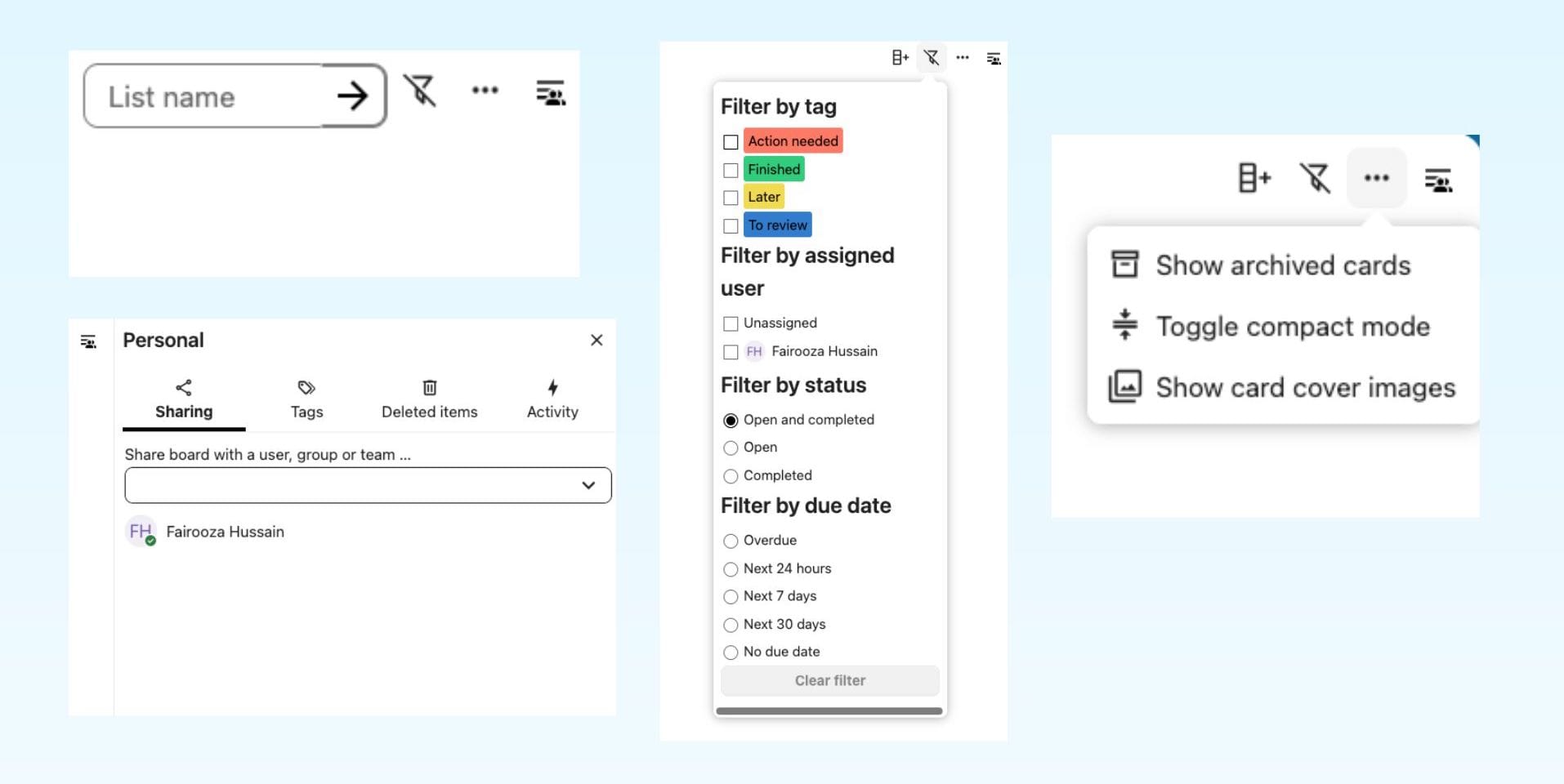
Board-level settings allow you to manage collaboration more closely. You can share the board with users or groups, define tags, and review activity across the project. These controls don’t change how tasks are created, but they make it easier to manage larger workflows and teams.
To see where Deck really fits, imagine a small team managing a website project.
They start with a single board that represents the entire project. Instead of creating separate tools for tasks, files, and communication, everything is handled inside this board.
The team sets up columns that match their workflow. Tasks move from planning to execution, then review, and finally completion. Each task is created as a card and assigned to the right person, so ownership is always clear.
When someone starts working on a task, they don’t need to search for files or context. Designs, documents, and notes are already attached to the card. If something needs clarification, the discussion happens directly inside the task.
As work progresses, cards move across the board. At any moment, the team can see what is pending, what is active, and what is finished without asking for updates.
This is where Deck becomes more than a task tool. It brings work, communication, and files into one place, which is something most standalone project management tools cannot fully achieve.
Nextcloud Deck works best in environments where teams need a clear, shared view of work without relying on multiple tools. Its flexibility makes it suitable for different types of workflows, especially when collaboration and visibility are important.
For project planning, Deck provides a simple way to break down work into manageable steps. Teams can track progress visually and adjust priorities without rebuilding complex plans.
Content and editorial teams often use Deck to manage publishing workflows. Articles can move from idea to draft, then to review and publication, while keeping all related files and discussions in one place.
In marketing campaigns, Deck helps organize tasks across different channels. From planning creatives to tracking approvals, everything can be structured within a single board instead of scattered across tools.
IT and support teams can use Deck to manage internal requests or ongoing tasks. Issues can be tracked, assigned, and resolved while maintaining a clear history of updates and actions.
For internal team coordination, Deck becomes a shared workspace where everyone can see what others are working on. This reduces the need for constant check-ins and status updates.
It also works well for onboarding processes. New employee tasks, documentation, and progress tracking can be organized step by step, making the process more structured and easier to manage.
To better understand where Nextcloud Deck fits, it helps to compare it with other commonly used tools.
Trello is one of the most widely used Kanban tools and follows a simple structure of boards, lists, and cards. Nextcloud Deck uses the same model, so the basic experience feels familiar.
The difference is not in the concept, but in how each tool is built and where your data lives.
Trello is a cloud-based SaaS platform where your tasks, files, and project data are stored on Atlassian’s servers. It offers a polished interface, strong automation features, and a large ecosystem of integrations.
Nextcloud Deck runs inside your Nextcloud environment. Your boards, tasks, and files stay within your own infrastructure or managed hosting setup, giving you full control over your data.
This difference becomes more noticeable when you look at how both tools handle everyday work.
In Trello, files can be uploaded directly to cards or connected through external integrations. In Deck, files are attached directly from your Nextcloud storage, which keeps everything linked to a single source.
Deadlines in Deck can also integrate naturally with your Nextcloud calendar, while communication can stay connected through built-in collaboration tools. This creates a more unified workflow compared to using separate services.
Trello still has advantages in terms of user experience and advanced features. Its interface is more refined, and it offers stronger automation and additional views in its paid plans.
Deck is more focused on simplicity and integration. It works well for teams that want visual task management without relying on multiple tools, especially when privacy and data control are important.
For teams already using Nextcloud, Deck can replace the need for a separate project management tool by bringing tasks, files, and collaboration into a single environment.
Nextcloud Deck and Nextcloud Tasks are both designed to manage work inside Nextcloud, but they serve very different purposes.
Nextcloud Tasks is built for simple task management. It works like a structured to-do list where you can create tasks, add descriptions, set start and due dates, and mark items as important. Tasks can also be shared with other users and synced across devices using CalDAV, which allows integration with apps like Thunderbird, mobile task apps, and calendar clients.
Because Tasks is tied closely to the calendar system, each task list behaves like a calendar. This makes it useful for tracking deadlines, recurring tasks, and personal or team to-do lists across different devices.
Nextcloud Deck, on the other hand, is designed for visual project management. Instead of a list-based structure, it uses boards, columns, and cards to represent workflows. Tasks are not just items to complete, but part of a process that moves through different stages.
This difference becomes clear when managing team work.
Tasks works well when you need a simple way to track responsibilities or deadlines. It is suitable for personal task management, lightweight team use, or scenarios where tasks need to sync across devices and external apps.
Deck is better suited for collaborative workflows. It allows teams to organize work visually, assign tasks, attach files, and track progress across multiple stages. Instead of just listing tasks, it shows how work is moving forward.
Another key difference is how each tool is used within the Nextcloud environment.
Tasks is designed to work across different devices and applications, making it a flexible option for users who rely on external task managers or calendar-based workflows.
Deck stays more contained within Nextcloud itself. It connects closely with files, discussions, and project workflows, making it more suitable for teams working together in a shared environment.
In practice, the two tools are not competing but complementary.
Tasks is useful for managing individual responsibilities and simple lists. Deck is designed for managing projects and team workflows where visibility and collaboration are more important.
Nextcloud Deck works best when your goal is to keep project work simple, visible, and connected. It is designed as a Kanban-style tool, not a full project management system, and that distinction matters.
For many teams, this is exactly what they need.
Deck makes sense when you want to track work through a defined workflow. If your process follows stages like planning, execution, review, and completion, the board structure fits naturally. It allows teams to see progress at a glance without relying on reports or dashboards.
It is also a strong fit for small to mid-sized teams managing multiple projects. Tasks can be assigned, deadlines can be set, and work can be organized without adding unnecessary complexity. In many cases, this covers everything teams actually use in larger project management tools.
Another practical advantage is keeping everything in one place. Tasks, files, and communication stay connected within the same environment. This reduces the need to switch between tools and helps teams stay focused on the work itself.
Deck is also suitable for teams that want to avoid per-user costs for basic task management. Since it is part of Nextcloud, it provides project organization without requiring an additional subscription.
At the same time, Deck has clear limitations, and understanding them is important before relying on it for larger or more complex projects.
It does not provide timeline views or Gantt charts, which are often required for planning projects with strict deadlines or dependencies. There is no built-in way to manage task dependencies, so workflows that rely on sequential execution may be harder to organize.
It also lacks advanced reporting and resource management features. You won’t find workload distribution views, performance dashboards, or detailed analytics that are common in dedicated project management platforms.
For teams that need structured planning, cross-project visibility, or detailed tracking, a more advanced tool may be required. This is especially true for larger organizations or workflows that depend on precise coordination across multiple teams.
Using Nextcloud Deck requires a working Nextcloud environment, which typically involves setting up a server, managing updates, and handling security and backups.
For teams with technical resources, self-hosting can work well. However, it also comes with ongoing maintenance and responsibility.
An alternative is using a managed Nextcloud setup, where the infrastructure, updates, and security are handled for you. This allows teams to focus on using tools like Deck without dealing with server management.
For teams that want to use Nextcloud Deck without the operational overhead, this approach can simplify adoption and reduce long-term complexity.
6 min read · 12.10.2026
8 min read · 29.09.2026
9 min read · 22.09.2026
Hosted in
Germany
4.3on G2