Best OneDrive Alternatives for Businesses in 2026
8 min read · 29.09.2026
Our Blog / how-to-install-nextcloud-on-ubuntu
← Back to overview
Managing your own cloud storage gives you control over your files and data privacy. Installing Nextcloud on an Ubuntu server lets you run a self-hosted cloud environment on stable, supported software. This guide covers everything from setting up your server to accessing Nextcloud in a web browser, so you can quickly deploy a secure, functional cloud solution.
Installing Nextcloud on Ubuntu via Snap offers a quick, reliable way to deploy a self-hosted cloud server with minimal manual configuration. The process involves preparing an updated Ubuntu system, ensuring the required resources are available, installing the Snap package, and accessing the instance via a web browser for initial setup. Securing the deployment with HTTPS, user management, and regular backups is required for stable, secure long-term use.
Nextcloud is a self-hosted cloud platform that puts you in full control of your data. By hosting it yourself, you avoid third-party storage limitations and reduce the risk of unauthorized access. It is compatible with a wide range of devices and supports extensions, allowing you to scale its functionality according to your needs.
Ubuntu’s Long-Term Support (LTS) releases, such as 22.04, provide stability and security updates for up to five years, ensuring your server remains secure over time. Ubuntu also has broad compatibility with common server software, straightforward package management, and extensive community support, making setup, maintenance, and troubleshooting more manageable. Self-hosting on Ubuntu gives you complete control over system configuration, storage allocation, and data privacy, which is critical for a dependable cloud solution.
For users who want a reliable Nextcloud environment without managing the server themselves, at Cloud Based Backup, we provide fully managed Nextcloud hosting. We handle setup, maintenance, and automatic backups while giving you full control over files, user permissions, and collaboration. This allows you to focus on using your cloud safely and efficiently, with secure access from any device and GDPR-compliant data protection.
Minimum Requirements
Recommended for larger setups
Server Setup
Optional
Begin by connecting to your Ubuntu server using SSH:
ssh root@YOUR_SERVER_IP
This grants access to your server terminal, where you’ll execute all subsequent commands. SSH access is essential for secure remote administration.
Before installing Nextcloud, update your system to avoid conflicts and security issues:
sudo apt update && sudo apt -y upgrade
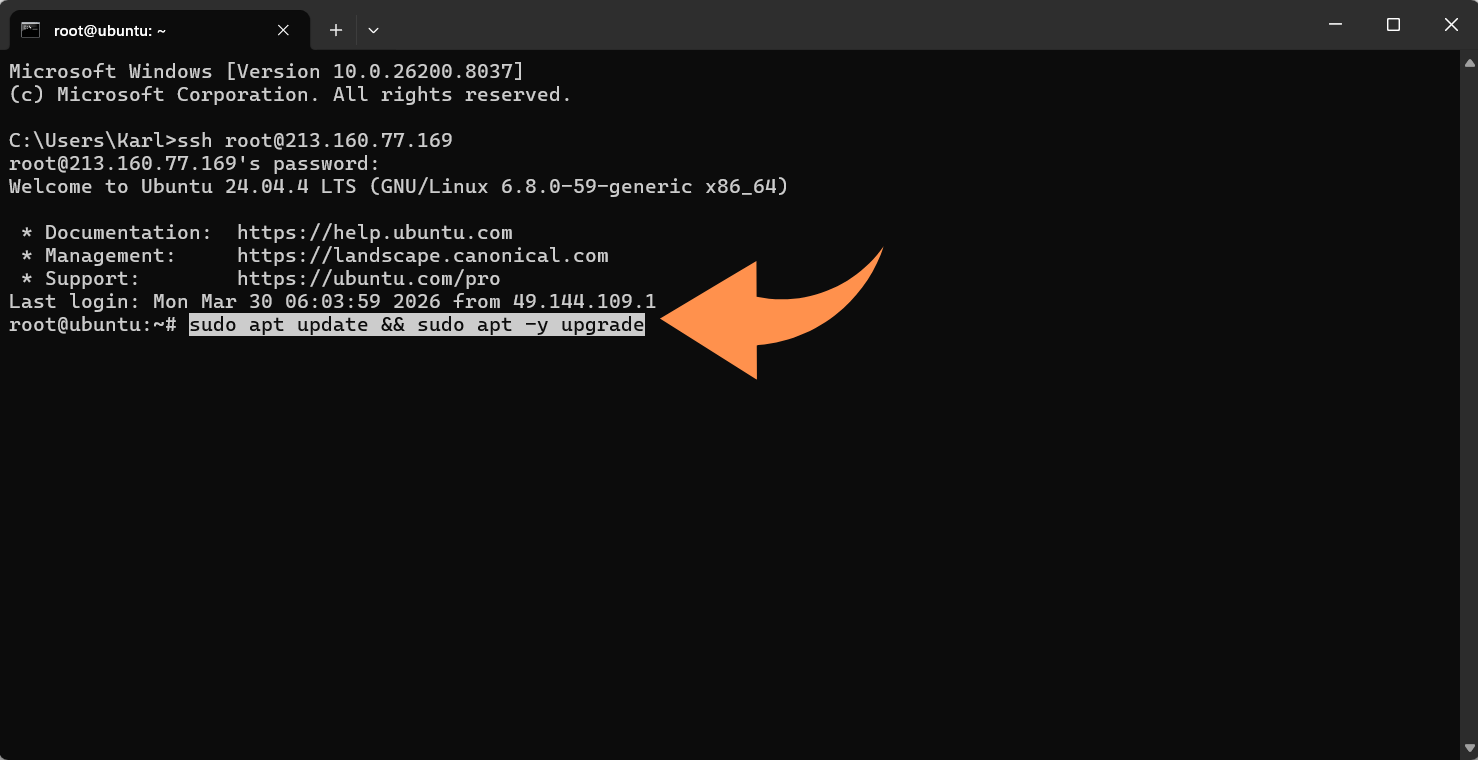
Keeping your packages up to date reduces the risk of dependency errors and ensures the server is secure.
Snap is the recommended method for installing Nextcloud on Ubuntu. Install it with:
sudo apt -y install snapd
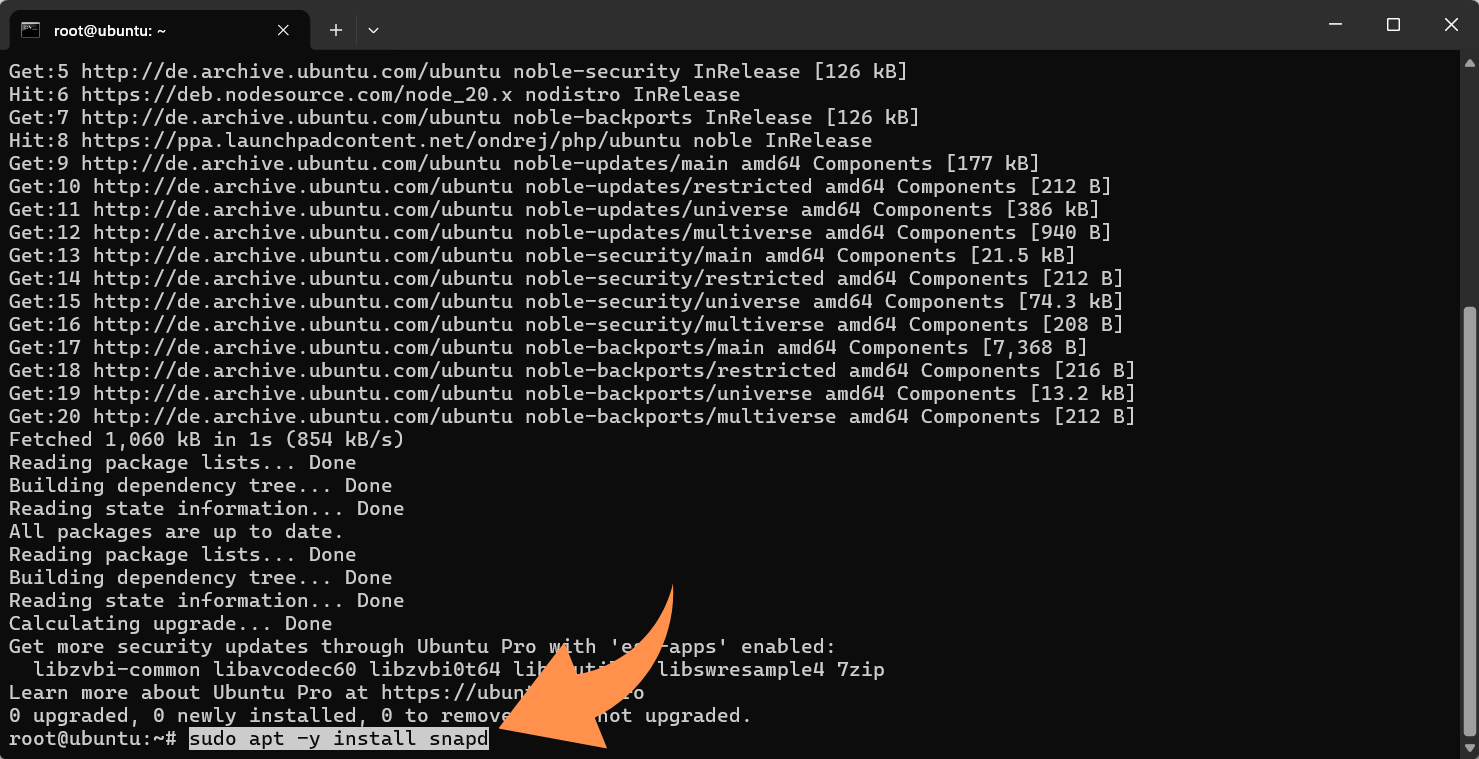
Snap simplifies the process by automatically managing services, dependencies, and updates.
Nextcloud requires HTTP and HTTPS access. Open the necessary firewall ports:
sudo ufw allow OpenSSH sudo ufw allow 80,443/tcp sudo ufw enable sudo ufw status
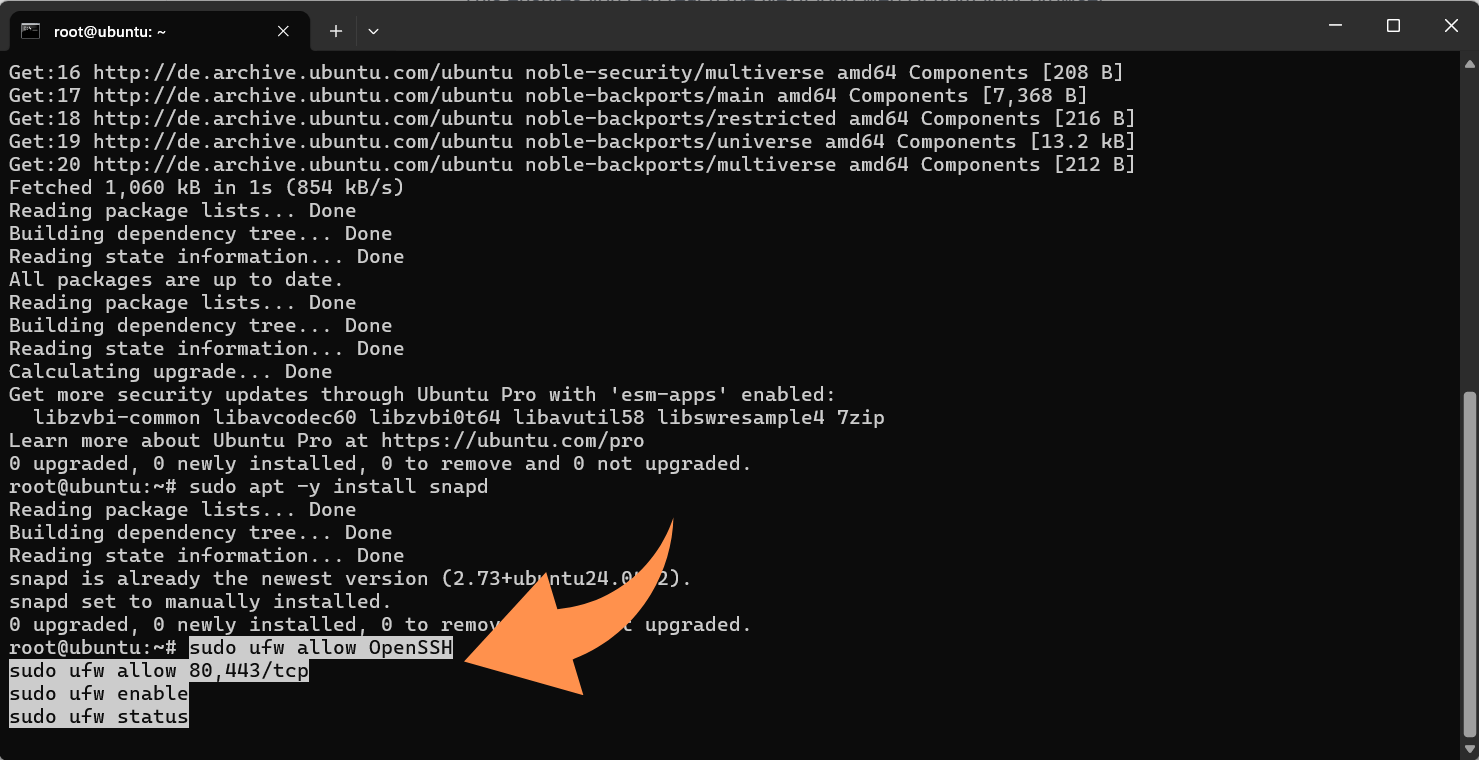
This ensures you can access the Nextcloud web interface while keeping your server secure.
Install Nextcloud with a single command:
sudo snap install nextcloud
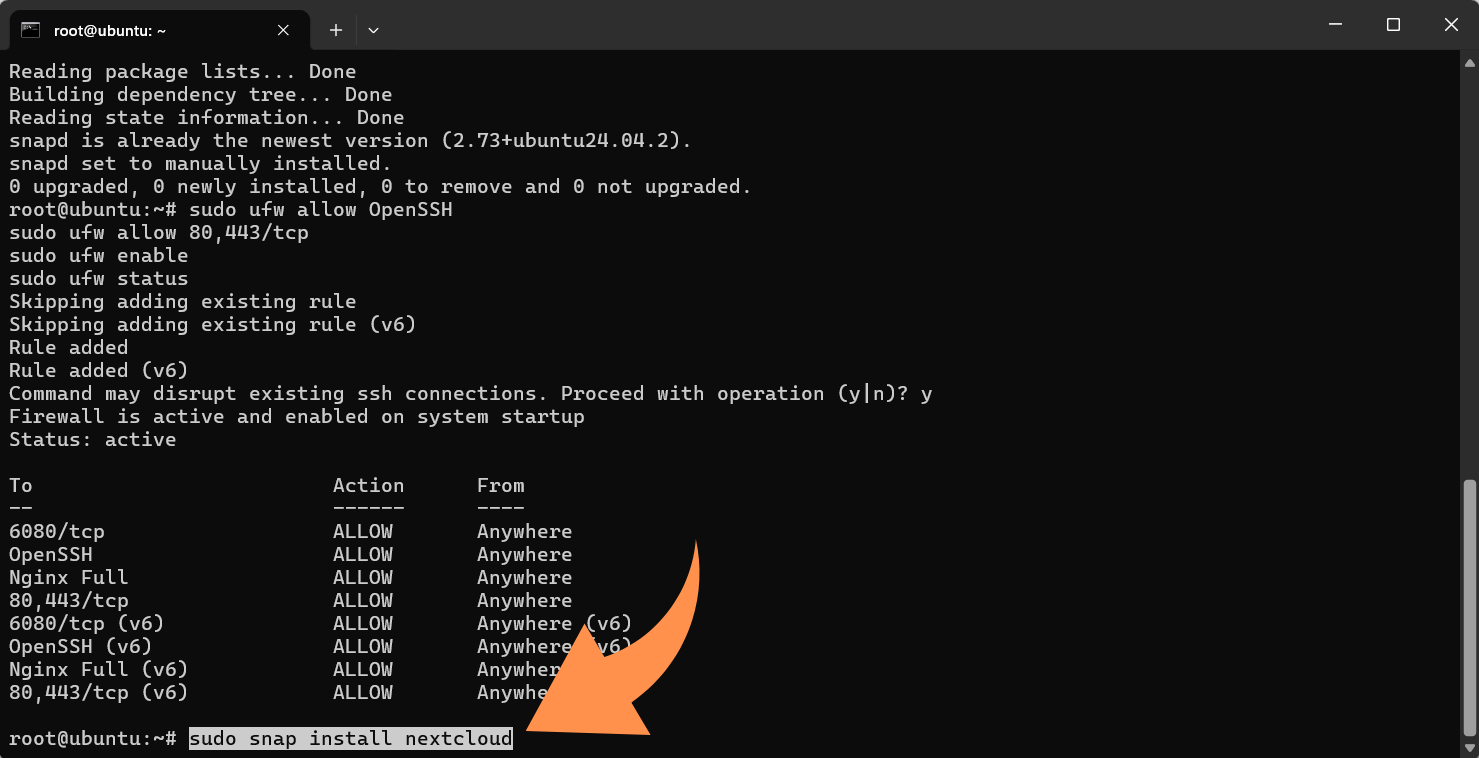
Snap automatically downloads Nextcloud, configures services, and starts them.
Open a web browser and navigate to:
http://YOUR_SERVER_IP
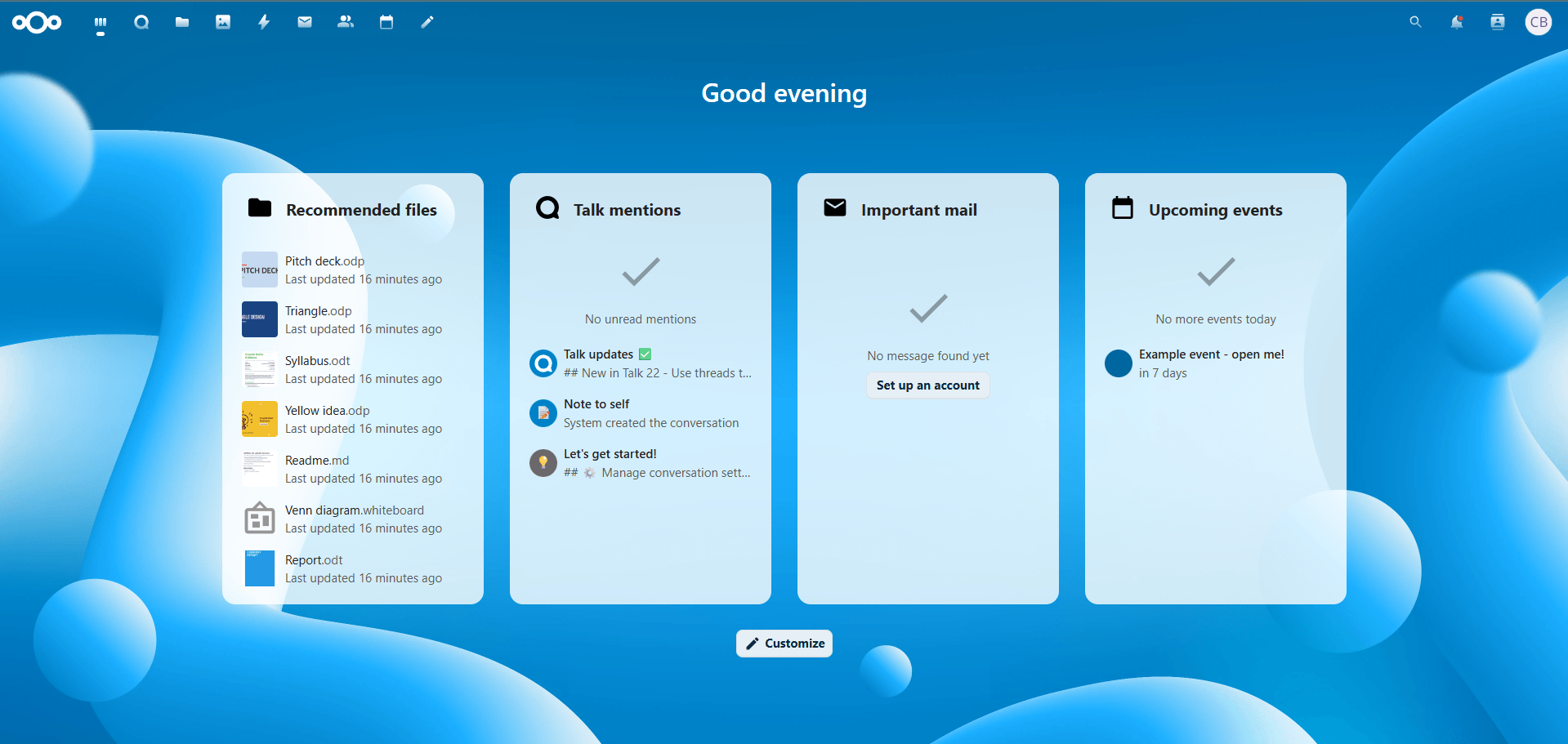
You should see the Nextcloud setup screen prompting you to create an admin account. If the page doesn’t load, verify firewall settings and server connectivity.
On the setup page, provide:
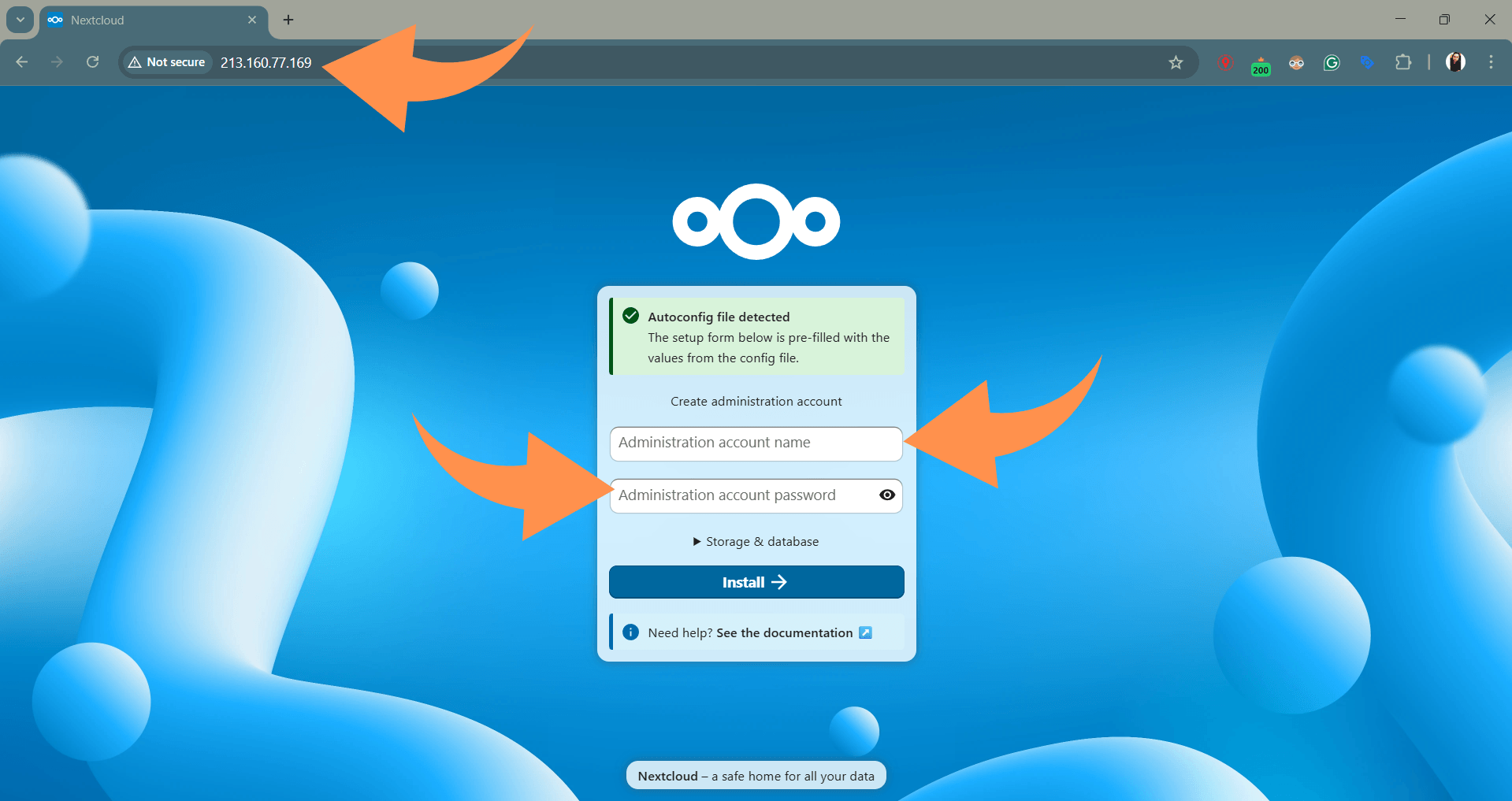
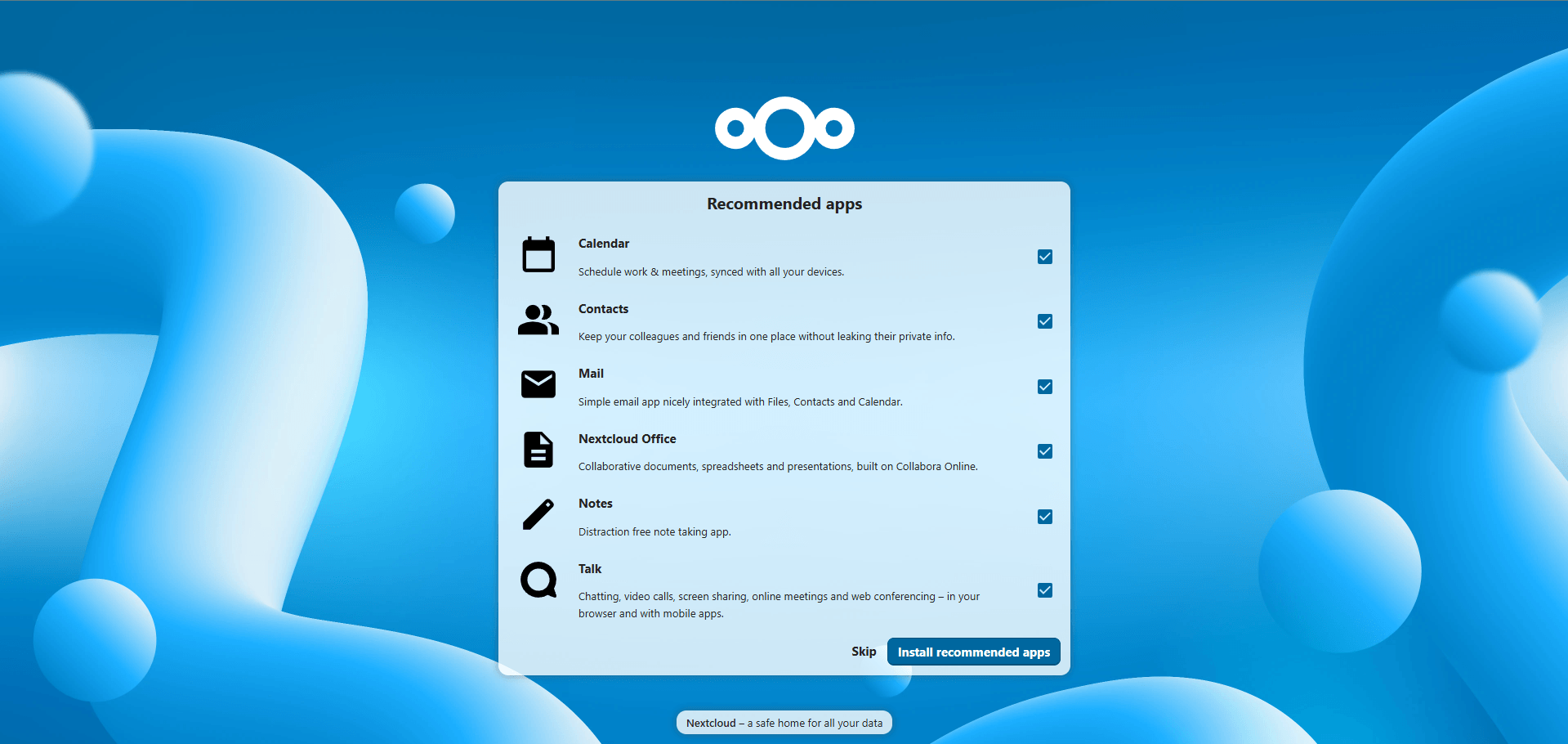
Once submitted, Nextcloud will initialize, and you’ll be able to log in and start using your cloud server.
The manual installation method involves setting up a full web server stack, typically using Apache or Nginx, a database such as MariaDB or PostgreSQL, and PHP with the required extensions. This approach provides complete control over the Nextcloud server setup, making it ideal for advanced users or production environments where customization is necessary.
With this method, you manually download the latest Nextcloud release, configure the web server, set up database credentials, and manage file permissions. It also allows fine-tuning of performance settings, caching mechanisms, and security configurations. However, it requires a deeper understanding of server administration and ongoing maintenance, including updates and backups.
Nextcloud All-in-One (AIO) is a modern deployment method that uses Docker containers to simplify installation and management. It bundles all required services, such as the web server, database, and caching, into a single, orchestrated environment.
This method is ideal for users who prefer containerized applications and want a balance between simplicity and flexibility. It reduces manual configuration while still allowing scalability and easier updates compared to traditional installations.
After installation, there are a few steps to ensure your Nextcloud instance is secure and performant:
Enable HTTPS with Let’s Encrypt to encrypt data in transit. Consider using Fail2ban to protect against brute-force attacks.
Enable caching with Redis or APCu, and optimize PHP and database settings to improve performance, especially for larger deployments.
Regularly update your system and Nextcloud Snap package. Set up periodic backups to prevent data loss.
Install Nextcloud apps, manage users, and expand storage as needed. These practices ensure your cloud server is both functional and reliable.
Installing Nextcloud on Ubuntu via Snap provides a practical way to run your own cloud service without relying on external providers. At this point, your server is not just set up, it’s ready to handle real usage, whether that’s personal file storage or team-based access.
To get the most out of your setup, focus on securing your instance with HTTPS, organizing users and permissions, and establishing a reliable backup process. As your usage grows, you can expand storage, monitor performance, and fine-tune your configuration to match your needs. A properly maintained Nextcloud deployment on Ubuntu can serve as a stable, long-term solution for managing and protecting your data.
8 min read · 29.09.2026
9 min read · 22.09.2026
5 min read · 14.09.2026
Hosted in
Germany
4.3on G2