Best Egnyte Alternatives in 2026
8 min read · 22.09.2026
Our Blog / how-to-set-up-nextcloud-mail-with-gmail-and-email-accounts
← Back to overview
Setting up Nextcloud Mail is usually much easier than people expect. Many users initially think Nextcloud Mail replaces Gmail or Outlook entirely, but that is not really how it works. Instead, it acts as a centralized email client inside your Nextcloud environment, allowing you to manage existing email accounts from one place while keeping communication connected with files, calendars, contacts, and the rest of your workspace.
Most setups only take a few minutes, especially when using providers like Gmail, Outlook, or Microsoft 365. The real difference appears after the setup is complete. Email no longer feels disconnected from the rest of your workflow. Attachments can be pulled directly from storage, meeting invites sync into calendars more naturally, and communication becomes part of the same environment where teams already collaborate daily.
In this guide, we will walk through the Nextcloud Mail setup process step by step, including how to connect Gmail and other email accounts, configure manual mail settings when needed, and get everything working properly within your Nextcloud environment.
Before setting up Nextcloud Mail, it helps to have a few things ready in advance. Having the correct account credentials and mail settings ready usually makes the setup process much faster and smoother.
Here is what you should have ready before connecting your email account:
The Mail app itself does not create or host email accounts. It connects to existing email services using IMAP for receiving emails and SMTP for sending them. For providers like Gmail, Outlook, or Microsoft 365, Nextcloud can often detect these settings automatically during setup. However, custom domain emails or smaller hosting providers sometimes require manual configuration.
If automatic setup does not work, you may need details such as:
One thing we have noticed while testing different setups is that people often assume a failed login means Nextcloud Mail is broken. In reality, the Mail app is usually only reflecting what the mail server allows. If IMAP access is disabled, SMTP authentication fails, or SSL certificates are misconfigured, the connection will fail regardless of the email client being used. Understanding this early makes troubleshooting much easier.
If you are using a managed Nextcloud hosting provider like CloudBased Backup, installing the Mail app is usually easy. You do not need to manually upload plugins or deal with server-side package management. Everything happens directly from the Apps section inside your Nextcloud instance.
Start by opening your Nextcloud Apps Management area. In CloudBased Backup, this is available in your Nextcloud instance dashboard, where you can install, enable, or configure all available apps.
Once inside the Apps section, use the search bar to look for Mail. After locating the Mail app, click Install if it has not been added yet. If the app is already installed but disabled, you will instead see an option to enable it. This installation only takes a few seconds.
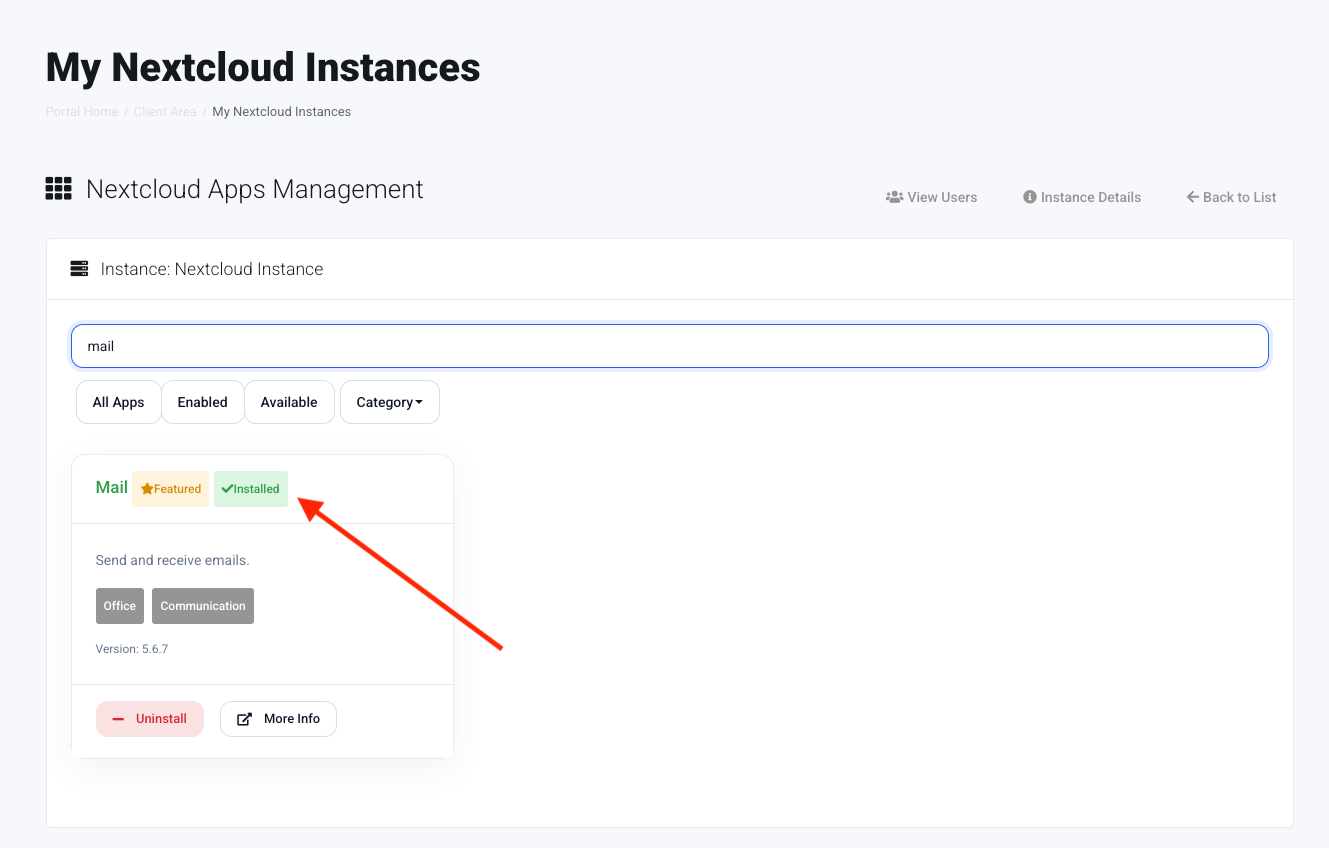
Once enabled, the Mail app immediately becomes available from the mail icon in the top navigation bar of your Nextcloud interface. From there, you can begin connecting your email accounts using IMAP and SMTP credentials.
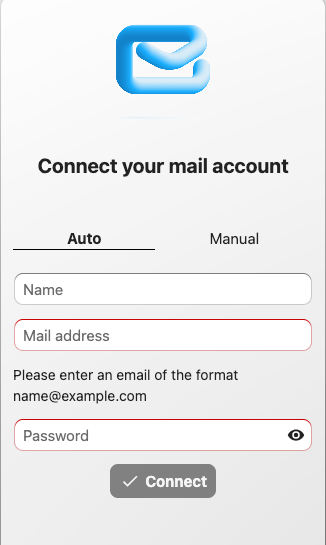
Once the Mail app is installed, the next step is connecting your email account. The first time you open Nextcloud Mail, you are immediately taken to the account setup screen.
At first glance, the setup looks very simple. You enter your name, email address, and password under the Auto tab, and Nextcloud Mail attempts to configure the mailbox automatically using the provider’s IMAP and SMTP settings.
For many providers, the connection works almost immediately. Nextcloud Mail can often detect the required IMAP and SMTP details automatically, including parts of the manual configuration in the background. This makes the setup process much easier because you usually do not need to search for server settings yourself.
That said, some providers handle authentication a little differently. With Gmail, for example, using your regular account password is often not enough. Google requires two-factor authentication along with an App Password before the mailbox can connect successfully.
If the automatic setup does not work correctly or if you are connecting a custom business email server, you can switch to the Manual tab and enter the server details yourself. Manual setup is often the more reliable option for custom domains, privacy-focused mail providers, or self-hosted email environments because it gives you full control over the IMAP and SMTP configuration.
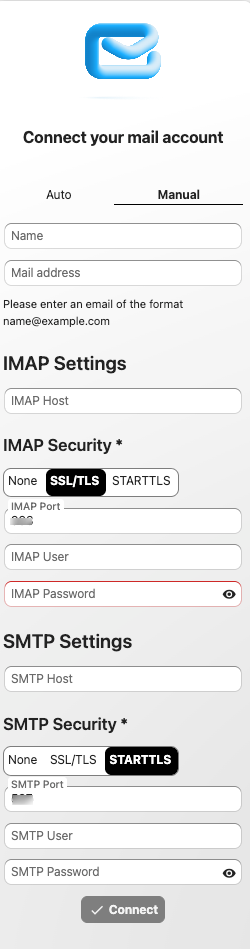
To manually configure your email account:
Once the connection is successful, Nextcloud Mail opens the main mailbox interface where you can start managing emails immediately.
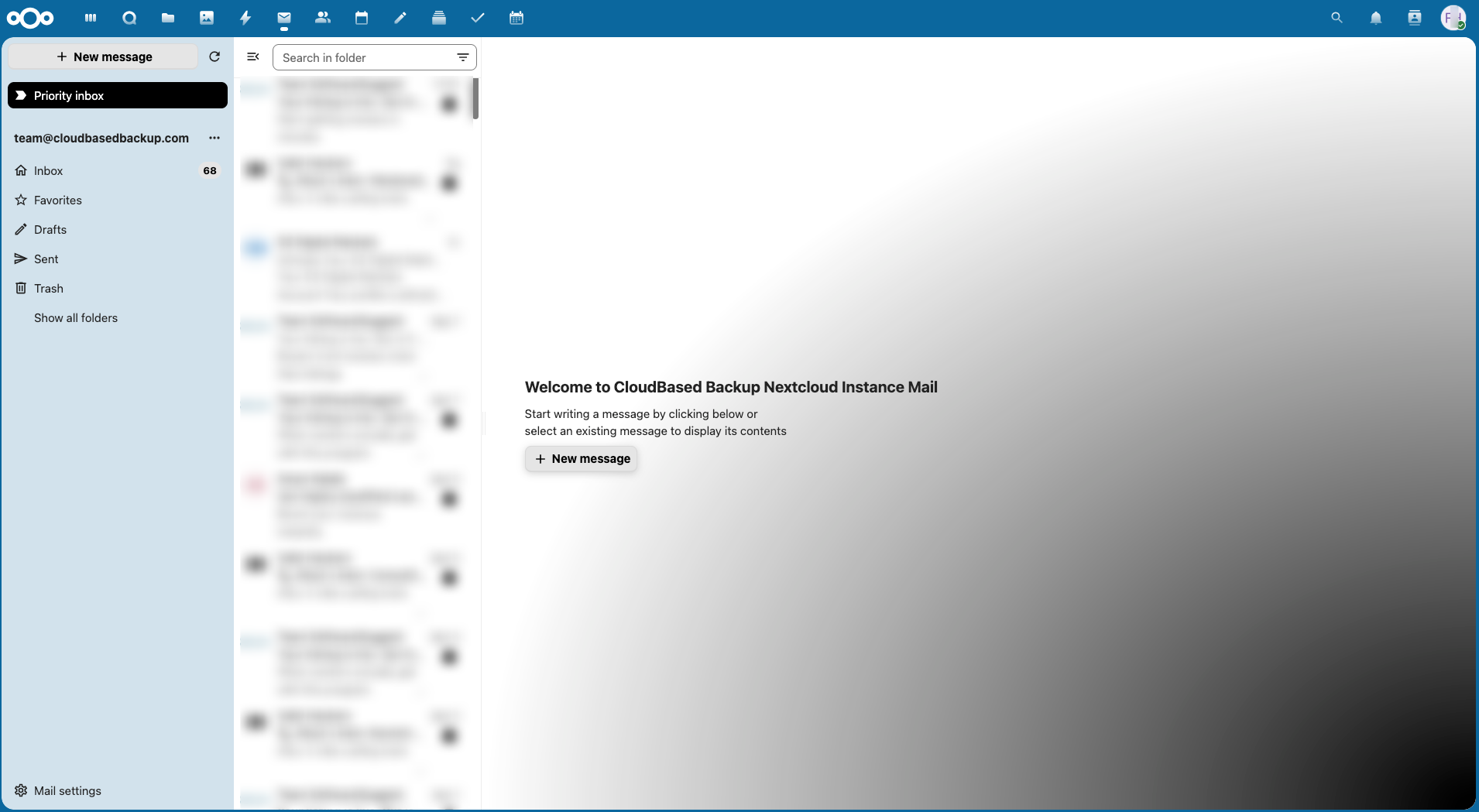
Now you can see, your inbox, drafts, sent mail, and folders become available inside the left sidebar, while incoming messages appear in the center panel.
Once your first mailbox is connected, Nextcloud Mail gives you access to additional account management and interface customization options through the Mail settings panel. This becomes useful if you plan to manage multiple inboxes inside the same Nextcloud environment.
To open settings, click the icon in the lower-left corner of the Mail interface. From there, you can add another email account, change the mailbox layout, adjust sorting preferences, configure priority inbox behavior, and customize how messages are displayed.
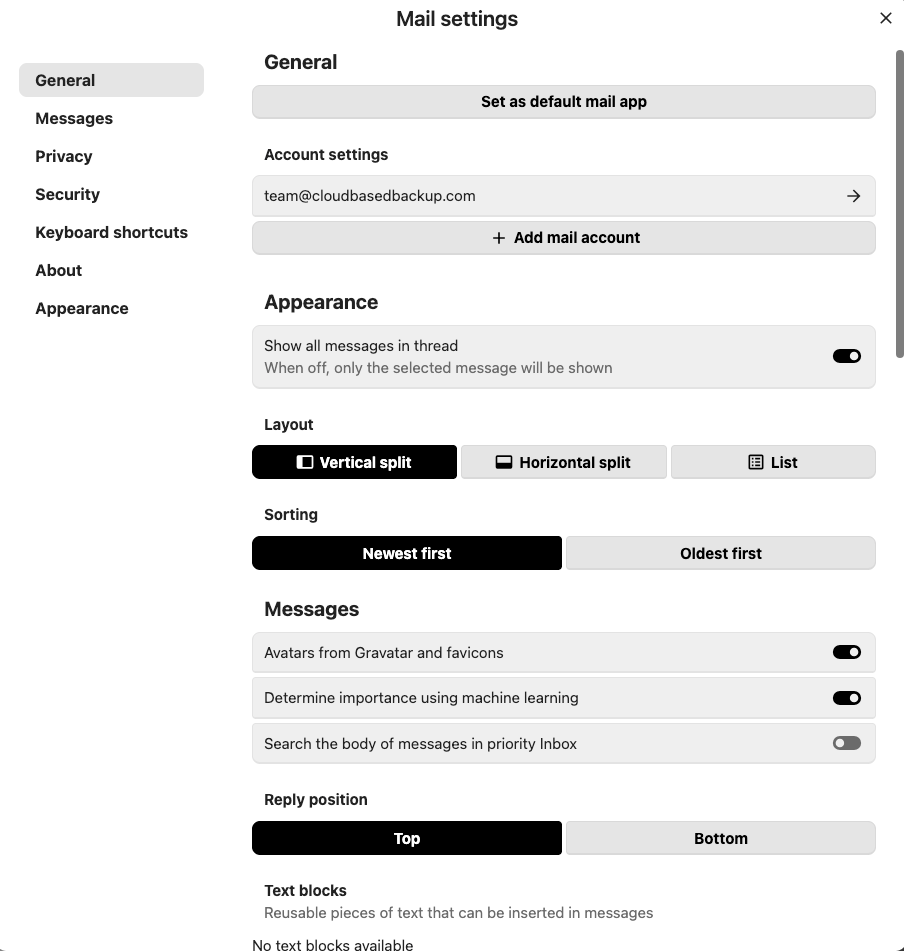
If you want to remove an email account, open the three-dot menu beside the connected email address in the sidebar and select Remove account. This disconnects the mailbox from Nextcloud Mail without deleting the actual email account from your provider.
Connecting a Gmail account to Nextcloud Mail is slightly different from connecting a regular email account. During setup, entering your Gmail address and password alone is usually not enough because Google blocks standard password authentication for many third-party mail apps.
When adding a Gmail account inside Nextcloud Mail, you will notice a message explaining that Google requires two-factor authentication and an app password enabled on the Gmail account first.
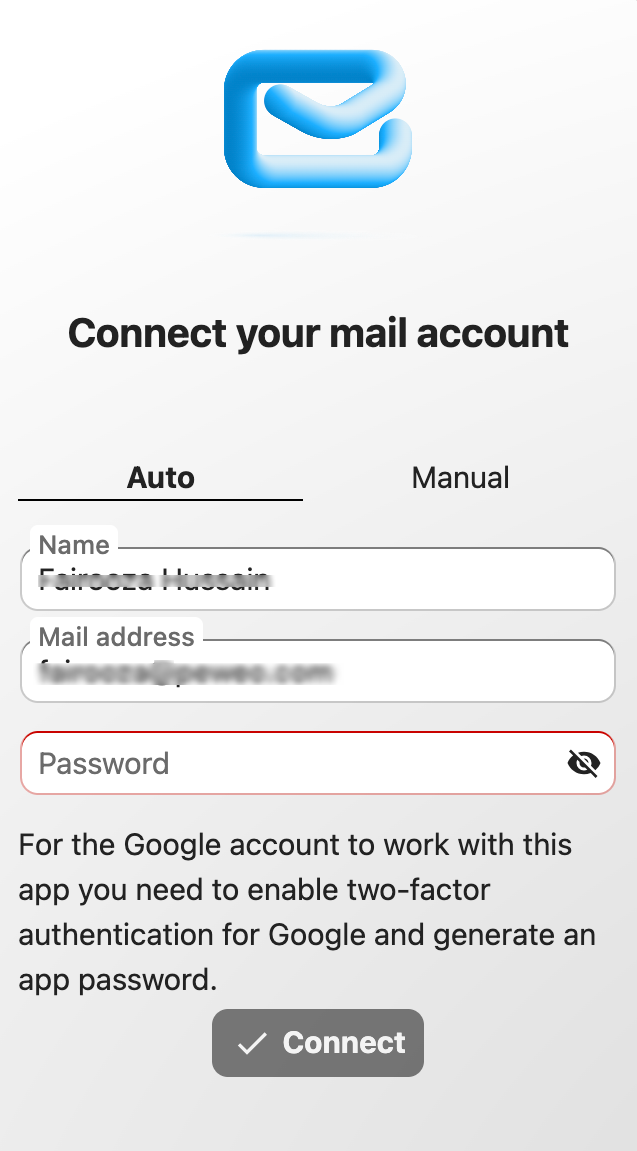
For that, you need to generate an App Password from your Google account settings. This App Password works like a separate login key specifically designed for mail apps such as Nextcloud Mail.
Here, you are not replacing your Gmail password permanently. You are simply creating a secure access key that allows Nextcloud Mail to communicate safely with Google’s mail servers.
If you have never created a Google App Password before, Google has an official setup guide for creating an App Password.
Once the App Password is entered, the connection usually completes immediately. After that, Gmail behaves like any other mailbox inside Nextcloud Mail. Your inbox, folders, drafts, and sent messages begin syncing directly into the interface, and everything starts feeling much more unified inside the broader Nextcloud workspace.
Once the mailbox is connected and working properly, spending some extra minutes configuring the Mail app makes a noticeable difference in day-to-day usage.
One of the first things worth doing is organizing folders and cleaning up the inbox structure early. It becomes much easier to manage communication later when projects, clients, or internal conversations already have a consistent folder system in place.
It is also worth configuring signatures and aliases immediately, especially for business communication. Many teams use different sender identities for support, sales, or personal communication, and setting those up early avoids confusion later.
If you are already using Nextcloud Calendar and Contacts, enabling the integration between those apps and Mail makes the platform more connected. Meeting invitations, contact suggestions, and scheduling workflows run more smoothly when everything operates within the same environment.
The phishing protection settings are another feature many users overlook initially. Since email is often tied directly to internal files and collaboration workflows, enabling additional security checks helps reduce the chances of suspicious messages slipping through unnoticed.
Small adjustments like these make the Mail app feel much smoother once it becomes part of daily communication.
This is one of the most common points of confusion during setup. Google applies additional security restrictions to third-party mail apps, so a regular Gmail password is often not enough for authentication. Using a Google App Password usually resolves the issue quickly.
In most cases, incoming mail uses IMAP while outgoing mail depends on SMTP settings. If sending fails while receiving works correctly, the issue is usually related to SMTP authentication, ports, or encryption settings rather than Nextcloud Mail itself.
Automatic setup works well for many providers, but some mail servers require manual IMAP and SMTP details. When this happens, the Manual configuration tab inside Nextcloud Mail allows you to enter the provider settings directly.
When connecting a mailbox with a long email history, the first synchronization may take longer depending on mailbox size and server responsiveness. After the initial sync finishes, the experience usually becomes much smoother.
8 min read · 22.09.2026
5 min read · 14.09.2026
5 min read · 18.08.2026
Hosted in
Germany
4.3on G2