Best OneDrive Alternatives for Businesses in 2026
8 min read · 29.09.2026
Our Blog / how-to-sync-nextcloud-with-iphone
← Back to overview
Using Nextcloud on an iPhone is mainly about accessing files and folders on the go and keeping contacts and calendars in sync without relying on any big third-party cloud providers. iOS supports this setup cleanly, with some features handled through the official app and others built directly into the system.
If you also use Android devices, you can set up Nextcloud on Android to sync files, photos, calendars, and contacts across devices.
This guide walks through the complete process of syncing Nextcloud with your iPhone for files, photos, contacts and calendar, and explains the key settings that matter.
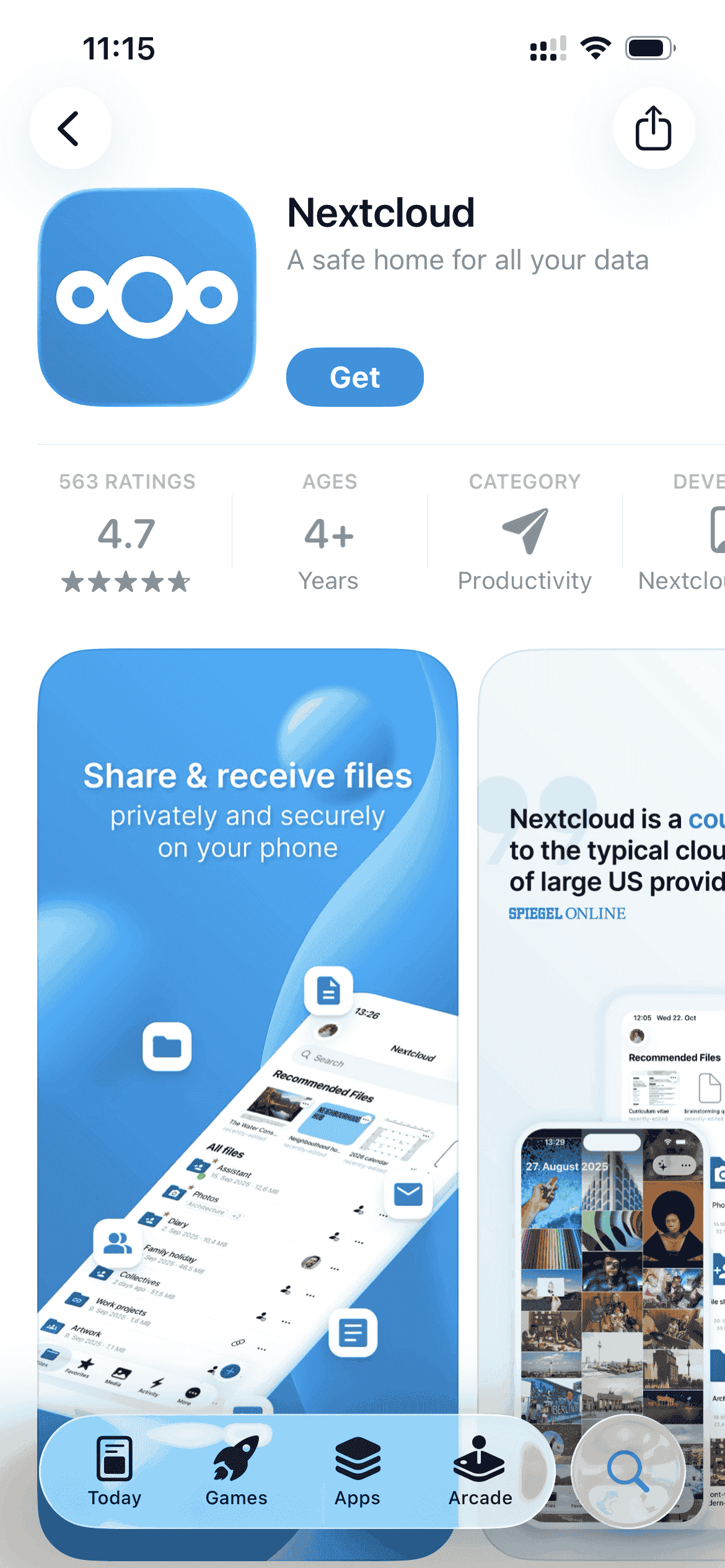
First, start by downloading the Nextcloud app from the Apple App Store. Once installed, open the Nextcloud app to begin the setup.
On the first launch, iOS asks whether Nextcloud can send you notifications:
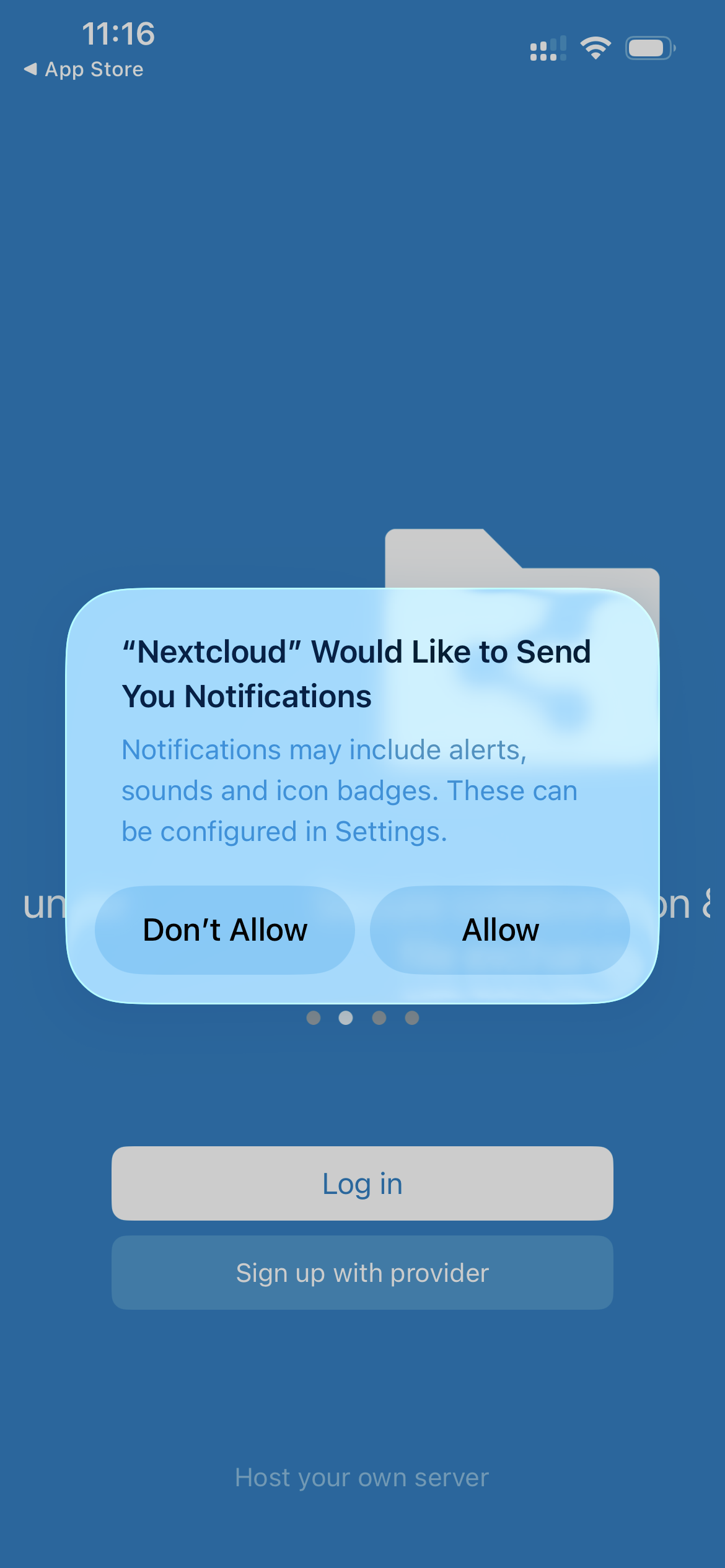
Click "Allow". Allowing notifications helps with:
You can also continue without enabling them, but most users find it useful.
Now, tap "Log in" on the welcome screen:
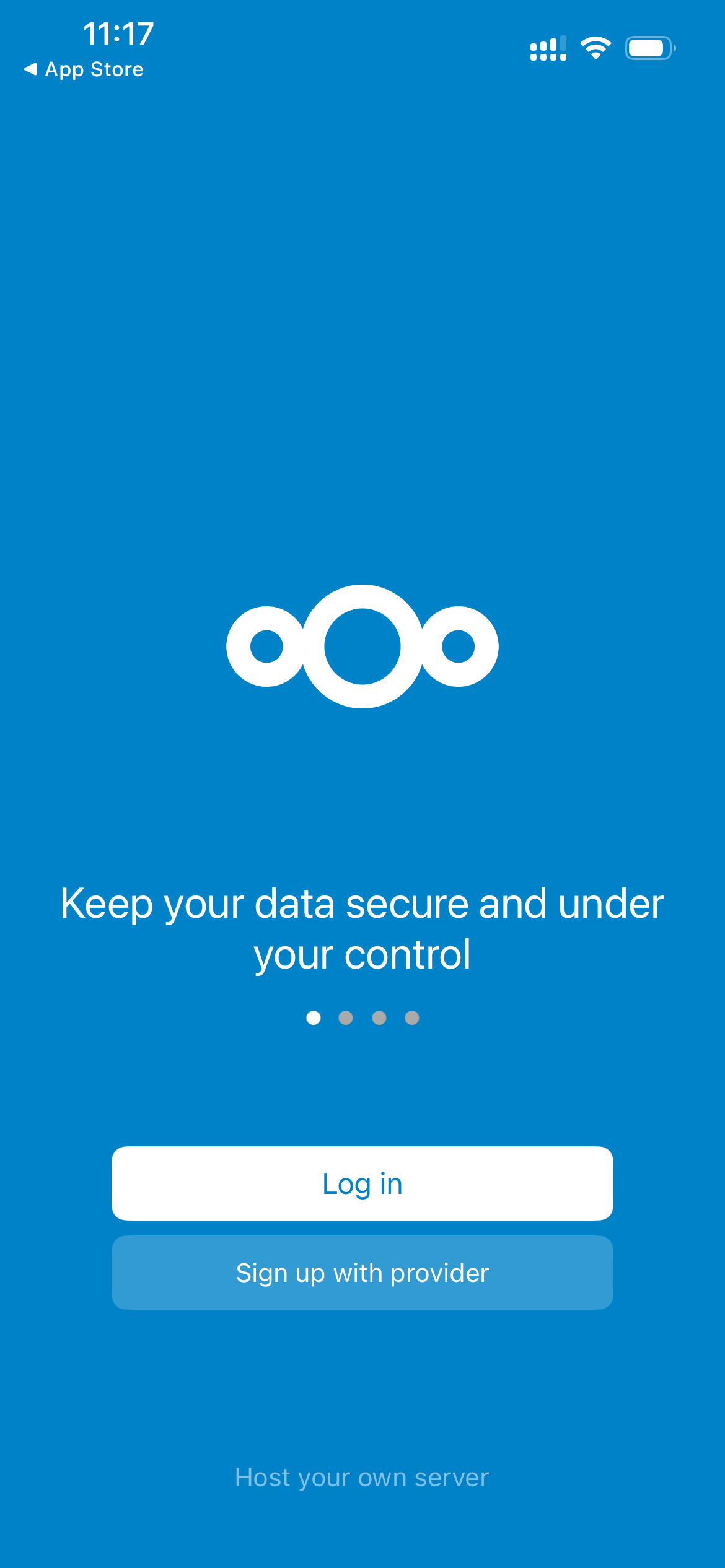
After tapping Log in, the app prompts you to enter the address of your Nextcloud server:
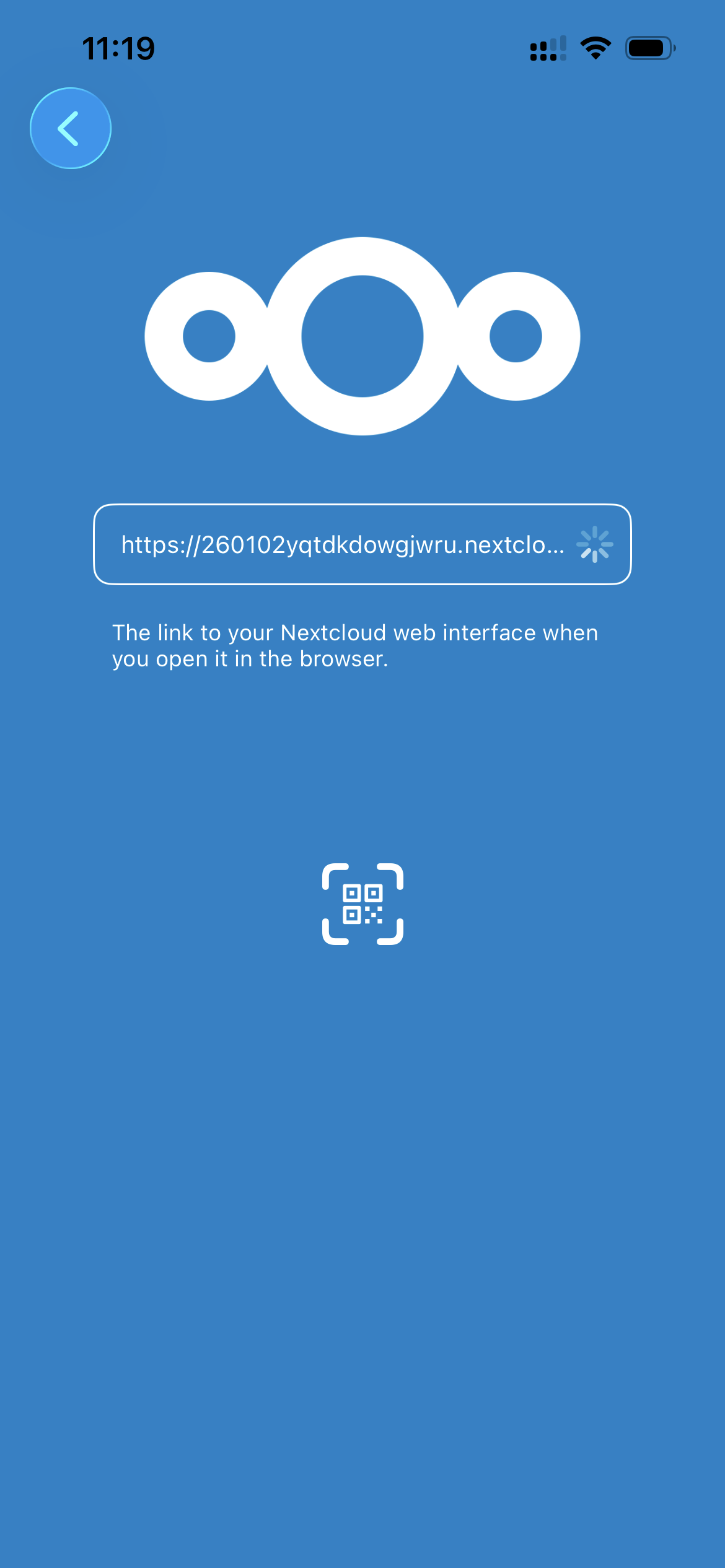
After entering the server address, you are redirected to a secure browser view:
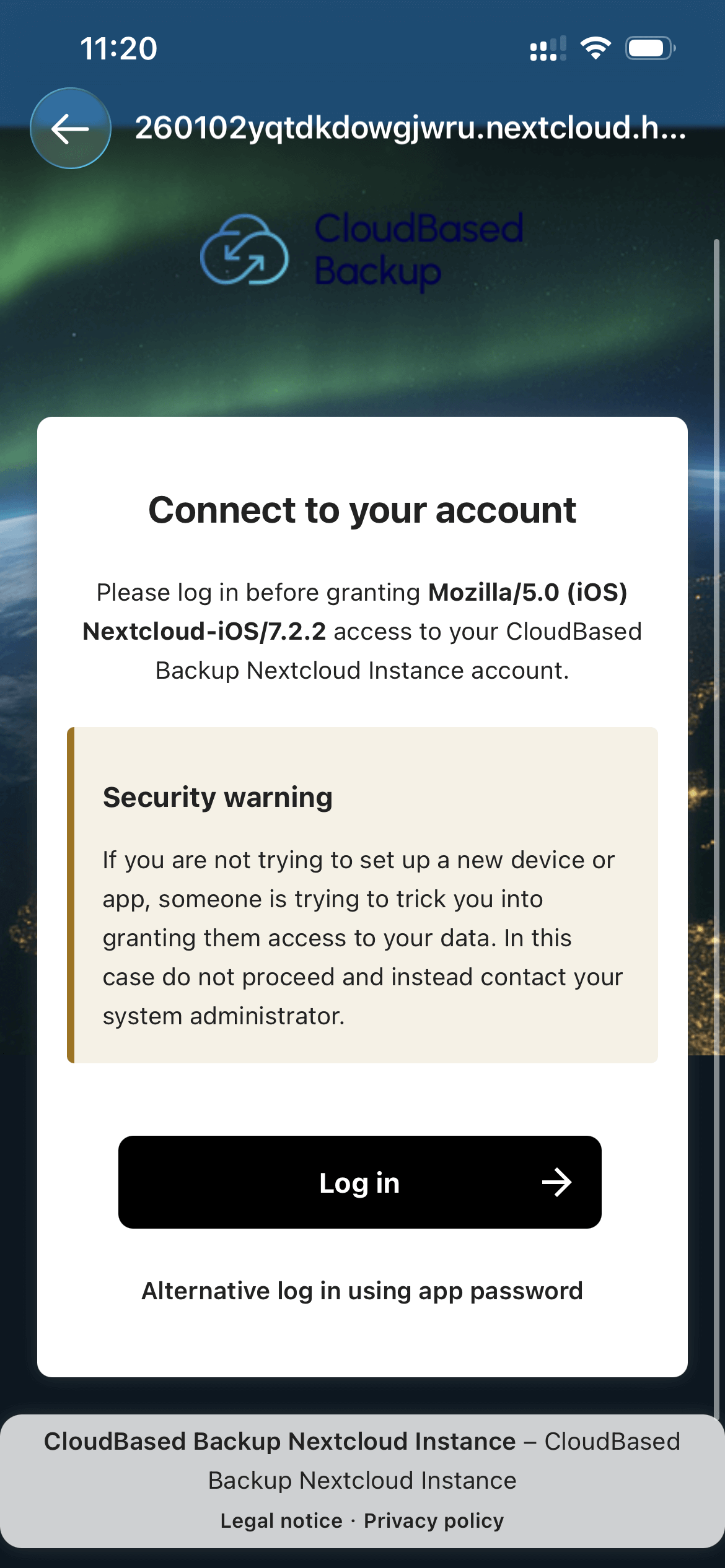
On this screen, click "Log in" to continue.
You are now taken to your Nextcloud login page:
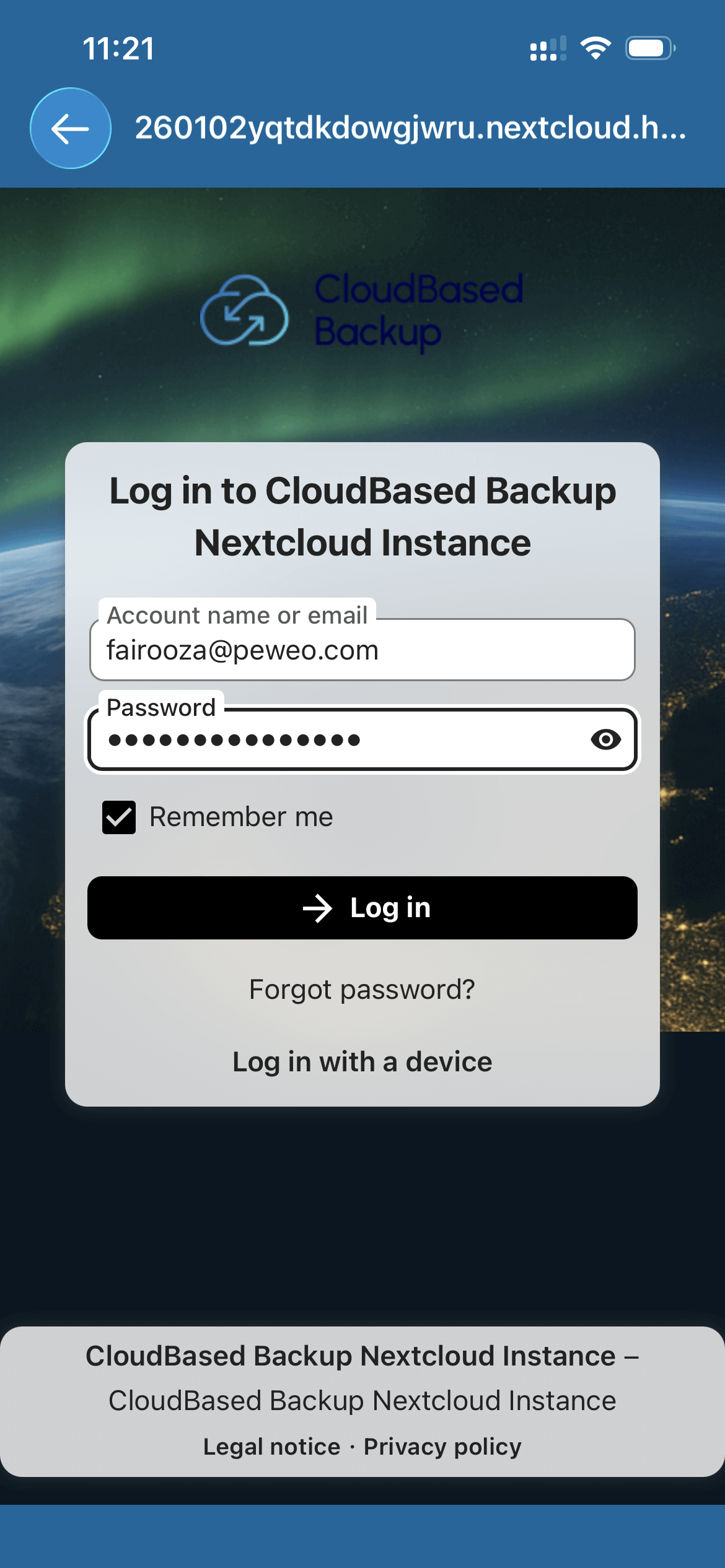
Here, enter your account name or email address and your Nextcloud password. And you can enable "Remember me" to avoid logging in again. Then click "Log in".
After logging in, Nextcloud asks you to confirm access for the iOS app:
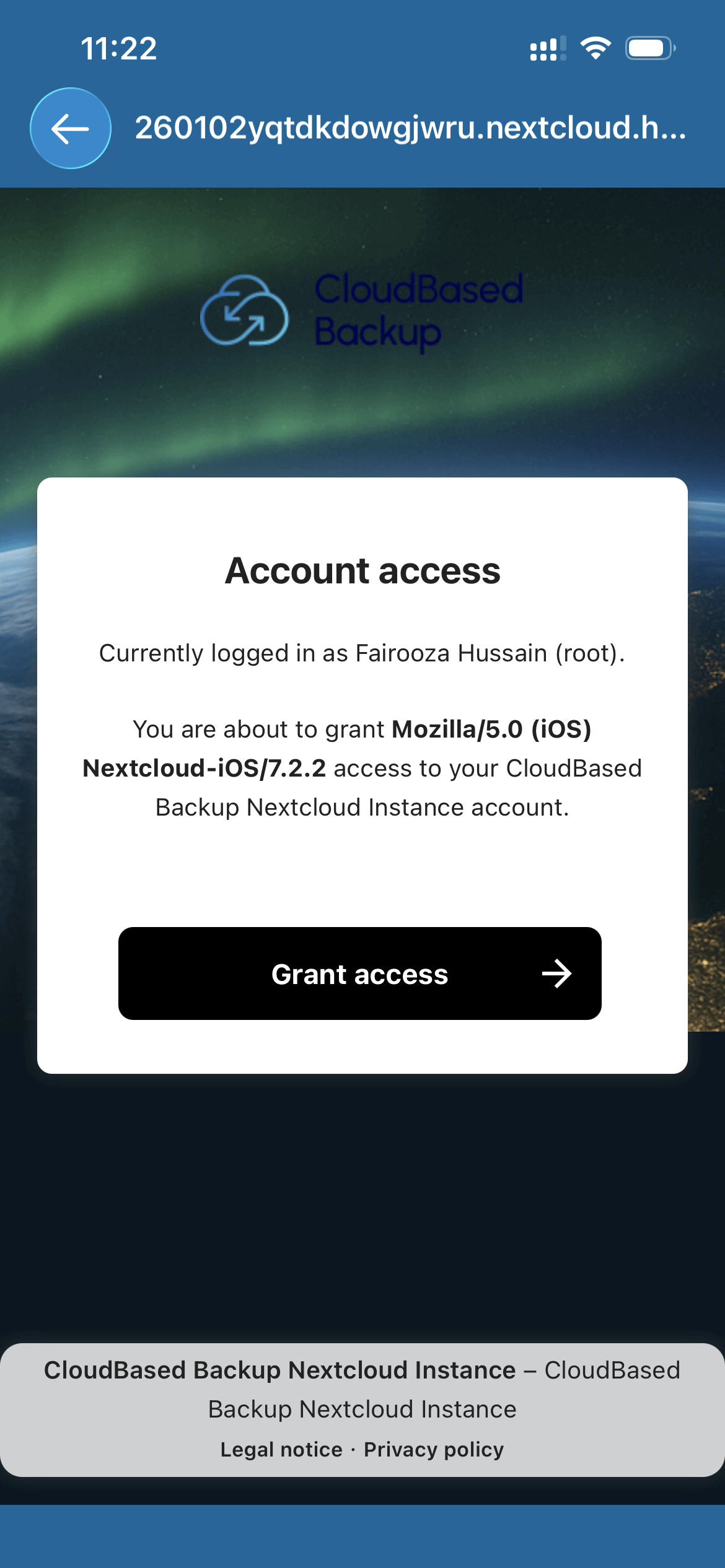
Click "Grant access" to continue.
Now, Nextcloud displays a confirmation message indicating that your account is now connected:
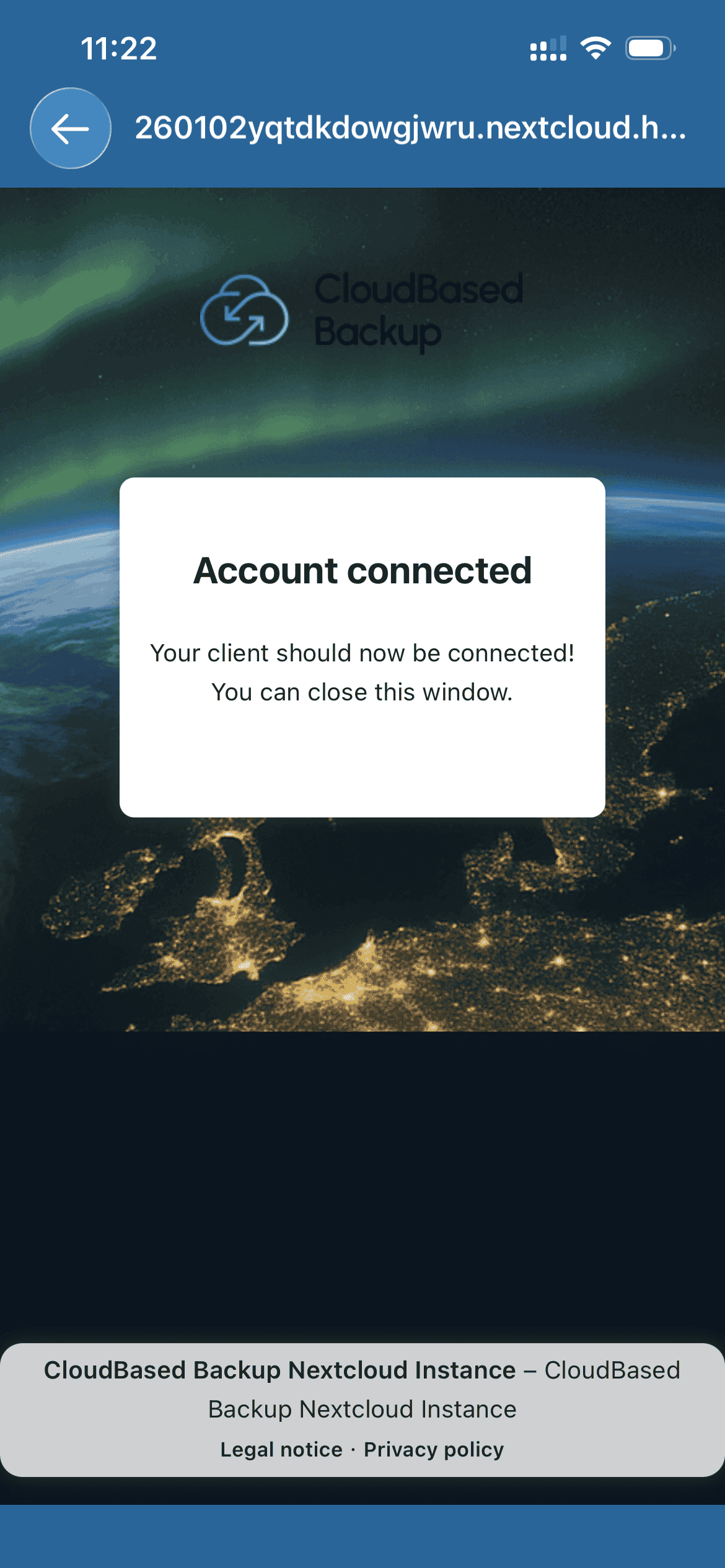
At this point, you can close the browser view; otherwise, the app will automatically return to the Nextcloud interface.
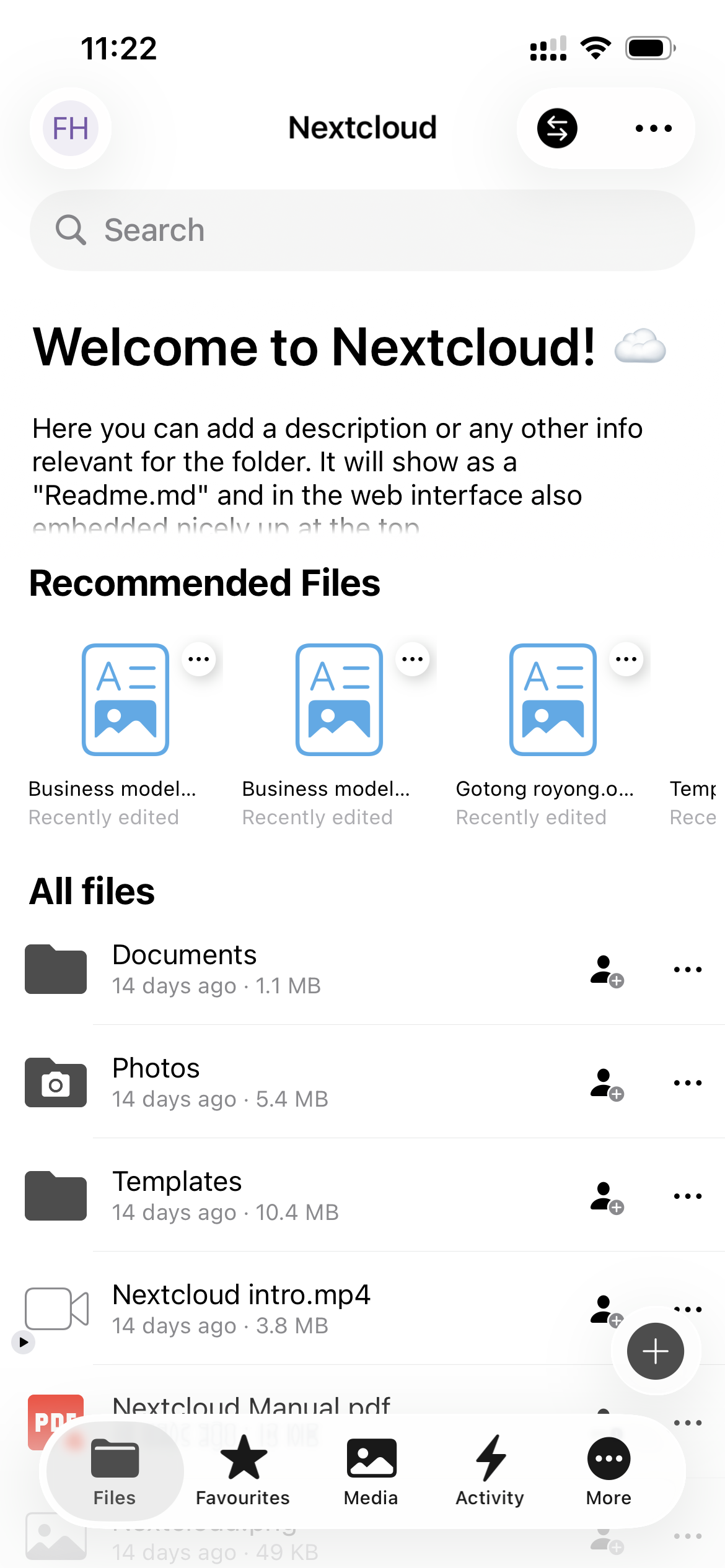
You now land on the main Files screen. And your iPhone is fully connected to Nextcloud. From here, you can browse your folders and documents, upload files, and create new folders directly from your iPhone.
If you also want to access the same files from your computer, you can access Nextcloud files via WebDAV on Windows and macOS.
Automatic photo uploads ensure that photos you take on your iPhone are backed up to Nextcloud without any manual effort. Once enabled, the app automatically uploads new photos and videos to your Nextcloud account.
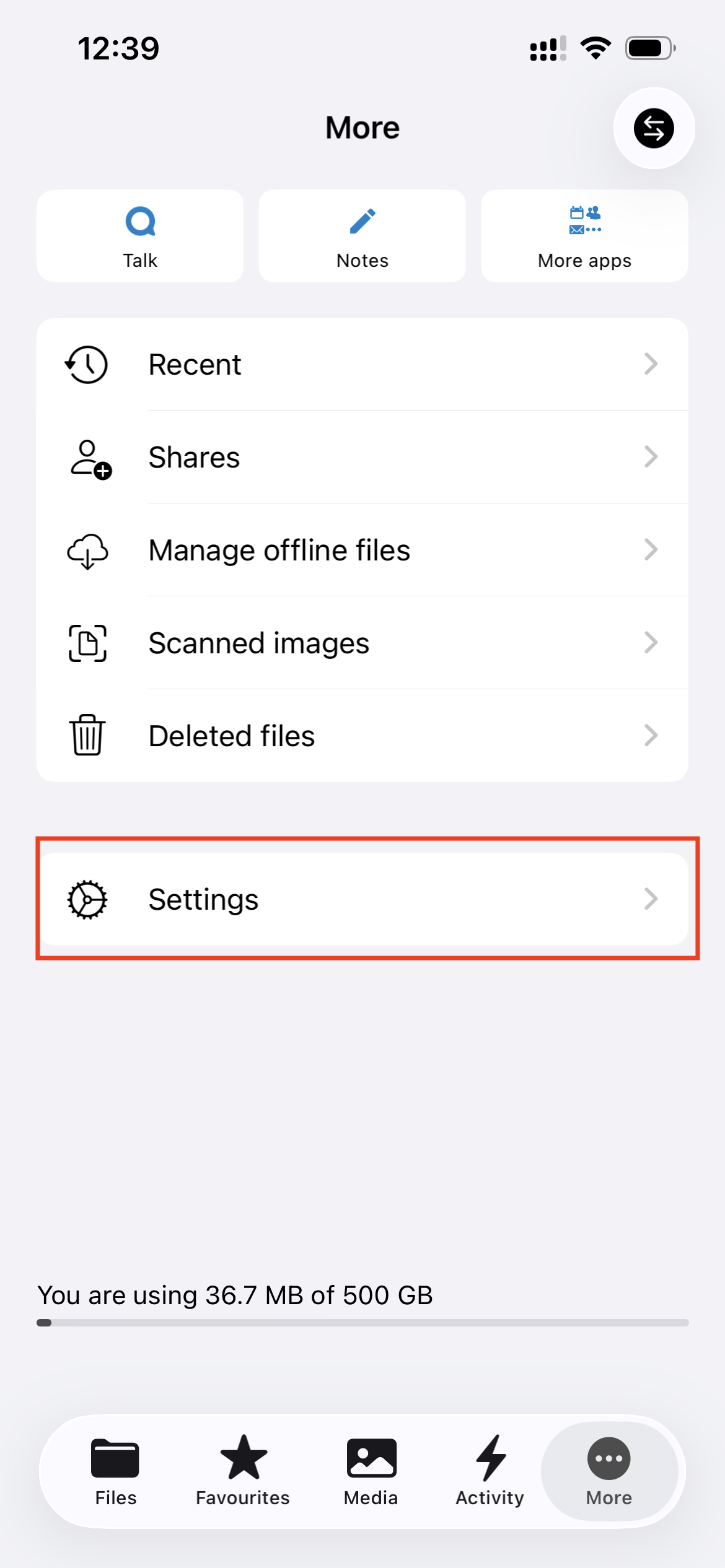
In the Nextcloud app, click "More" in the bottom navigation bar:
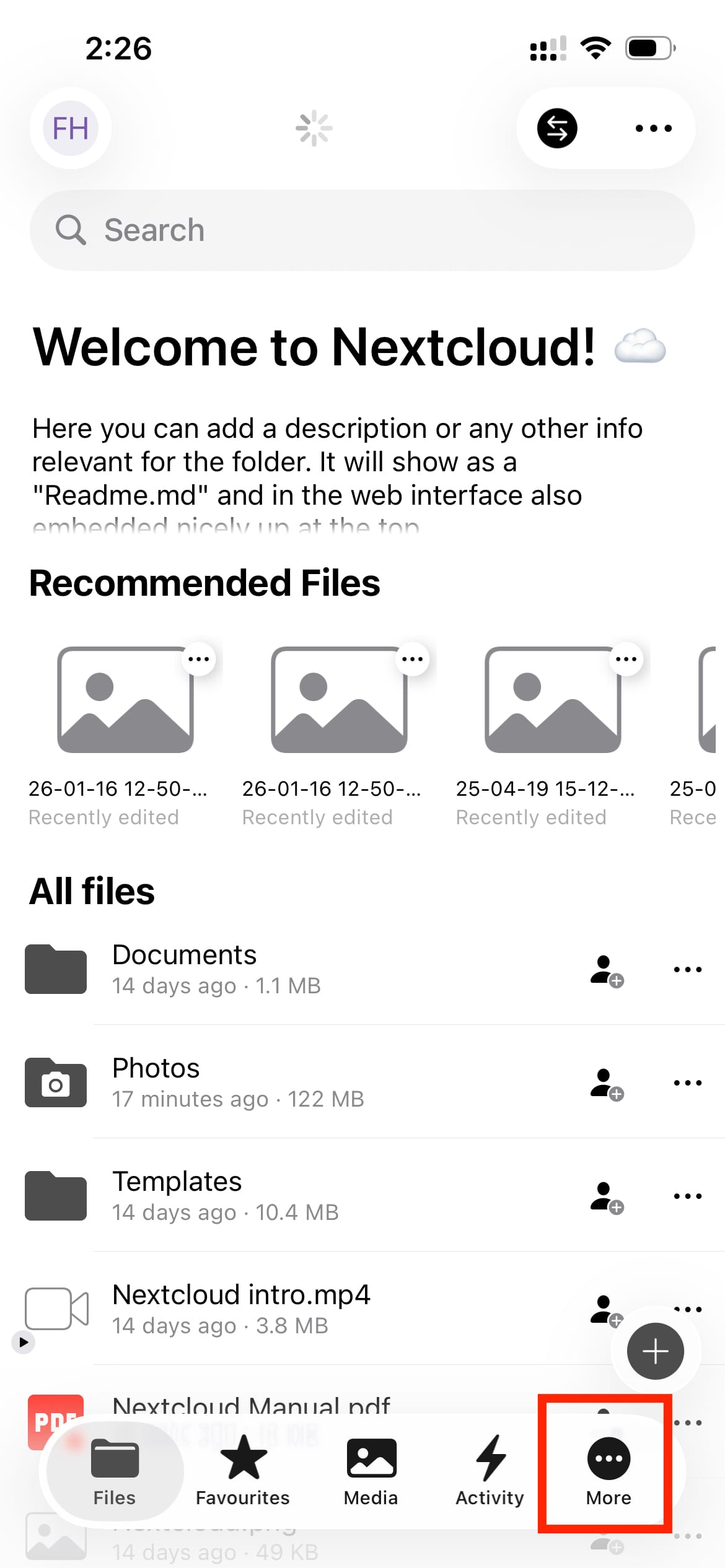
Then open "Settings":
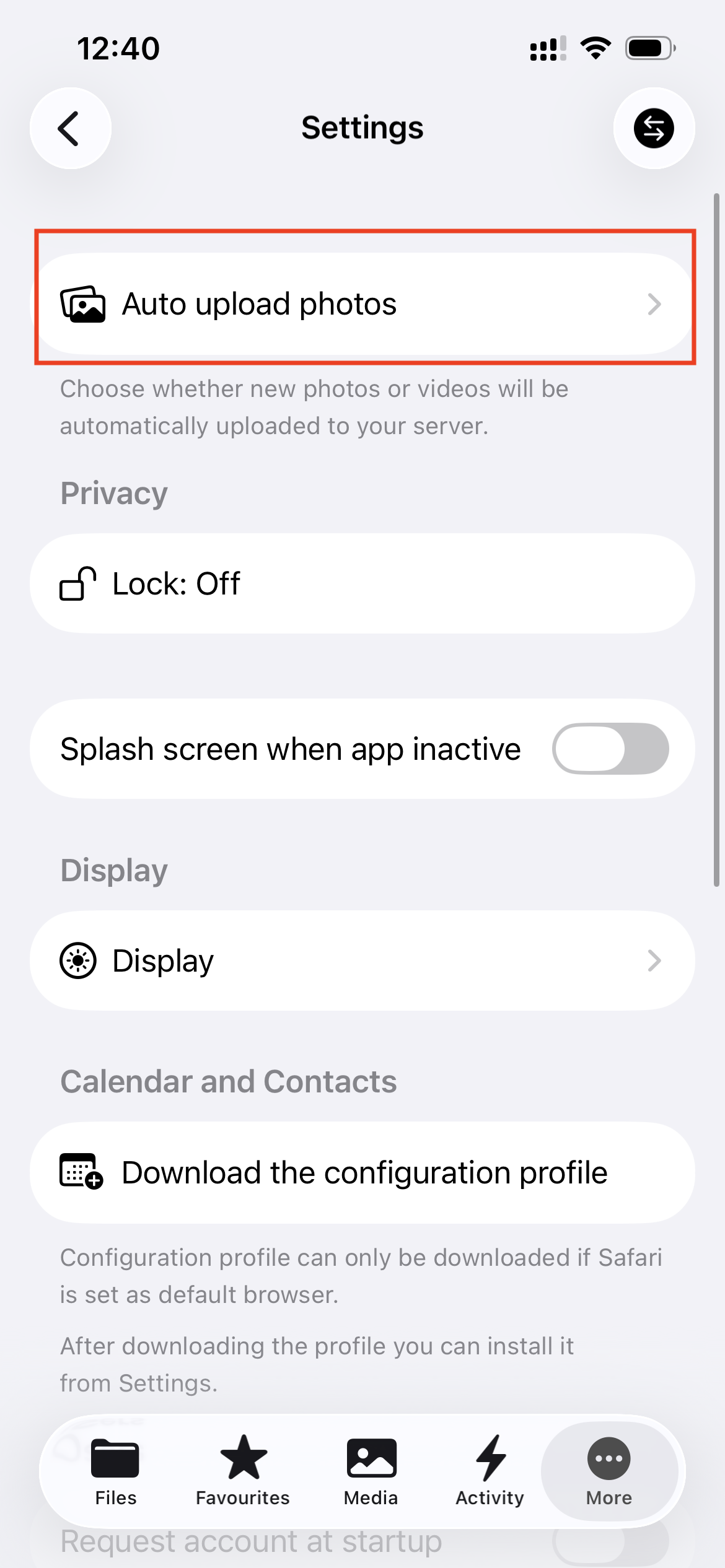
From the settings screen, select "Auto upload photos".
Now the following screen appears:
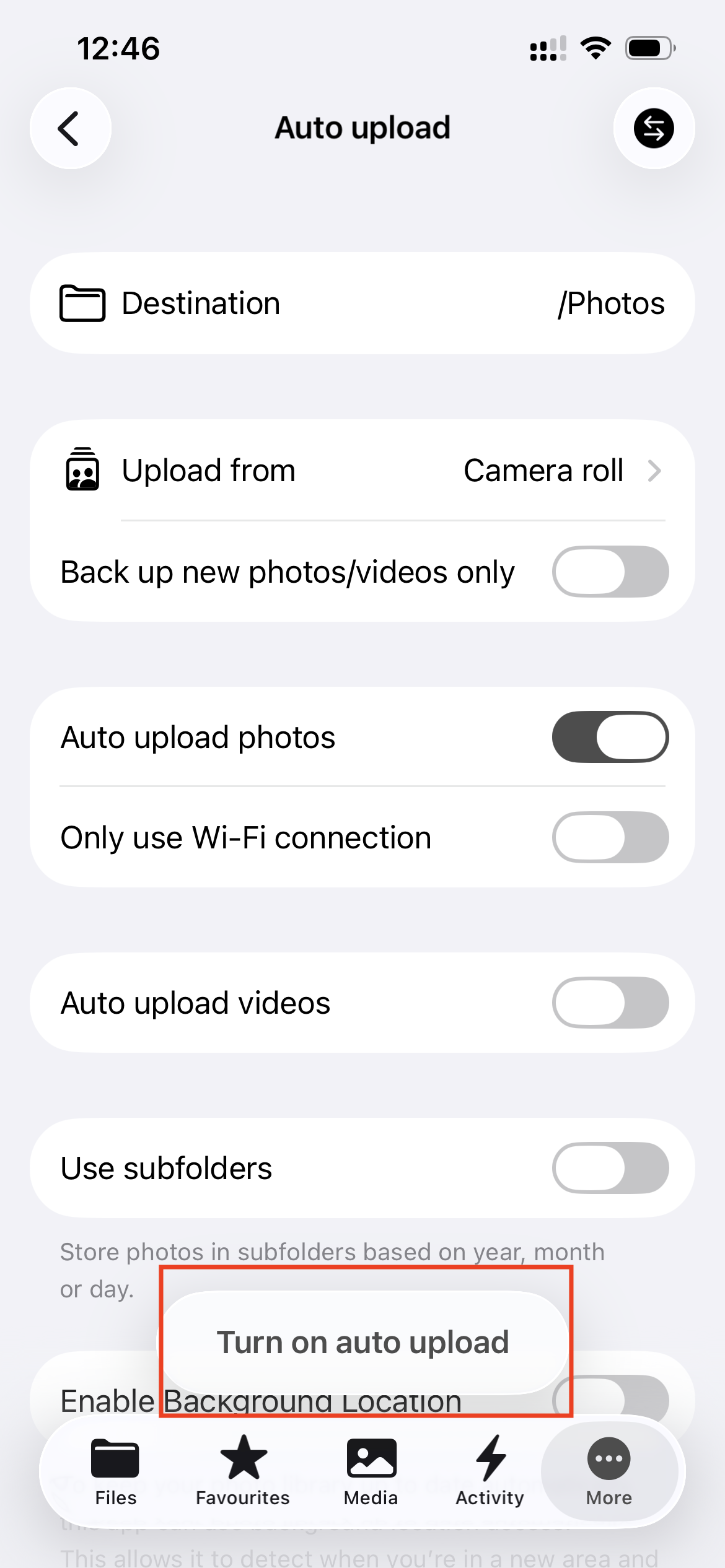
This section controls how and when photos from your iPhone are uploaded to Nextcloud.
By default, photos are uploaded to the /Photos folder in your Nextcloud account. Here, you can enable and disable the toggle according to your preferences.
After this is done, click "Turn on auto upload".
When prompted by iOS, Nextcloud requests permission to access your photo library:
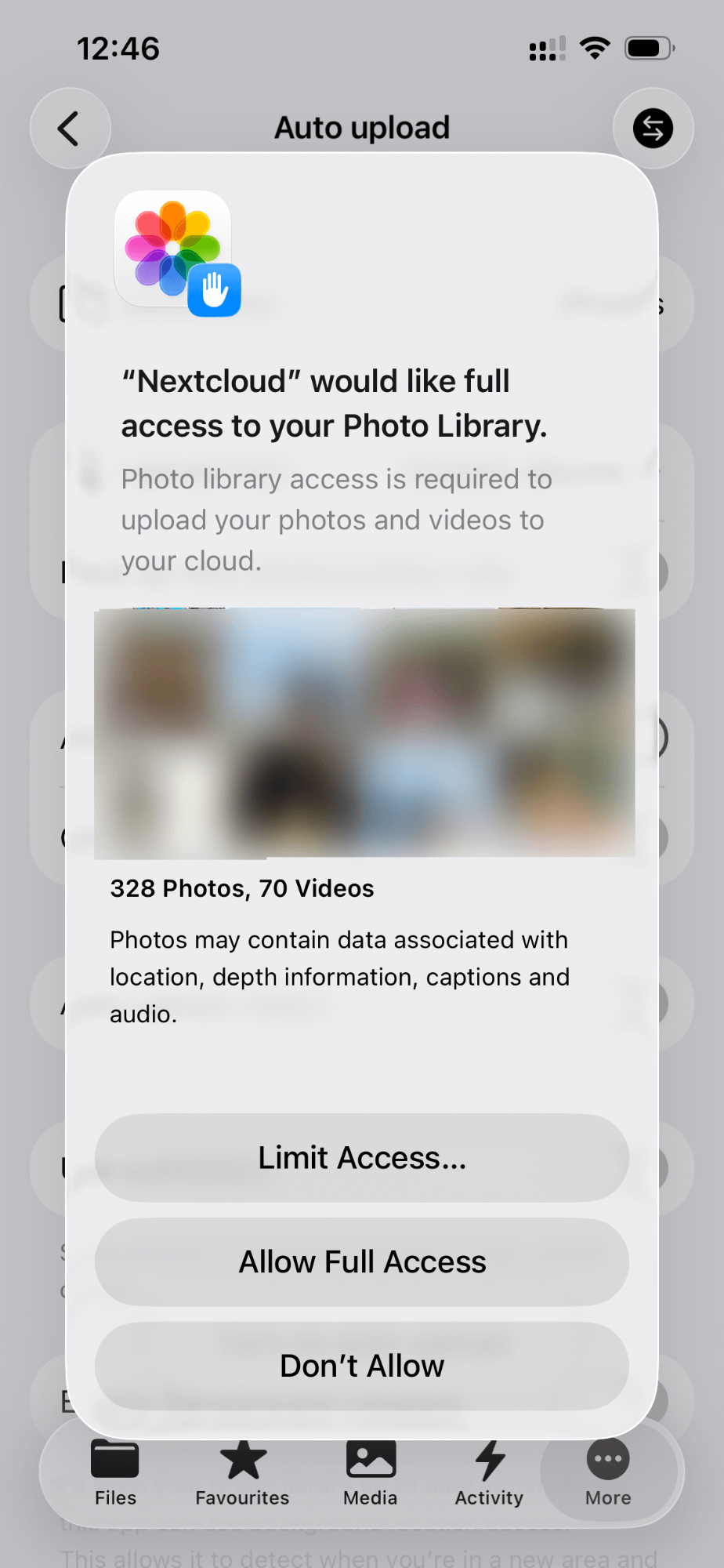
Choose "Allow Full Access" if you want automatic uploads to work reliably.
Now, Nextcloud begins uploading photos in the background. To check the upload progress, tap the Transfers icon:
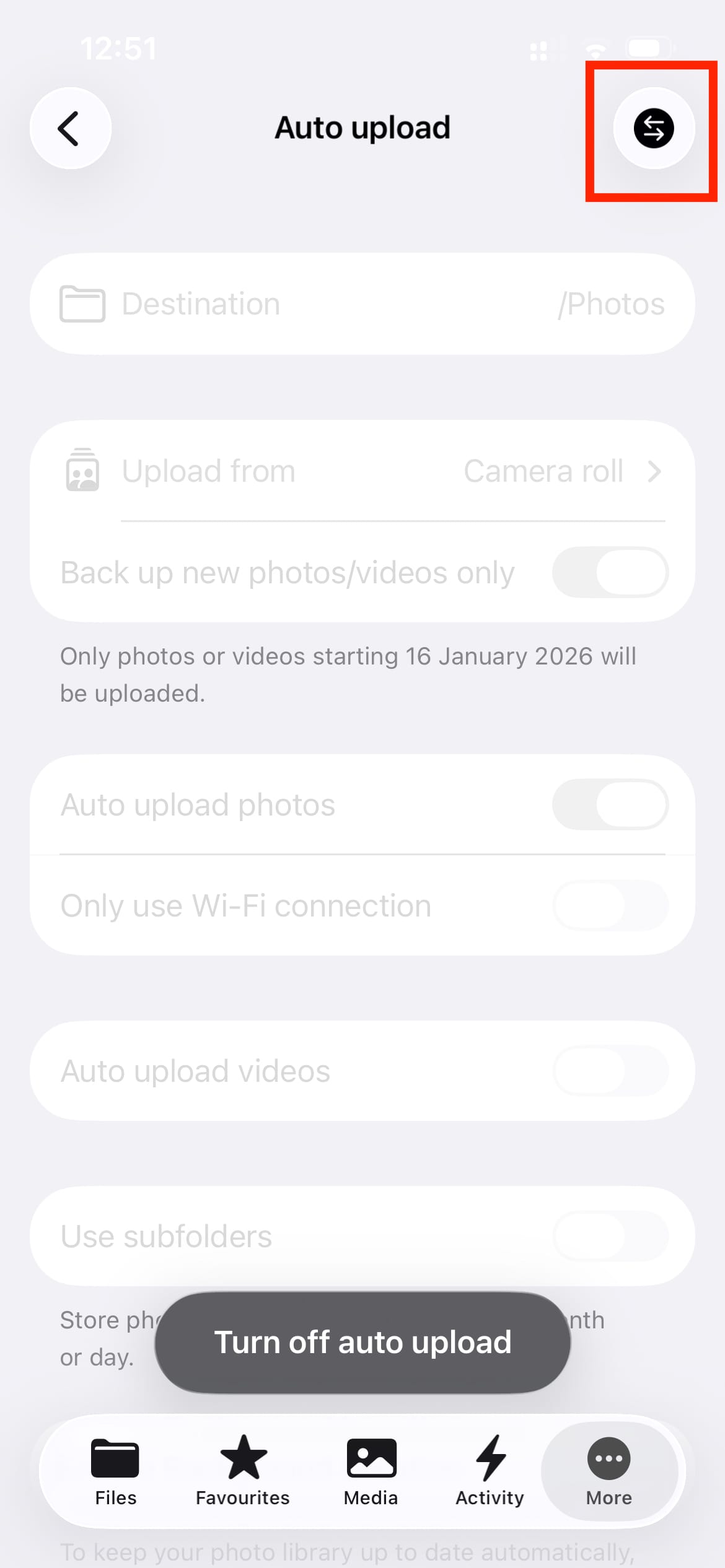
You can view upload activity under Transfers:
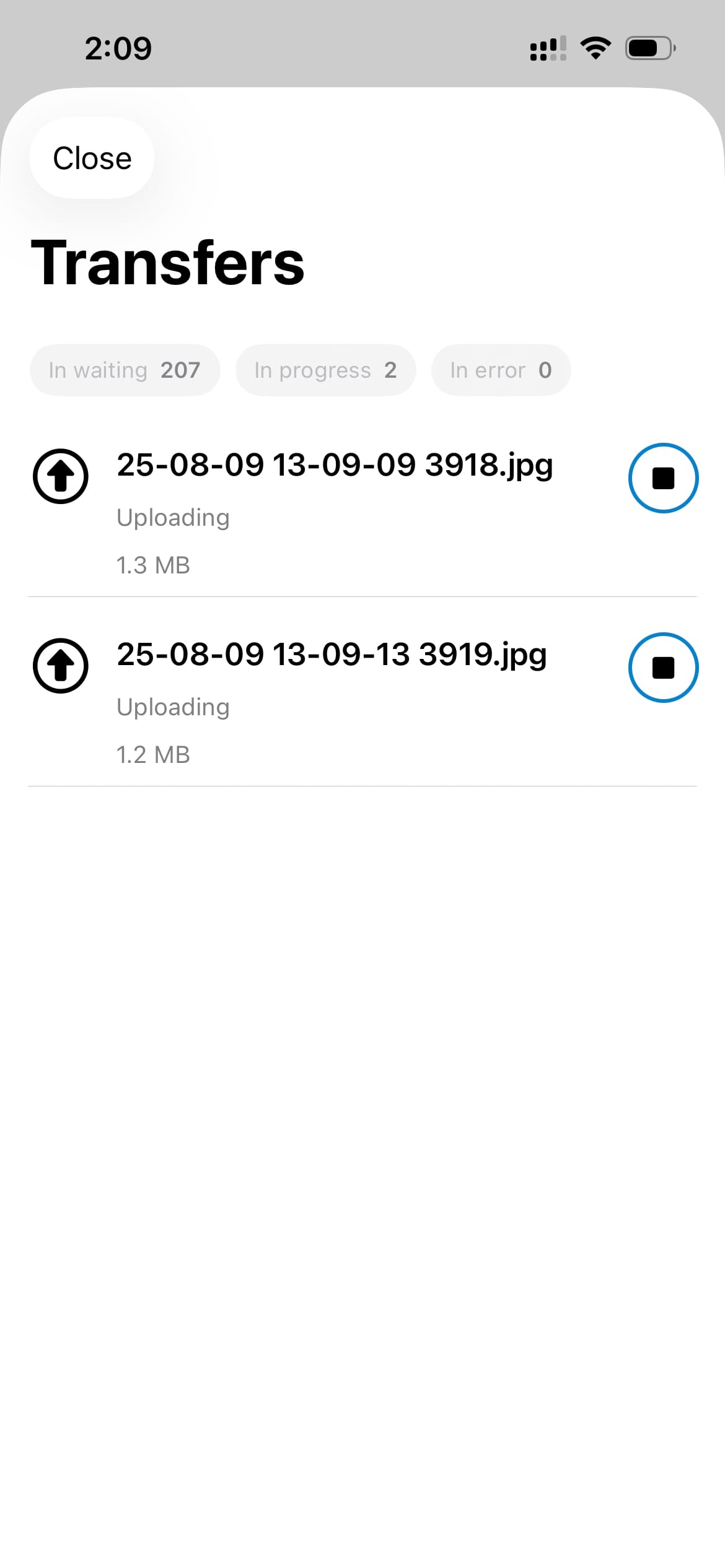
Seeing uploads listed here confirms that auto upload is working as expected.
iOS supports both CardDAV and CalDAV natively, which gives better system integration and fewer sync issues.
Open Settings on your iPhone and search for Contacts.
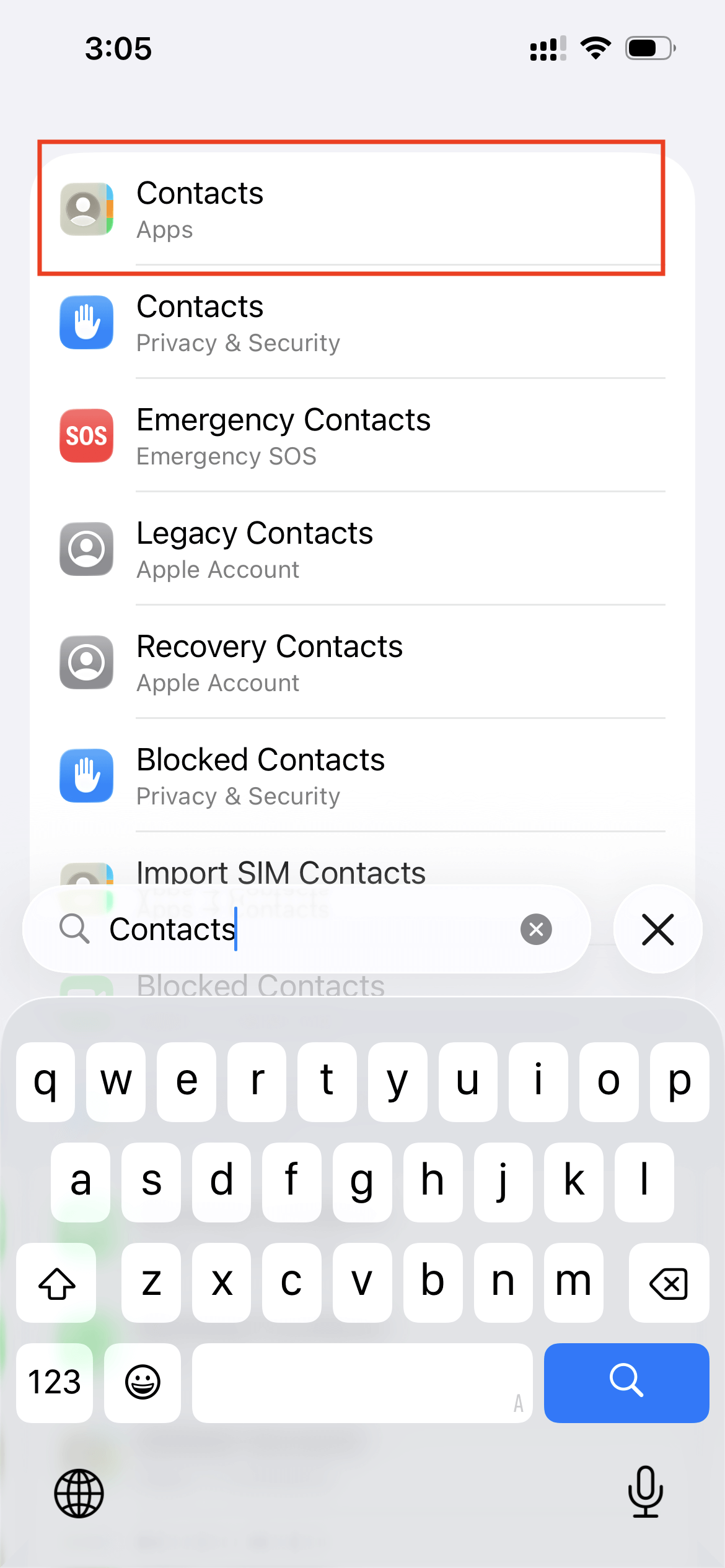
Click "Contacts" under the Apps section. Inside Contacts, select "Contacts Accounts":
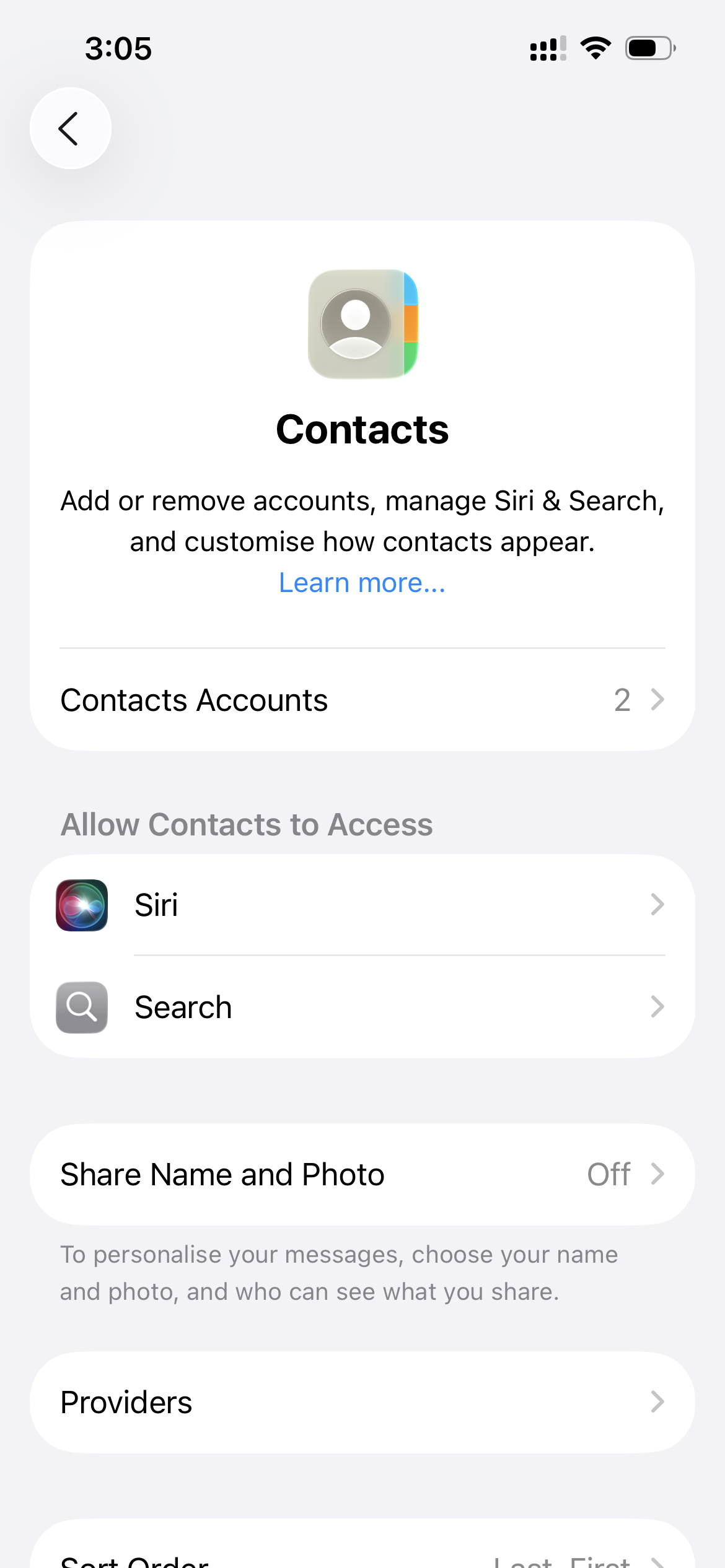
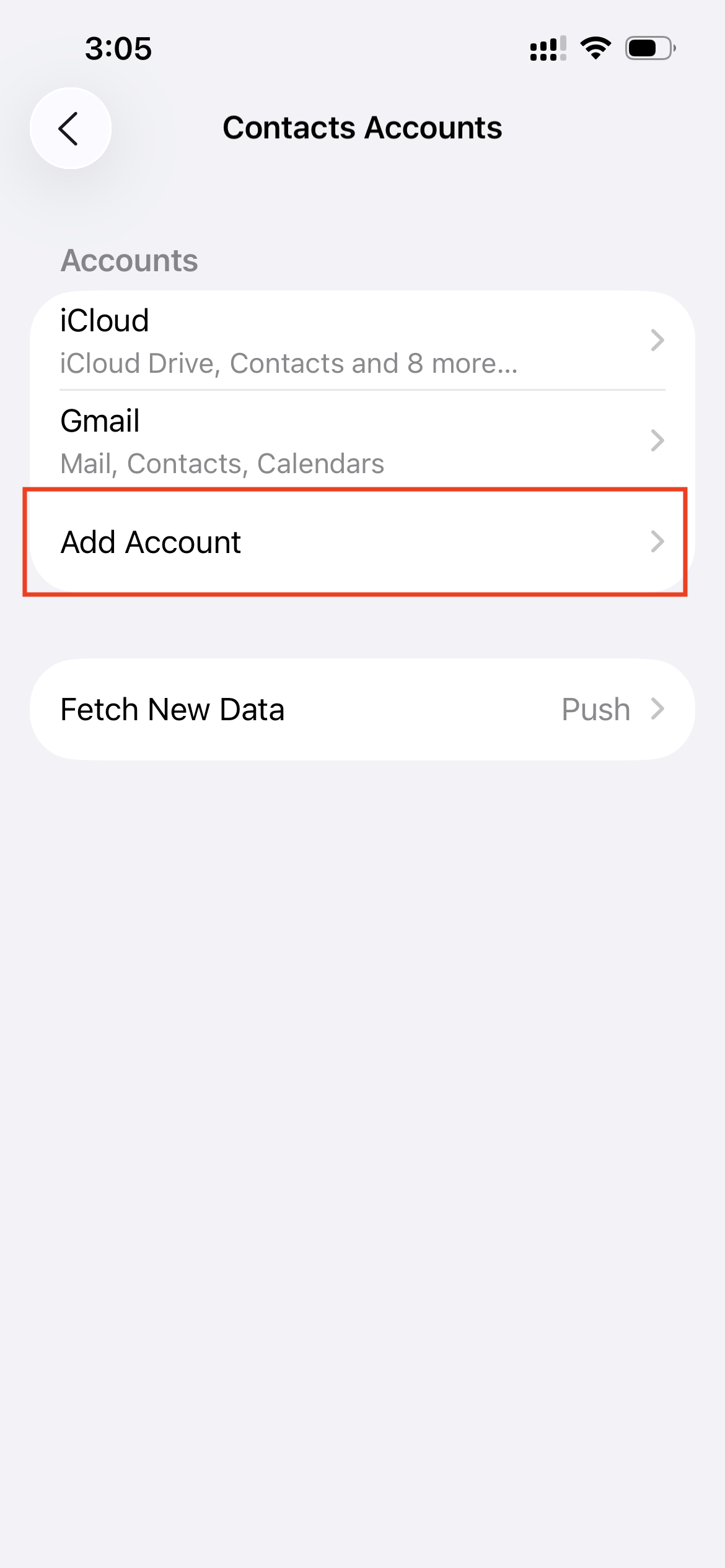
Then the following screen opens. Now select "Add Account".
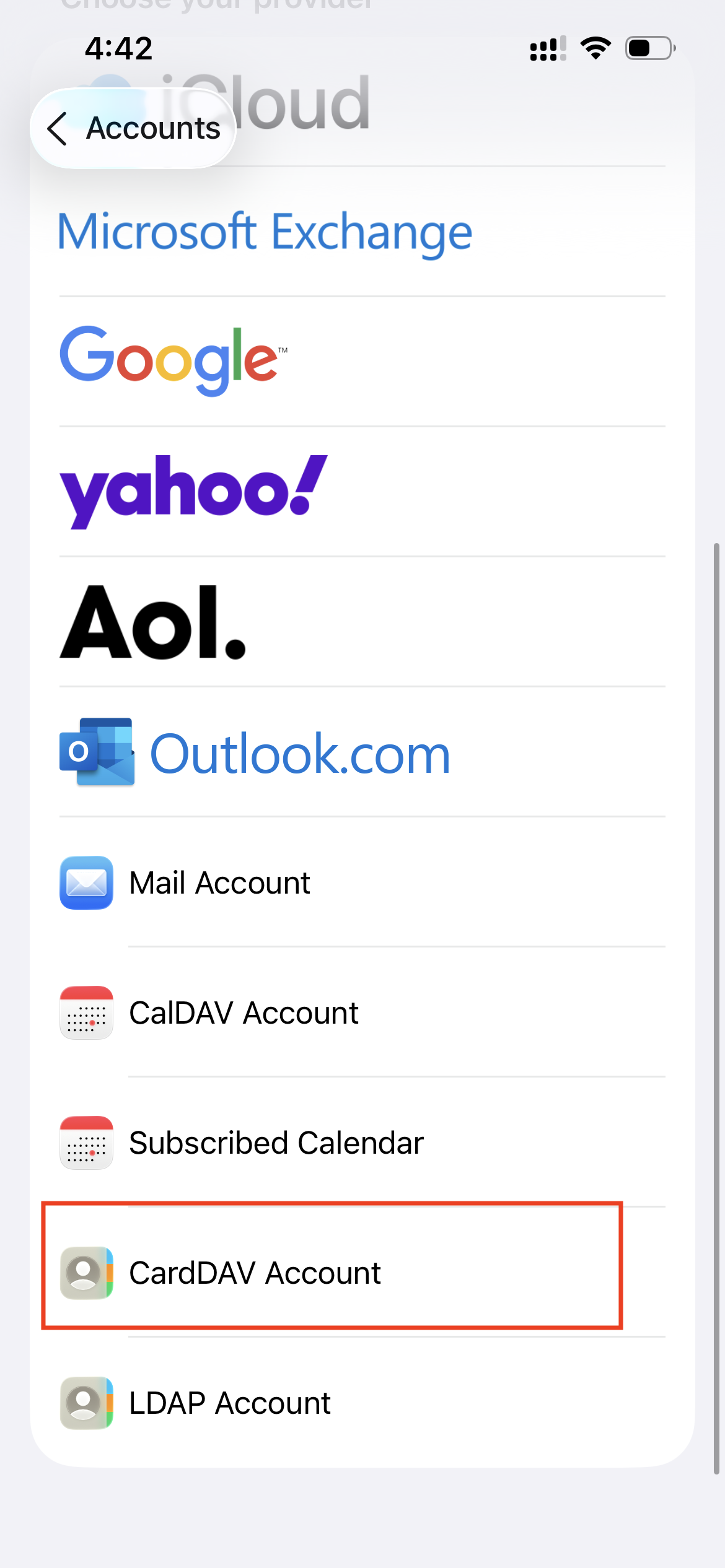
On the account type list, click "Add Other Account" and then select "CardDAV Account":
On the CardDAV setup screen, fill in the CardDAV account details:
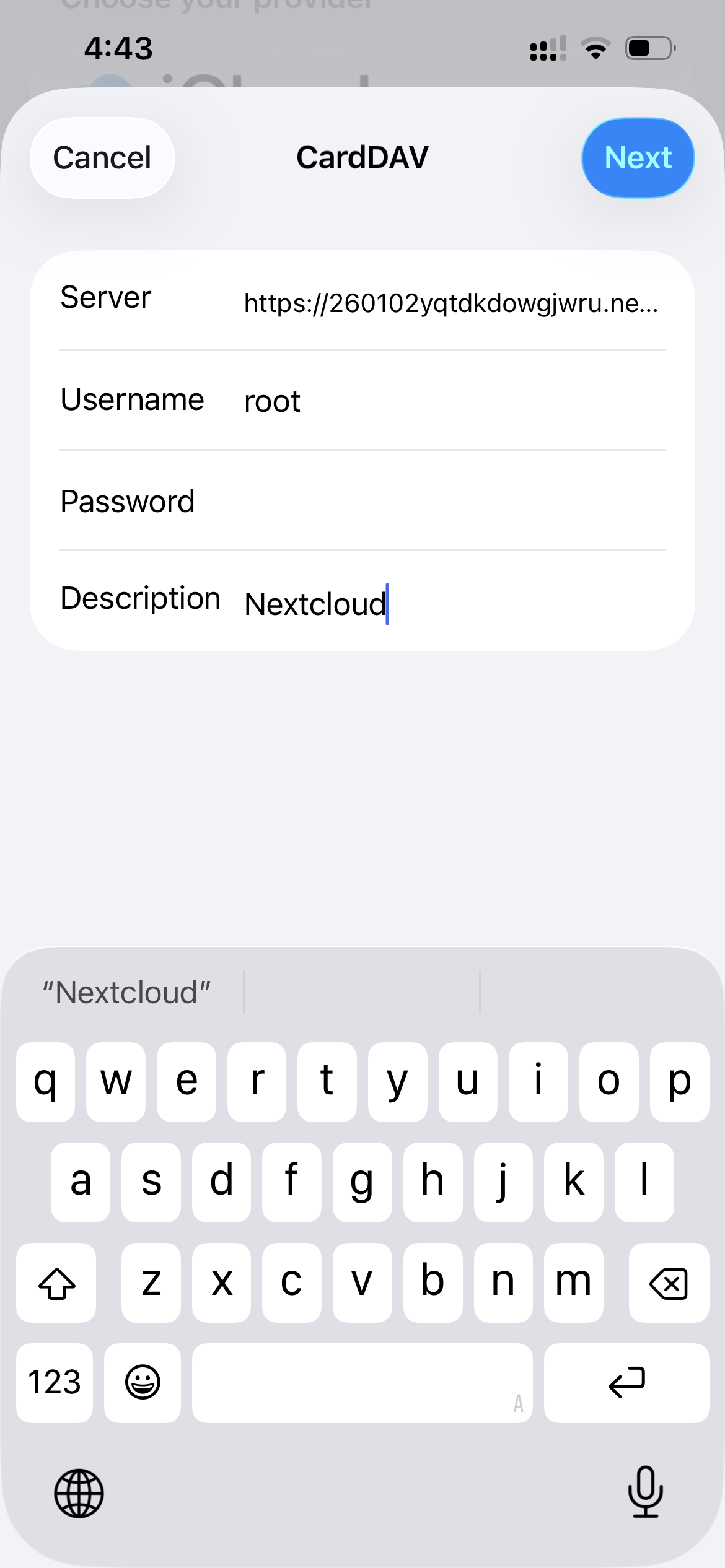
Server - your Nextcloud server URL
Here, you can use the CardDAV server URL copied from the Nextcloud Contacts settings page when adding a CardDAV account on your iPhone.
Or, you can use https://your-domain/remote.php/dav/addressbooks/users/USERNAME/contacts/ as the CardDAV server URL, replacing "your-domain" with your domain name and "USERNAME" with your own Nextcloud username.
Username - your Nextcloud username
Password - your Nextcloud password or app password
Description - you can give any name you prefer
Then click "Next" to continue.
Once verification is complete, the account appears in Contacts Accounts as Nextcloud (based on the description you entered).
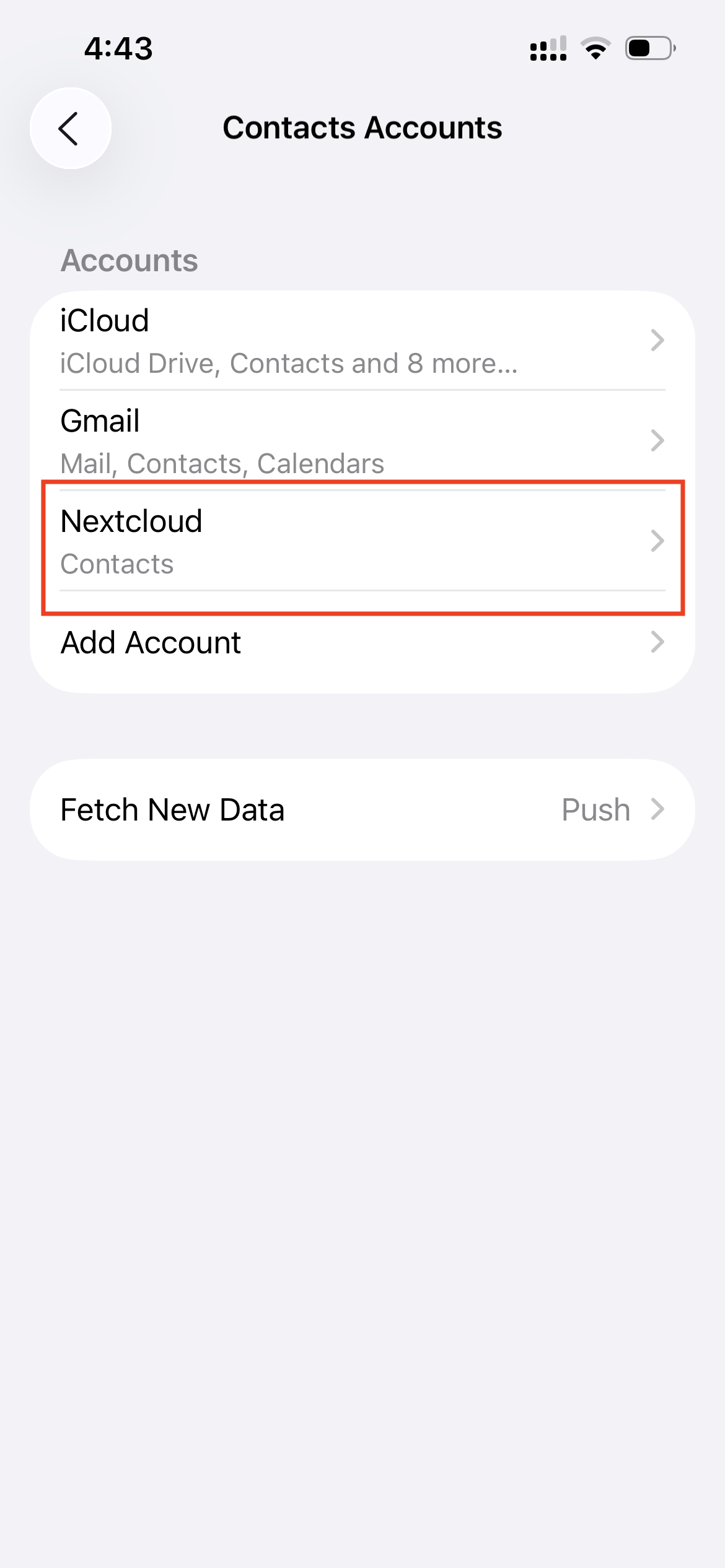
At this point, contact syncing is active.
To verify, open the Contacts app and create a new contact. After a short delay, the contact should also appear in the Nextcloud web interface. Contacts added in Nextcloud will sync back to the iPhone automatically.
Syncing Nextcloud Calendar with iPhone
Calendar syncing in Nextcloud works almost the same way as contact syncing. If you have already added contacts, simply repeat the same steps up to the account type selection.
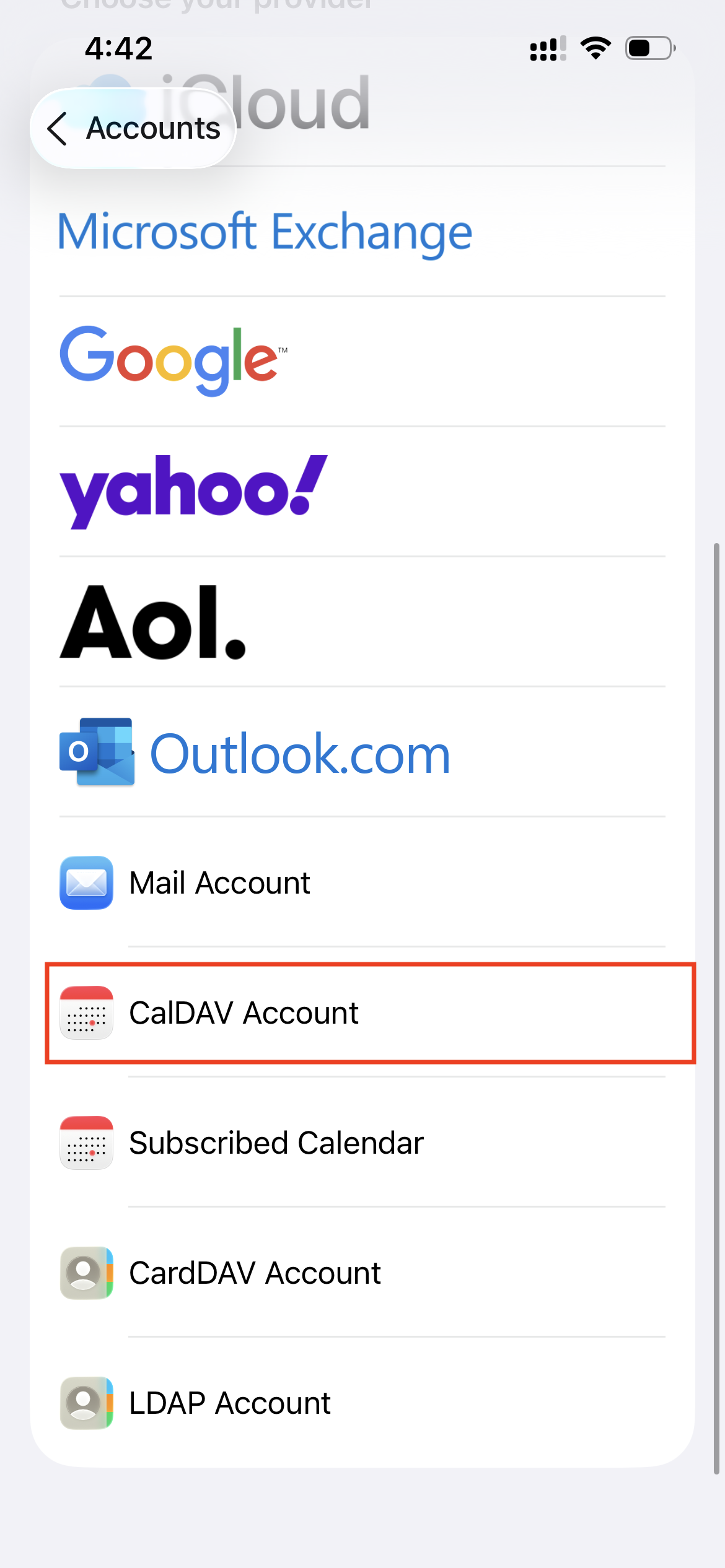
This time, instead of selecting CardDAV Account, choose CalDAV Account:
Enter your Nextcloud details once the CalDAV setup screen appears.
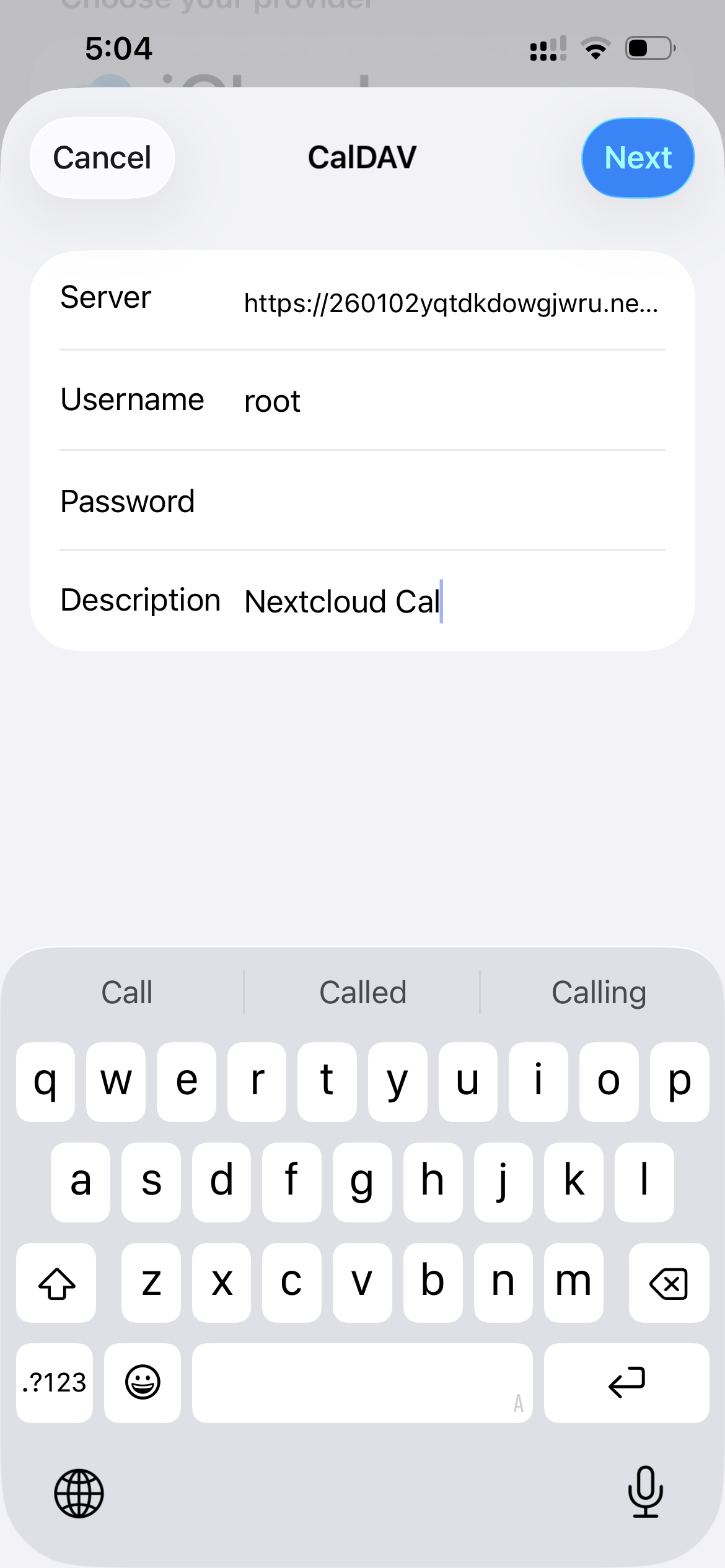
In the Server field, enter https://your-domain/remote.php/dav/principals/users/USERNAME/
You can replace "your-domain" with your Nextcloud server address and "USERNAME" with your actual Nextcloud username.
Then enter your Nextcloud username and password and give the description any name you prefer. And click "Next".
After verification completes, you will see the options for Calendars and Reminders:
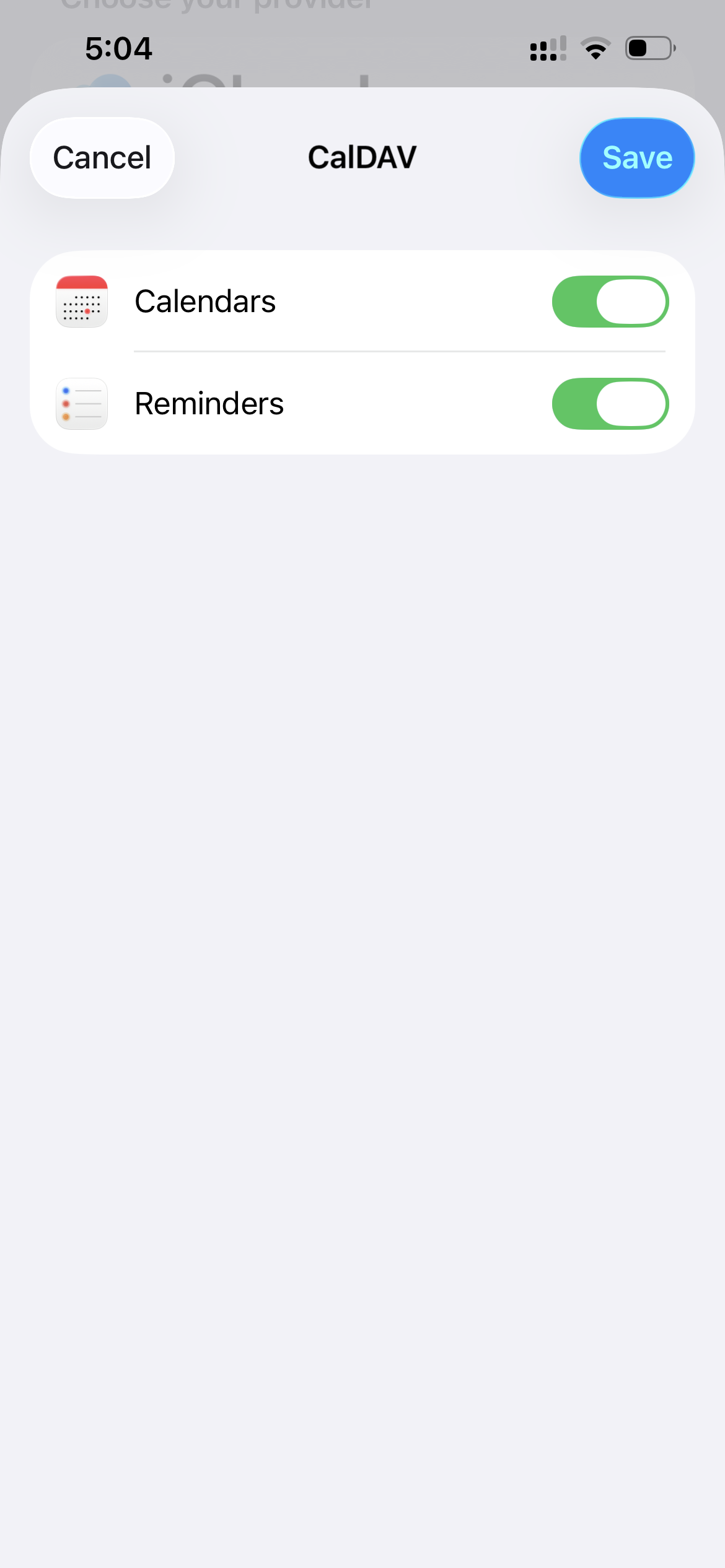
Make sure Calendars is enabled and now click "Save".
The calendar account will now appear under Contacts Accounts as "Nextcloud Cal" (based on the description you entered):
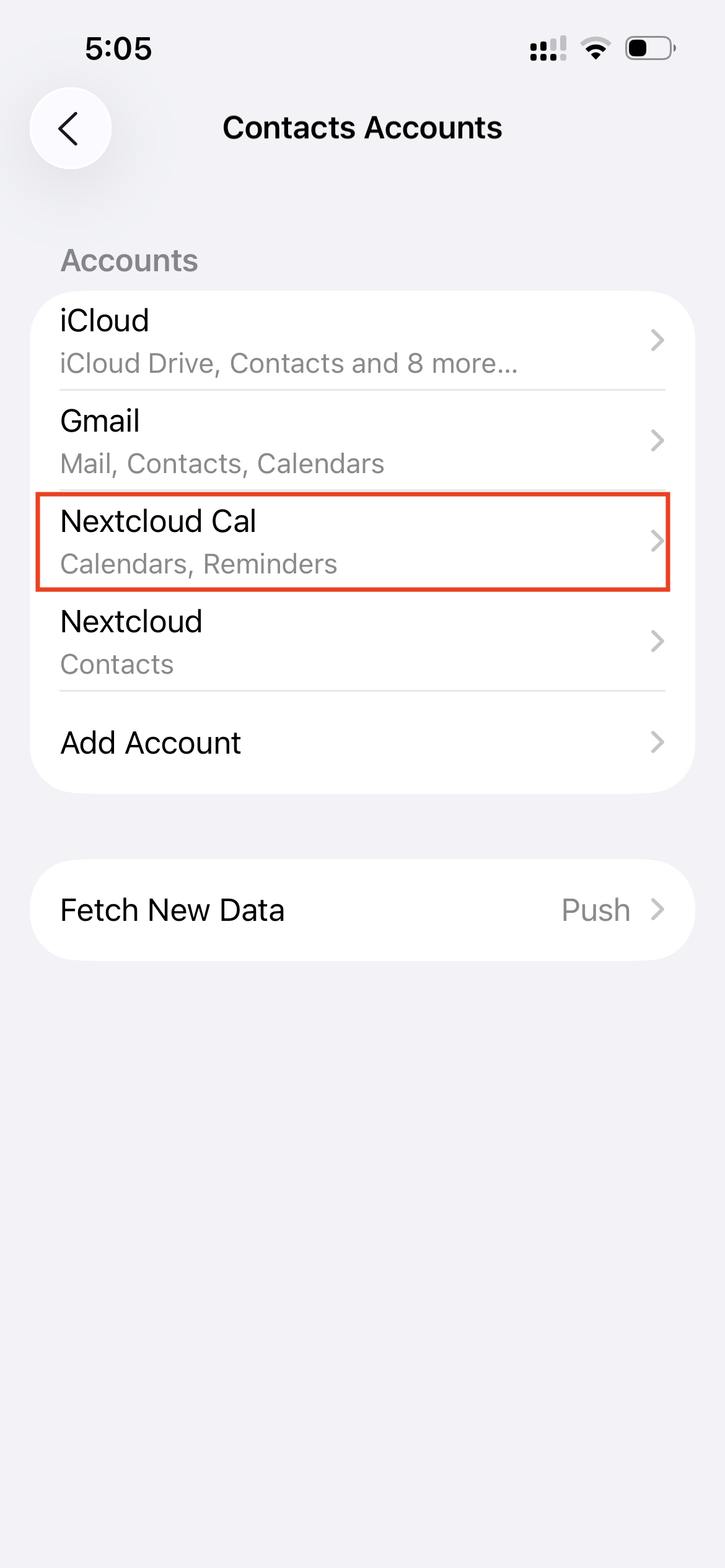
And your Nextcloud calendars will begin syncing automatically with the iPhone Calendar app.
To make sure everything is working, create a calendar event or reminder on both your iPhone and in the Nextcloud web interface and check that they appear on both sides, keeping in mind that syncing can take up to an hour depending on the iPhone’s sync interval.
If you also use a Mac, you may want to set up Nextcloud on macOS to keep files, calendars and contacts synced across all your Apple devices.
8 min read · 29.09.2026
9 min read · 22.09.2026
5 min read · 14.09.2026
Hosted in
Germany
4.3on G2