Best OneDrive Alternatives for Businesses in 2026
8 min read · 29.09.2026
Our Blog / nextcloud-backup-best-practices-how-to-protect-your-data
← Back to overview
A Nextcloud server often stores valuable files, photos, documents, and collaborative data, making it essential to have a reliable backup strategy. Hardware failures, accidental deletions, ransomware, failed updates, or configuration errors can all lead to data loss, and without a proper backup, recovery may be impossible. Following proven Nextcloud backup best practices helps ensure you can restore your server quickly and minimize downtime when problems occur.
In this article, we'll discuss what to back up, key backup best practices, common mistakes to avoid, and tools that can help you better protect your data.
A reliable Nextcloud backup strategy includes backing up the data directory, database, configuration files, and custom apps, then storing backups securely and testing restores regularly. Following best practices such as the 3-2-1 backup rule, automated backup schedules, and maintaining multiple recovery points helps protect your data from hardware failures, ransomware, accidental deletion, and failed updates.
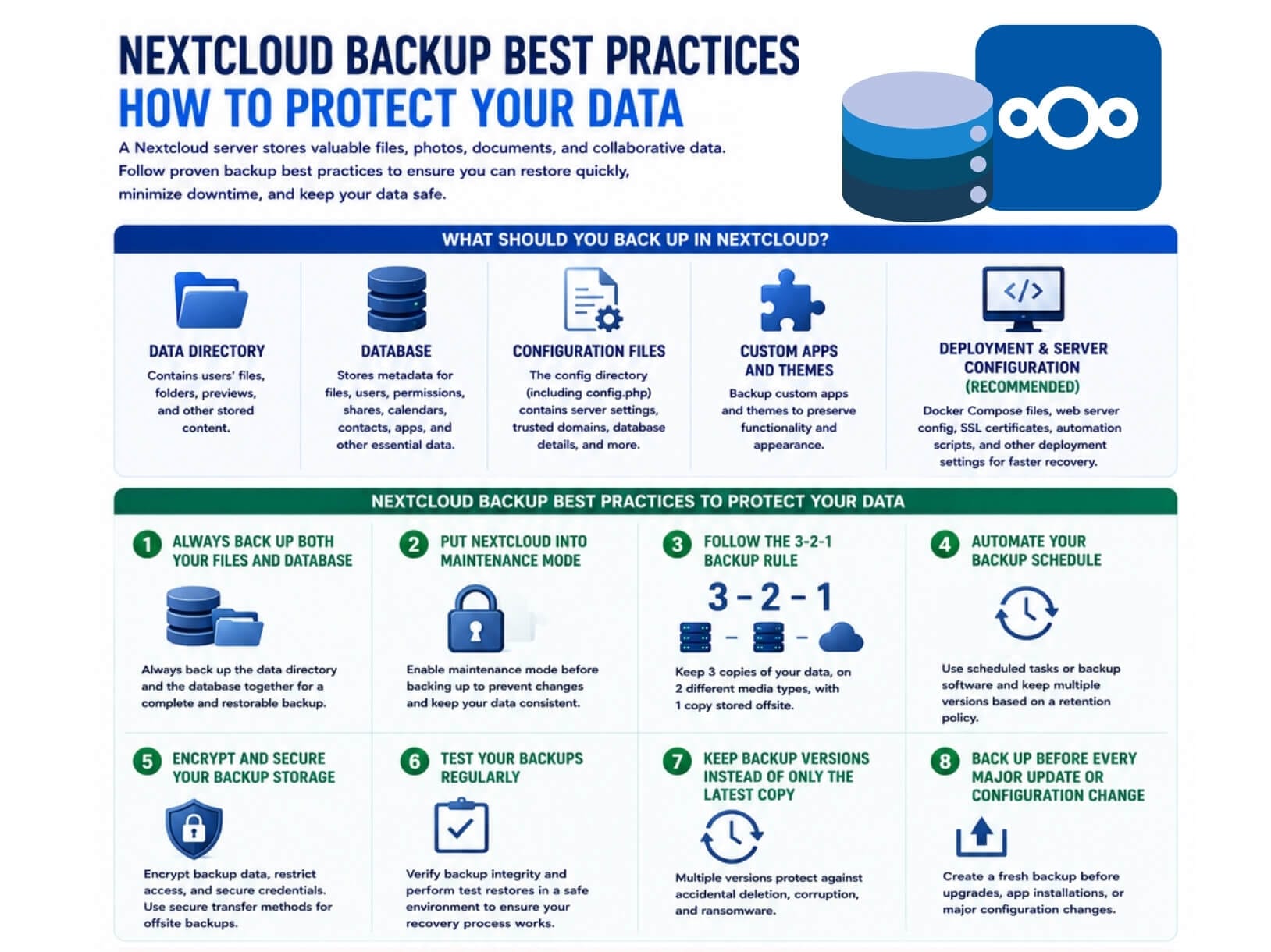
A complete Nextcloud backup includes more than just your files. To fully restore your server after data loss, hardware failure, or a failed update, you need to back up every component that stores your data and configuration. Missing even one critical piece can result in an incomplete restore or a server that doesn't function as expected.
Here's what a complete Nextcloud backup should include:
A complete Nextcloud backup includes both the data directory and the database. While the data directory stores users' files, the database contains file metadata, user accounts, sharing permissions, calendars, contacts, and other information Nextcloud needs to function.
Backing up only one of these components can result in an incomplete restore. They should always be backed up together.
Before creating a backup, enable maintenance mode to prevent users and apps from modifying data during the backup process. This helps keep the database and data directory synchronized, reducing the risk of restoring inconsistent or corrupted data. If you're using coordinated filesystem and database snapshots, maintenance mode may not be necessary.
A reliable backup strategy follows the 3-2-1 rule: keep three copies of your data, store them on two different media types, and keep one copy offsite. For example, you might keep your primary data on the server, a local backup on a NAS, and an encrypted backup in cloud storage.
This approach helps protect against hardware failures, accidental deletion, ransomware, and site-wide disasters.
Manual backups are easy to forget, leaving your data unprotected when something goes wrong. Automate your backups using scheduled tasks or backup software, and define a retention policy that keeps multiple backup versions. Regular automated backups reduce the risk of data loss and help ensure recent recovery points are always available.
Backups often contain sensitive files, user data, and configuration details, making them just as valuable as your live server. Encrypt backup data, restrict access to authorized users, and use secure transfer methods when storing or moving backups. These practices complement overall Nextcloud security by helping protect both your live environment and your backup data from unauthorized access.
A backup is only useful if it can be restored successfully. Periodically verify backup integrity and perform test restores in a safe environment to confirm your files, database, and configuration can be recovered. Testing helps identify problems before they affect a real recovery.
Maintaining multiple backup versions protects against accidental deletion, data corruption, and ransomware that may go unnoticed for days or weeks. Instead of overwriting the same backup each time, use a retention policy that preserves older restore points while automatically removing outdated backups.
Create a fresh backup before upgrading Nextcloud, updating PHP, migrating your database, installing new apps, or making significant configuration changes. If the update fails or causes unexpected issues, you can quickly restore your previous environment rather than troubleshoot a broken deployment.
Even a well-planned backup strategy can fail if common mistakes are overlooked. Avoid the following pitfalls to improve the reliability of your Nextcloud backups:
There isn't a single backup solution that's right for every Nextcloud deployment. The best choice depends on your server environment, storage requirements, performance considerations, and recovery goals. The following tools are widely used to automate and manage Nextcloud backups:
Regardless of the tool you choose, make sure it supports your overall backup strategy by protecting all critical Nextcloud components, automating backups, and allowing you to verify and restore your data when needed.

Following Nextcloud backup best practices is essential for protecting your data from hardware failure, accidental deletion, ransomware, and failed updates. A reliable strategy requires backing up all critical components, storing backups securely, and ensuring they can be restored when needed. When these practices are applied consistently, your Nextcloud environment becomes significantly more resilient and easier to recover from unexpected issues.
At CloudBased Backup, we provide managed Nextcloud hosting with integrated backup handling and full infrastructure management as part of a maintained environment. Our service is designed to reduce operational complexity by combining hosting, maintenance, and data protection within a single platform.
8 min read · 29.09.2026
9 min read · 22.09.2026
5 min read · 14.09.2026
Hosted in
Germany
4.3on G2