Best OneDrive Alternatives for Businesses in 2026
8 min read · 29.09.2026
Our Blog / how-to-set-up-nextcloud-on-an-android-phone
← Back to overview
Access your private cloud from your Android phone quickly and securely. The official Nextcloud Android app lets you browse files, upload and download documents, keep files available offline, and back up photos automatically.
Calendar and contact synchronization is handled through the open-source DAVx⁵ app, which keeps the main Nextcloud app fast and focused on file access. For desktop setup, you can also follow our guide on setting up Nextcloud on macOS for files, calendars, and contacts.
This guide walks you through the complete setup of Nextcloud on an Android phone and shows how to configure automatic photo uploads and calendar and contact synchronization step by step.
Using Nextcloud on Android gives you more control over how your files, photos, calendars, and contacts are stored and synchronized across devices. Instead of relying entirely on third-party cloud platforms, you can keep your data connected to your own Nextcloud server while still accessing everything from your phone.
One of the most common reasons people use Nextcloud on Android is automatic photo backup. The app can upload photos and videos directly from your device, making it a practical alternative to services like Google Photos for users who prefer private or self-hosted storage.
Nextcloud on Android also supports calendar and contact synchronization through DAVx⁵, allowing you to keep personal data synced without depending on Google services. For users who value privacy, data ownership, or GDPR-focused hosting, this setup provides a more transparent and flexible cloud experience.
You can install the app in two ways, depending on how your device is managed.
The first option is through the Google Play Store, which is the most common approach. Open the Play Store, search for “Nextcloud”, and install the official app published by Nextcloud.
The second option is through F-Droid, which is suitable for privacy-focused setups. If your device does not use Google services or you prefer open-source repositories, install F-Droid first. Then search for “Nextcloud” and download the official package.
Both versions are maintained by Nextcloud and receive regular security updates.
Once the app is installed, open it. You will be greeted by the welcome screen.
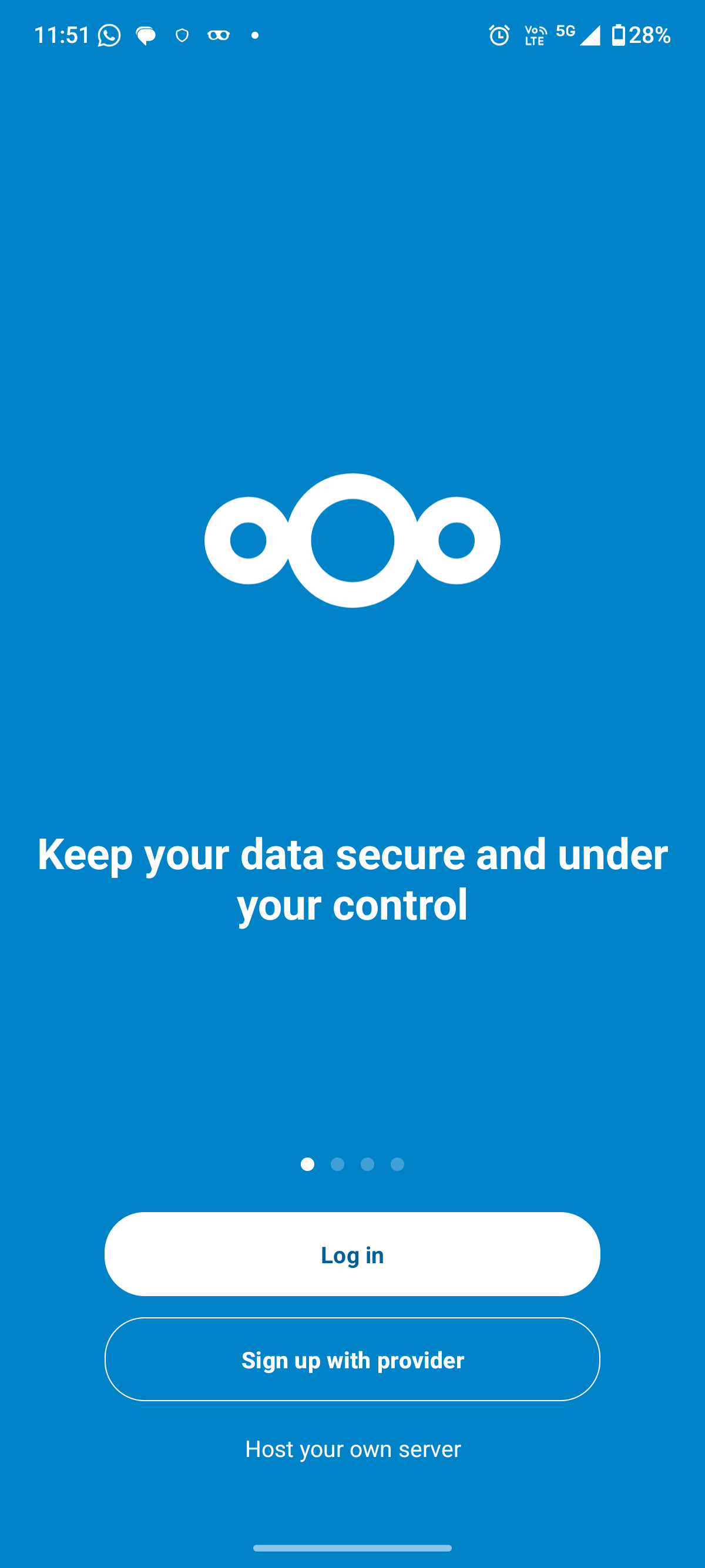
Click "Log in" to begin the setup.
In the server address field, enter the full URL of your Nextcloud instance:
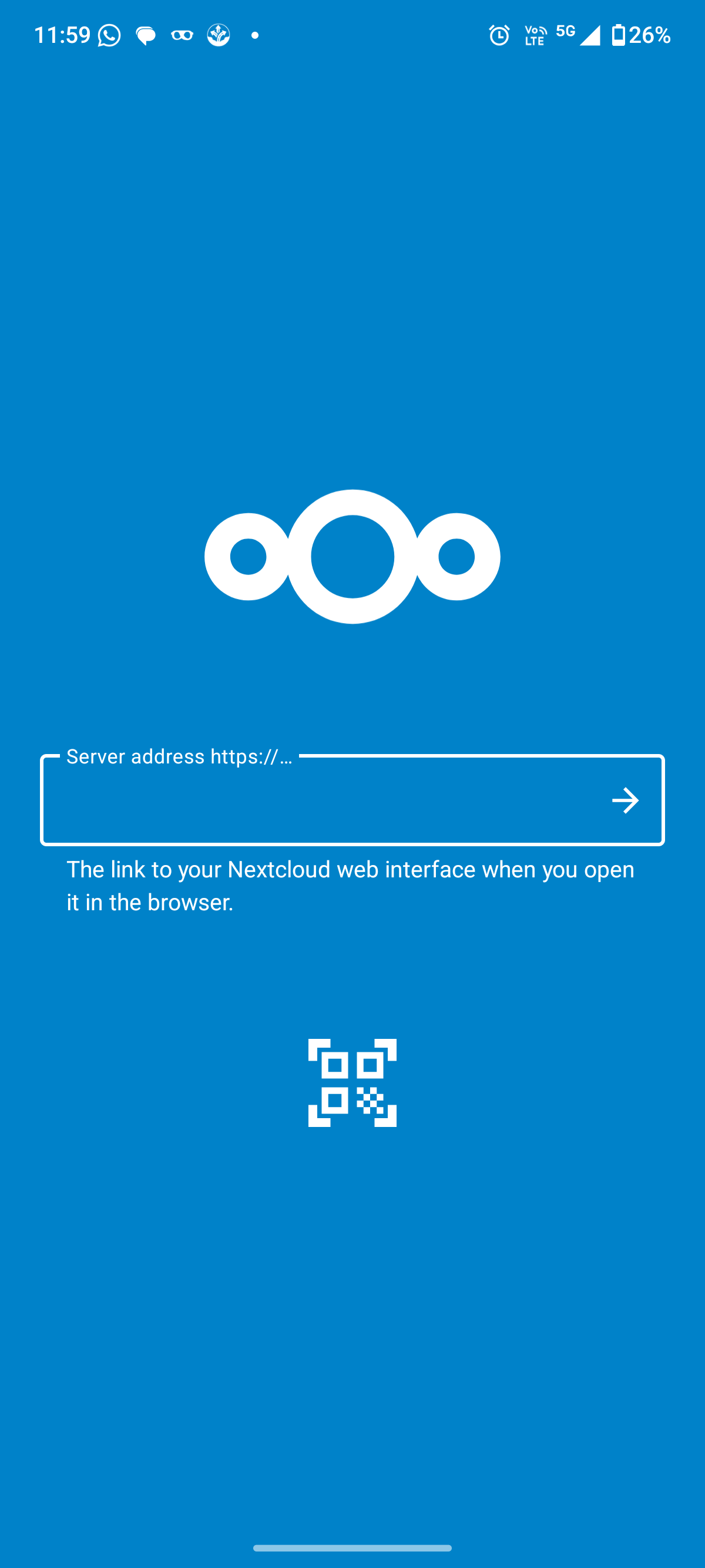
Make sure the address is correct and includes https://. Tap the arrow button to continue.
You will now see a screen asking you to confirm the connection to your account.
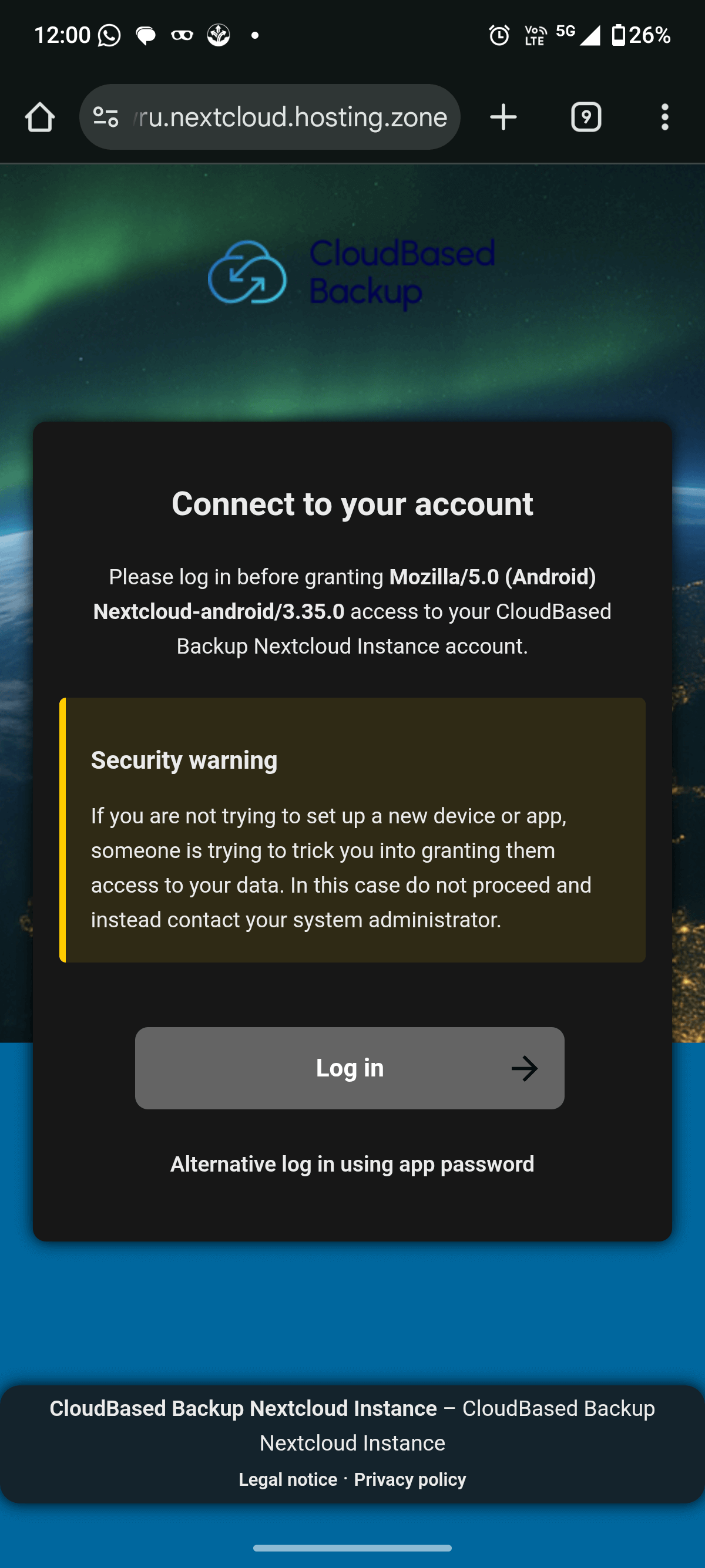
Click "Log in" to continue to the secure authentication page.
The app will now open a secure login page in your browser and enter your Nextcloud username or email address and Nextcloud password, then click "Log in".
After signing in, you will see a permission screen asking to grant access to the Nextcloud Android app.
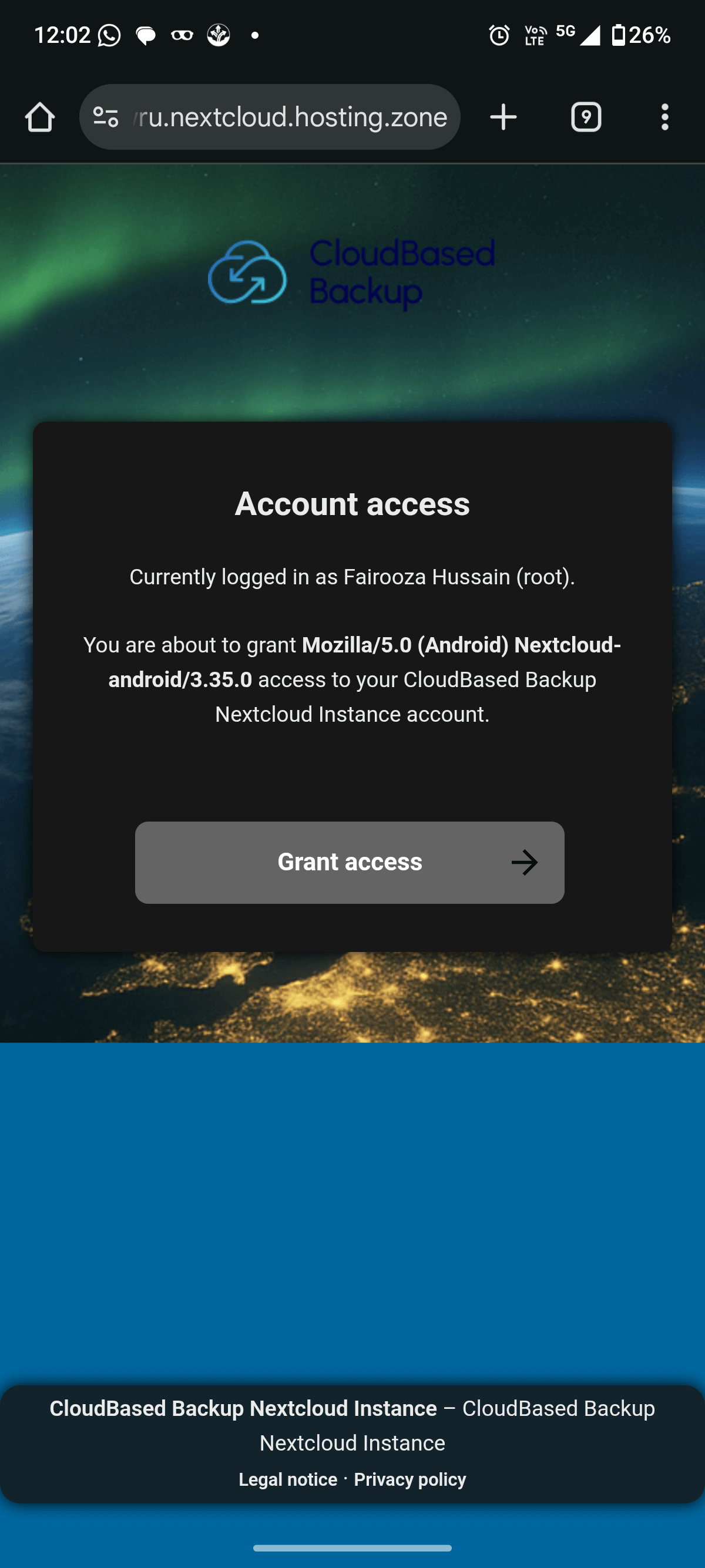
Tap “Grant access” to allow the app to connect to your account. This authorizes the Android app to access your files securely.
Once access is approved, a confirmation message appears indicating that the account is connected successfully. If you are prompted to confirm your password again, enter it to complete the authentication.
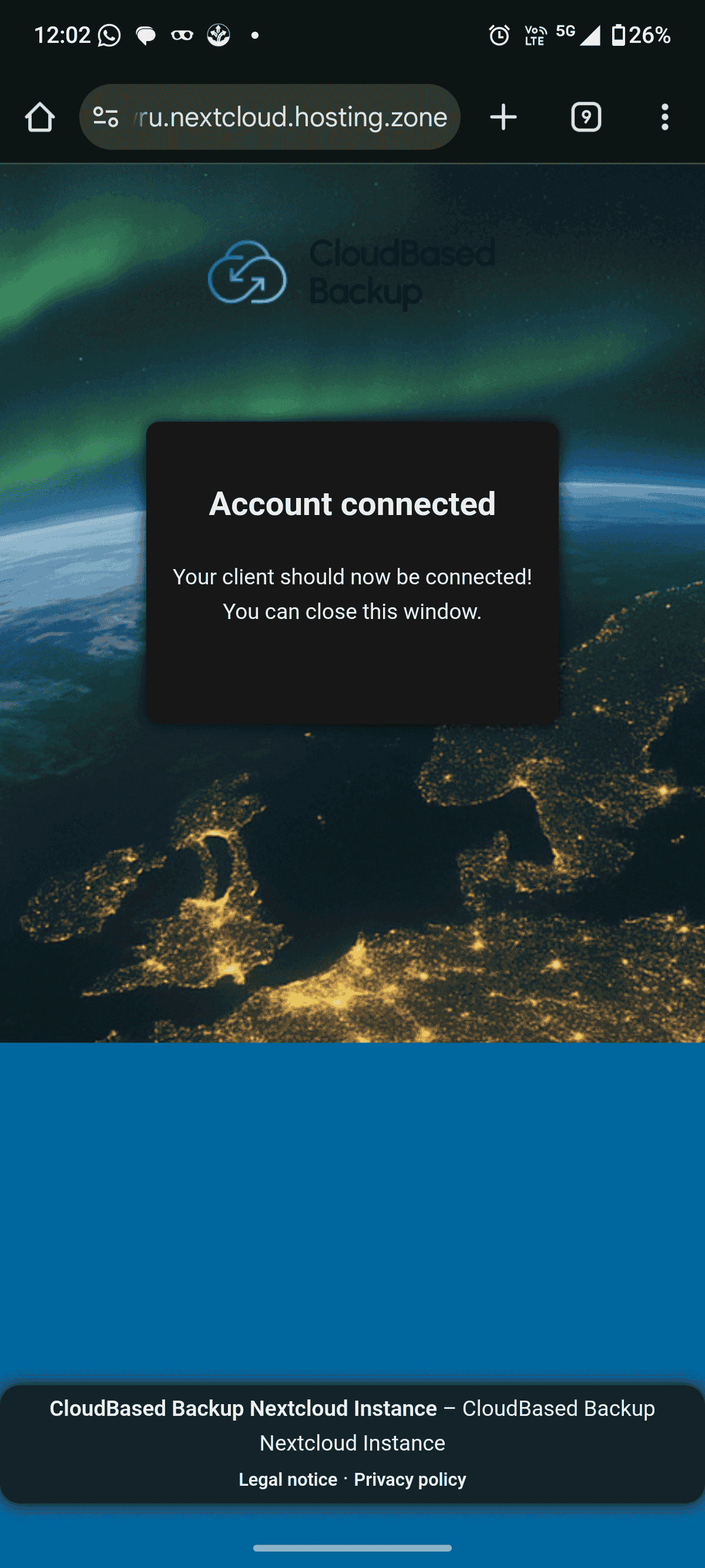
You can now close the browser window and return to your Nextcloud app. The app opens your file overview, where you can see your folders and documents.
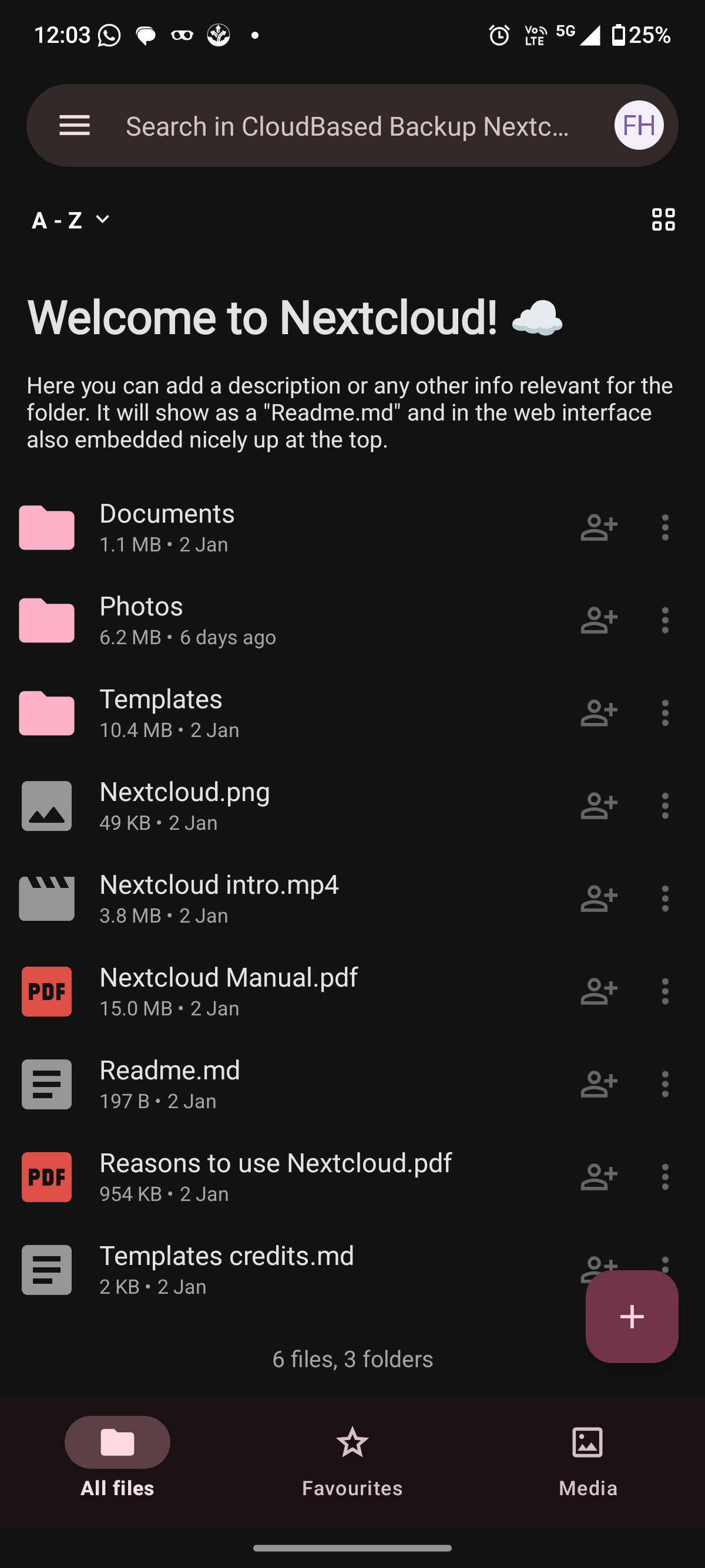
From here, you can start browsing files, uploading documents, and configuring automatic uploads.
The Nextcloud Android app can automatically upload photos from your phone to your private cloud. This ensures that new pictures are backed up securely without manual uploads.
If you also use an iPhone, you can sync Nextcloud with iPhone for automatic uploads, contacts, and calendar.
From the file overview screen, tap the menu icon in the top-left corner of the app.
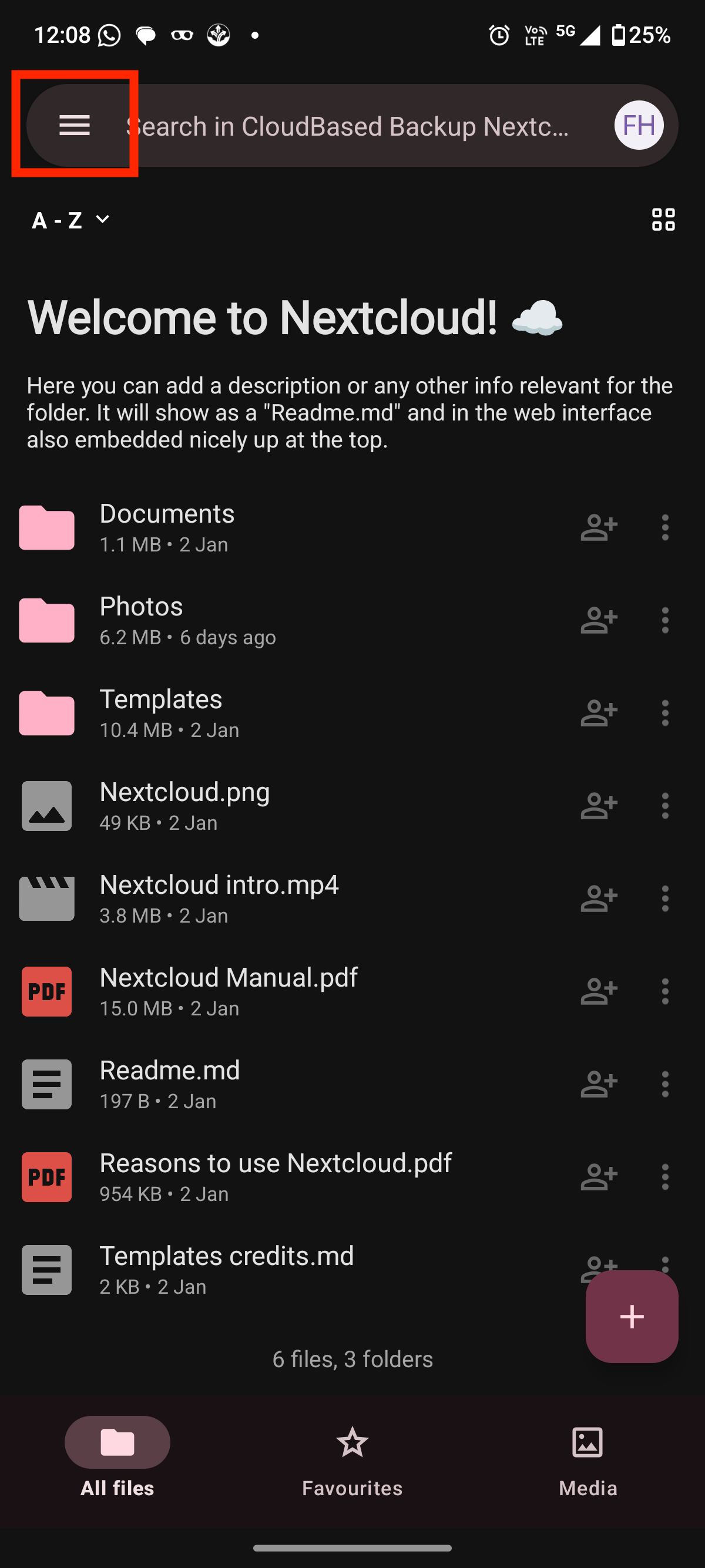
This opens the navigation panel with your file sections and settings.
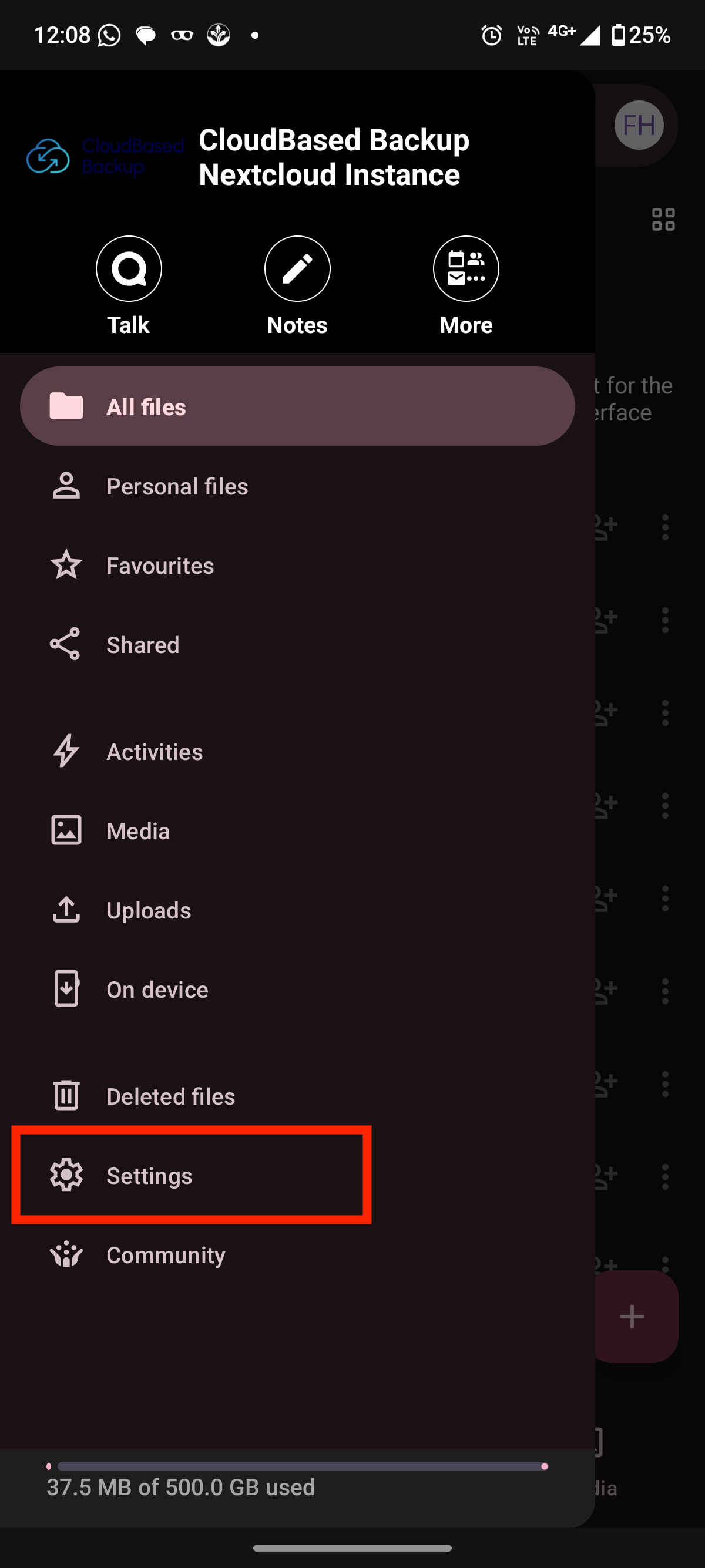
Here, click "Settings". This opens the main configuration area of the Nextcloud app.

Scroll to the Sync section and click "Auto upload".
If automatic uploads are not enabled, the app may ask for storage permission. Simply allow access when prompted, then return to the Nextcloud app to continue setup. This permission ensures your photos can be uploaded automatically in the background.
After the permission is granted, the app displays available media folders. For example, we can select Camera to configure automatic uploads of photos.
In the Camera folder view, tap the three-dot menu and select Configure.
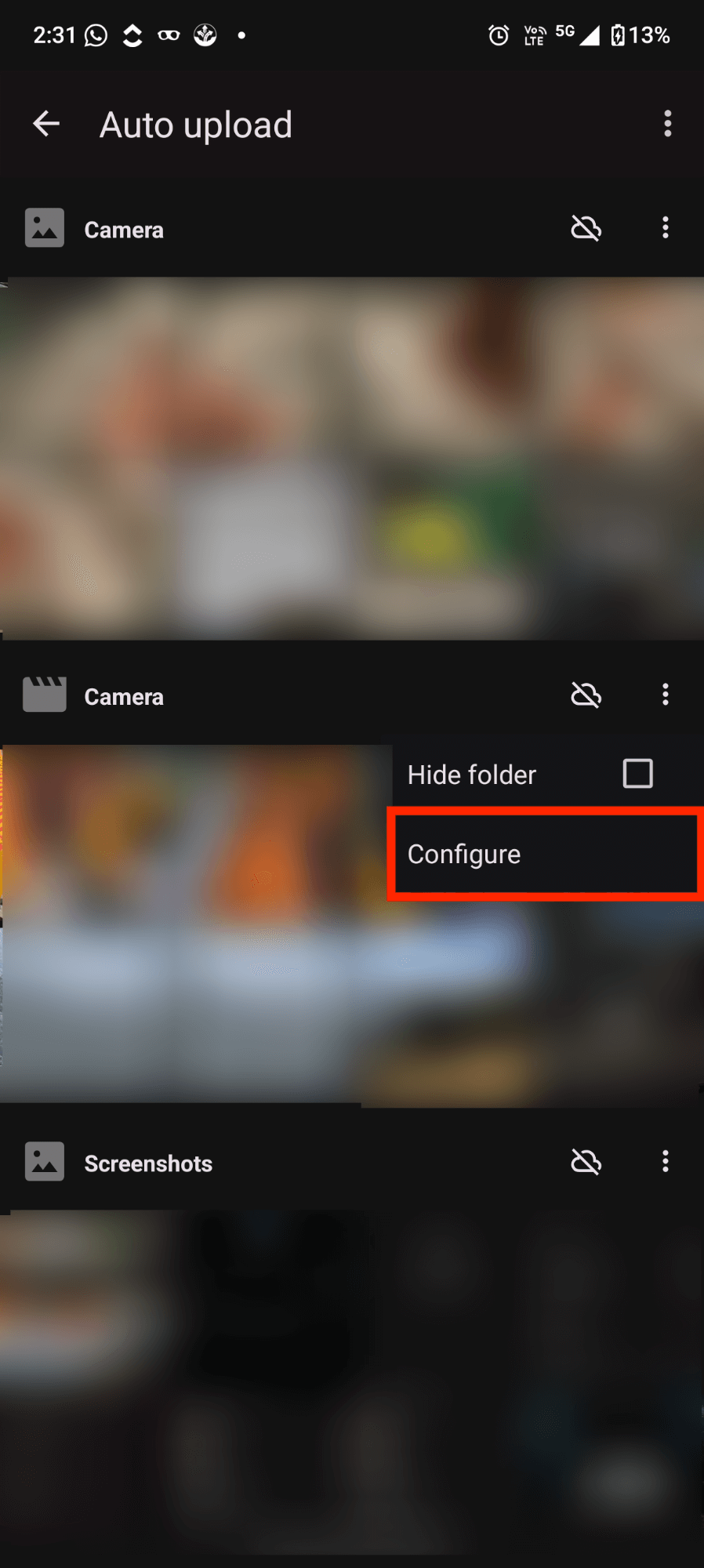
This opens the upload settings for that folder.
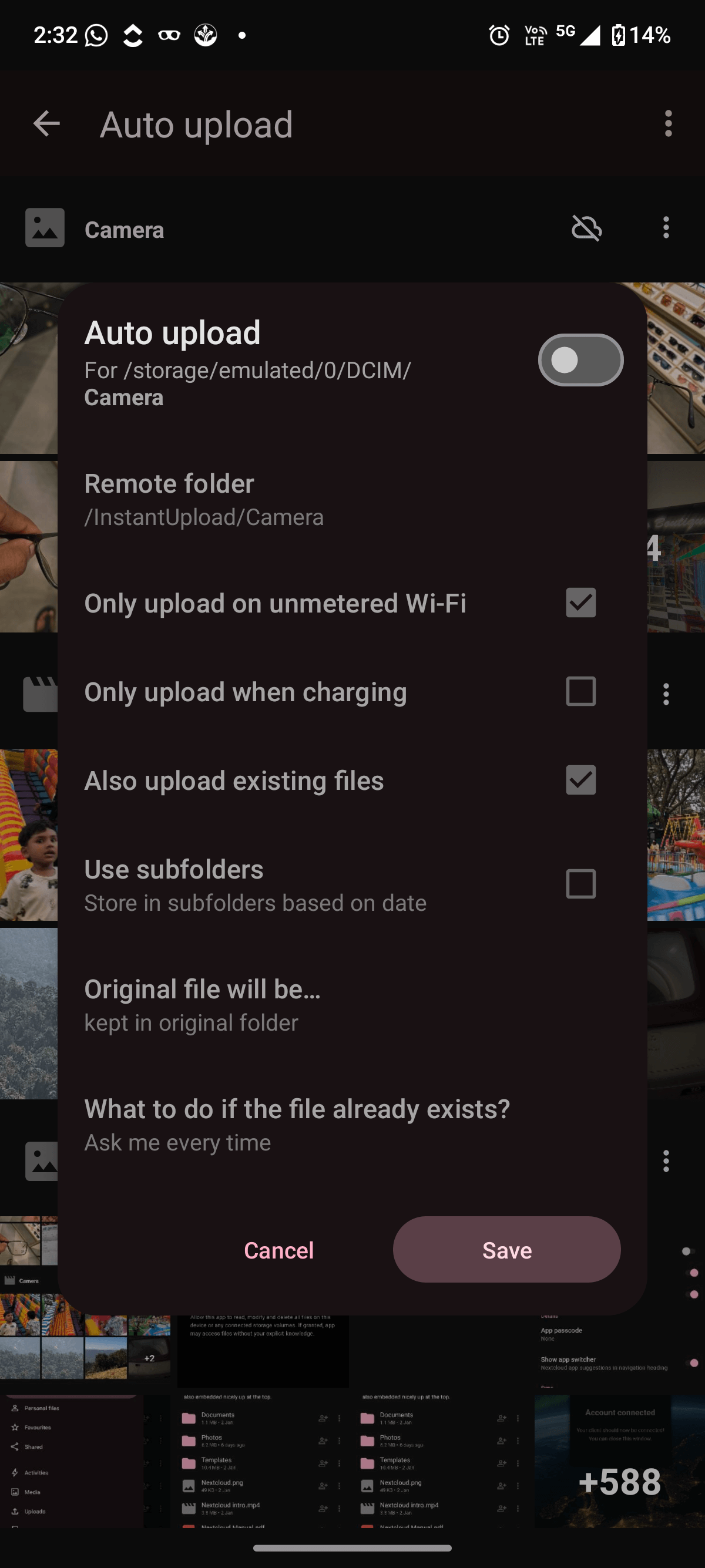
Turn on "Auto upload" for the Camera folder.
You can now configure the options and adjust these settings based on your network, storage, and battery preferences.
After this, click "Save". The Camera folder is now monitored automatically for new photos.
Take a new photo with your phone and wait a few moments. Open your Nextcloud app and check the target folder to confirm that the image has been uploaded.
The Nextcloud Android app does not natively sync calendars and contacts with your device. For this, you need the open-source app DAVx⁵, which handles CalDAV and CardDAV synchronization between Android and your Nextcloud server.
If you do not have DAVx⁵ installed yet, follow our guide on how to install and set up DAVx⁵ for Nextcloud on Android, Once the app is installed, you can continue with the setup.
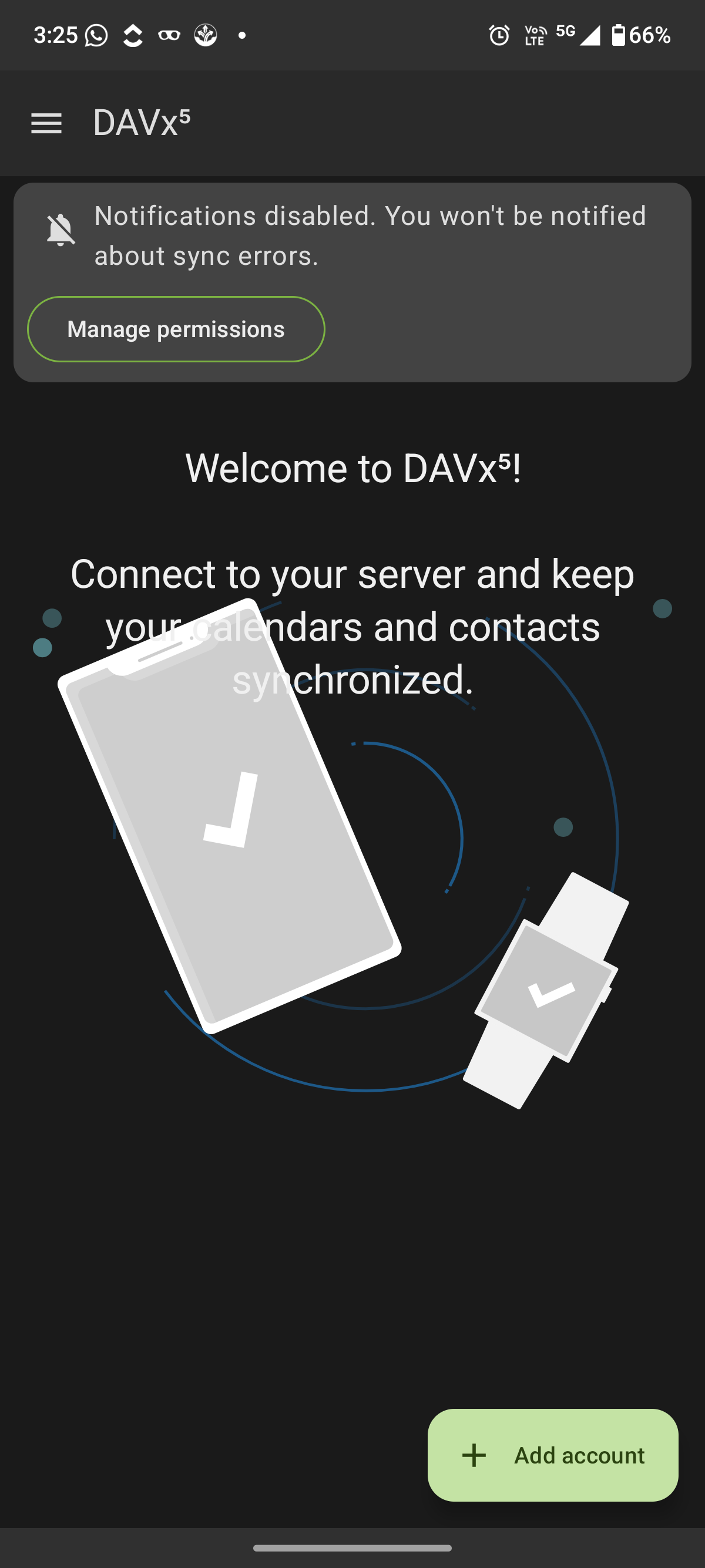
Open the DAVx⁵ app and tap "Add account".
Now you will be taken to the login screen:
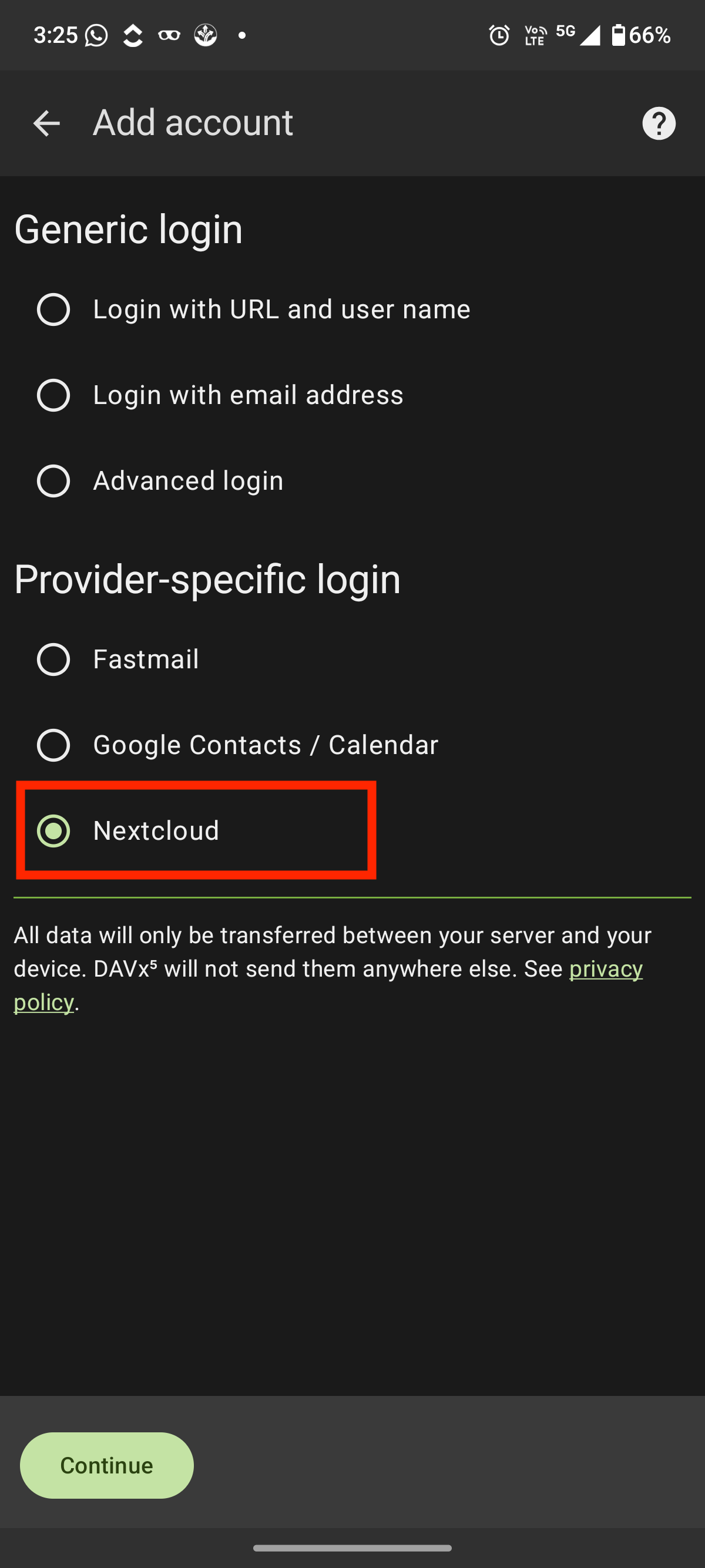
Here, select "Nextcloud" under Provider-specific login, then tap "Continue".
Then the following screen appears:
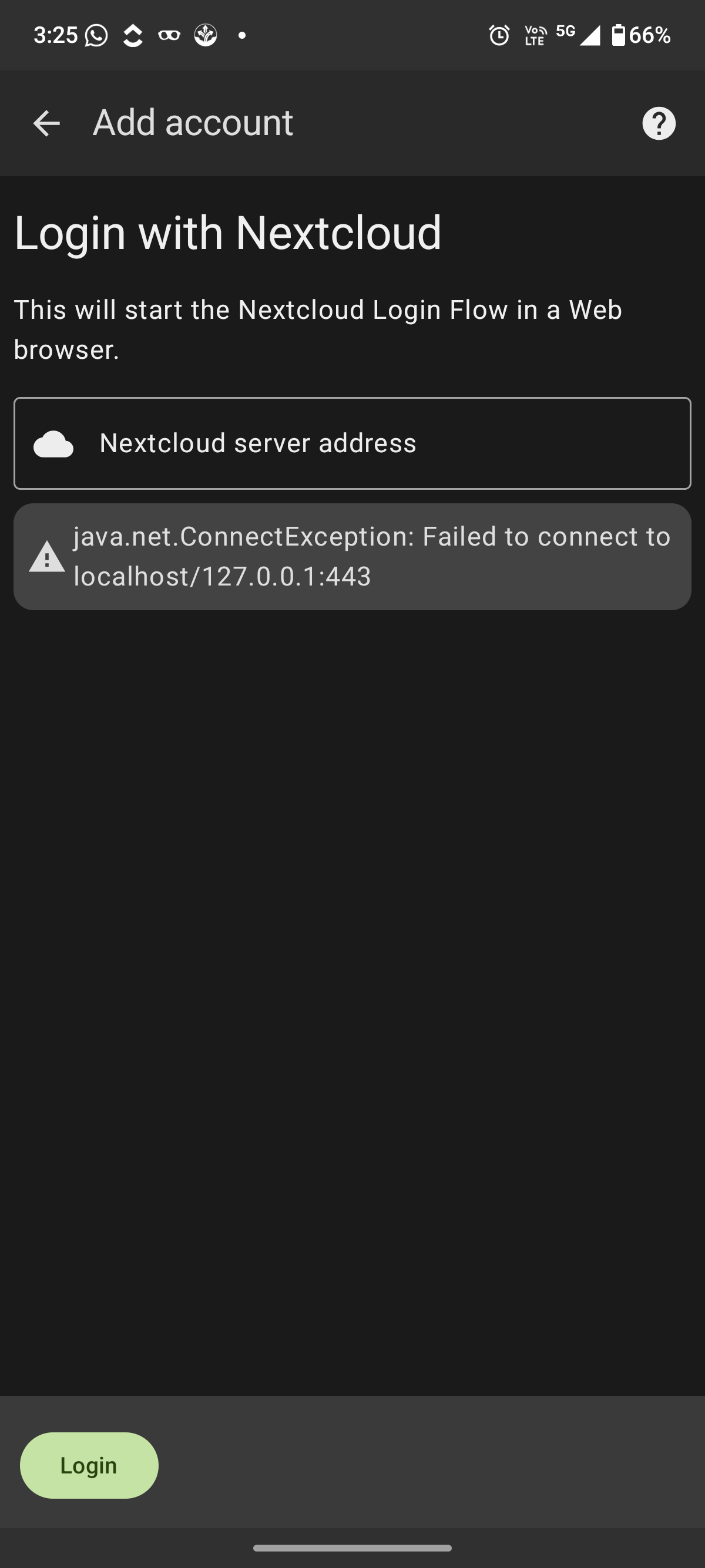
You need to enter the Nextcloud server address in the field and click "Login".
Your browser will open a secure login page where you need to sign in with your Nextcloud account.
After signing in, confirm access to connect DAVx⁵ with your Nextcloud server.
Once the connection is approved, return to the DAVx⁵ app to continue the setup.
Now close the browser window and return to the DAVx⁵ app to continue the setup. DAVx⁵ will ask you to confirm your account name.
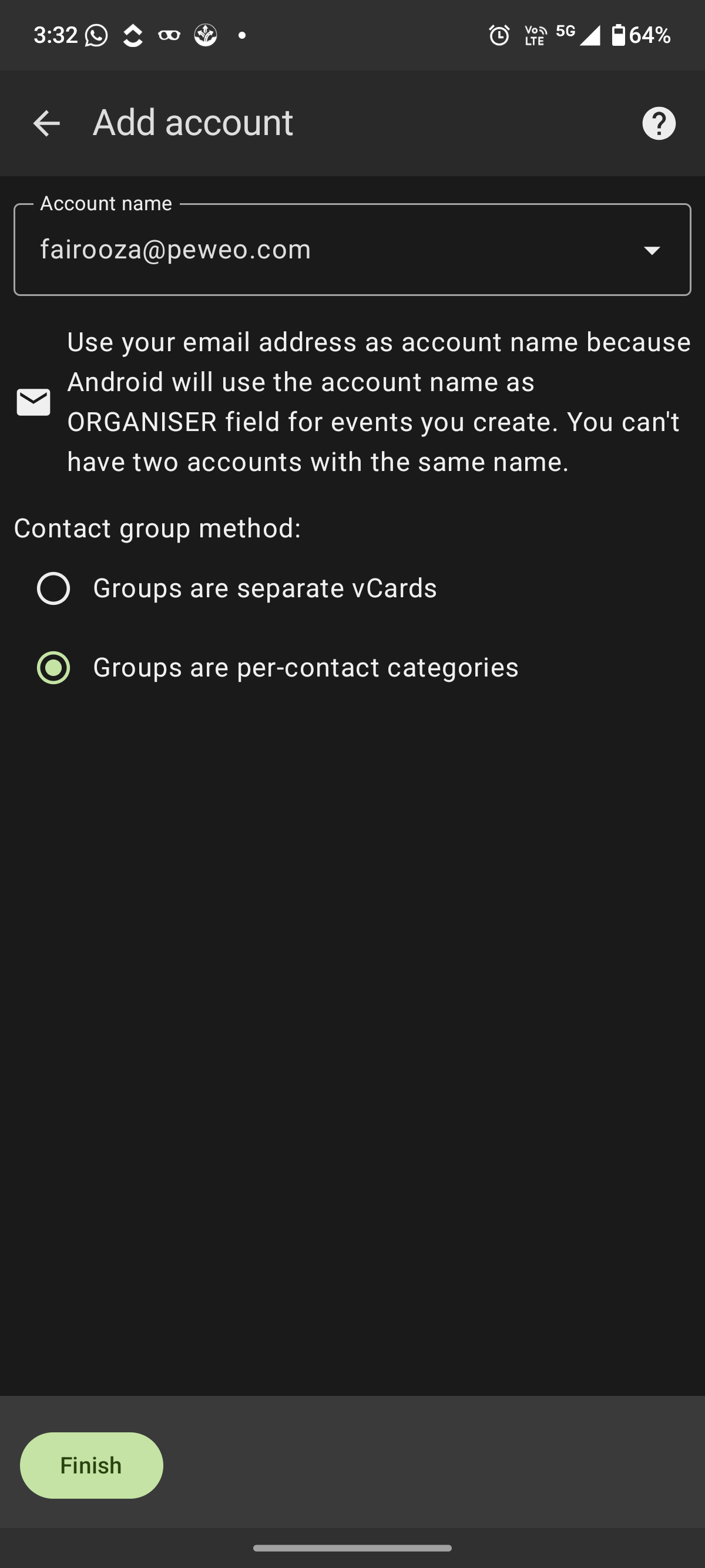
Name the account using your email address. Below this, you will see the contact group method options. Leave the default option “Groups are per-contact categories” selected, then tap "Finish".
After finishing this step, DAVx⁵ opens the calendar synchronization screen under the CalDAV tab.
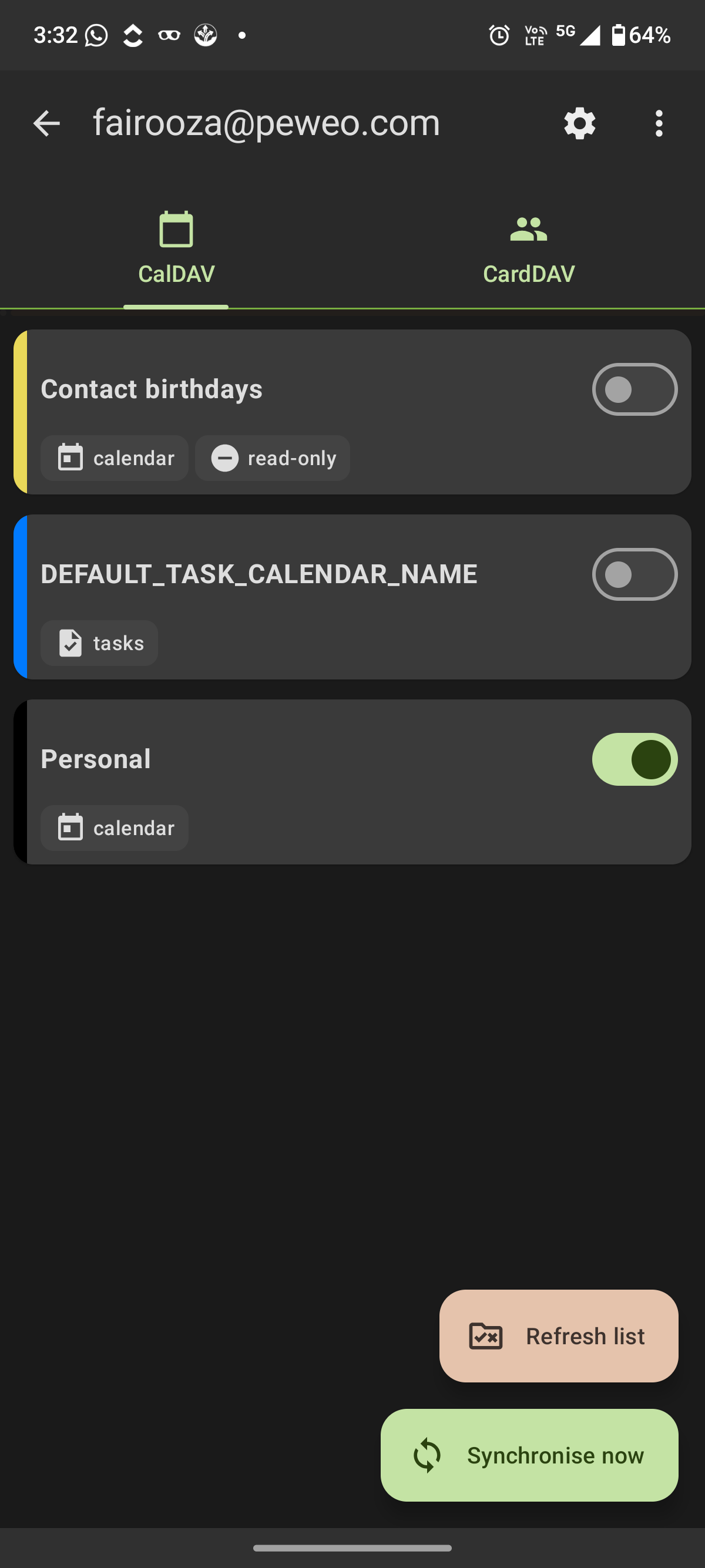
Here, you will see all calendars available in your Nextcloud account.
Enable the calendars you want to sync by turning on the toggle. In most cases, this will include your main personal calendar.
Once selected, tap "Synchronise now" to start the initial calendar sync.
Your Nextcloud calendars will now appear in the Android calendar app and stay updated automatically. If you use Thunderbird, see our guide on syncing Nextcloud with Thunderbird for calendar and contacts.
If you also rely on Google Calendar, you can integrate your Nextcloud calendar into Google Calendar to view the same events across platforms.
Next, switch to the CardDAV tab to configure contact synchronization:
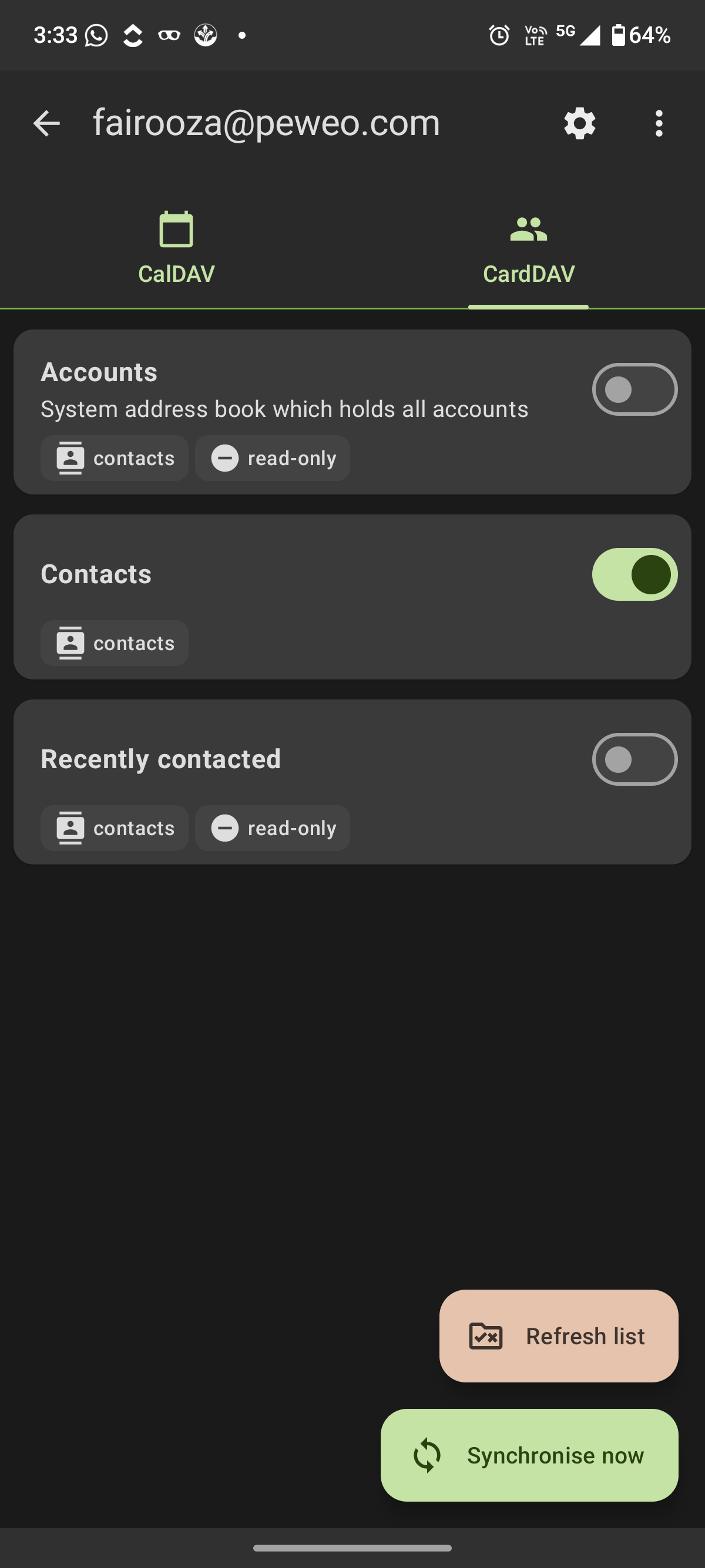
You will see several address book options. You can enable the main Contacts toggle to sync your Nextcloud contacts with your Android device.
Tap "Synchronise now" to begin syncing your contacts.
Once the sync completes, your Nextcloud contacts will be available in the Android contacts app and kept in sync across devices.
If you are looking for a secure and fully managed Nextcloud solution, you can explore our Nextcloud hosting plans to get started quickly.
8 min read · 29.09.2026
9 min read · 22.09.2026
5 min read · 14.09.2026
Hosted in
Germany
4.3on G2