How to Connect AI Tools to Nextcloud with MCP
6 min read · 12.10.2026
Our Blog / how-to-use-nextcloud-groupware
← Back to overview
Managing communication, schedules, and tasks across multiple separate tools can quickly become fragmented, especially in team environments. Information ends up scattered across email clients, chat apps, calendars, and project tools, making coordination less efficient and harder to track.
Nextcloud Groupware addresses this by bringing these core productivity functions into a single self-hosted platform within Nextcloud.
This guide explains how to use this suite of applications in practice, covering setup, daily use, synchronization, troubleshooting, and general workflow management.
Nextcloud Groupware combines email, calendar, contacts, tasks, and team communication into a single self-hosted system. It uses standards like IMAP, CalDAV, and CardDAV to keep data synchronized across devices and applications. Proper setup and consistent syncing are required to ensure all features work correctly across users and platforms.
Nextcloud Groupware is a set of productivity applications built into Nextcloud rather than a single standalone tool. It includes services such as Mail, Calendar, Contacts, Tasks, and Talk, all operating within the same user environment and data system.
It uses standard communication protocols such as IMAP and SMTP for email, CalDAV for calendar synchronization, and CardDAV for contact management. These standards allow it to connect with external email clients, mobile devices, and desktop applications while still keeping data stored and managed on the self-hosted Nextcloud server.
The main advantage of this setup is how the components interact within the same platform. For example, emails can be turned into calendar events, contact information is available when scheduling meetings, and tasks can be managed alongside communication. This reduces the need to switch between separate tools and keeps related information within a single system.
Before using Nextcloud Groupware, the environment must be properly set up so that all required applications are available and functioning. Access usually begins with a user account provided by an administrator or hosting provider.
On the administrator side, the main requirement is ensuring that the core groupware applications are installed and enabled. This is done through the Apps management panel.
Key setup requirements for administrators:
For end users, setup is mainly about confirming availability rather than configuration. Once logged in, the interface should reflect whether groupware features are ready to use.
User-side checks:
If these components are not properly enabled, features such as email access or calendar synchronization may not work as expected.
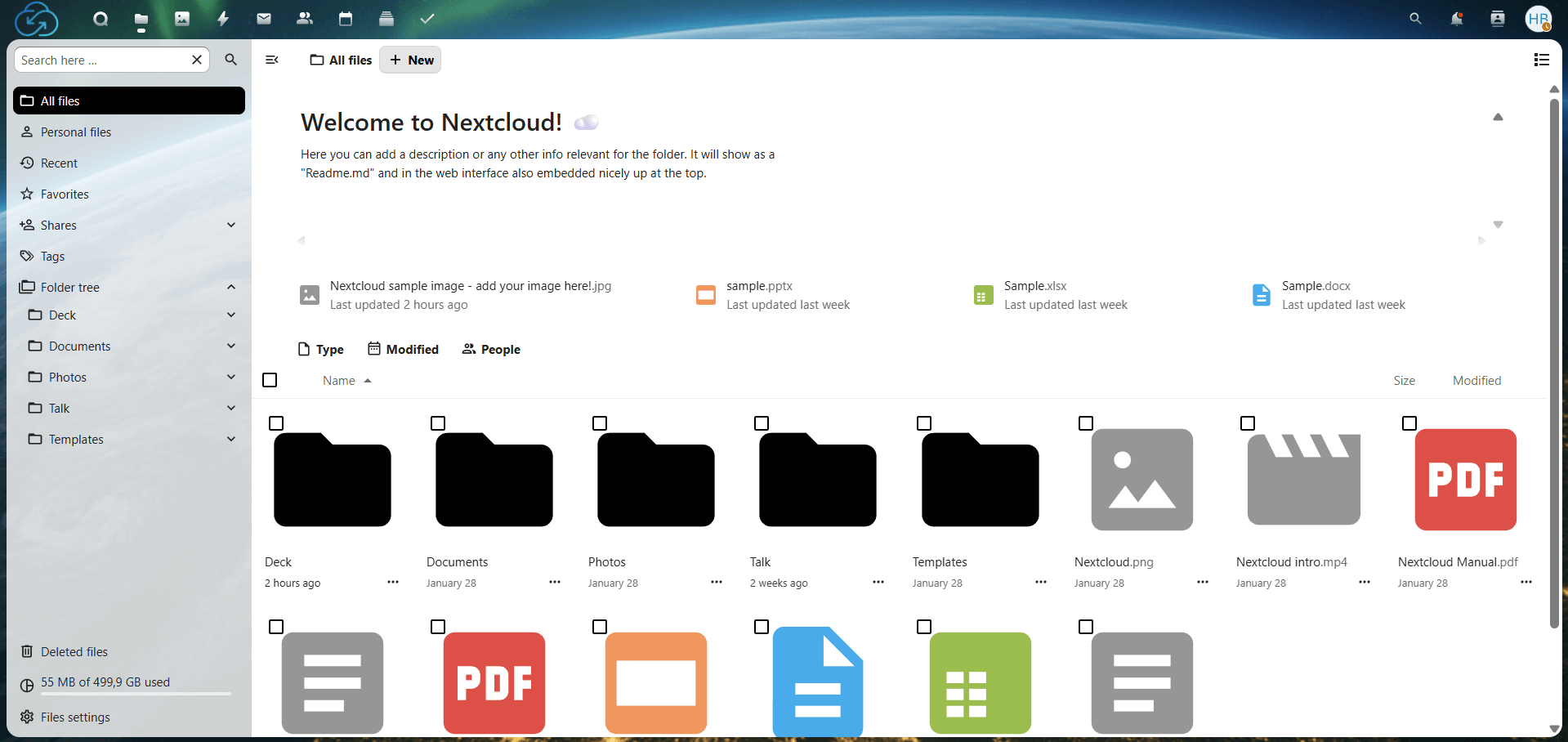
Access your Nextcloud instance using the provided URL and credentials. After logging in, you will arrive at the main dashboard, where you can access files and apps.
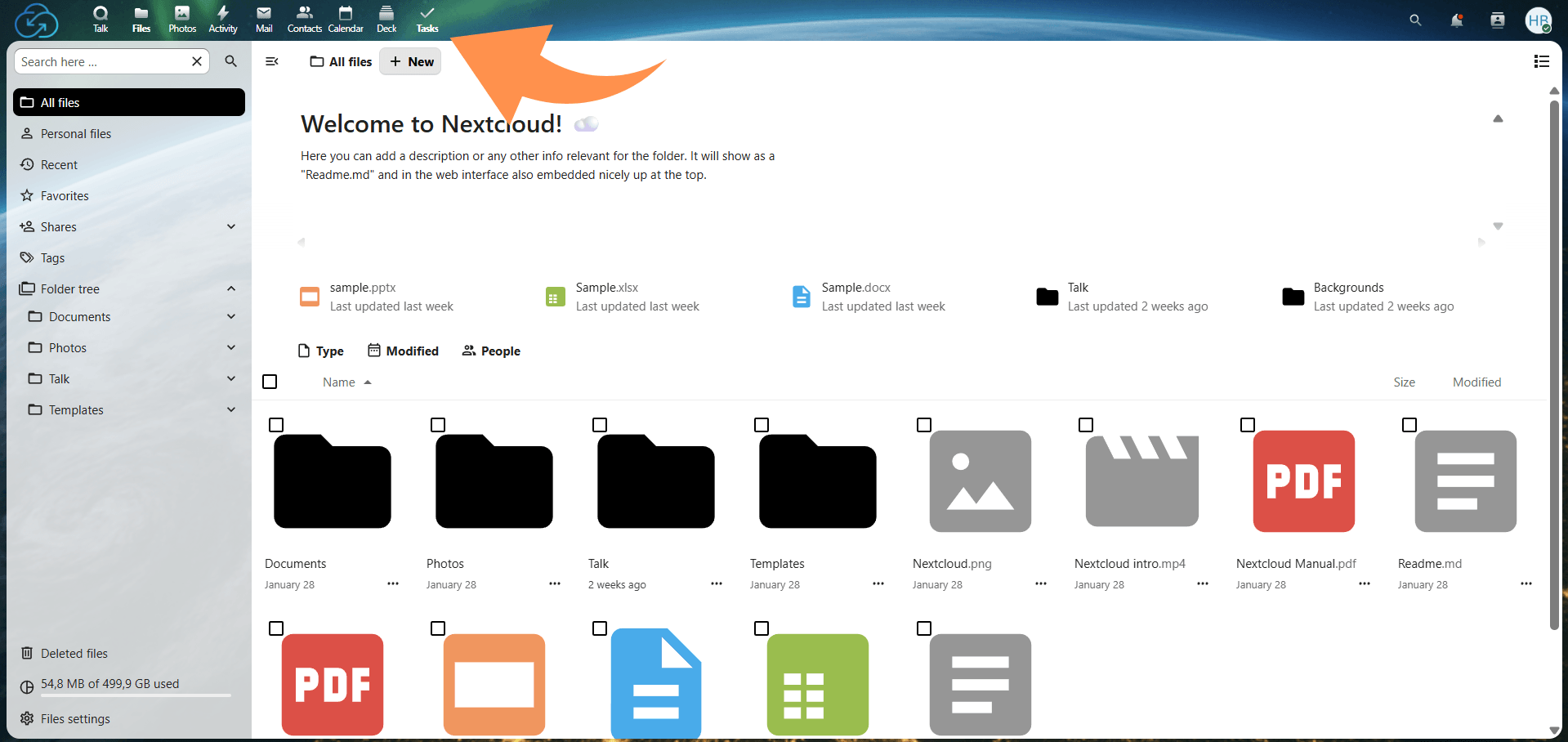
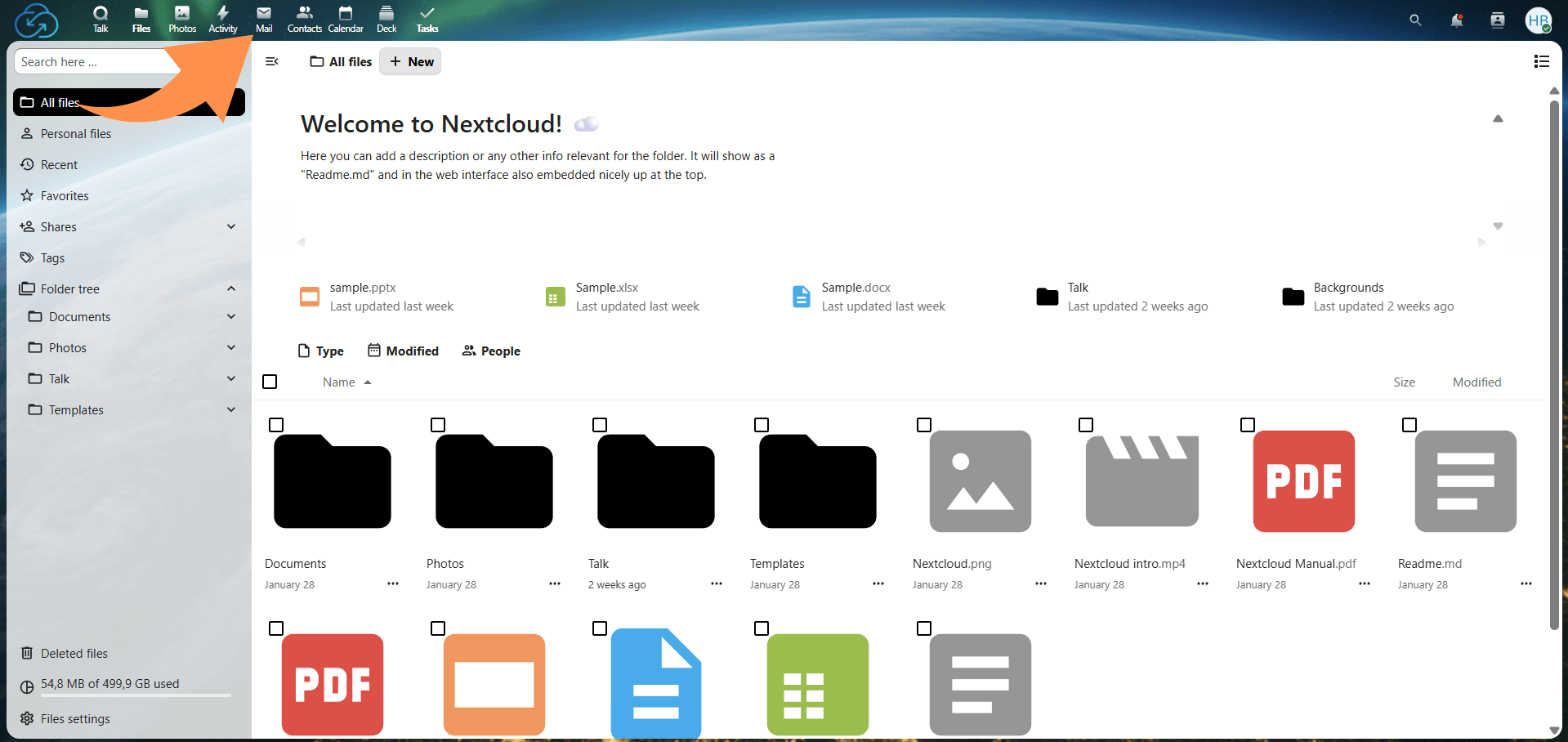
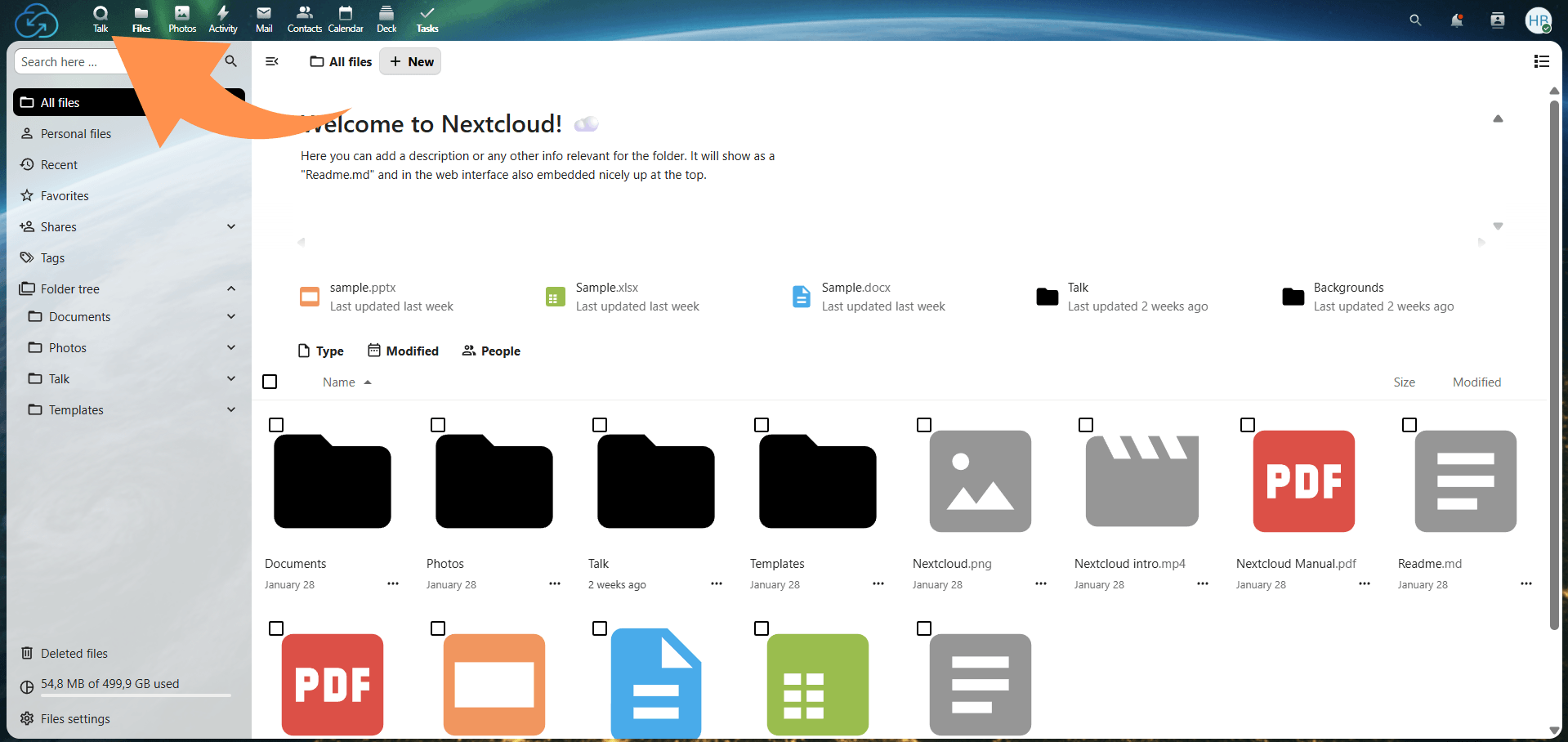
Use the app switcher in the top-left corner to view available tools, including Mail, Calendar, Contacts, Tasks, Talk, and Deck.
Check that the required apps are visible in the list. If any are missing, they may need to be enabled by an administrator.
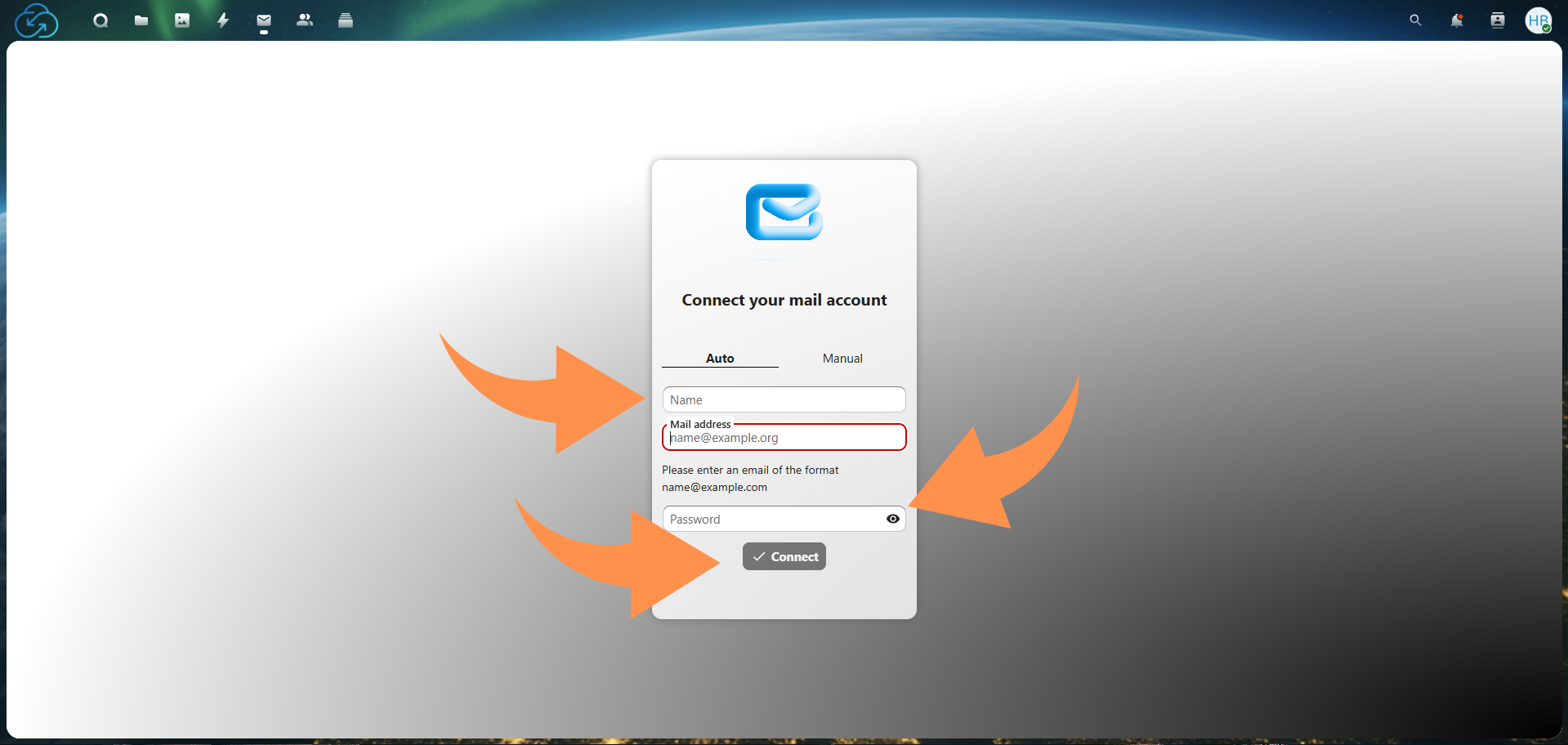
Open the Mail app and select “Add account.” Enter your email address and password or app-specific password if required.
If automatic setup fails, manually enter IMAP (incoming) and SMTP (outgoing) details from your email provider. These settings allow Nextcloud to connect to your mailbox.
Once connected, you can send, receive, and organize emails. You can also attach files directly from Nextcloud storage without downloading them locally.
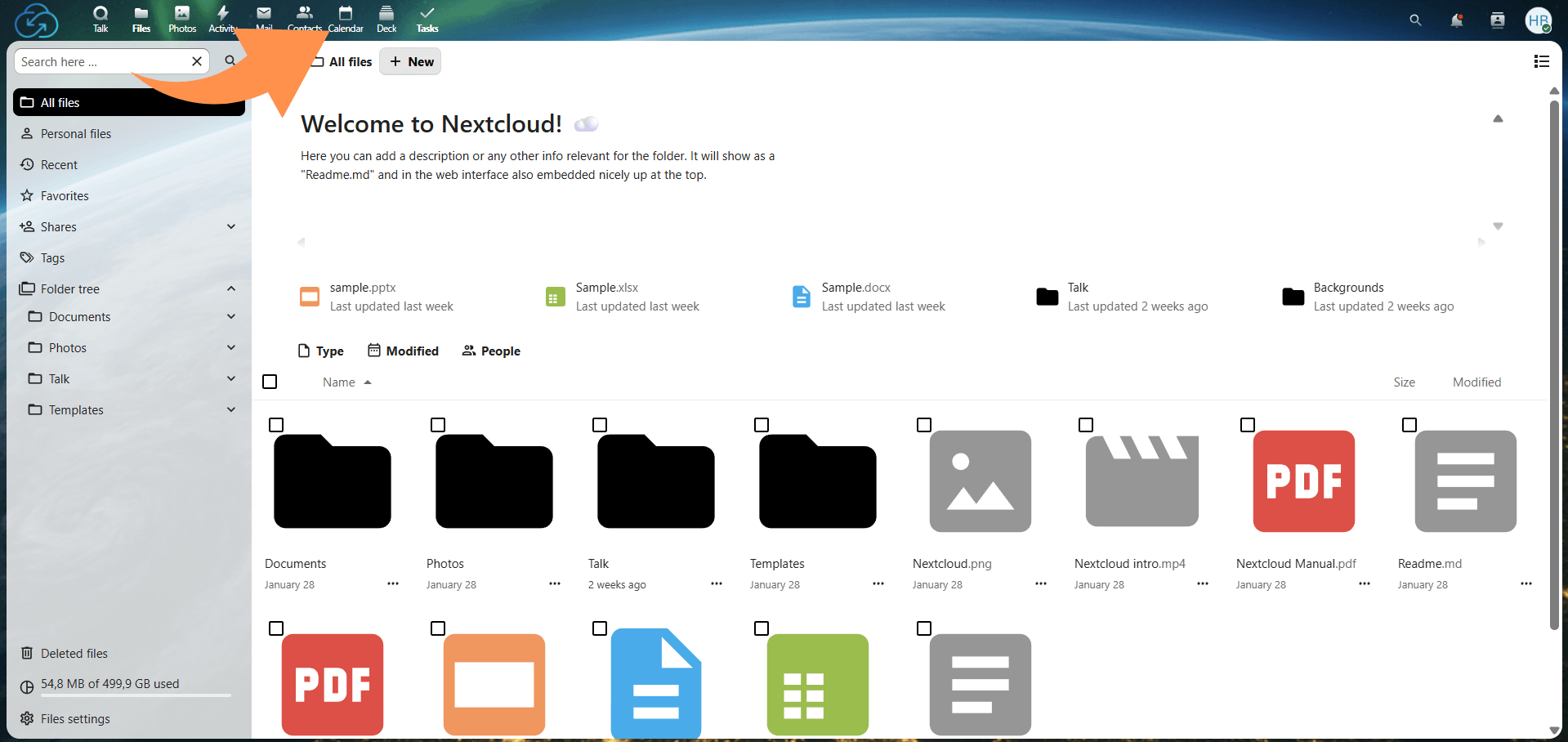
Open the Calendar app and create a new calendar for a specific purpose, such as work or personal use. Assign a name and color for easier identification.
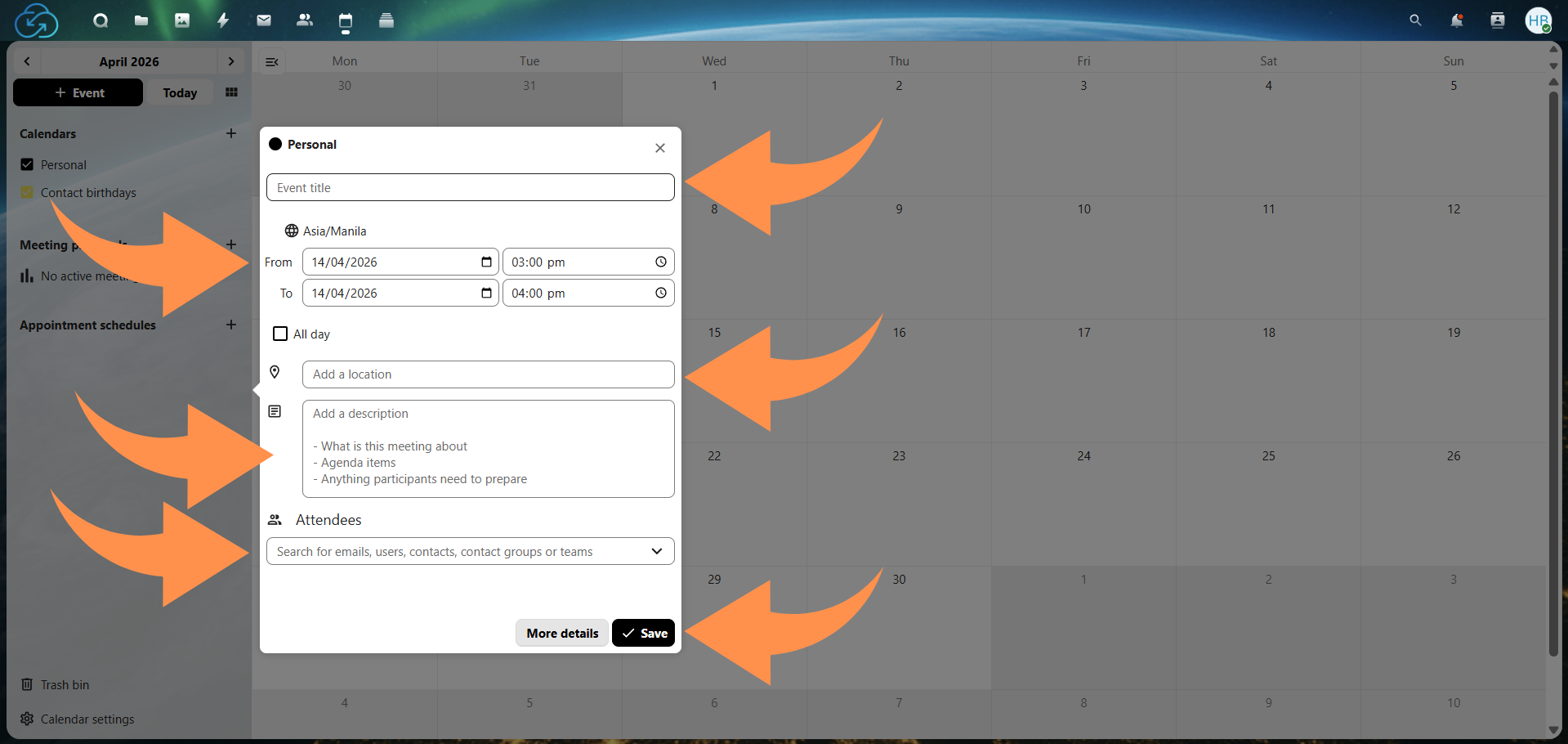
Select a time slot or use the create button to add an event. Include details such as title, location, duration, and notes if needed.
Add email addresses of attendees when creating an event. Invitations are sent automatically, and responses are tracked within the event.
Calendars can be shared with other users or synced externally using iCal/ICS links for use on mobile or desktop calendar apps.
Open Contacts and add a new entry. Include details such as name, email, phone number, and organization.
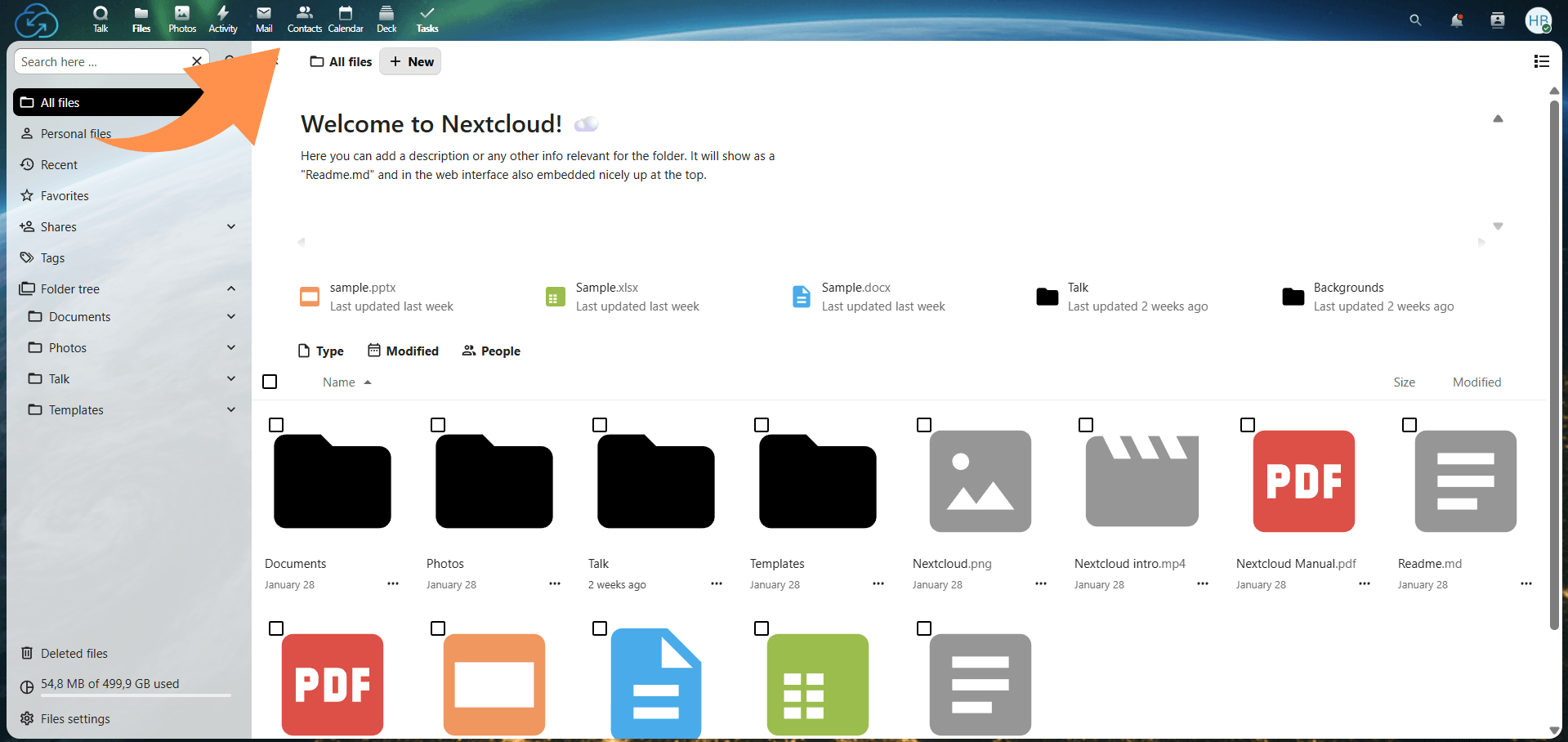
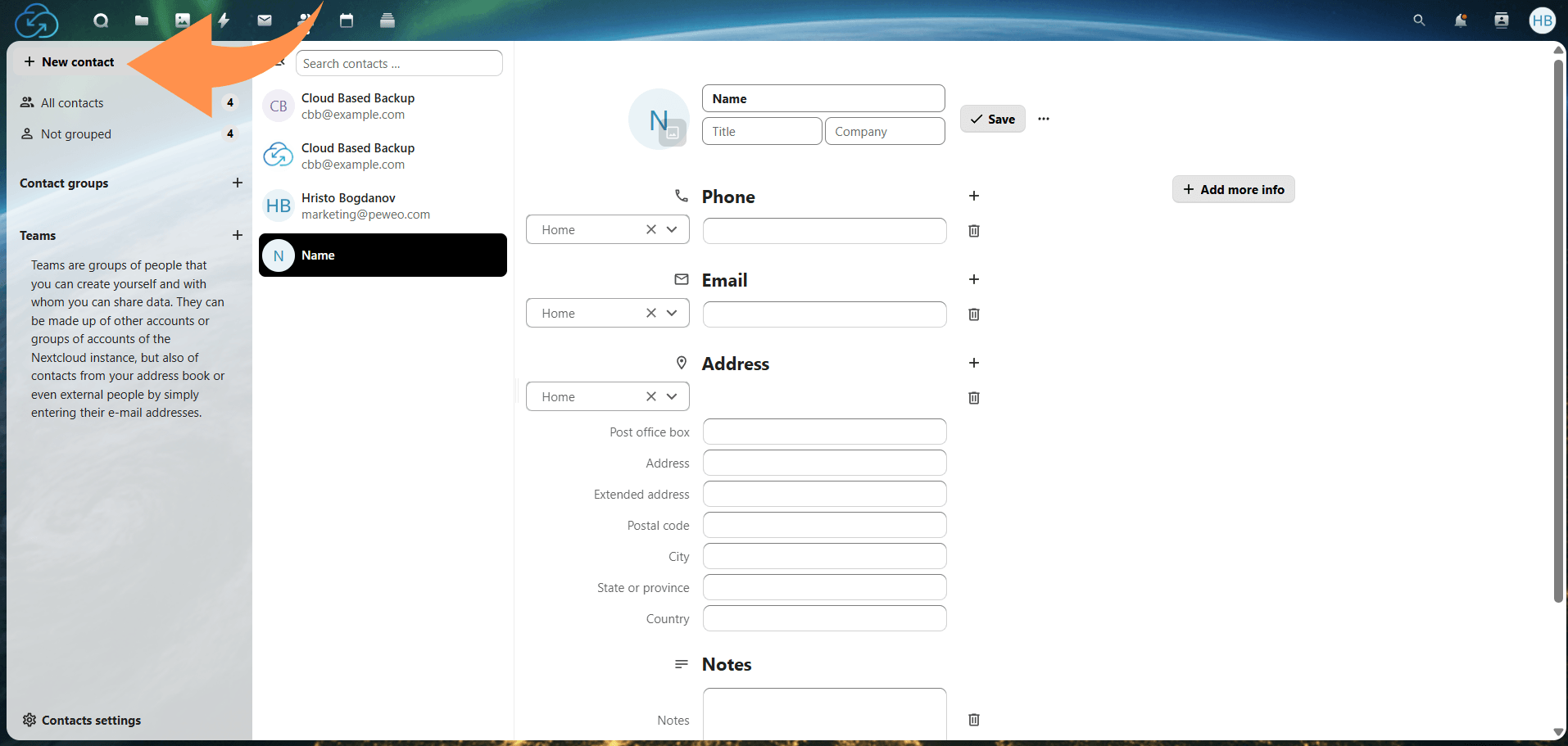
Use address books or groups to separate contacts based on categories like work, personal, or projects.
Enable CardDAV to synchronize contacts across mobile devices and desktop clients, keeping updates consistent everywhere.
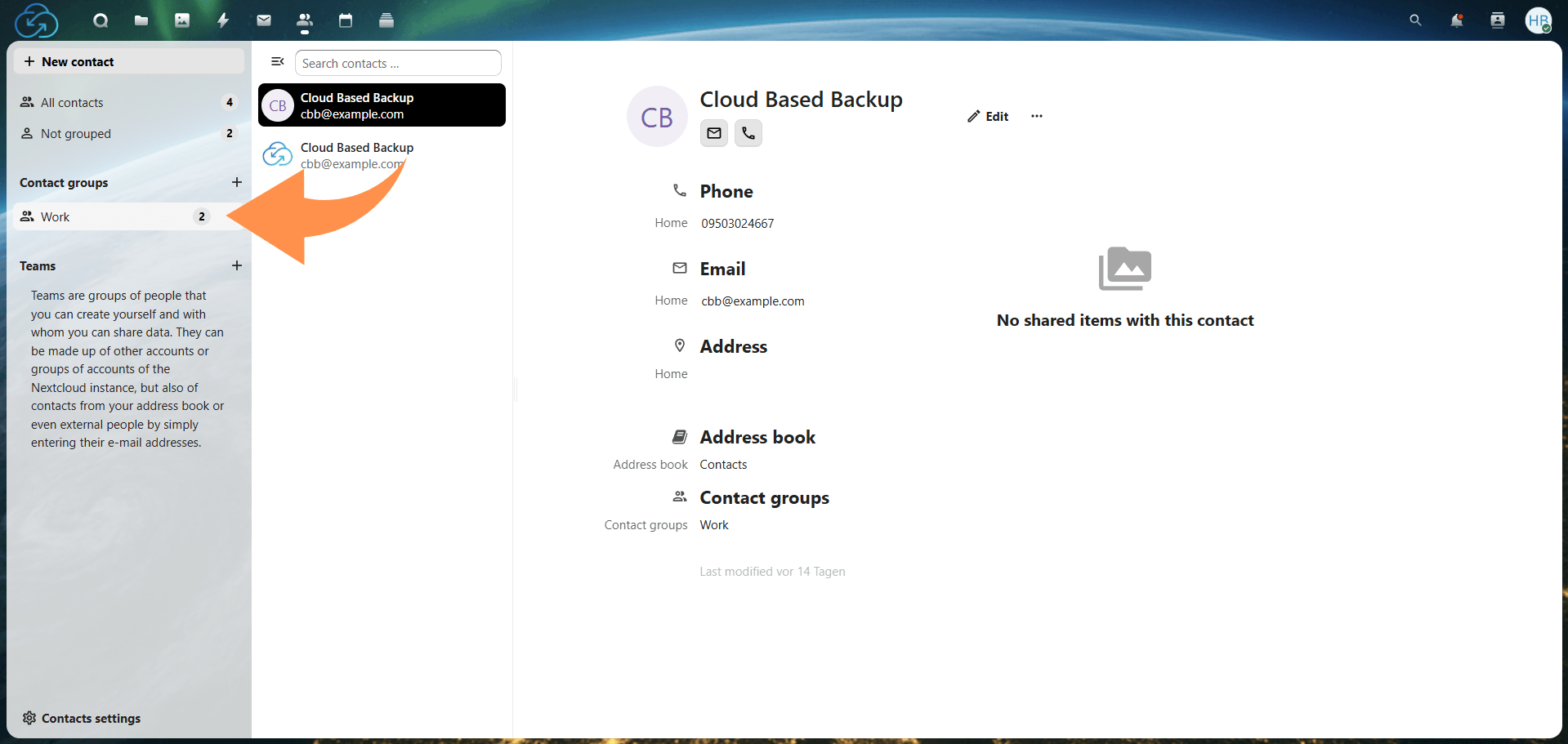
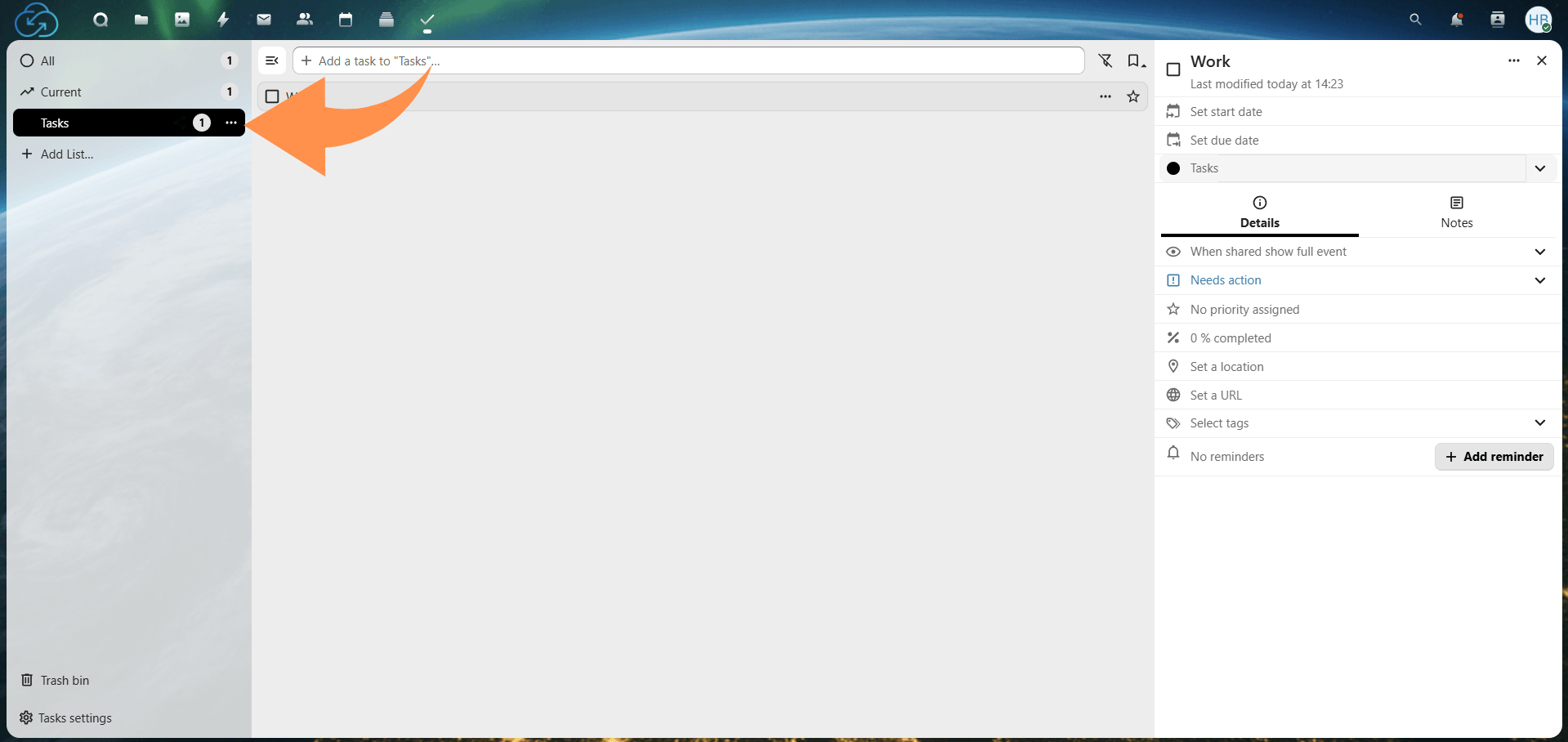
Open Tasks and create lists based on context, such as work, personal, or project-related tasks.
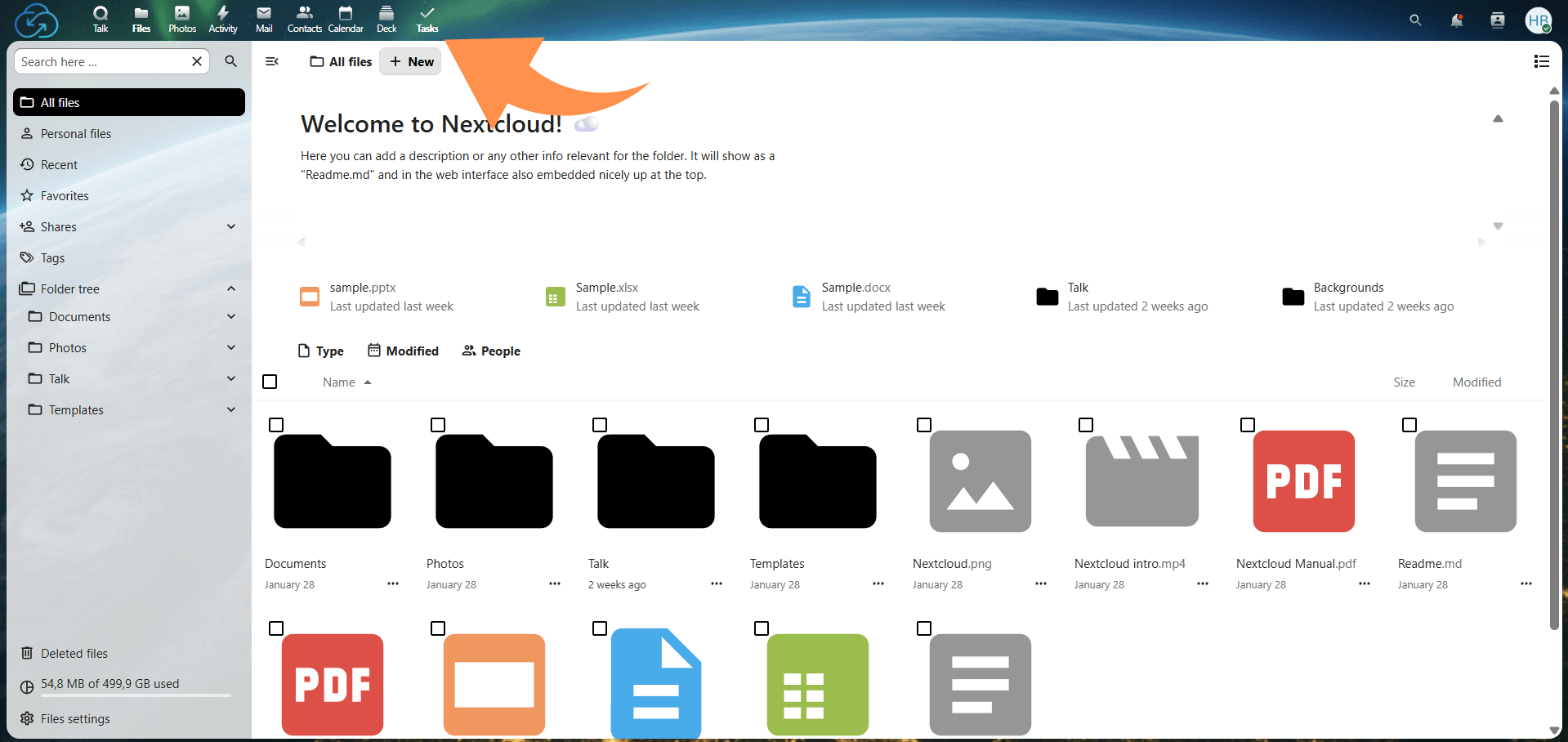
Add tasks with titles, descriptions, and due dates. Update their status as work progresses.
Share task lists with other users to support collaboration and track progress together.
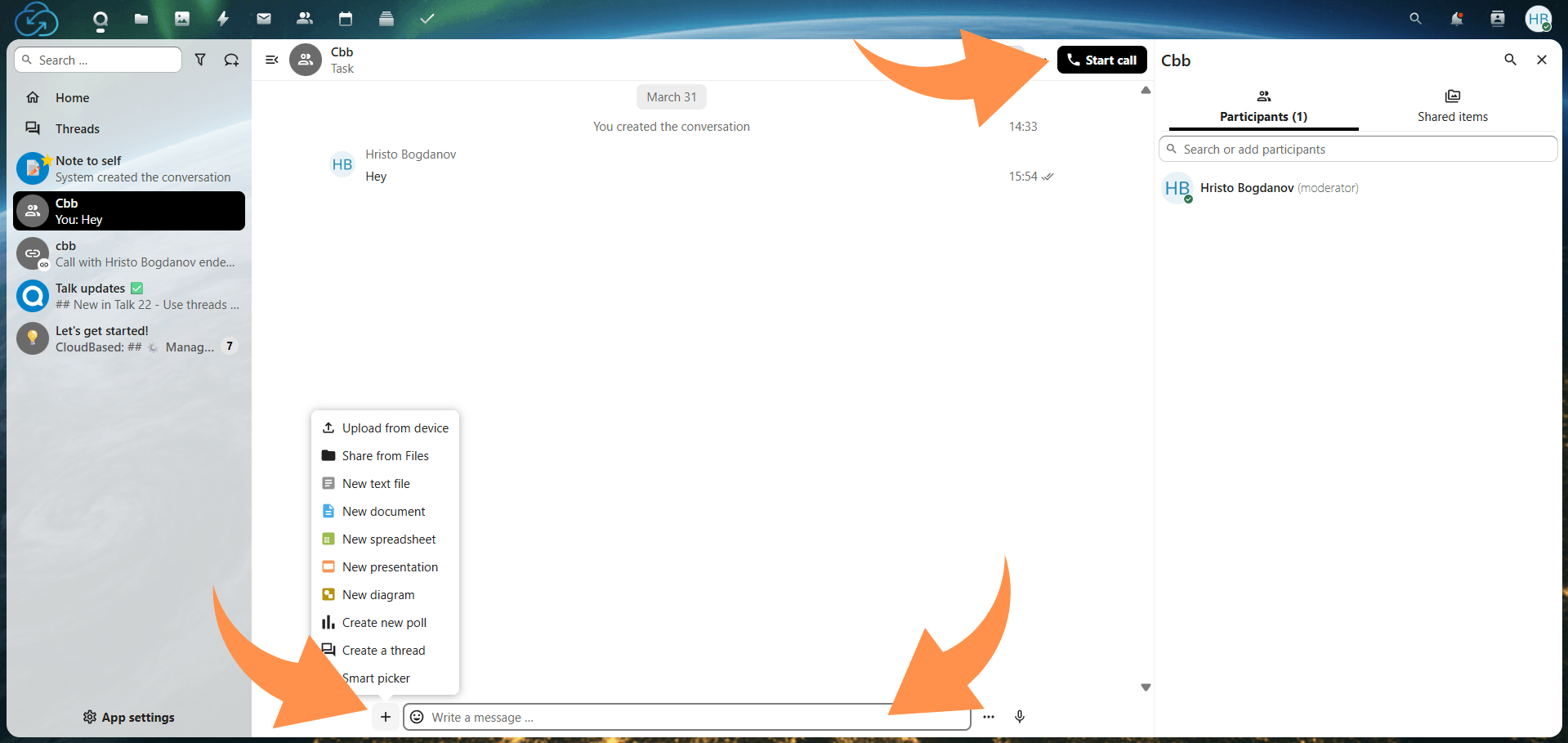
Open Talk and create a one-on-one or group chat depending on your needs.
Use messaging for text communication or start an audio/video call directly within the platform.
Attach files or share links from Nextcloud storage directly in chats to keep communication and resources in one place.
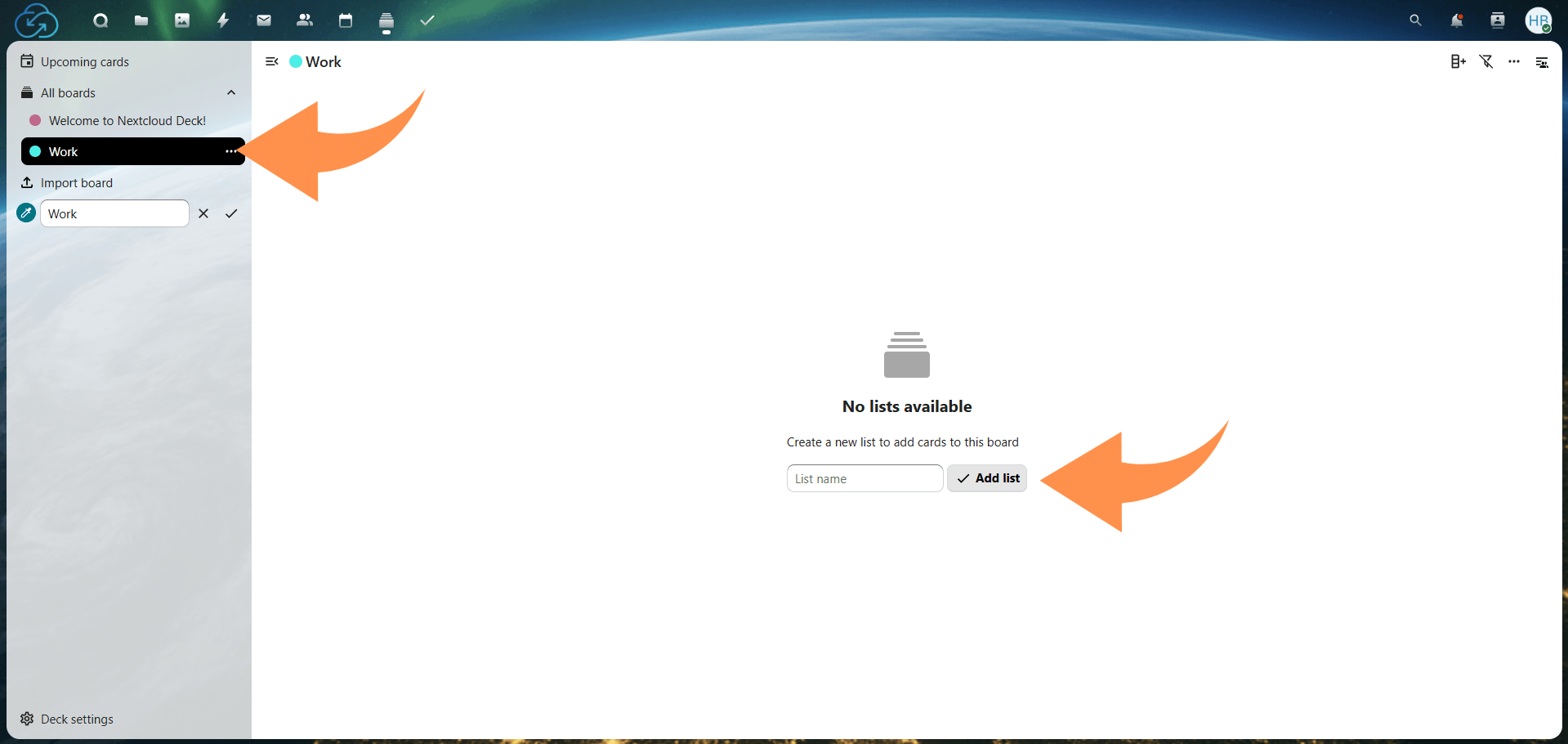
Open Deck and create a new board for organizing a project or workflow.
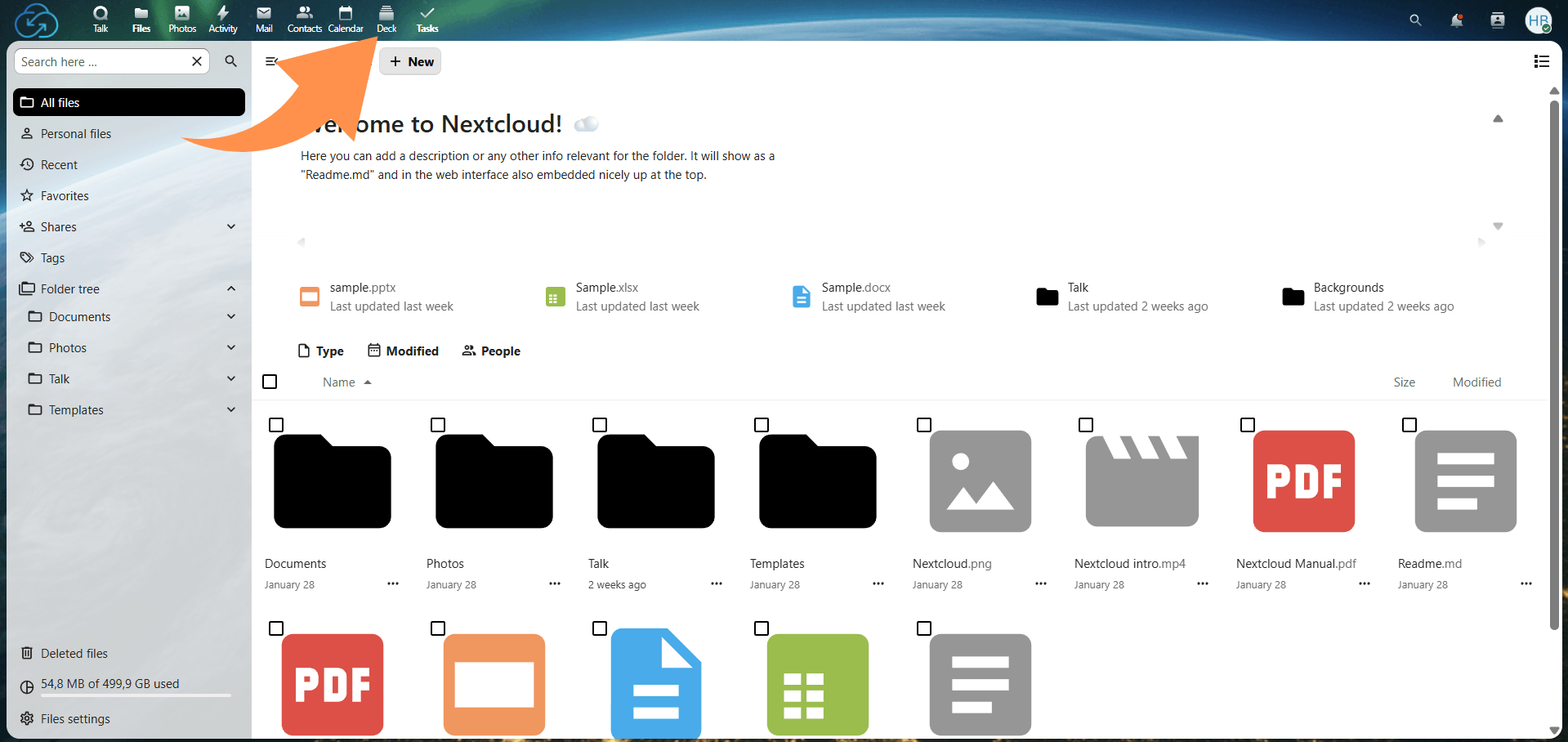
Create lists such as “To Do,” “In Progress,” and “Done,” then add cards representing individual tasks.
Move cards between lists as tasks progress to visually track your project's status.
Nextcloud Groupware uses standard synchronization protocols to keep data consistent across devices and applications. This ensures that updates made in one place are reflected everywhere the account is connected.
Calendar data is synchronized using CalDAV, while contacts are managed through CardDAV. Once properly configured, changes such as new events, edited contacts, or updated schedules are automatically synchronized between connected devices.
When the system is working correctly:
Delays or missing updates usually indicate a configuration or connection issue rather than a data loss problem.
Effective use of Nextcloud Groupware depends on maintaining structure across calendars, contacts, tasks, and ensuring consistent synchronization across devices.
Nextcloud Groupware brings multiple everyday productivity tools into a single environment, where communication, scheduling, task management, and collaboration are handled in one place rather than across separate applications. Once the system is properly set up and understood, users can move between email, calendars, contacts, tasks, and team communication without breaking their workflow. This makes it easier to coordinate work, track information, and stay consistent across devices.
The real value lies in using it as a connected system rather than as isolated tools. When apps are properly configured and kept in sync, it creates a more stable and organized way to manage daily work.
At Cloud Based Backup, Nextcloud Groupware is delivered as a fully managed environment where setup, updates, backups, and server maintenance are handled for you, while still giving full access to the collaboration tools your workflow depends on.
6 min read · 12.10.2026
8 min read · 29.09.2026
9 min read · 22.09.2026
Hosted in
Germany
4.3on G2