Best OneDrive Alternatives for Businesses in 2026
8 min read · 29.09.2026
Our Blog / how-to-set-up-external-storage-in-nextcloud
← Back to overview
As storage needs grow, keeping files across multiple devices, network shares, or cloud services can make them harder to manage and access from a single location. Migrating everything to a single storage system isn't always practical, especially if you already rely on existing infrastructure.
Nextcloud addresses this by allowing you to connect supported external storage directly to your instance, giving users centralized access without having to relocate their files.
In this article, you'll learn how to set up external storage in Nextcloud, including the requirements, configuration process, best practices, and common issues you may encounter.
To set up external storage in Nextcloud, enable the External Storage Support app, create a storage mount, select a supported storage backend, and configure the required connection and authentication details. After saving the configuration, verify the connection and assign the appropriate user or group permissions to ensure users can securely access files stored on the external system.
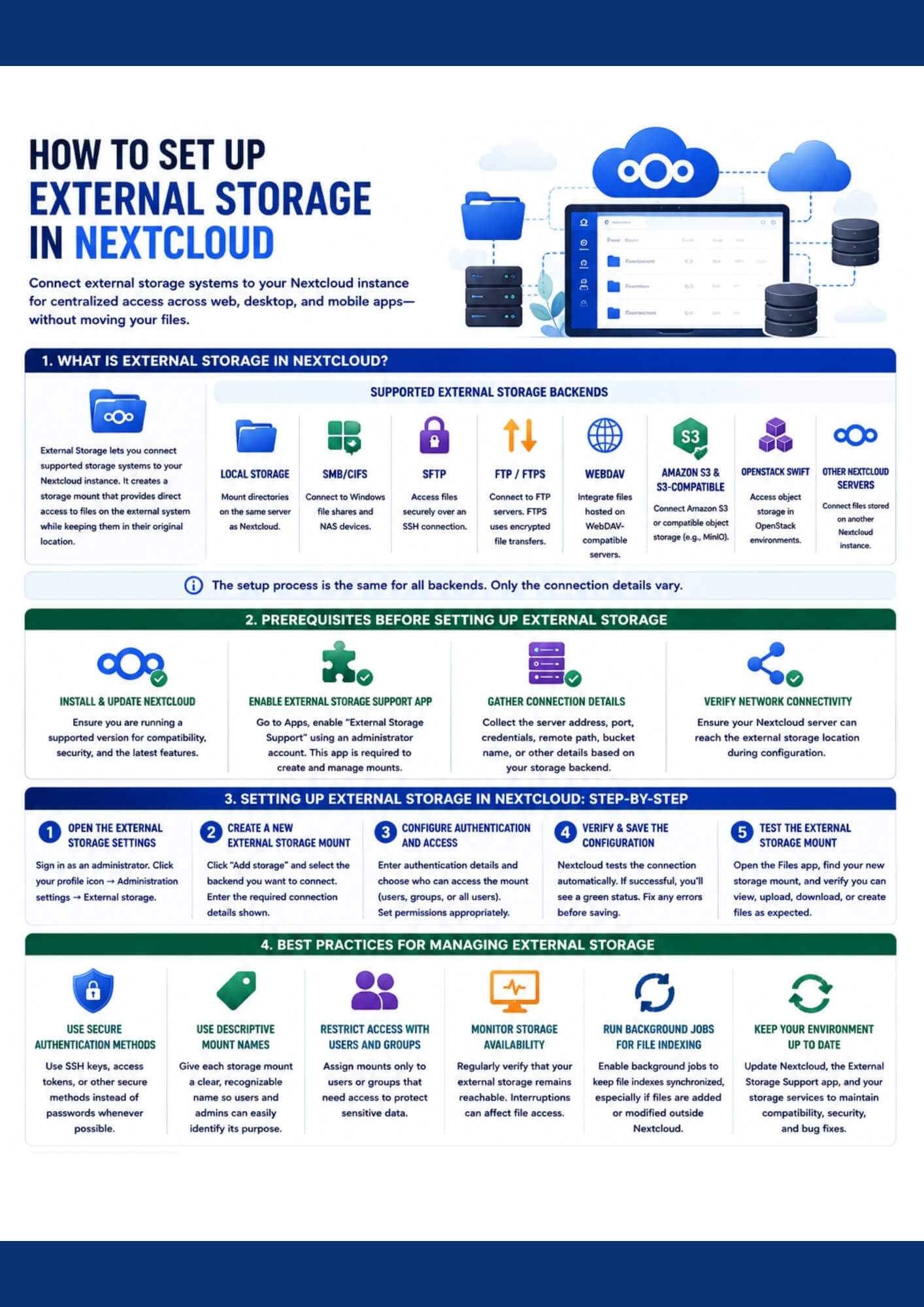
External Storage is a Nextcloud feature that lets you connect supported storage systems to your Nextcloud instance, allowing users to access external files through the same web interface, desktop client, and mobile apps. Instead of copying files into Nextcloud's default data directory, it creates a storage mount that provides direct access to data stored on the external system while keeping the files in their original location.
Nextcloud supports a variety of external storage backends, including the following:
Regardless of the storage backend, the overall setup process in Nextcloud remains largely the same, with only the connection details varying between storage types.
Before configuring external storage in Nextcloud, make sure your environment is ready. Completing the following prerequisites beforehand will help you avoid common connection issues and ensure a smoother setup process.
Sign in to your Nextcloud instance using an administrator account. From the top-right corner, select your profile icon, then navigate to Administration settings and open External storage. This is where you'll create, configure, and manage external storage mounts after enabling the External Storage Support app.
Click Add storage, then choose the storage backend you want to connect to, such as Local Storage, SMB/CIFS, SFTP, WebDAV, or Amazon S3. Nextcloud will display the configuration fields required for the selected backend.
Depending on the selected storage backend, you'll typically need to provide information such as the server address, remote path, port number, or bucket name.
Enter the required authentication details for your storage backend, such as a username and password, an SSH key, an access token, or another supported authentication method. Next, define who can access the storage mount by assigning it to specific users or groups, or by making it available to all users.
Configuring access permissions correctly helps ensure that users see only the storage resources they are authorized to use.
After entering the required information, Nextcloud typically validates the connection and displays a status indicator. Depending on the storage backend, full validation may occur after saving or during first access. A green status icon or similar success indicator typically indicates a successful connection. If an error appears, review the connection details, authentication settings, and network connectivity before saving the configuration.
Once the configuration is saved, open the Files app and locate the new storage mount. Browse its folders and verify that you can view, upload, download, or create files based on the permissions you've configured. Testing the storage mount helps confirm that the connection works correctly before making it available for regular use.
Following these best practices can help improve the reliability, security, and performance of your external storage mounts. Consider the following recommendations after completing the initial setup:
Setting up external storage is just one way to extend your Nextcloud environment. If you're looking to improve collaboration and productivity, these guides can help you get started with some of Nextcloud's core features:
Setting up external storage in Nextcloud allows you to integrate existing storage systems into a single platform while keeping your data in its original location. By preparing the required connection details, configuring the appropriate storage backend, and verifying access permissions, you can create reliable storage mounts that fit your organization's workflow.
At CloudBased Backup, we provide fully managed Nextcloud hosting that includes infrastructure management, security updates, backups, and ongoing maintenance. If you'd rather focus on using Nextcloud than managing the underlying environment, our managed service offers a secure and scalable way to deploy and run your Nextcloud instance.
8 min read · 29.09.2026
9 min read · 22.09.2026
5 min read · 14.09.2026
Hosted in
Germany
4.3on G2