Best OneDrive Alternatives for Businesses in 2026
8 min read · 29.09.2026
Our Blog / how-to-migrate-from-owncloud-to-nextcloud-step-by-step-guide
← Back to overview
Migrating from ownCloud to Nextcloud allows organizations and self-hosters to continue using their existing files, users, shares, and configurations while moving to a platform with a broader ecosystem and ongoing development. However, a successful migration requires careful planning to avoid compatibility issues, data loss, or service disruptions.
In this guide, you'll learn how to migrate from ownCloud to Nextcloud step by step, including how to prepare your environment, create backups, complete the migration process, verify the results, and resolve common issues that may arise along the way.
Migrating from ownCloud to Nextcloud requires following a supported migration path, as most ownCloud 10.13-10.16 installations must first migrate to Nextcloud 25.0.13 before upgrading to newer releases. A successful migration preserves users, files, shares, and configuration settings by backing up the database and data directory, copying the existing configuration, running the Nextcloud upgrade process, and completing the required database repair commands.
Many organizations and self-hosters choose to migrate from ownCloud to Nextcloud to take advantage of a broader ecosystem, frequent feature updates, and a wide range of integrations. Nextcloud supports file synchronization and sharing and provides tools for collaboration, communication, office productivity, and workflow automation.
Another reason for migrating is flexibility. Nextcloud offers an open-source platform that can be deployed on private infrastructure, virtual private servers, or dedicated servers, giving administrators greater control over data management and security. For organizations already running ownCloud, migrating to Nextcloud can help extend the value of their existing deployment without requiring users to start from scratch.
At CloudBased Backup, we provide fully managed Nextcloud hosting that includes infrastructure management, backups, security updates, and ongoing maintenance. If you have questions about migrating from ownCloud to Nextcloud or need assistance with your deployment, you can contact our team through the contact page.
Before starting the ownCloud-to-Nextcloud migration process, take the time to verify your environment and identify any potential compatibility issues. Addressing these items beforehand can help prevent migration failures, application conflicts, and unexpected downtime.
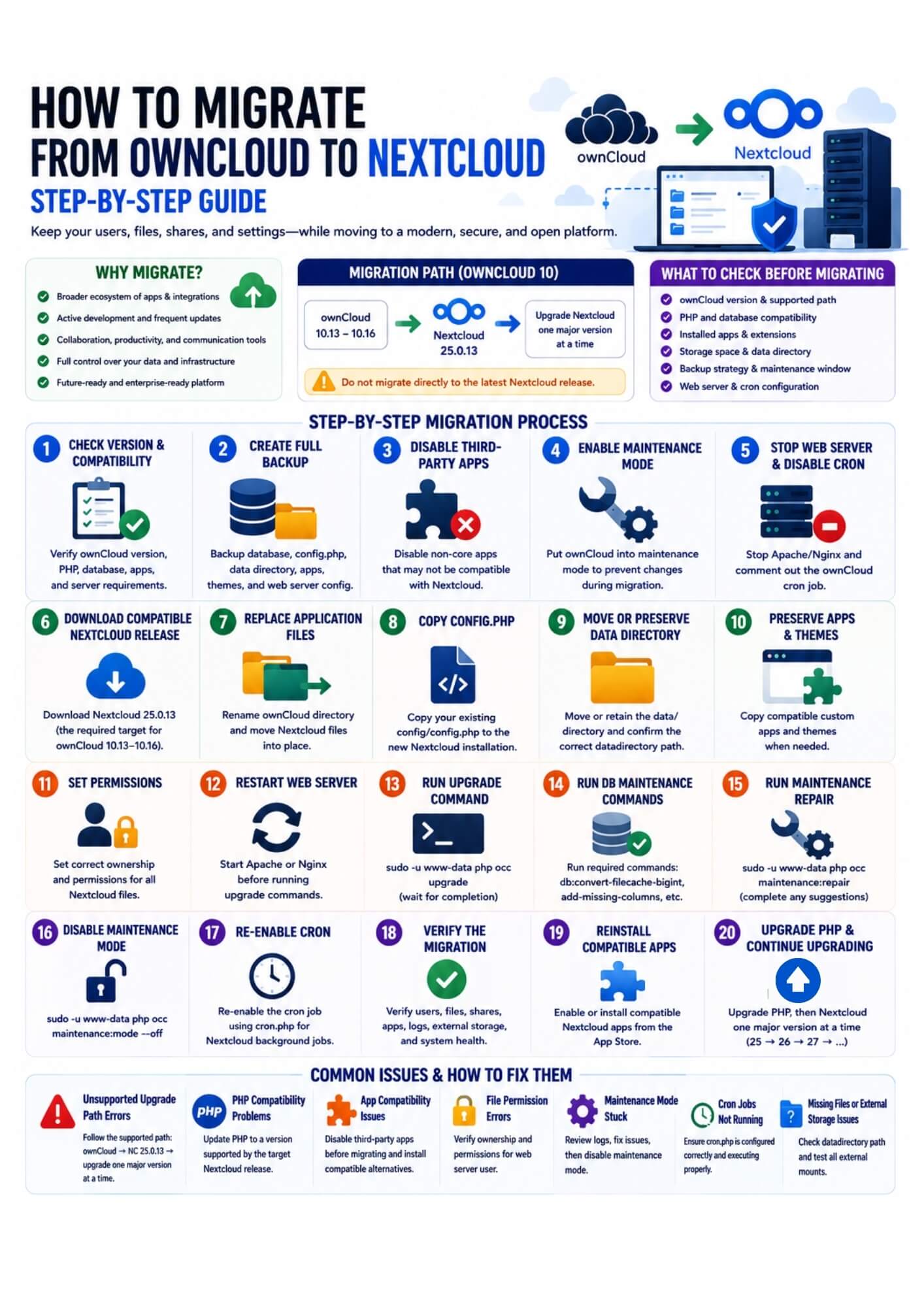
Once you have verified compatibility requirements and created backups, you can begin the migration process. Migrating from ownCloud to Nextcloud is handled much like a manual upgrade, but the version path is very important.
According to the official Nextcloud documentation, ownCloud migration only works when the ownCloud and Nextcloud versions are sufficiently compatible. For recent ownCloud 10 releases, the officially documented migration target is:
Do not migrate directly to the latest Nextcloud release. After migrating to the compatible Nextcloud version, upgrade Nextcloud one major version at a time based on Nextcloud’s Official reference.
Before starting, confirm your current ownCloud version:
sudo -u www-data php occ status
Check that your ownCloud version is supported for migration to Nextcloud.
You should also verify:
Important: ownCloud does not support PHP 8.0 or higher. Nextcloud 25 is the last Nextcloud version that supports PHP 7. After migrating to Nextcloud 25, upgrade PHP before continuing to newer Nextcloud versions.
Before making any changes, create a fresh backup of:
For example, back up the database:
mysqldump -u root -p owncloud > owncloud-db-backup.sql
Back up the ownCloud installation directory:
cp -a /var/www/owncloud /var/www/owncloud-backup
If your data directory is outside the ownCloud installation directory, back it up separately:
cp -a /path/to/owncloud-data /path/to/owncloud-data-backup
Do not continue until you have confirmed that the backup can be restored if needed.
Before migrating, disable any non-core third-party ownCloud apps where possible. This reduces the risk of app compatibility issues during the upgrade.
List installed apps:
sudo -u www-data php occ app:list
Disable third-party apps as needed:
sudo -u www-data php occ app:disable app_name
Replace app_name with the actual app ID.
Some ownCloud Marketplace apps may not be compatible with Nextcloud and may need to be reinstalled later from the Nextcloud App Store.
Place the ownCloud instance into maintenance mode to prevent users from uploading files or modifying data during the migration.
Run this from the ownCloud installation directory:
cd /var/www/owncloud
sudo -u www-data php occ maintenance:mode --on
If your web server uses a different user account, replace www-data with the correct user.
Stop the web server before replacing application files.
For Apache:
sudo systemctl stop apache2
For Nginx:
sudo systemctl stop nginx
If ownCloud uses system cron, disable it temporarily:
sudo crontab -u www-data -e
Comment out the ownCloud cron entry by adding # at the beginning of the line.
Example:
# */5 * * * * php -f /var/www/owncloud/cron.php
Do not use latest.zip.
Download the compatible Nextcloud version from the official Nextcloud releases page. For ownCloud 10.13.x through 10.16.x, use Nextcloud 25.0.13.
cd /tmp
wget https://download.nextcloud.com/server/releases/nextcloud-25.0.13.zip
unzip nextcloud-25.0.13.zip
Official release archive: https://nextcloud.com/changelog/
Rename the existing ownCloud installation directory so it can be restored if needed:
mv /var/www/owncloud /var/www/owncloud-old
Move the extracted Nextcloud files into the web server directory:
mv /tmp/nextcloud /var/www/owncloud
This keeps the original web path the same. If your site is configured to use /var/www/nextcloud instead, adjust the path accordingly.
Do not delete /var/www/owncloud-old until the migration has been fully tested.
Copy the old ownCloud configuration file into the new Nextcloud installation:
cp /var/www/owncloud-old/config/config.php /var/www/owncloud/config/
This preserves your database connection, trusted domains, data directory path, installed instance ID, and other important settings.
If your data/ directory is stored inside the ownCloud installation directory, move it into the new Nextcloud directory:
mv /var/www/owncloud-old/data /var/www/owncloud/
If your data directory is stored outside the ownCloud installation directory, do not move it. Instead, confirm that the datadirectory value in config.php still points to the correct path.
Check:
grep datadirectory /var/www/owncloud/config/config.php
Example:
php
'datadirectory' => '/mnt/storage/owncloud-data',
If you used custom apps, external app folders, or themes, compare the old and new folders.
Check old apps:
ls /var/www/owncloud-old/apps
Check new apps:
ls /var/www/owncloud/apps
If needed, copy compatible custom apps:
cp -a /var/www/owncloud-old/apps/custom_app /var/www/owncloud/apps/
If you used custom themes, copy them as well:
cp -a /var/www/owncloud-old/themes/custom_theme /var/www/owncloud/themes/
Only copy apps and themes that are compatible with the target Nextcloud version.
Set ownership for the Nextcloud files:
sudo chown -R www-data:www-data /var/www/owncloud
Set directory and file permissions:
sudo find /var/www/owncloud/ -type d -exec chmod 750 {} \;
sudo find /var/www/owncloud/ -type f -exec chmod 640 {} \;
If your web server uses a different user account, replace www-data with the correct user.
Restart the web server before running the upgrade command.
For Apache:
sudo systemctl start apache2
For Nginx:
sudo systemctl start nginx
Navigate to the new Nextcloud installation directory:
cd /var/www/owncloud
Run the upgrade command:
sudo -E -u www-data php occ upgrade
The upgrade process may take several minutes or longer, depending on the size of the database and file system.
Review the output carefully for errors or warnings.
When migrating to Nextcloud 20 or later, the official Nextcloud documentation says to run these commands after occ upgrade:
sudo -E -u www-data php occ db:convert-filecache-bigint
sudo -E -u www-data php occ db:add-missing-columns
sudo -E -u www-data php occ db:add-missing-indices
sudo -E -u www-data php occ db:add-missing-primary-keys
These commands update database columns, indexes, and primary keys that may be required after migration.
If prompted for confirmation during the bigint conversion, review the message carefully and proceed during a suitable maintenance window.
Run the maintenance repair command:
sudo -E -u www-data php occ maintenance:repair
If Nextcloud recommends additional commands in the admin overview or in the command output, run them before returning the system to production.
Once the upgrade and repair tasks are complete, disable maintenance mode:
sudo -E -u www-data php occ maintenance:mode --off
Re-enable the cron job you disabled earlier:
sudo crontab -u www-data -e
Remove the # from the cron entry.
For Nextcloud, the cron entry usually looks like this:
*/5 * * * * php -f /var/www/owncloud/cron.php
If your cron previously used occ system:cron, update it to use the PHP cron command according to the official Nextcloud background jobs documentation.
Log in as an administrator and verify:
Check the Nextcloud version:
sudo -E -u www-data php occ status
Check system warnings in:
Settings → Administration → Overview
Also check logs:
tail -f /var/www/owncloud/data/nextcloud.log
Some ownCloud apps may be disabled because they are incompatible with Nextcloud.
Install or enable the Nextcloud versions of required apps from the Nextcloud App Store.
For example:
sudo -E -u www-data php occ app:enable calendarsudo -E -u www-data php occ app:enable contacts
Only enable apps that are compatible with your current Nextcloud version.
After successfully migrating to Nextcloud 25.0.13, upgrade PHP to a version supported by your next target Nextcloud release.
Then upgrade Nextcloud one major version at a time.
Do not skip major versions.
Example path:
Nextcloud 25 → 26 → 27 → 28 → 29 → 30 → 31 → later supported versions
Before each major upgrade:
Even when following the recommended migration process, you may encounter compatibility, configuration, or upgrade-related issues. Here are some of the most common problems and how to resolve them.
Migrating from ownCloud to Nextcloud can be completed without losing users, files, shares, or configuration data when the correct migration path is followed. The most important steps are verifying version compatibility, creating complete backups, and carefully validating the environment after the migration.
Because most ownCloud installations cannot migrate directly to the latest Nextcloud release, be sure to follow the recommended upgrade path and upgrade through supported major versions one step at a time. With proper planning and testing, you can transition to Nextcloud while maintaining system stability and minimizing downtime for users.
8 min read · 29.09.2026
9 min read · 22.09.2026
5 min read · 14.09.2026
Hosted in
Germany
4.3on G2