Best Egnyte Alternatives in 2026
8 min read · 22.09.2026
Our Blog / how-to-sync-obsidian-with-nextcloud-across-all-your-devices
← Back to overview
Obsidian stores notes as local Markdown files, giving you full control over your data. To access them across devices, you need a way to keep those files synchronized. Nextcloud is a popular self-hosted solution for syncing an Obsidian vault across desktops, laptops, phones, and tablets. Since both tools use regular files, no special integration is needed.
Many Obsidian users choose Nextcloud because it provides control over where notes are stored. Instead of relying on a proprietary synchronization service, the vault can remain in a self-hosted or managed Nextcloud environment while still being available across multiple devices.
This guide explains how to set up Obsidian syncing with Nextcloud using both the Desktop Client and the Remotely Save plugin, along with best practices and whether it’s a good alternative to Obsidian Sync.
No. Obsidian does not have a built-in integration for Nextcloud.
Obsidian stores notes inside a vault, which is simply a folder containing Markdown files and configuration files. Nextcloud is a file synchronization platform that stores and synchronizes files between devices. Both can work together, but they do not communicate with each other natively.
Think of it this way. Obsidian creates and edits the notes. Nextcloud moves those note files between devices. Each tool handles a different part of the workflow.
To connect the two, an additional synchronization method is required. One of the most common options is the Remotely Save community plugin, which can connect Obsidian to Nextcloud through WebDAV. Another approach is to store the vault inside a folder synchronized by the Nextcloud desktop client.
The difference is really important:
Both approaches are widely used, but they work differently and have different considerations. The good news is that Obsidian stores notes as regular files, so Nextcloud can sync them without a direct integration.
Remotely Save is a community plugin for Obsidian that can connect directly to a Nextcloud server through WebDAV. Instead of relying on a separate sync application, synchronization happens from within Obsidian itself.
This approach is popular because it works across Windows, macOS, Linux, Android, and iOS. The vault remains inside Obsidian, while the plugin handles file transfers between the device and the Nextcloud server.
For a Nextcloud setup, the plugin is typically configured with the server's WebDAV address and a dedicated folder for the vault. Once connected, changes can be synchronized across devices without installing the Nextcloud desktop client. This makes it a practical option for cross-platform syncing.
Another approach is to let the Nextcloud sync client handle synchronization while Obsidian simply opens the local vault folder.
In this setup, the vault is stored inside a folder synchronized by the Nextcloud client. When a note changes, Nextcloud uploads the updated file to the server and downloads changes to other connected devices. The setup is quite simple on Windows, macOS, and Linux because it works similarly to Google Drive or OneDrive.
For most Nextcloud deployments, the desktop client is the simplest place to start because it works with standard local folders and does not require additional Obsidian plugins.
Start by installing the Nextcloud desktop client and connecting it to your Nextcloud account. After the initial setup, Nextcloud creates a local folder on your computer that stays synchronized with your server.
Next, open Obsidian. The welcome screen provides two options that matter for this setup.
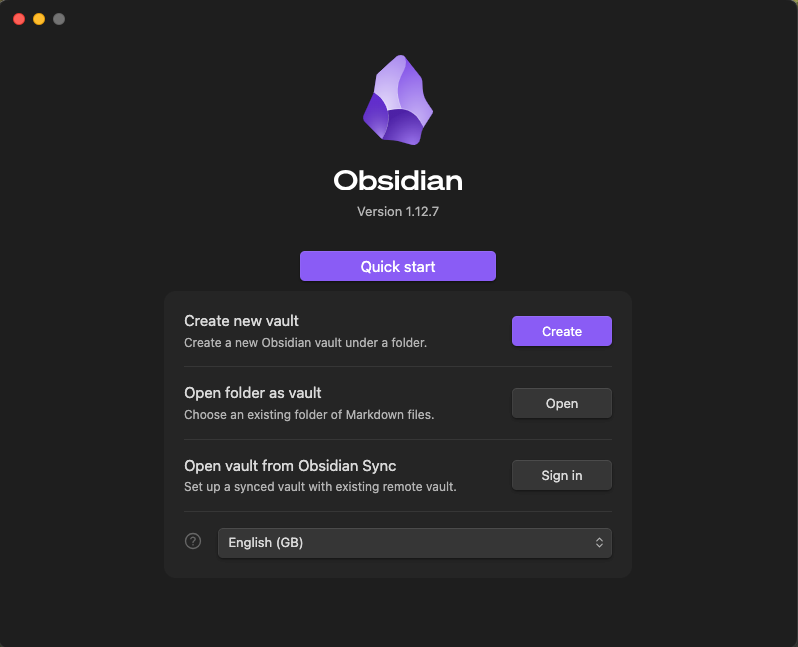
If you are creating a new knowledge base, select Create new vault. Enter a vault name and choose your local Nextcloud folder as the location.
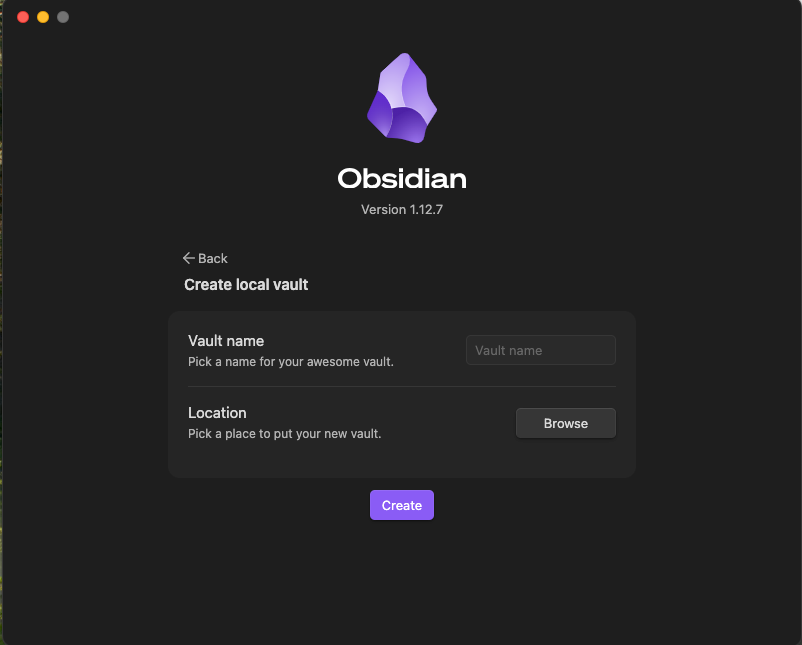
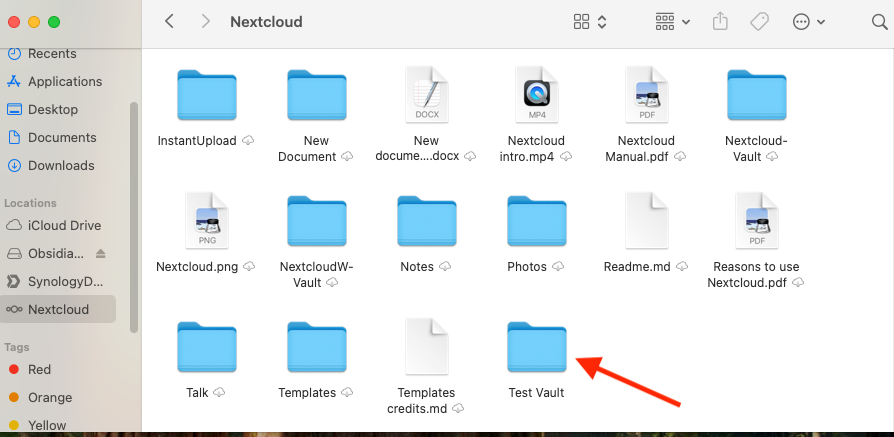
In our example, we selected the Nextcloud folder and created a vault named "Test Vault". Obsidian automatically created a dedicated folder named Test Vault inside the synchronized Nextcloud directory.
If you already have an existing vault, select Open folder as vault instead. Move the vault folder into your synchronized Nextcloud directory first, then open that folder in Obsidian. This keeps your existing notes, attachments, and settings intact while allowing Nextcloud to synchronize them.
Once the vault opens, there is nothing left to configure inside Obsidian. Notes are created and edited exactly as they would be in any local vault. The difference is that every file now lives inside a folder managed by Nextcloud.
To verify that synchronization is working, create a test note inside the vault and wait a few moments. The Nextcloud desktop client should detect the change automatically.
The final check is opening the Nextcloud web interface. The vault folder should appear there automatically. In our example, the Test Vault folder was visible in the web interface together with the files created by Obsidian.
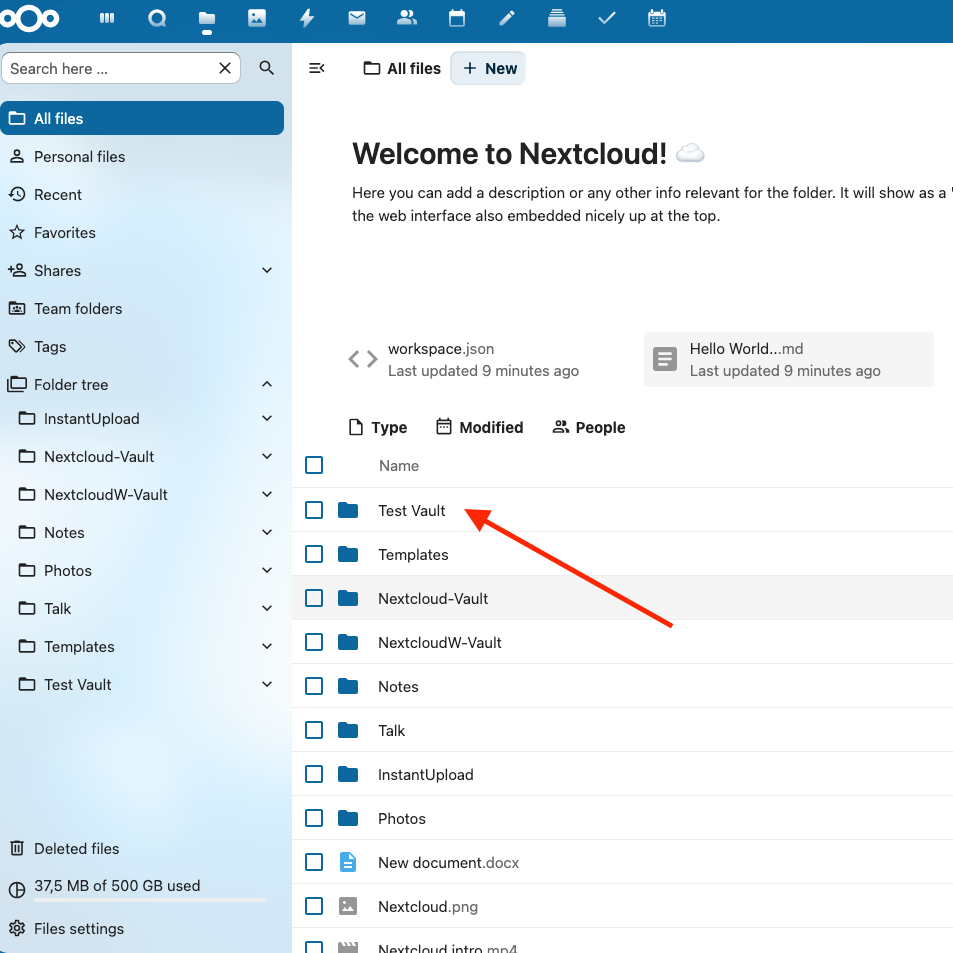
This confirmed that the vault was no longer stored only on the local computer and was successfully synchronized to the Nextcloud server.
Nextcloud does not synchronize only your notes, it synchronizes the entire vault folder. Markdown files, attachments, canvas files, workspace settings, and other Obsidian configuration files are all included because they are stored inside the same vault.
For desktop workflows, this approach is often the simplest. Obsidian continues working with local files, Nextcloud handles synchronization in the background, and your notes remain stored in an open format that can be backed up, moved, or accessed outside Obsidian whenever needed.
Once synchronization is complete, the same vault can be accessed from any device connected to the same Nextcloud account.
If you prefer not to use the Nextcloud desktop client, you can connect Obsidian directly to Nextcloud through WebDAV using the Remotely Save plugin.
Start by opening Obsidian and going to the Settings menu. Enable Community Plugins and disable Restricted Mode if it is enabled. Once Community Plugins are available, click Browse, search for Remotely Save, install the plugin, and enable it.
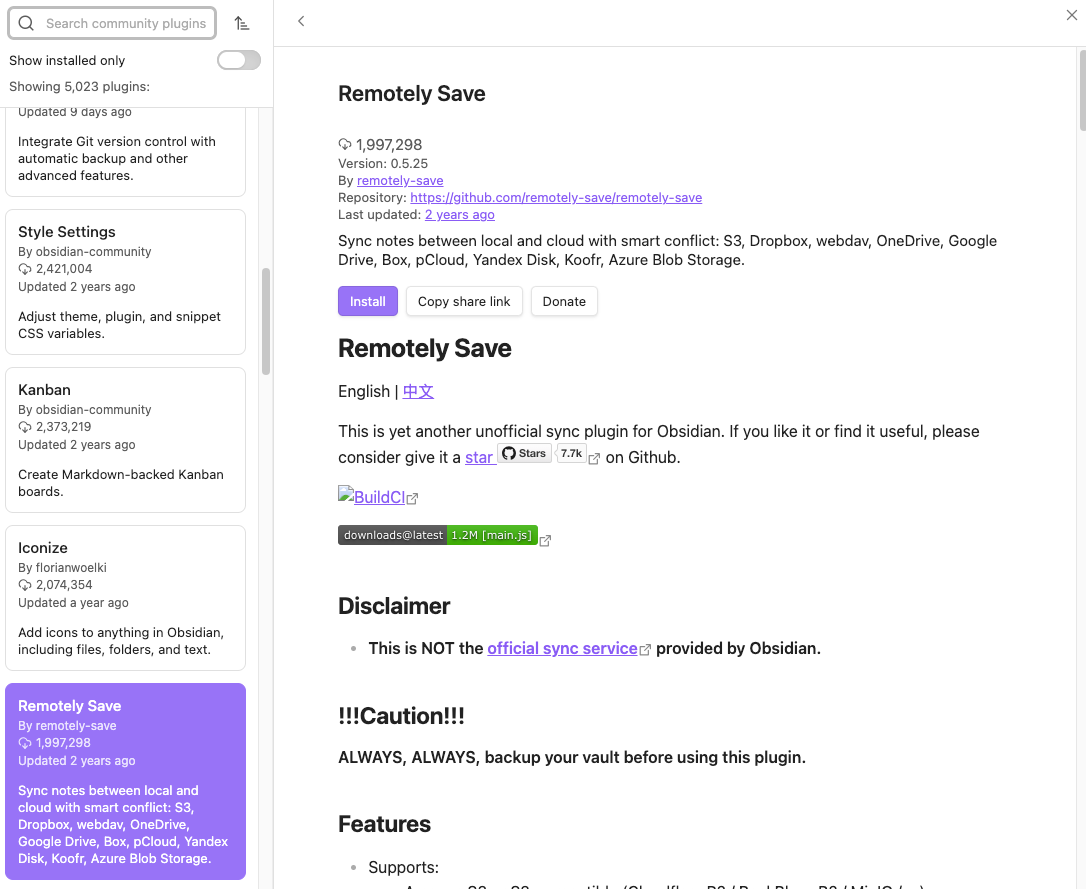
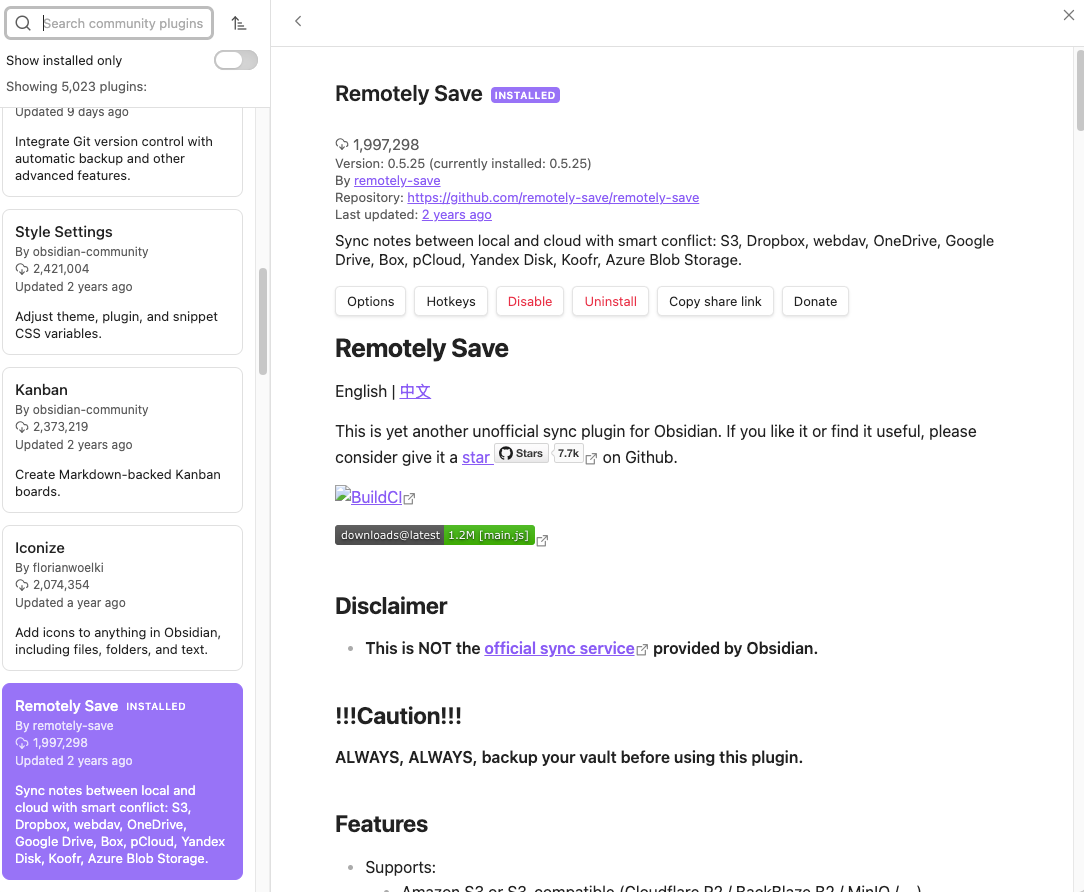
After the installation is complete and the plugin is enabled, click Options to open the Remotely Save settings.
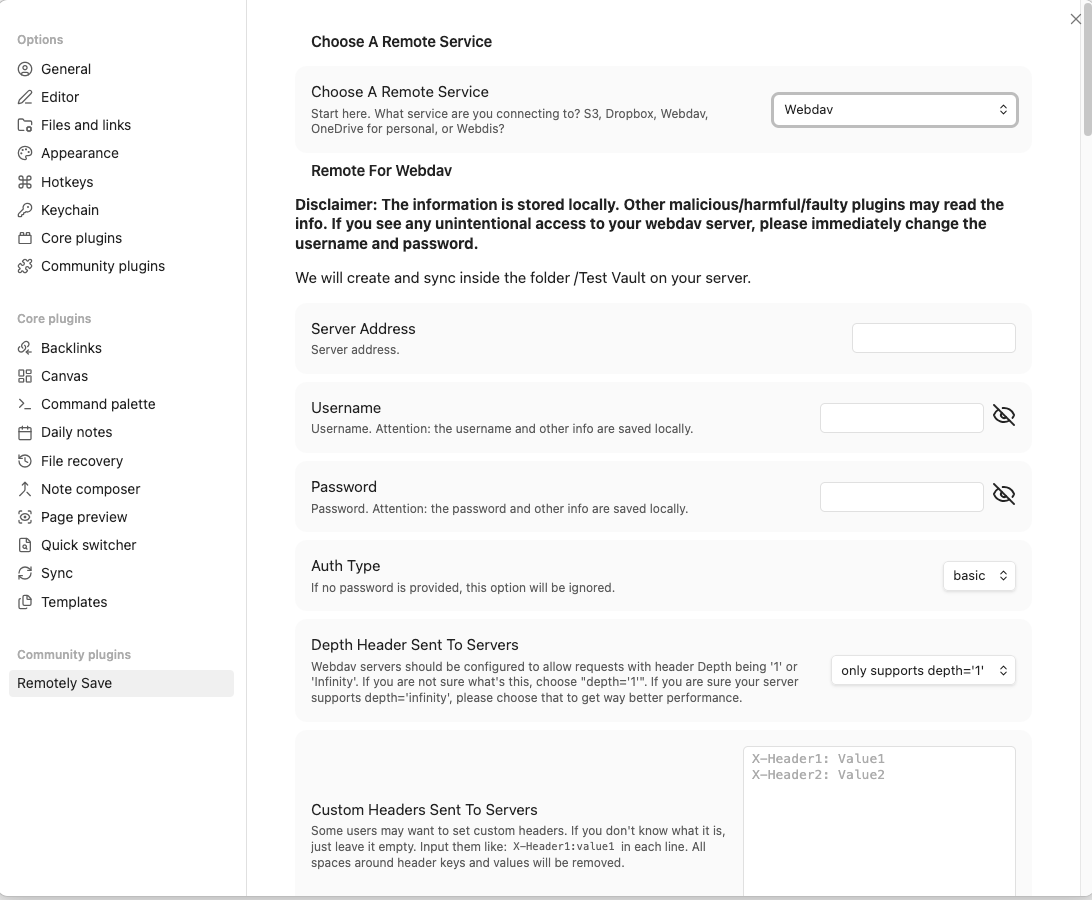
Select WebDAV as the remote service, then enter your Nextcloud WebDAV URL, username, and password. For most setups, the remaining options can be left at their default values because they are intended for more advanced synchronization requirements. Scroll down to the Check Connectivity section and click Check.
If the connection details are correct, Remotely Save will display a success message confirming that the plugin can read and write files through WebDAV.
After a successful connection, a Remotely Save synchronization icon appears in the left sidebar of Obsidian.

This icon is used to start manual synchronizations between the vault and your Nextcloud server.
To test the connection, create a new note in your vault and add some text. In our example, we created a note called "Remotely Save Test". Next, click the Remotely Save synchronization icon in the left sidebar to start a manual sync.
After the synchronization completes, open your Nextcloud web interface and navigate to the synchronized folder. You should see the note you created stored as a Markdown (.md) file. In this example, the file appears as "Remotely Save Test.md" in Nextcloud.
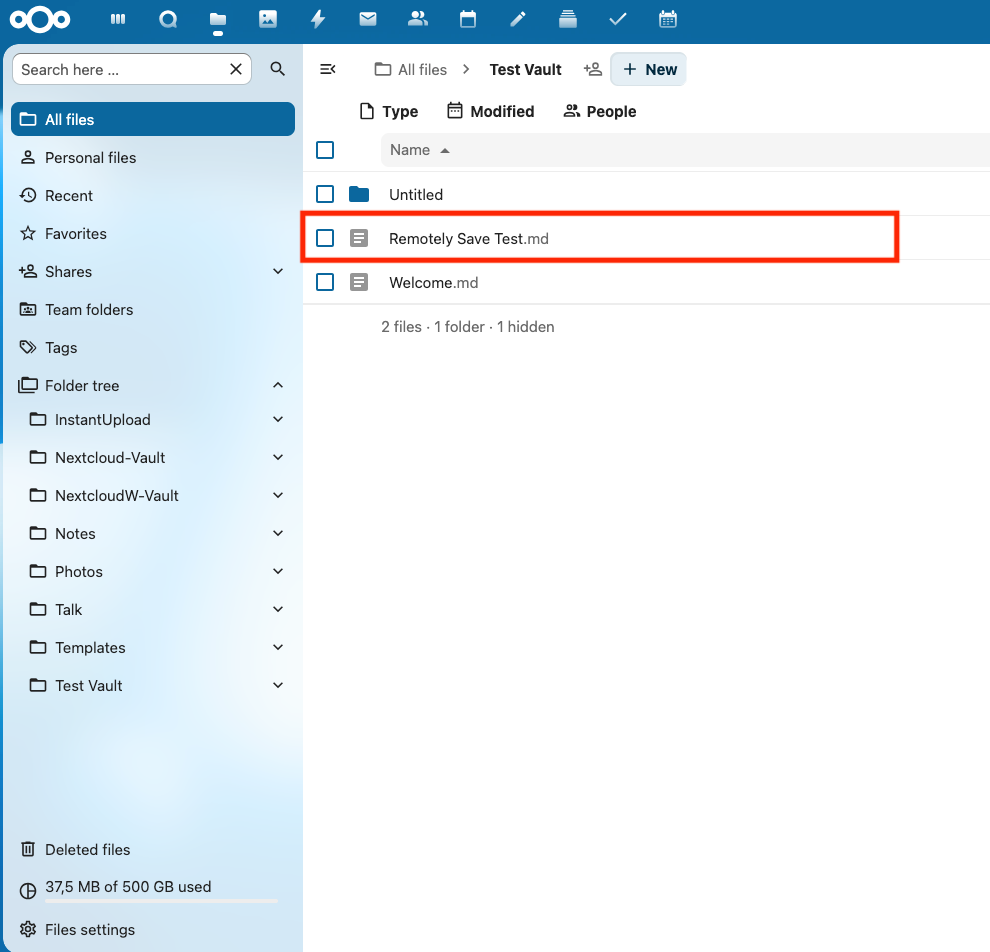
This confirms that the vault is being synchronized successfully between Obsidian and Nextcloud.
To verify that synchronization works in both directions, edit the same note in the Nextcloud web interface and save the change. Then run another synchronization in Obsidian. The new text should appear in the note once the sync is complete.
This approach works well if you prefer syncing Obsidian directly with Nextcloud instead of using the Nextcloud desktop client. Your vault stays in Nextcloud, and Remotely Save takes care of the synchronization.
Following these practices helps keep notes accessible, synchronized, and easier to recover if something unexpected happens.
Yes, Nextcloud can be a good alternative to Obsidian Sync if your priority is controlling where your notes are stored and how they are synchronized.
Obsidian Sync is a dedicated service built specifically for Obsidian. It is designed to provide a seamless synchronization experience across devices. Nextcloud takes a different approach. Instead of syncing Obsidian directly, it synchronizes the Markdown files that make up an Obsidian vault.
For many workflows, this setup works well because Obsidian continues to read and write local files while Nextcloud handles synchronization in the background. The result is a self-hosted solution that keeps notes under your control rather than inside a proprietary sync service.
The tradeoff is that Obsidian Sync is generally simpler to set up and less likely to encounter synchronization conflicts. Nextcloud requires a more careful workflow, especially when the same vault is opened and edited on multiple devices at the same time.
If you do not want to manage a Nextcloud server yourself, a managed Nextcloud hosting provider such as CloudBased Backup can simplify the process. The vault remains in your Nextcloud environment, while updates, backups, security, and infrastructure management are handled for you.

This setup is a good fit for privacy-conscious professionals, researchers, developers, and teams that want to keep their notes on infrastructure they control.
It works particularly well for anyone already using Nextcloud for file storage and collaboration. The same vault can then be synchronized across connected devices while the notes remain in your Nextcloud environment.
If owning your data, using open file formats, and keeping everything within a single Nextcloud environment are important to your workflow, this setup is worth considering.
8 min read · 22.09.2026
5 min read · 14.09.2026
5 min read · 18.08.2026
Hosted in
Germany
4.3on G2