Best OneDrive Alternatives for Businesses in 2026
8 min read · 29.09.2026
Our Blog / how-to-use-nextcloud-across-desktop-and-mobile-devices
← Back to overview
Nextcloud sync across devices is one of the biggest reasons teams move away from public cloud platforms. Instead of scattering your files across Google Drive on one device, Dropbox on another, and random email attachments in between, Nextcloud gives you one place for everything. Files, calendars, contacts, tasks, and communication tools, all accessible from your desktop, laptop, phone, and tablet.
But making it all work smoothly depends on how your Nextcloud is set up and how well each device connects to your server. This guide covers what Nextcloud cross-platform sync looks like in practice, which devices are supported, and how teams use it in their day-to-day work.
Before getting into the specific devices, it helps to understand how Nextcloud file sync across devices actually works at a high level.
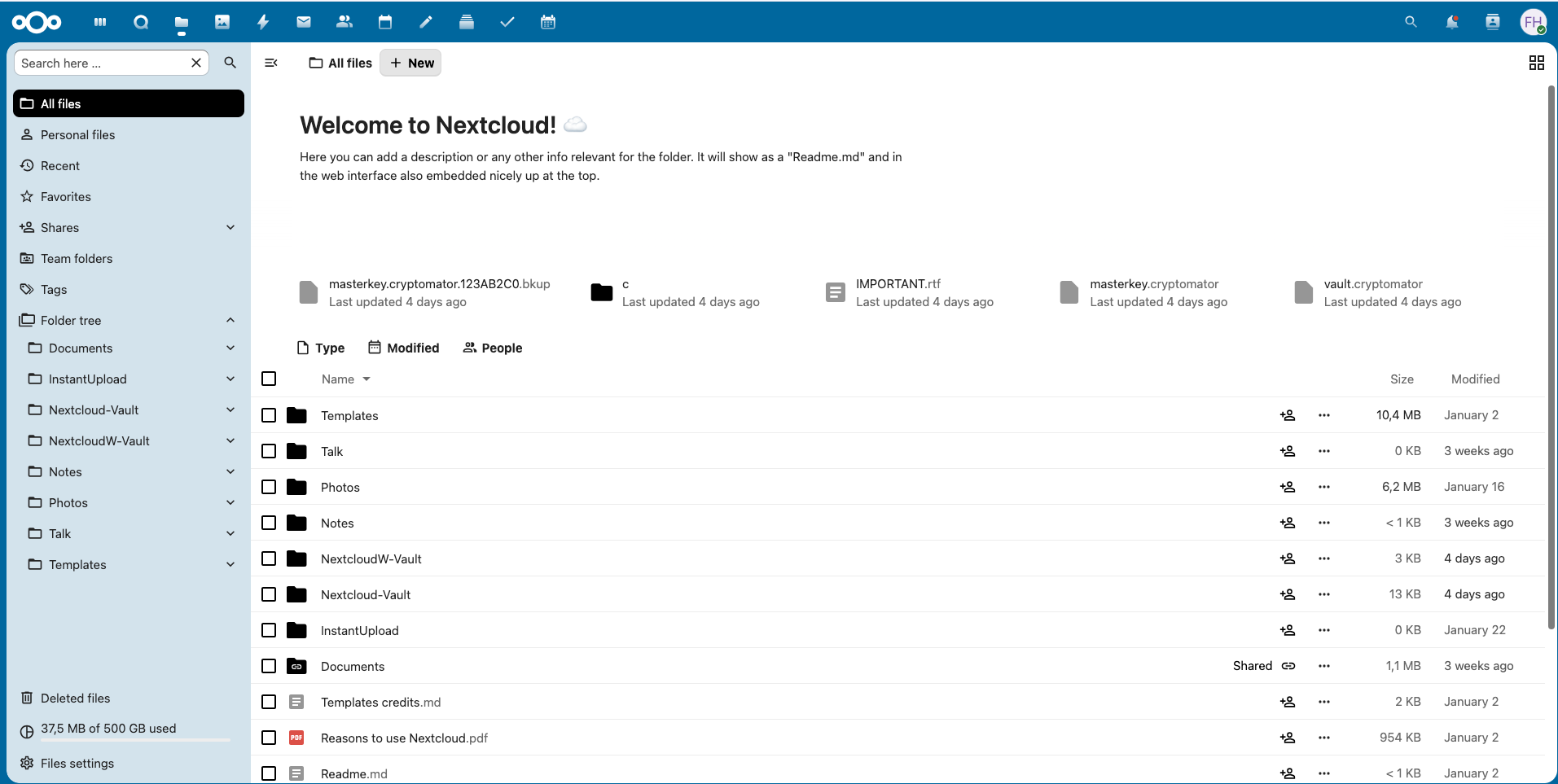
Everything centers around your Nextcloud server. It stores all your data, and every device you use, whether it is a laptop, phone, or tablet, connects to that server as a client.
When you save a document on your desktop, the Nextcloud client pushes the change to the server. Your phone picks it up seconds later. Upload a photo from your phone, and it appears on your laptop without you doing anything. The same applies to calendars, contacts, and tasks, all synced through standard protocols like CalDAV and CardDAV.
What makes this different from services like Google Drive or Dropbox is actually the ownership. With Nextcloud, your data sits on your server or your managed hosting provider's infrastructure. You decide where it is stored, who gets access, and what happens to it. For businesses handling sensitive or regulated information, that distinction matters.
The sync itself has been tested over years of real-world use. Desktop and mobile clients are actively maintained. Conflicts between devices are handled cleanly, and offline changes sync automatically when the connection returns. For teams that need to use Nextcloud on multiple devices without worrying about lost files or version mismatches, the foundation is solid.
Desktop is where most of the heavy lifting happens. Whether your team works on Windows, macOS, or Linux, Nextcloud has native clients that integrate directly into your operating system's file manager.
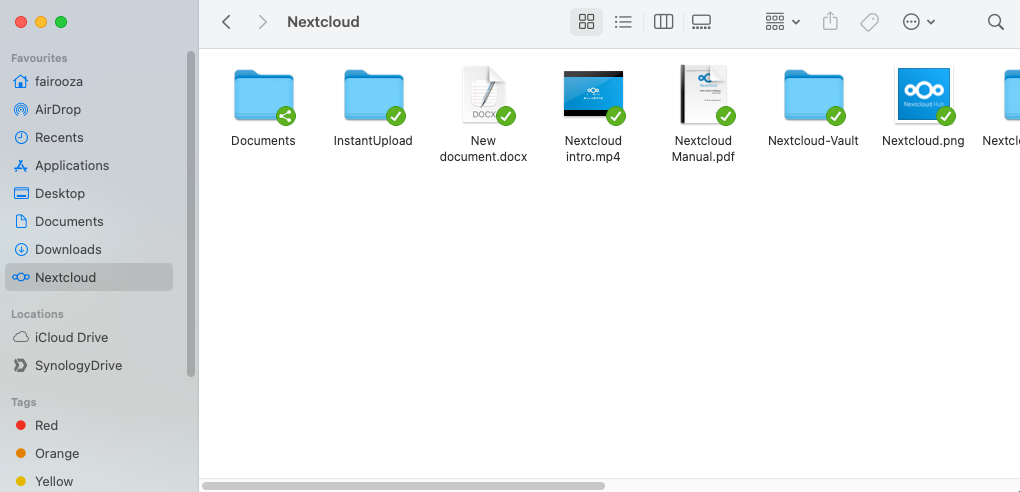
For desktop users, the Nextcloud desktop and mobile experience starts with reliable file availability.
On Windows and macOS, teams typically work with continuous file sync between local folders and the Nextcloud server. Files stay available offline when working without connectivity, and all connections back to the cloud are encrypted. This setup allows users to work naturally from their file system while Nextcloud handles syncing changes in the background.
Nextcloud also supports multiple devices through standard protocols. If you are looking for step-by-step desktop setup, we have already covered that in How to Access Your Nextcloud via WebDAV and How to Set Up Nextcloud on macOS for Files, Calendars, and Contacts.
From a business perspective, desktop sync is where stability matters most. Poorly maintained servers lead to sync conflicts and data inconsistency, which is one of the main reasons teams move to managed environments.
Mobile access is where Nextcloud really proves its value as a cross platform solution. Your files, photos, calendar, and contacts, travel with you, and everything stays in sync with your desktop.
Android offers the most flexible Nextcloud experience on mobile. The official Nextcloud app handles file browsing, sharing, and automatic photo uploads. You can access any file in your cloud, mark items for offline availability, and share securely with colleagues or external contacts.
Automatic camera uploads are a big deal for teams in the field. Anyone who captures photos or documents on the go can have those files land directly in their Nextcloud without manual transfers. No more emailing photos to yourself or uploading them later from a laptop.
For Android-specific setup and system-level syncing, see How to Set Up Nextcloud on Android and How to Install and Set Up DAVx⁵ for Nextcloud on Android.
After setup, Nextcloud calendars appear in your preferred calendar app, and contacts sync directly to your phone’s address book. Changes flow both ways automatically.
For Apple users, Nextcloud cross platform sync integrates cleanly into the iOS ecosystem. The Nextcloud iOS app gives you full access to your files, supports automatic photo and video uploads, and lets you share files with the same controls available on desktop.
What makes iOS particularly convenient is that Apple's built-in Calendar and Contacts apps natively support CalDAV and CardDAV. This means your Nextcloud calendars and contacts integrate directly into the apps you already use, without needing any additional software. When you add an event on your iPhone, it will sync to your Nextcloud server and every other connected device.
A file edited on macOS appears instantly on iPhone. Calendar updates sync without relying on Google services or any third-party accounts. This creates a seamless experience for teams in the Apple ecosystem.
iOS-specific setup and syncing behavior are explained in How to Sync Nextcloud with iPhone.
File sync alone is not enough for most teams. Real productivity kicks in when your calendars and contacts work just as reliably across every device you use.
Nextcloud handles this through CalDAV for calendars and CardDAV for contacts. Both open standards are supported natively on macOS and iOS, through DAVx⁵ on Android, and through direct configuration on desktop clients like Thunderbird. The result is a single, unified calendar and contact list across all your devices, without relying on Google or Apple accounts.
Many teams connect Nextcloud to their desktop email client as part of their daily workflow. We have walked through this process in How to Sync Nextcloud with Thunderbird.
For teams that still rely on Google Calendar, controlled read-only sharing is possible. This is explained in How to Integrate Your Nextcloud Calendar into Google Calendar, without moving data out of Nextcloud.
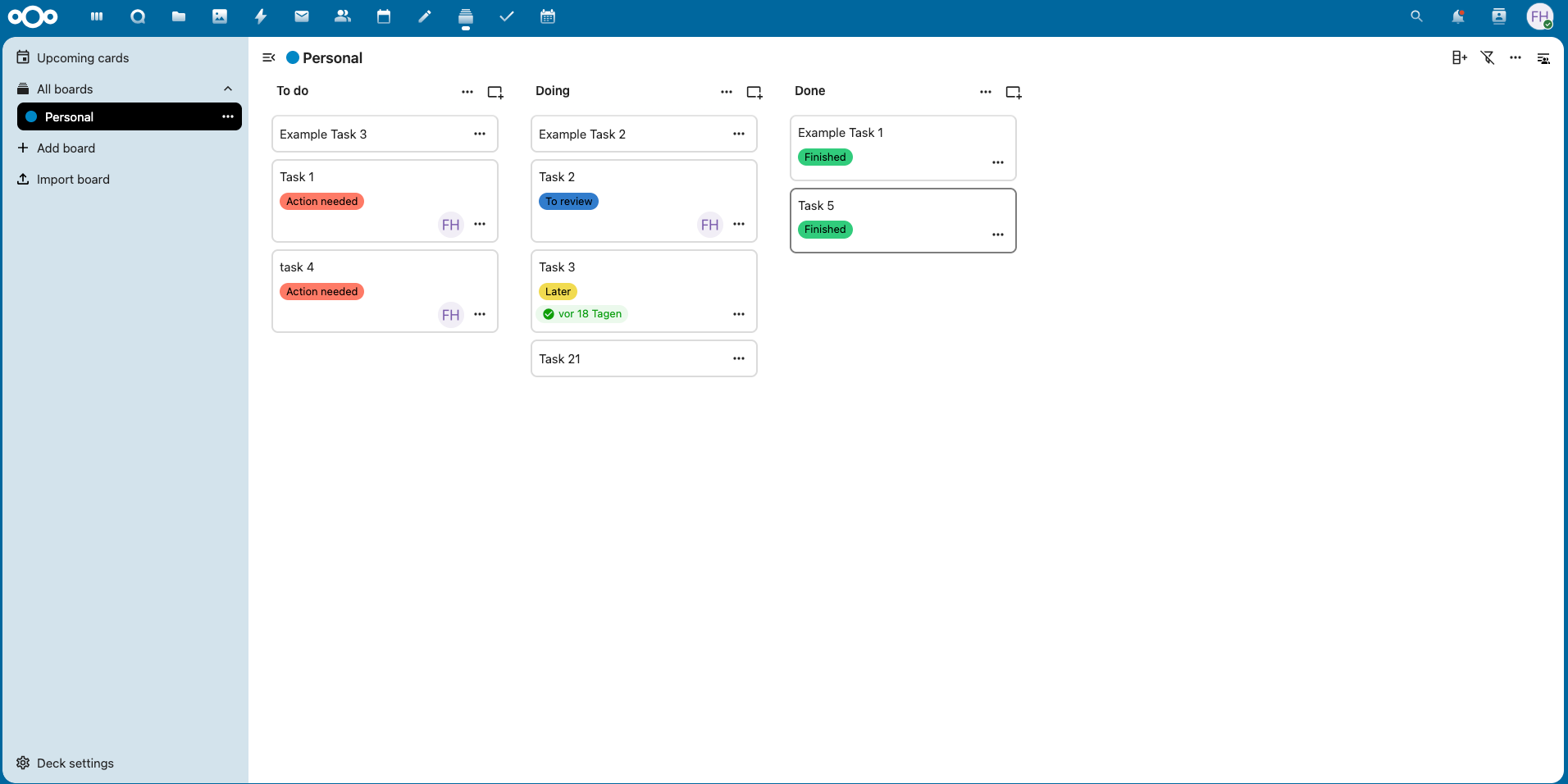
Nextcloud is more than just storage. Its built-in collaboration apps are designed to work consistently across desktop and mobile, turning it into a workspace rather than just a sync tool.
Teams commonly rely on file sharing with granular permissions, Deck boards for lightweight project tracking, and Notes and Tasks for shared planning.
The key advantage here is continuity. A task created on desktop will appear on mobile within seconds. A note edited on a phone syncs back to every connected device. A Deck board updated by one team member is immediately visible to the rest of the team, regardless of what device they are using.
For teams trying to consolidate tools, these apps cover a wide range of everyday collaboration needs. This is explored further in The Deck, Notes, and Tasks Apps in Nextcloud and How to Enable Them.
For businesses, using Nextcloud across multiple devices makes access control a critical consideration.
Nextcloud gives administrators a clean interface to create and manage user accounts, define permissions per user or group, set storage quotas, and control what data is accessible across which devices. This becomes especially important when employees use personal laptops or mobile phones for work.
When someone joins the team, they get access to the right folders and calendars immediately. And when someone leaves, their access is revoked in one place, and it takes effect across every device they used. That kind of centralized control is important for any team that takes security seriously.
Nextcloud encrypts all connections between your devices and the server using TLS. Access controls at the user level determine who can see and share what.
For teams concerned about device loss, Nextcloud's architecture offers an advantage. Since files are synced from a central server, access can be revoked immediately, while the data remains safe on the server.
When Nextcloud is operated on a managed platform like CloudBased Backup, data is hosted exclusively in EU-based data centers under GDPR-aligned operations. This limits exposure to foreign access laws and provides clearer accountability around data handling.
Running Nextcloud yourself gives you maximum control, but it comes with real operational demands. You are responsible for OS updates, security patches, backups, uptime monitoring, and troubleshooting, and every new Nextcloud release needs to be tested and applied. Every security vulnerability needs a timely response.
For a small team or user with strong technical skills, self-hosting works well. But for growing businesses, the maintenance overhead adds up quickly. A missed update or a misconfigured backup can lead to downtime or data loss.
On the other hand, managed Nextcloud hosting removes that burden. Your hosting provider handles everything, including infrastructure, updates, security hardening, backups and availability. You can focus only on using Nextcloud, managing your team, and getting work done.
When the server is professionally maintained, sync is more reliable, uptime is more consistent, and your team spends zero time troubleshooting the infrastructure issues.
CloudBased Backup offers managed Nextcloud hosting on German infrastructure under GDPR-aligned privacy standards designed for teams that want a professionally maintained Nextcloud environment without operating the underlying system themselves.
Nextcloud works well for freelancers who want one private platform across their devices, small businesses looking for collaborative tools, remote teams that depend on reliable cross-device access, and privacy-conscious organizations in regulated industries. The common thread is a need for control over data without giving up usability.
The platform works best when the underlying infrastructure is professionally managed. When updates, backups, and server health are handled for you, your team can use the platform instead of maintaining it. That is where Nextcloud works best as long-term infrastructure, not a side project.
8 min read · 29.09.2026
9 min read · 22.09.2026
5 min read · 14.09.2026
Hosted in
Germany
4.3on G2