Best OneDrive Alternatives for Businesses in 2026
8 min read · 29.09.2026
Our Blog / how-to-use-nextcloud-talk
← Back to overview
Nextcloud Talk is part of the Nextcloud platform, and knowing how to use it properly is important if you want to manage team communication, calls, and meetings directly within your own environment.
This guide focuses on how to use Nextcloud Talk in practical terms. It walks through setup, interface basics, messaging and calling features, and key settings that affect daily use. The goal is to help you use it efficiently without unnecessary steps or confusion.
Nextcloud Talk is a self-hosted communication tool that supports messaging, voice, and video calls within your own server. Users can organize conversations, share files, and manage notifications, while admins control access, guest links, and system policies. Proper use of its interface, collaboration features, and settings ensures secure, efficient communication for teams and organizations.
Nextcloud Talk is a self-hosted communication tool within Nextcloud that supports direct messaging, voice calls, and video meetings. Because it runs on your own server, all communication data stays within your infrastructure instead of being routed through third-party services.
In terms of how it works, it uses browser-based technologies such as WebRTC to handle audio and video communication. Calls can be established directly between participants when possible, while the server handles signaling, user management, and session coordination. In larger meetings or more complex network setups, additional components such as a TURN server may be used to relay traffic and maintain connection stability.
It is tightly integrated with the rest of Nextcloud, which means conversations can include file sharing, links to stored data, and role-based access control. This setup allows teams to manage communication and files in one place without switching between separate tools, while still maintaining control over how data is stored and accessed.
To begin using Nextcloud Talk, users must first ensure that the app is enabled within their Nextcloud instance. Administrators typically handle the setup by installing and activating the app from the Nextcloud app store.
Once enabled, users can access it directly from the dashboard. The Nextcloud Talk app is also available on mobile devices, allowing communication across desktop and smartphone platforms. Logging in with credentials provides immediate access to chats and calls.
Basic configuration includes setting permissions, enabling notifications, and ensuring that microphone and camera access are properly configured for calls. A correct setup ensures smooth communication and avoids technical interruptions.
Nextcloud Talk’s interface is designed to help you quickly access chats, calls, and contacts. Key areas include:
Left Panel: Conversations & Contacts
Main Area: Message Threads & Calls
Top & Action Menus
Interaction Features
This layout ensures users can quickly navigate between conversations, manage calls, and access contacts without switching contexts.
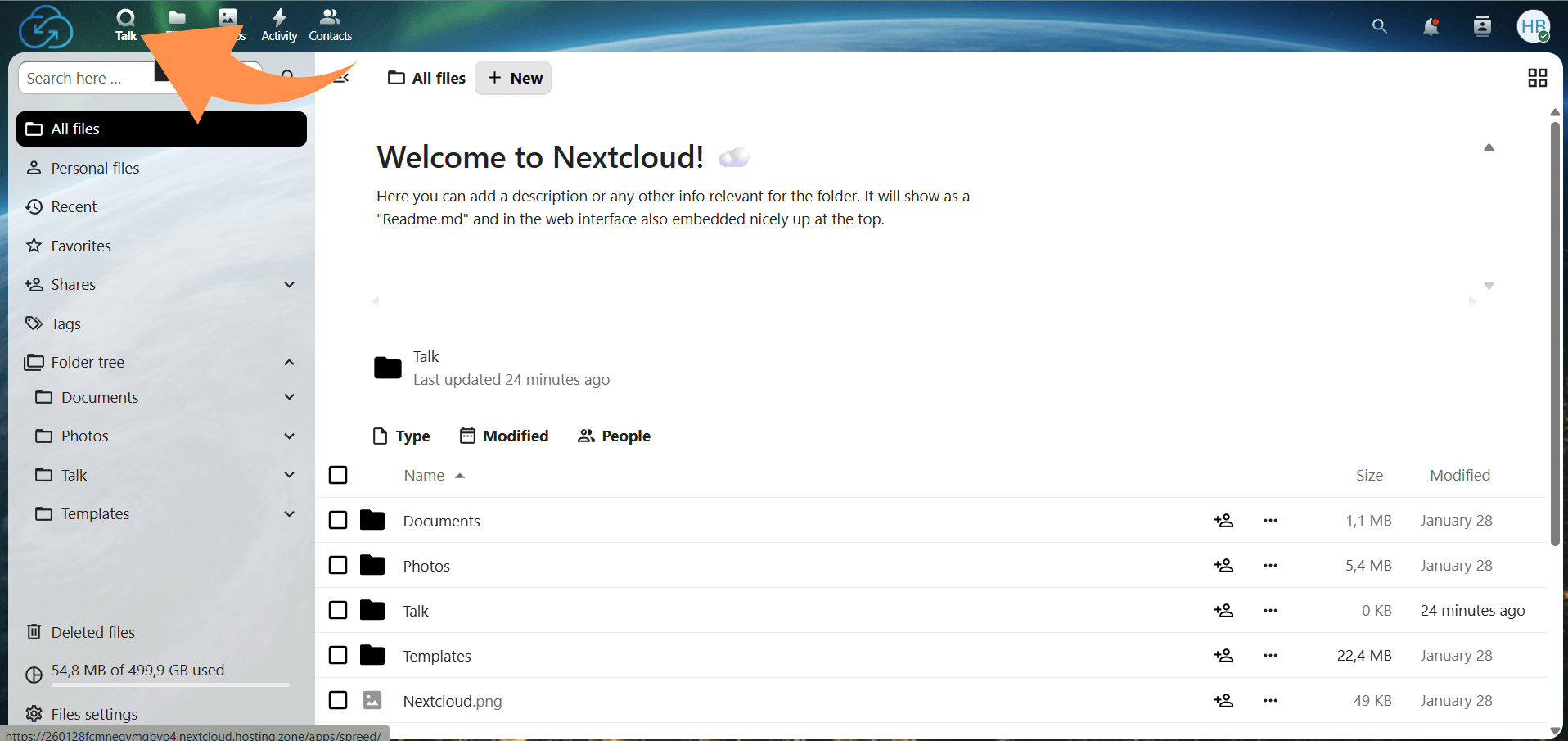
In Nextcloud, open the Talk app from the top navigation (or app switcher) to access your conversations and the Talk dashboard.
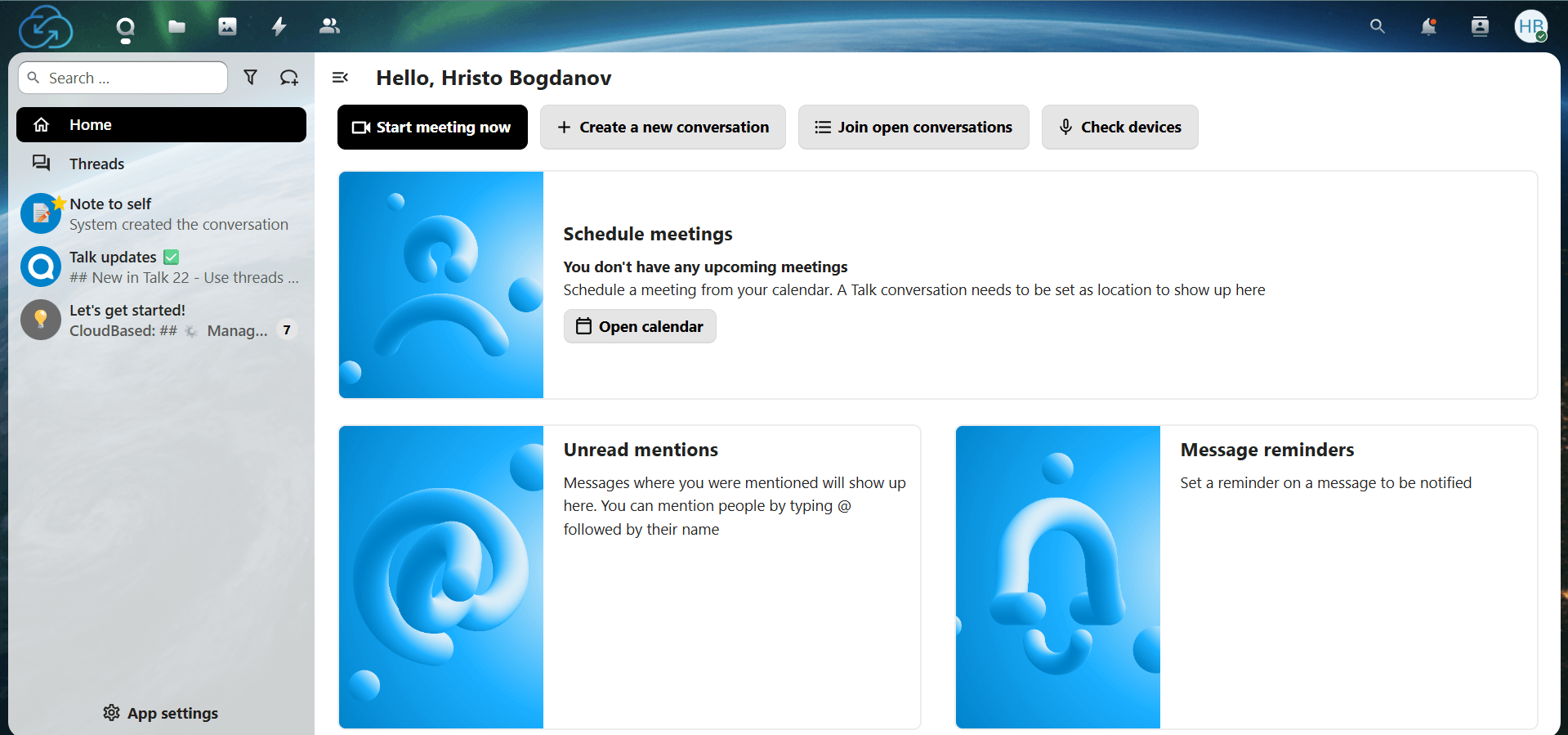
Use the search field to find a person, click their name, and Talk creates a private conversation automatically, then type a message and send.
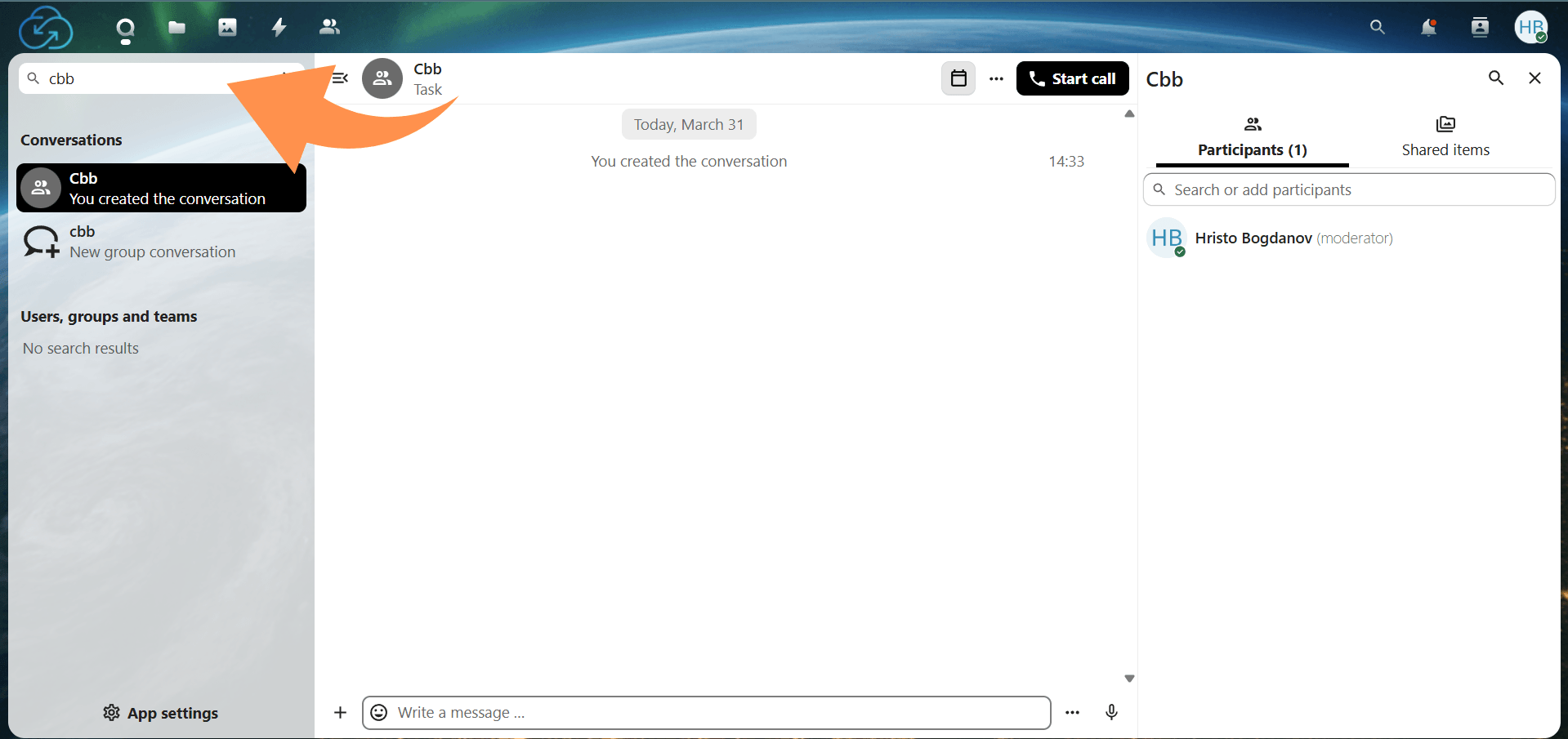
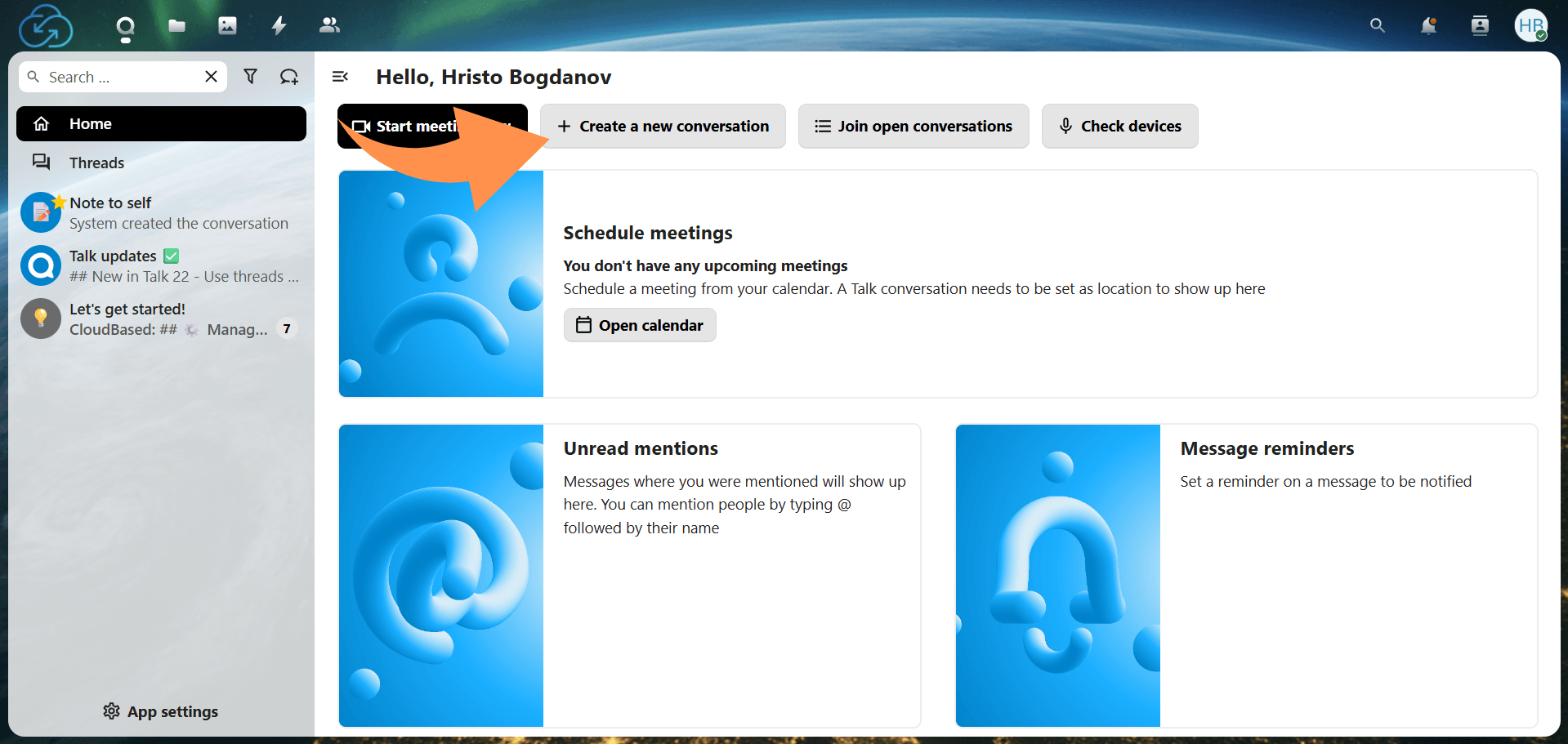
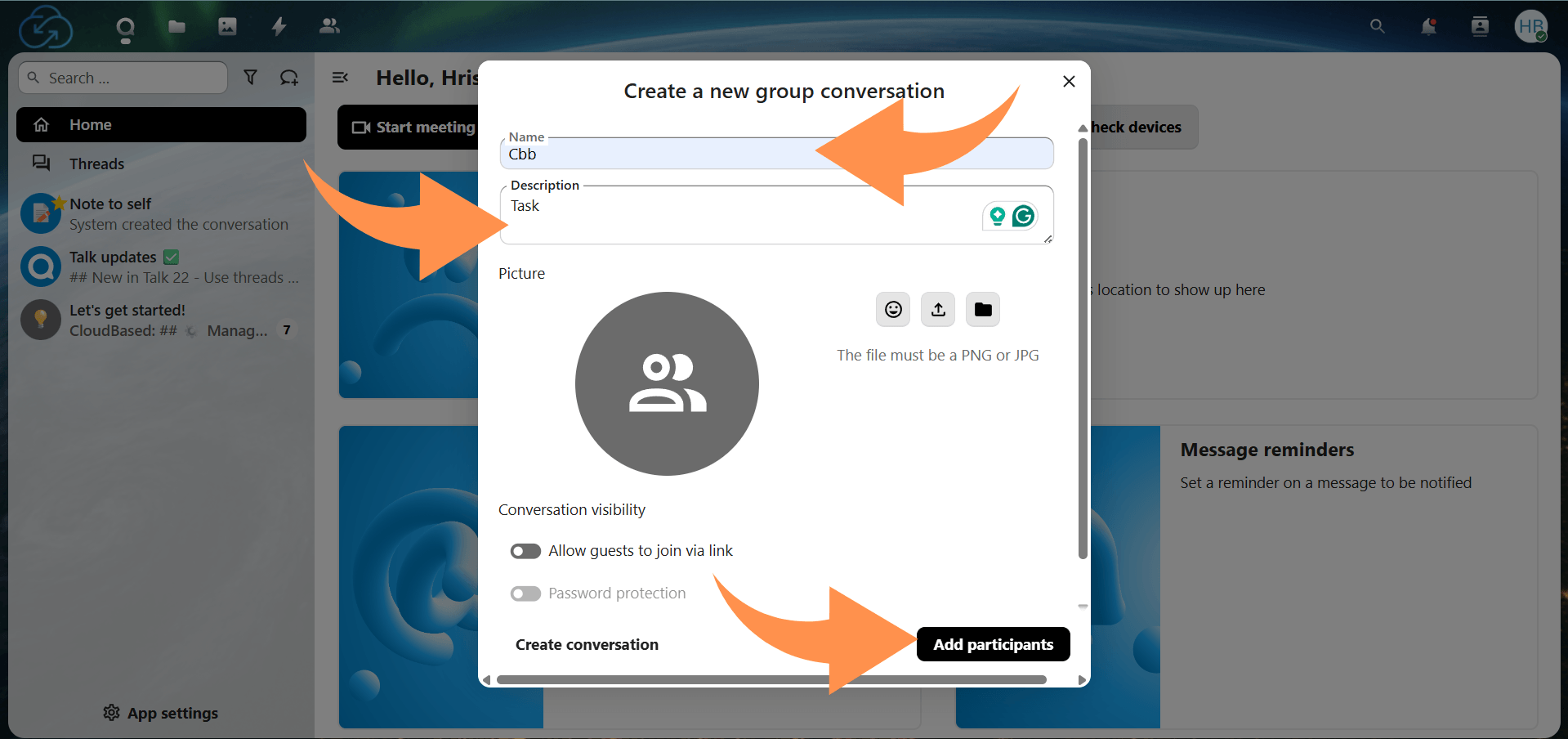
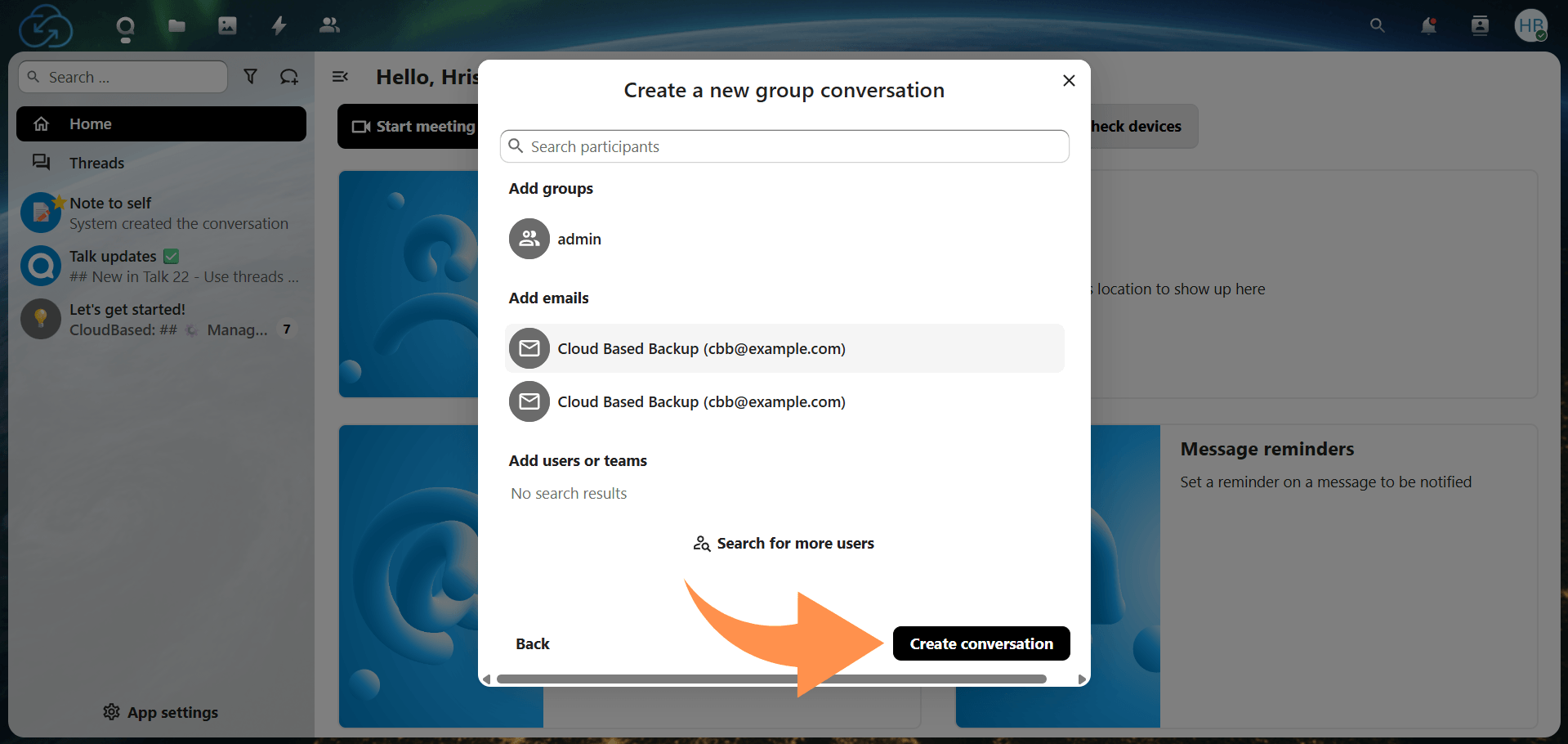
Create a new conversation, give it a name (and optional description/avatar if prompted), then add participants. This becomes your group space for ongoing messages and calls.
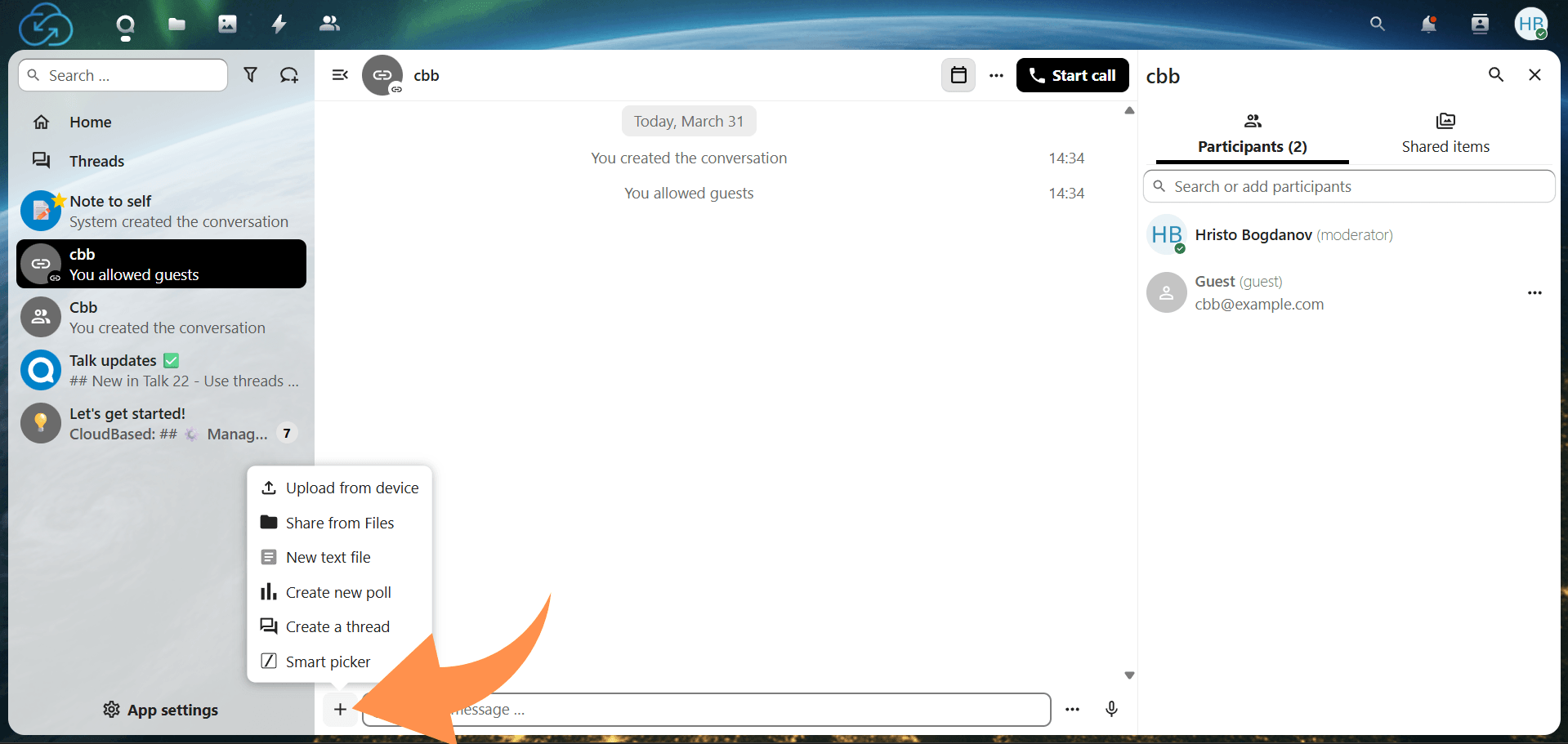
To share a file in a conversation, click the + (plus) next to the message box, then choose either Upload from device (upload from your computer) or Share from Files (attach something already stored in Nextcloud). Paste links directly into the message field to share them.
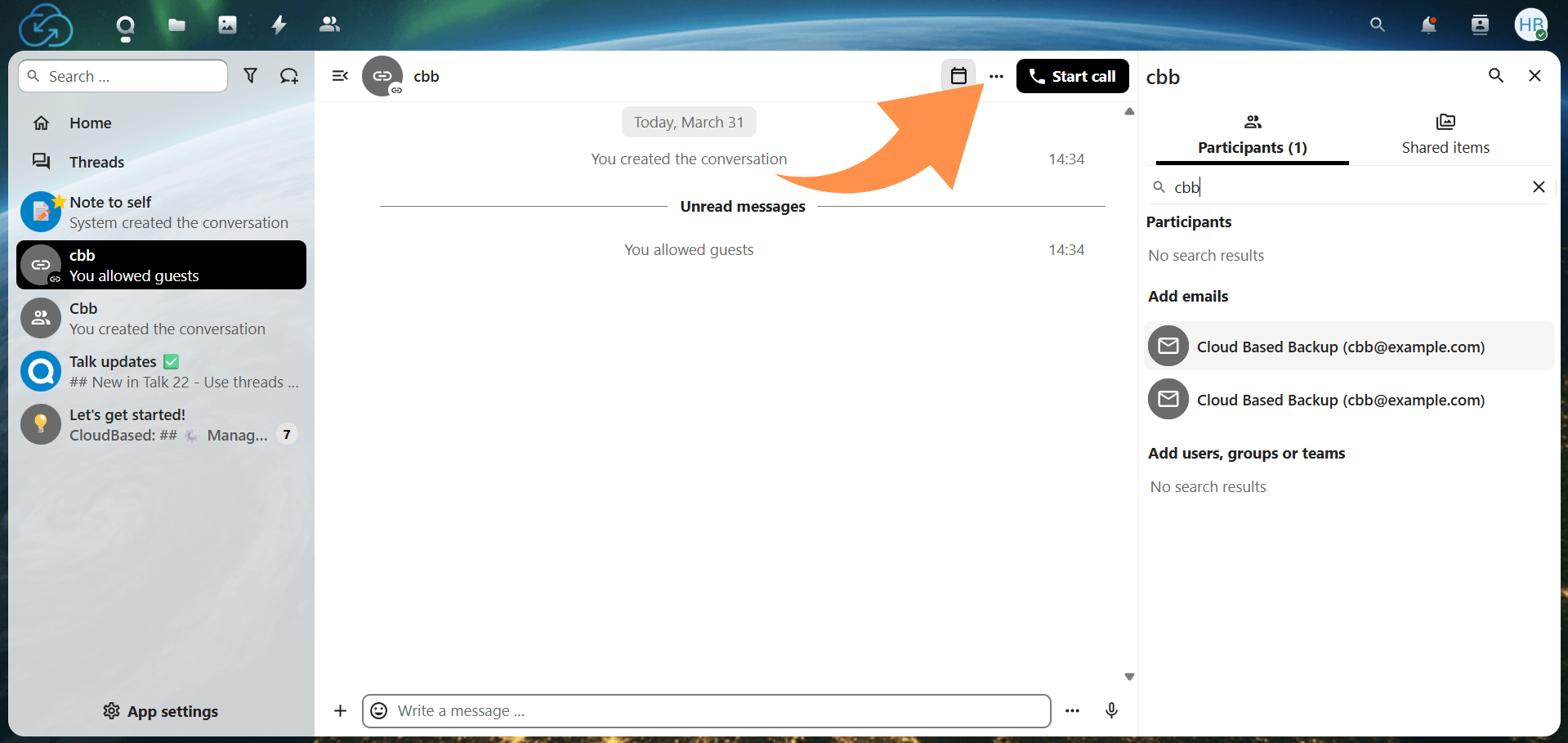
Open the conversation, then open conversation settings/details (often via a menu or sidebar). If your Nextcloud allows it, enable guest/public link access, copy the link, and share it with external participants so they can join the chat (and calls) without an account.
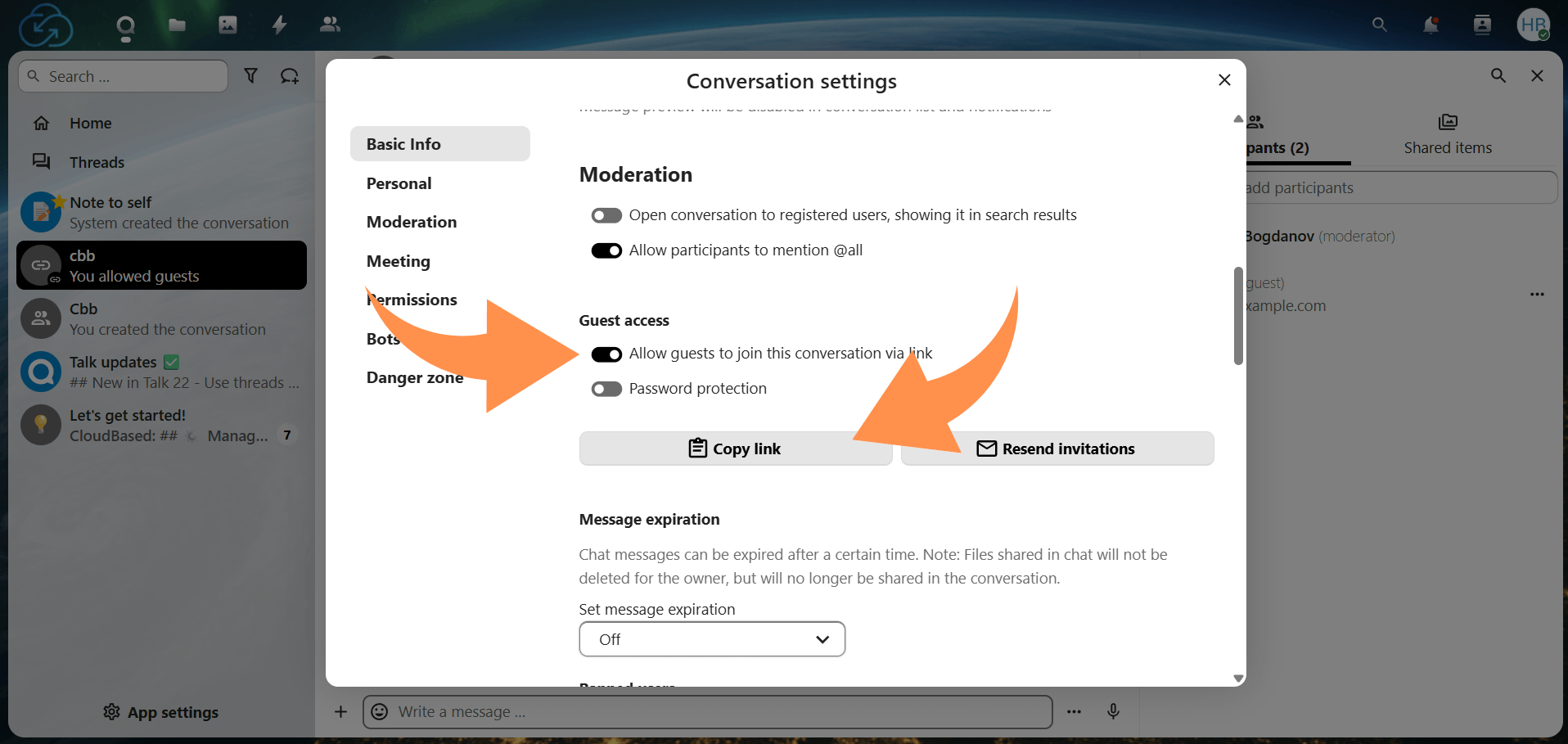
Use the conversation options to keep things organized. Common actions include searching chat history (if available), reviewing shared items, and archiving conversations you don’t need in your main list.
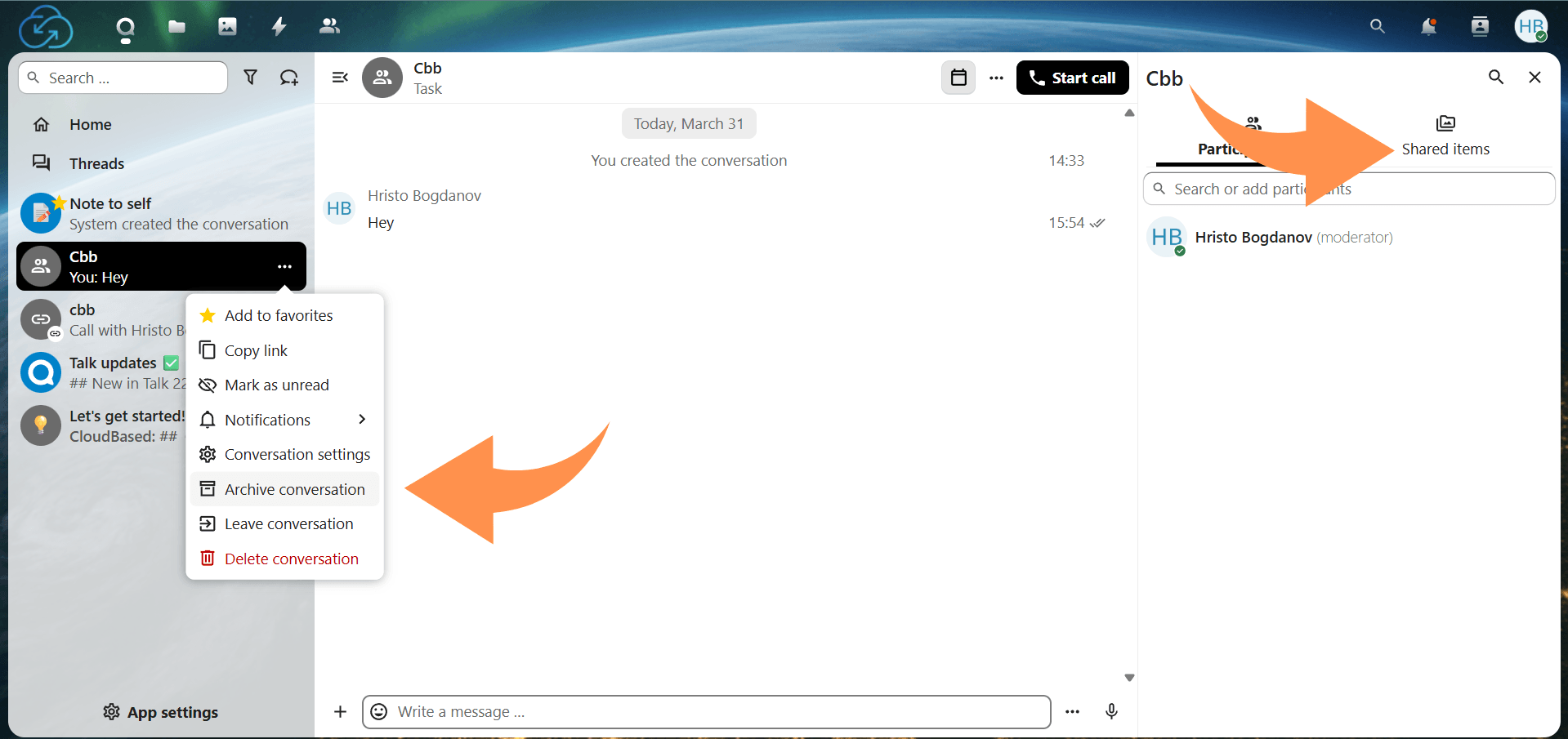
Open the conversation and click Start call. Participants will receive a prompt to join, and you can enter the call immediately after granting microphone/camera permissions.
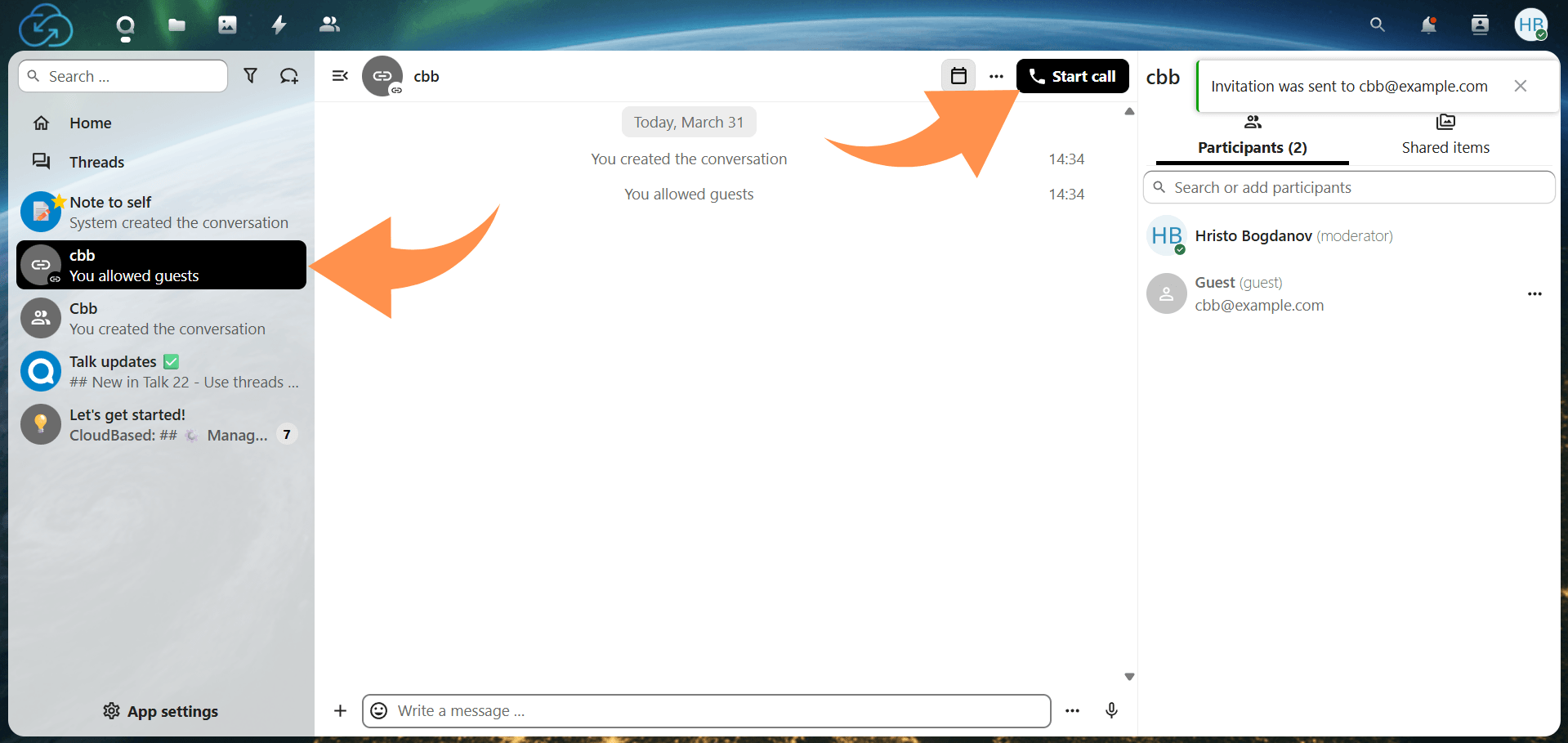
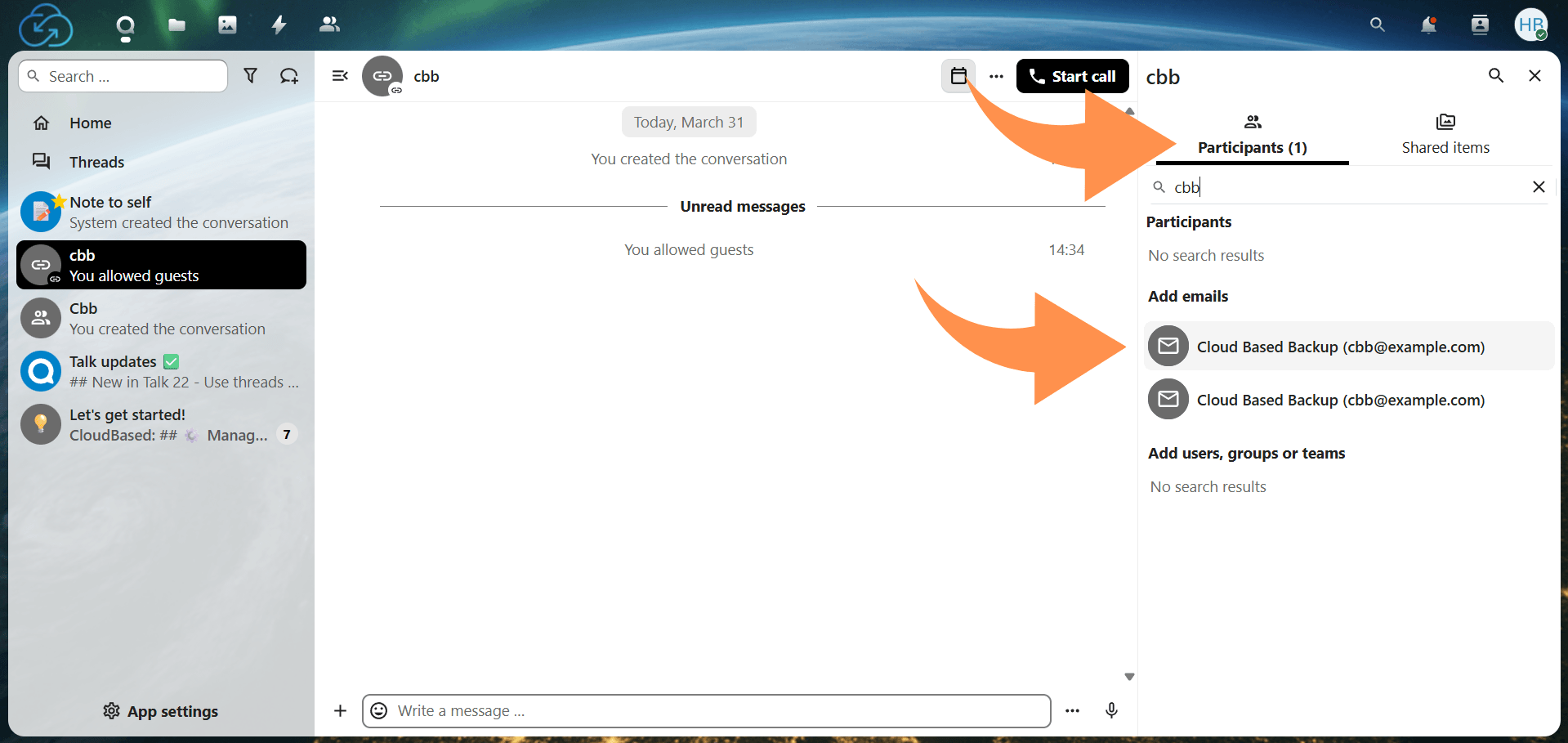
Use the participant panel (or conversation controls) to see who’s on the call and invite additional people to the conversation as needed (permissions vary by server setup).
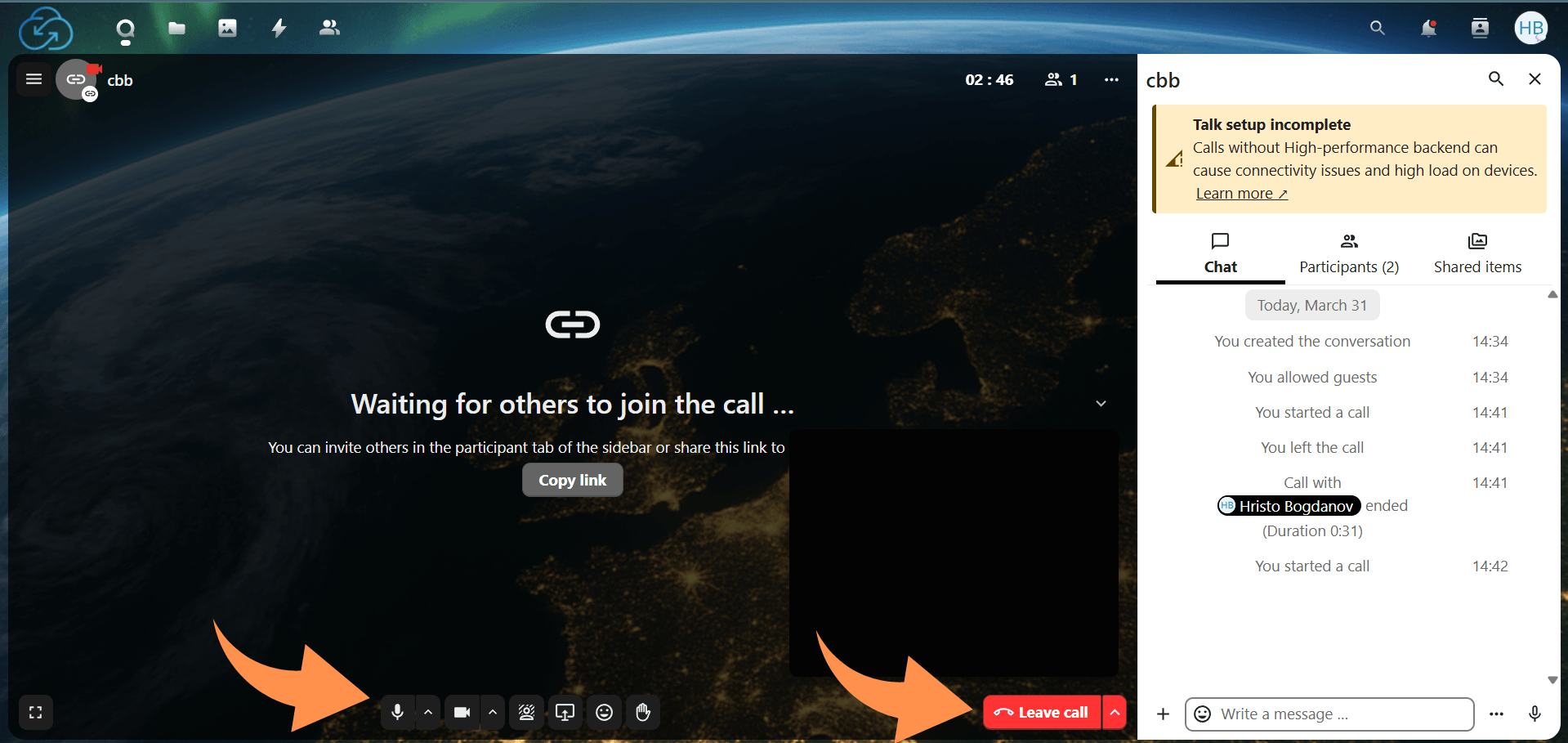
During a call, use the call toolbar to mute/unmute, toggle camera, and open device/settings options. To share your screen, click the screen share control, select what to share (entire screen, a window, or a browser tab), and stop sharing when finished.
When you’re done, click Leave call/hang up in the call controls. This removes you from the call while keeping the conversation and message history intact.
Create a dedicated group conversation per team, project, or client. This keeps messages, files, and calls in one place rather than spread across multiple 1:1 threads.
Use Share from Files to bring documents from Nextcloud into the conversation so everyone can access the same file without emailing attachments or duplicating versions.
Use Talk for quick check-ins (1:1), team standups (group calls), project rooms (ongoing chat + file sharing), and ad-hoc collaboration (screen share to review work live).
For teams that want to focus on communication without managing server infrastructure, at Cloud Based Backup, we offer fully managed Nextcloud hosting. We handle updates, security, backups, and infrastructure, providing a secure environment with integrated Talk features. This allows teams to start collaborating immediately, with all messaging, calls, and file sharing ready to use, without worrying about setup or maintenance.
Managing settings and permissions in Nextcloud Talk depends on user roles and the level of access granted. Typical users can create conversations, add participants where allowed, and adjust their own notification and device preferences, while moderation or administrative actions are limited to conversation moderators or admins.
Notifications and privacy settings let users control alerts for mentions, messages, and calls, helping balance responsiveness with minimizing distractions; available options may vary depending on the Talk version or admin policies.
Admins have additional controls, including installing or enabling the Talk app, managing guest or public link access, and configuring calling and access policies, which can differ based on whether the instance is self-hosted or managed, and which features are activated.
Mastering Nextcloud Talk allows teams and individuals to communicate and collaborate efficiently within a secure, self-hosted environment. By familiarizing yourself with the interface, leveraging messaging and calling features, and managing settings effectively, you can streamline workflows and maintain control over your data. Nextcloud Talk provides a practical solution for organizations and users who prioritize privacy, reliability, and seamless integration with their existing Nextcloud ecosystem.
8 min read · 29.09.2026
9 min read · 22.09.2026
5 min read · 14.09.2026
Hosted in
Germany
4.3on G2