How to Connect AI Tools to Nextcloud with MCP
6 min read · 12.10.2026
Our Blog / how-to-use-nextcloud-office
← Back to overview
Browser-based collaboration tools have become essential for teams and businesses that need to work efficiently across locations. Nextcloud Office provides a secure platform for creating and editing documents, spreadsheets, and presentations without relying on traditional desktop software. Nextcloud Office is typically powered by Collabora Online (or Collabora CODE for smaller deployments), ensuring compatibility with standard Office formats.
This guide will walk you through using Nextcloud Office step by step, from confirming availability to sharing files and collaborating in real time.
Nextcloud Office enables users to create, edit, and collaborate on documents, spreadsheets, and presentations directly in the browser. It supports standard and open-source file formats, provides real-time collaboration, automatic saving, version history, and flexible sharing permissions. Users can work efficiently on both self-hosted and managed Nextcloud instances while keeping files secure and organized.
Nextcloud Office lets you create, edit, and collaborate on documents, spreadsheets, and presentations directly in your browser, whether you are using a self-hosted Nextcloud server or a managed Nextcloud instance. It supports common file formats such as .docx, .xlsx, and .pptx, as well as open-source equivalents like .odt, .ods, and .odp, ensuring compatibility with other office software.
Key features include real-time collaboration with visible cursor indicators for all participants, automatic saving of edits, detailed version history to recover previous document states, and flexible sharing options with customizable permissions.
Integrated with the broader Nextcloud ecosystem, it enables teams to organize projects, communicate, and manage files securely on a single cloud platform.
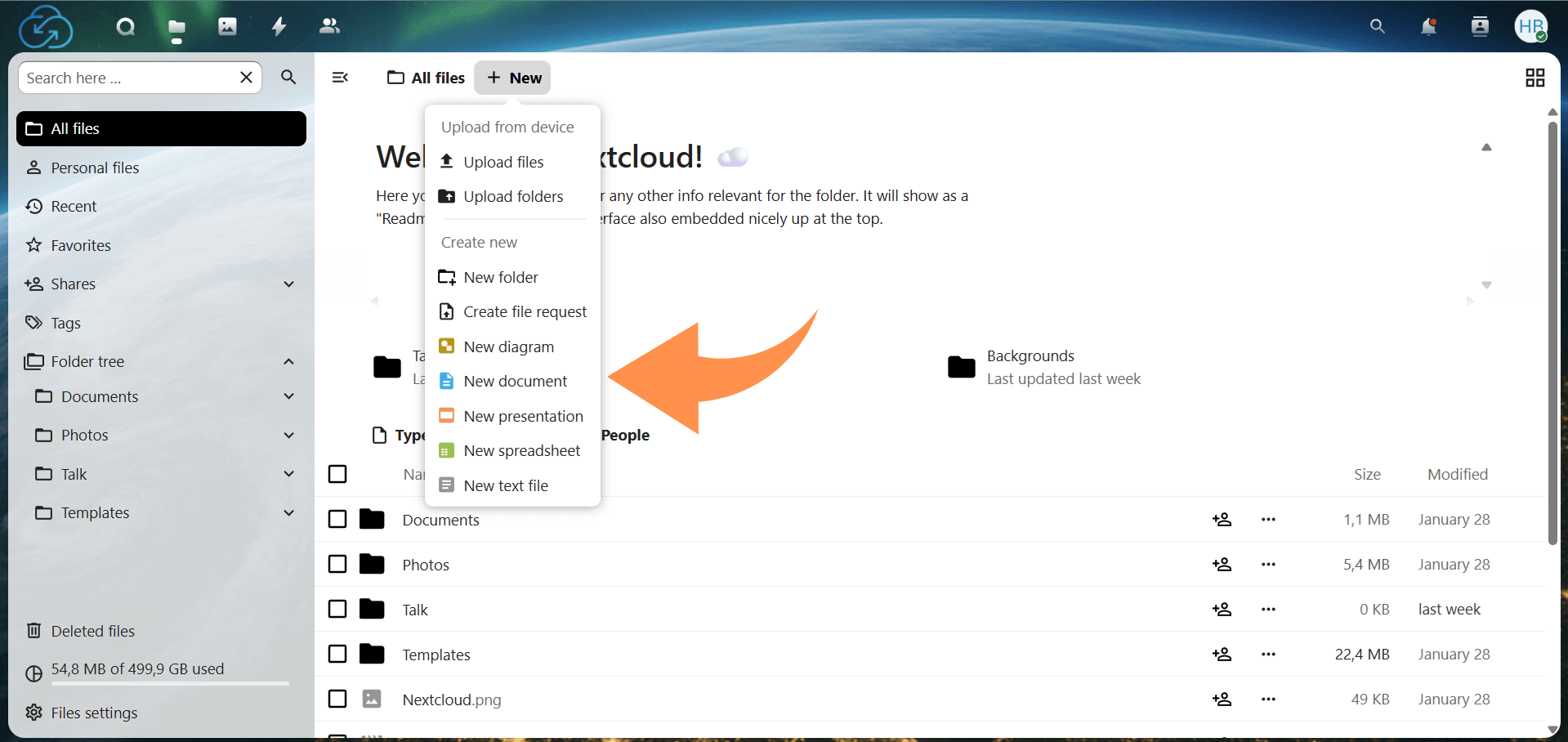
Log in to your Nextcloud account and open the Files app. Click the + New button at the top of the file list. If options like New document, New spreadsheet, or New presentation appear, Nextcloud Office is ready to use.
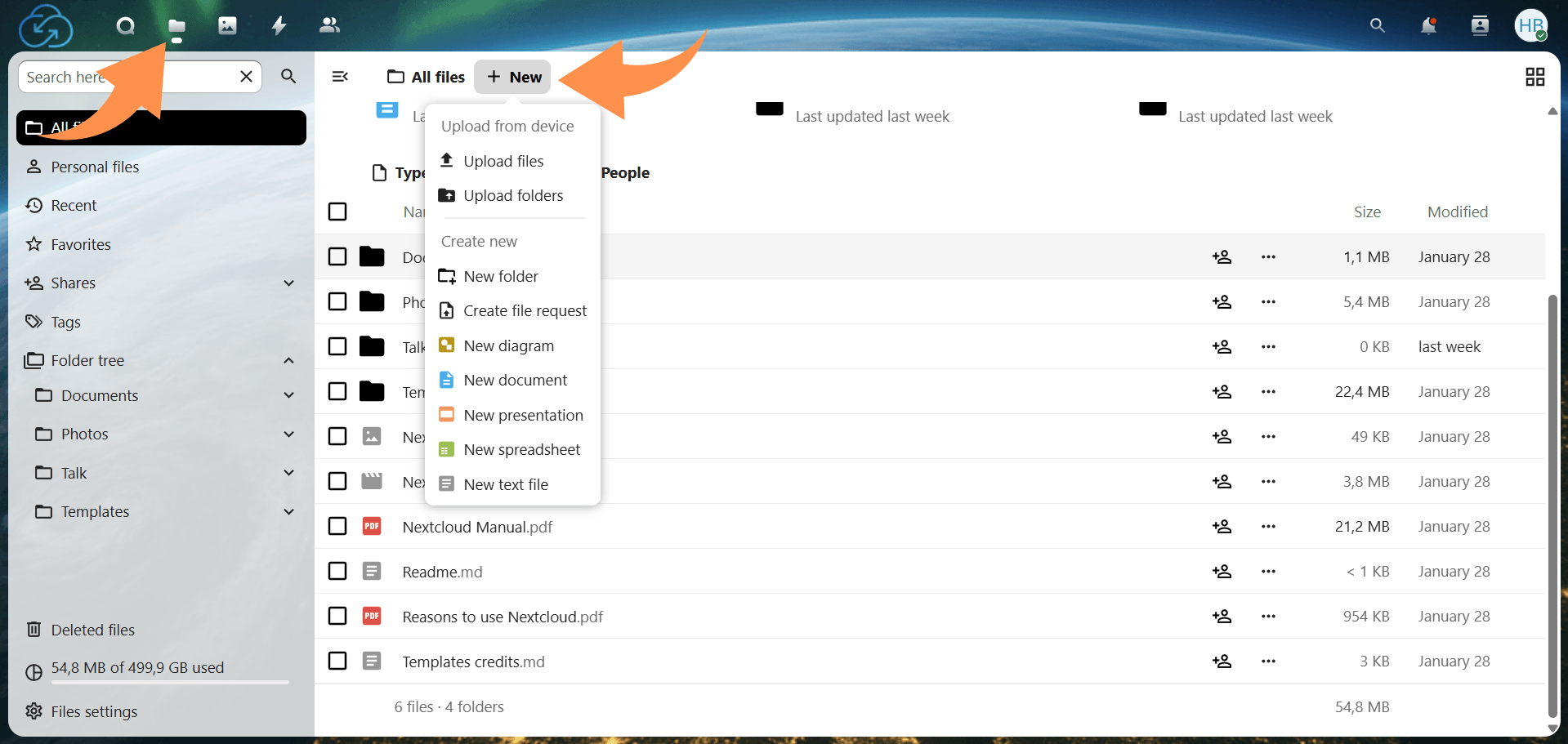
If these options are missing, an online editor may not be enabled for your account. Your administrator must enable a backend such as Nextcloud Office/Collabora Online or ONLYOFFICE. You can still upload and store Office files, but online editing will remain unavailable until the backend is configured.
Click New and select the type of file you want. Enter a file name, and Nextcloud will create the document in the current folder and open it in the browser editor.
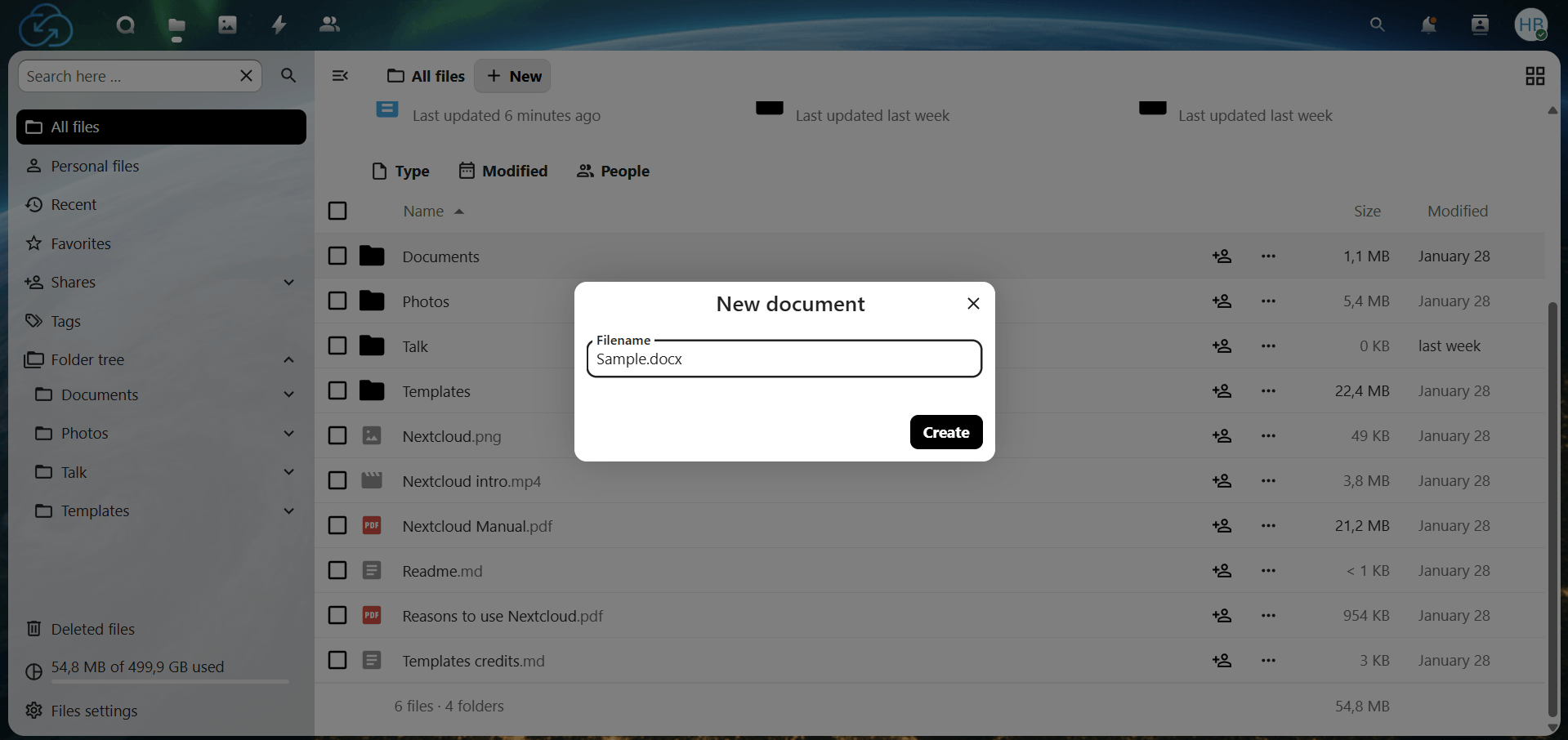
For better organization, consider setting up project- or team-specific folders, like Marketing, Operations, or Client Reports, so files are structured logically from the start.
Navigate to the folder containing your file and click its name to open it in the editor. Supported formats include .docx, .xlsx, .pptx, and open-source equivalents.
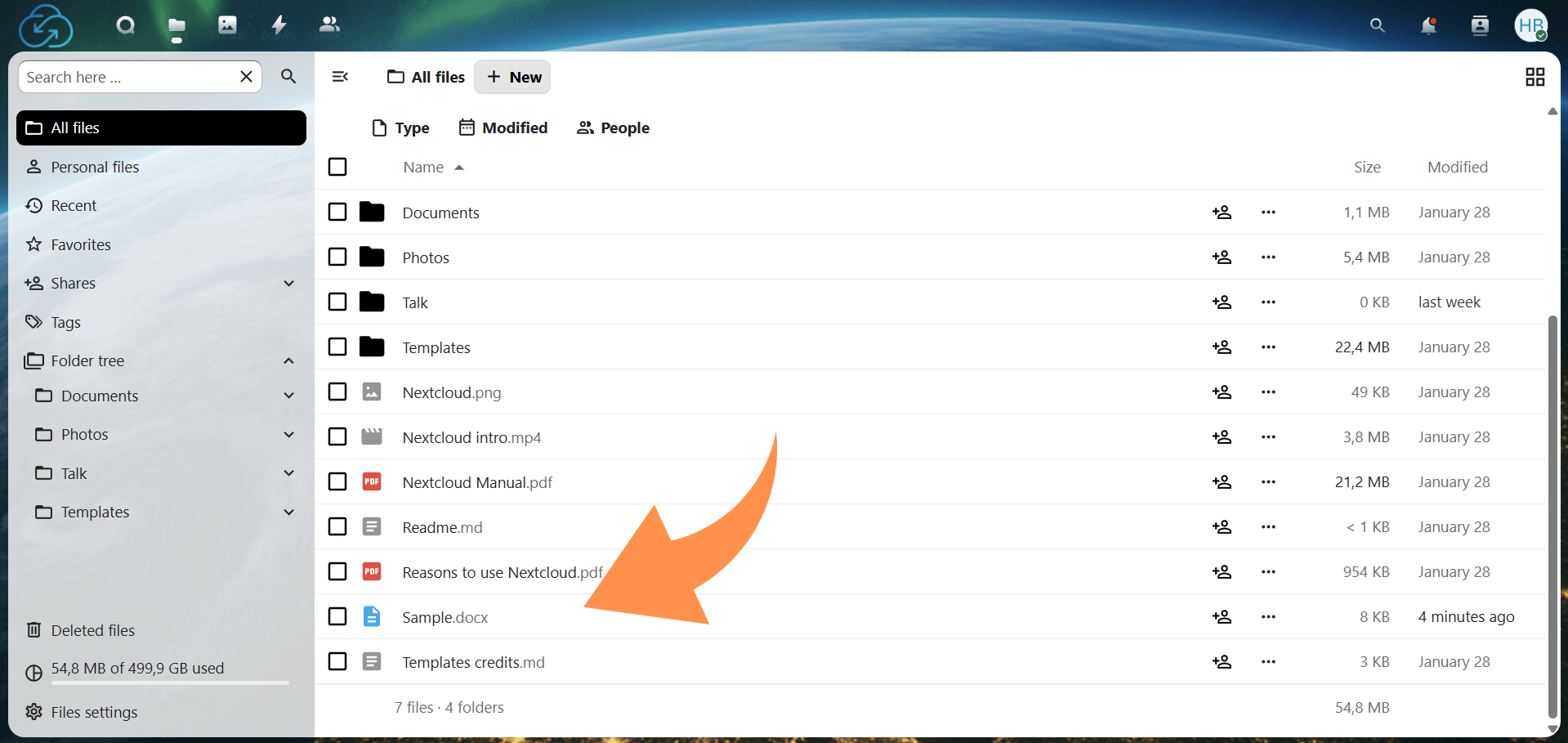
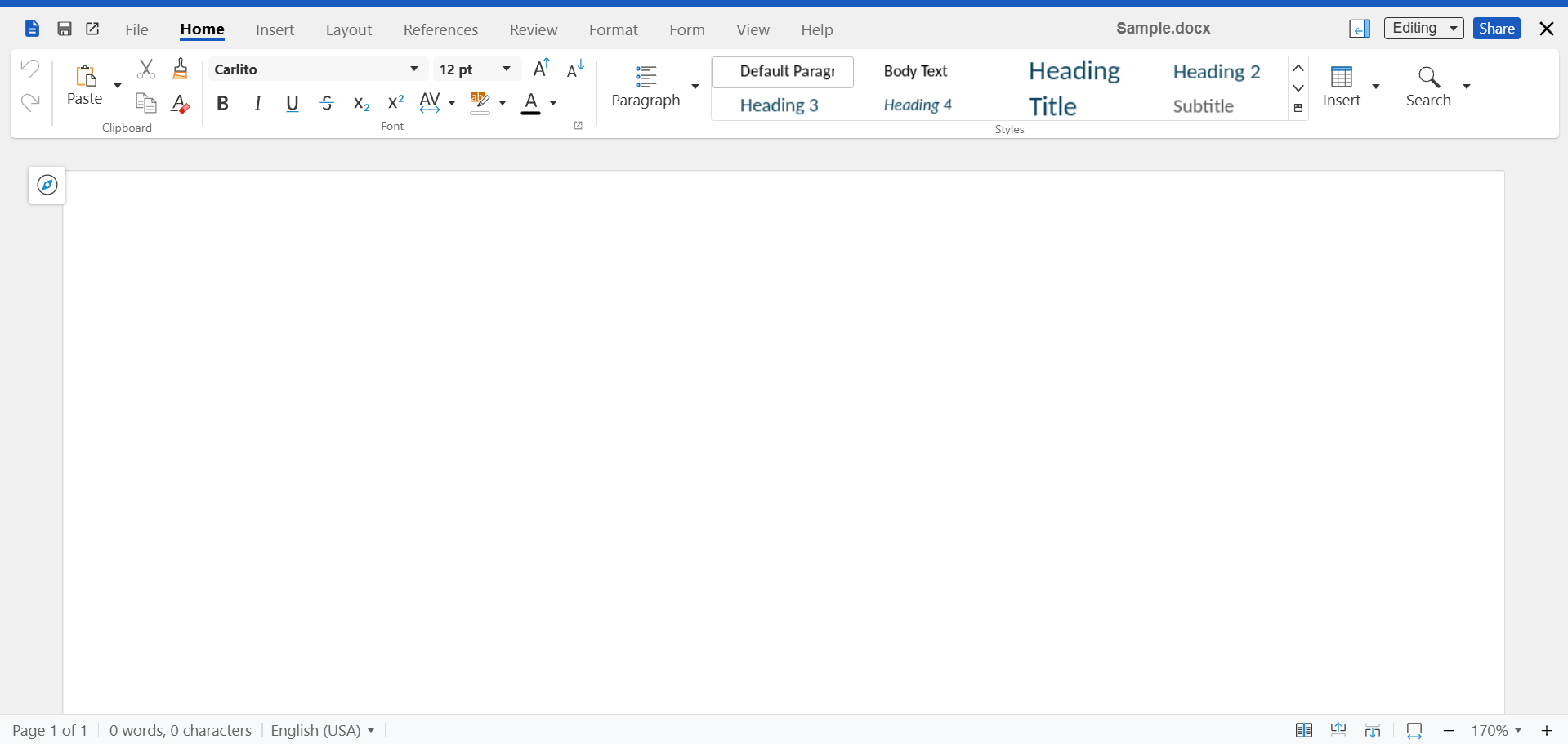
Changes are saved automatically. Many editors show a status indicator, such as Saving… or Saved, so pause briefly before closing large files, especially on slower connections.
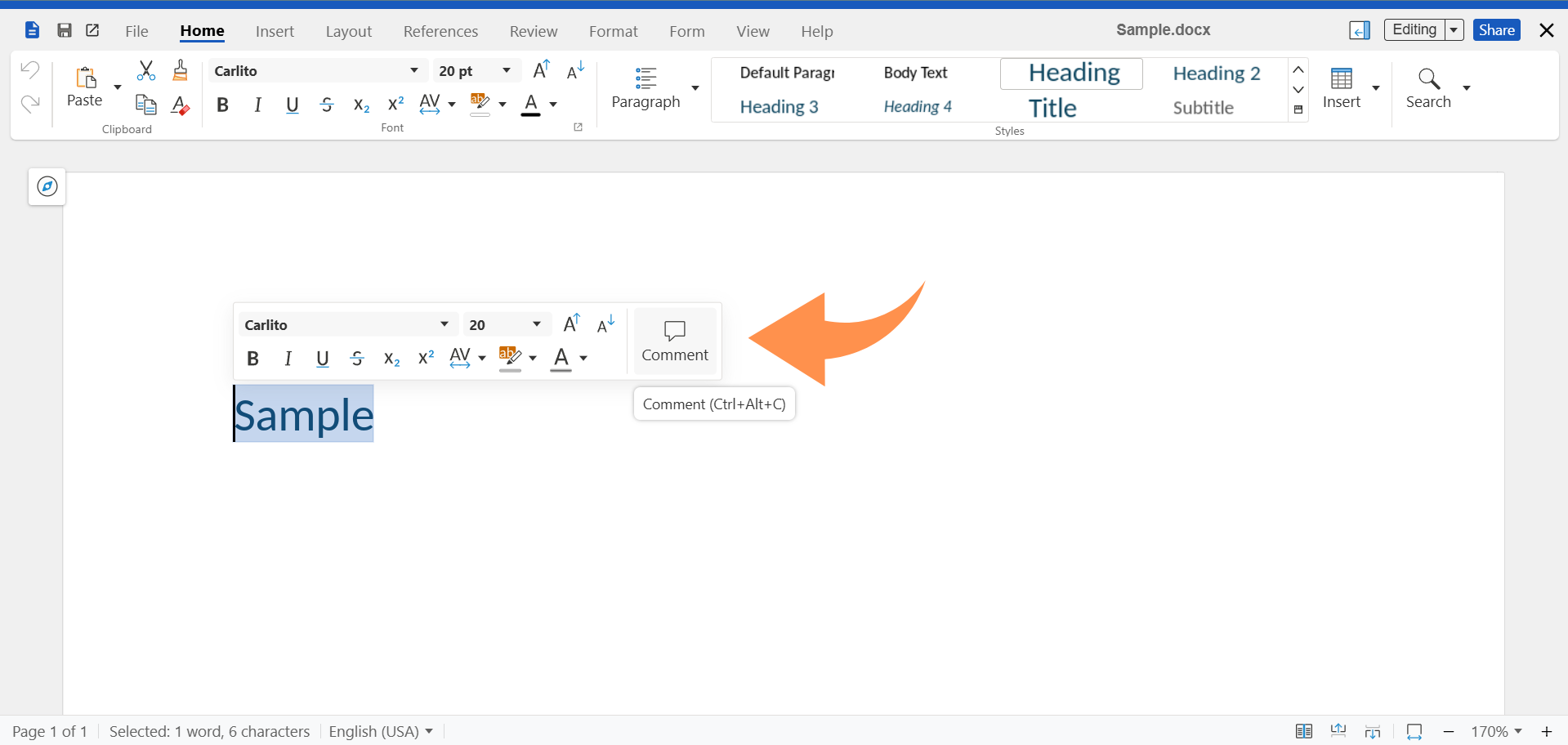
The toolbar provides key functions for each file type:
Presentations: Add slides, choose layouts, insert images/shapes, and arrange text boxes.

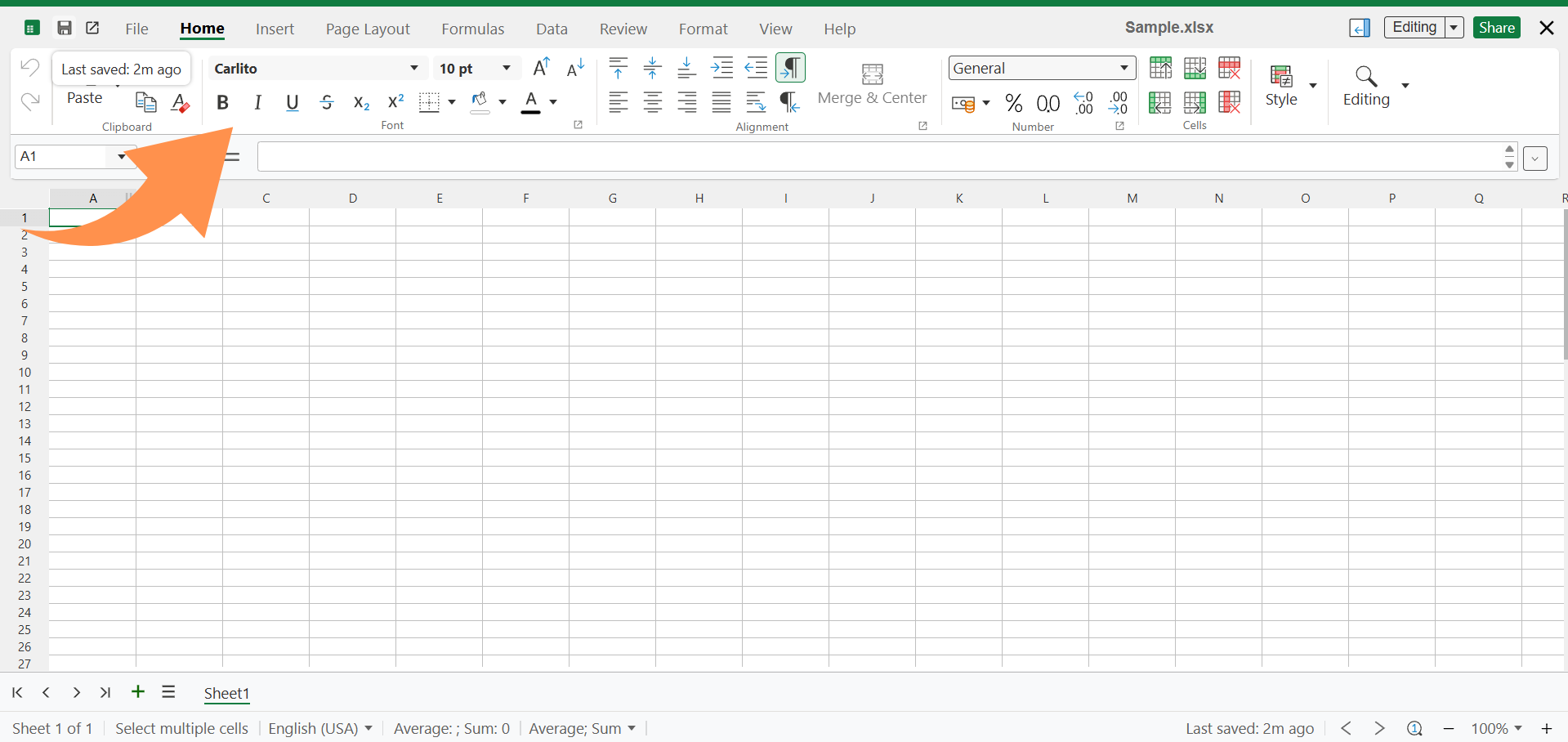
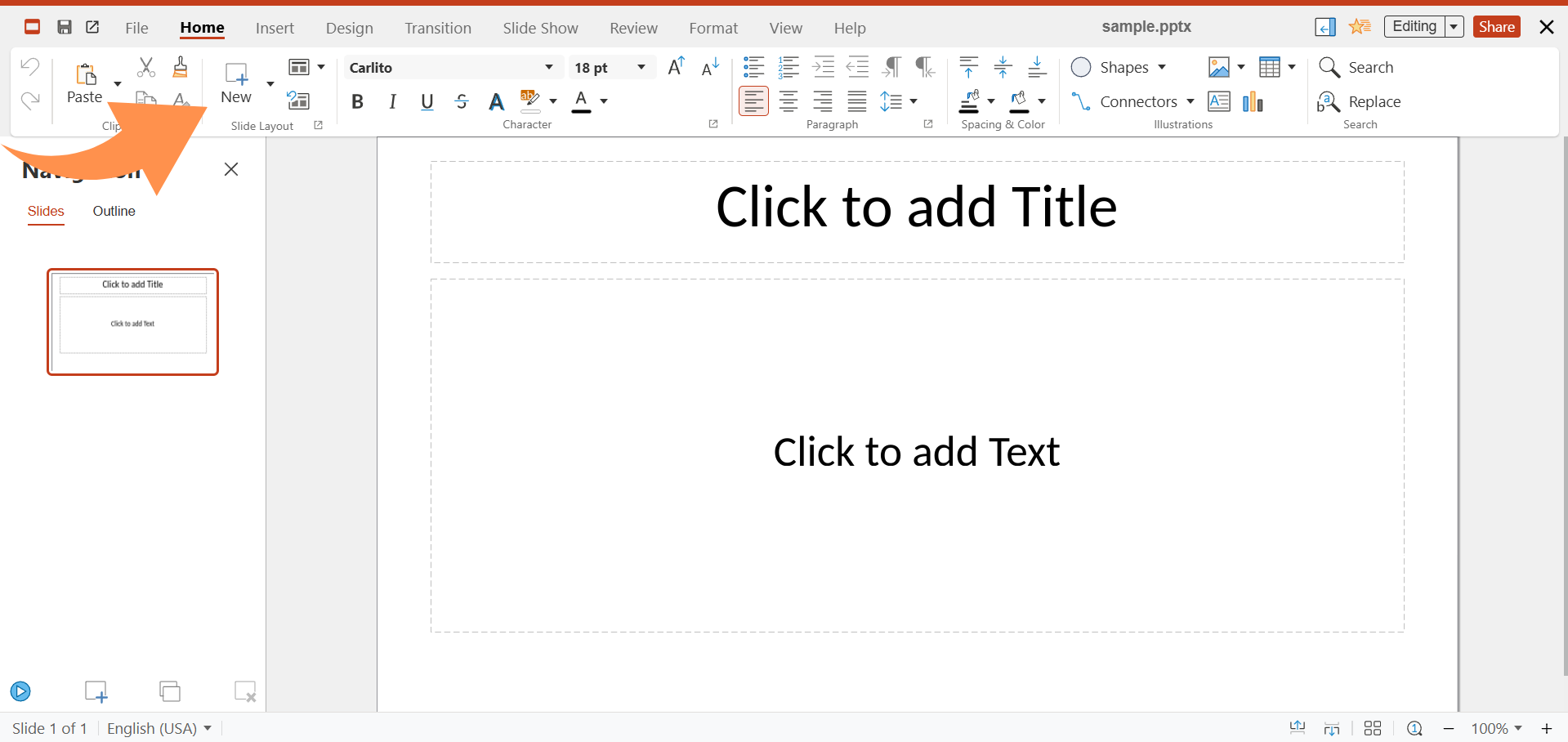
Consistent formatting of headings, bullets, and short sections improves readability and simplifies team collaboration.
Click the Share icon or open the file menu to share files with users or groups, or via public links. Assign permissions carefully:
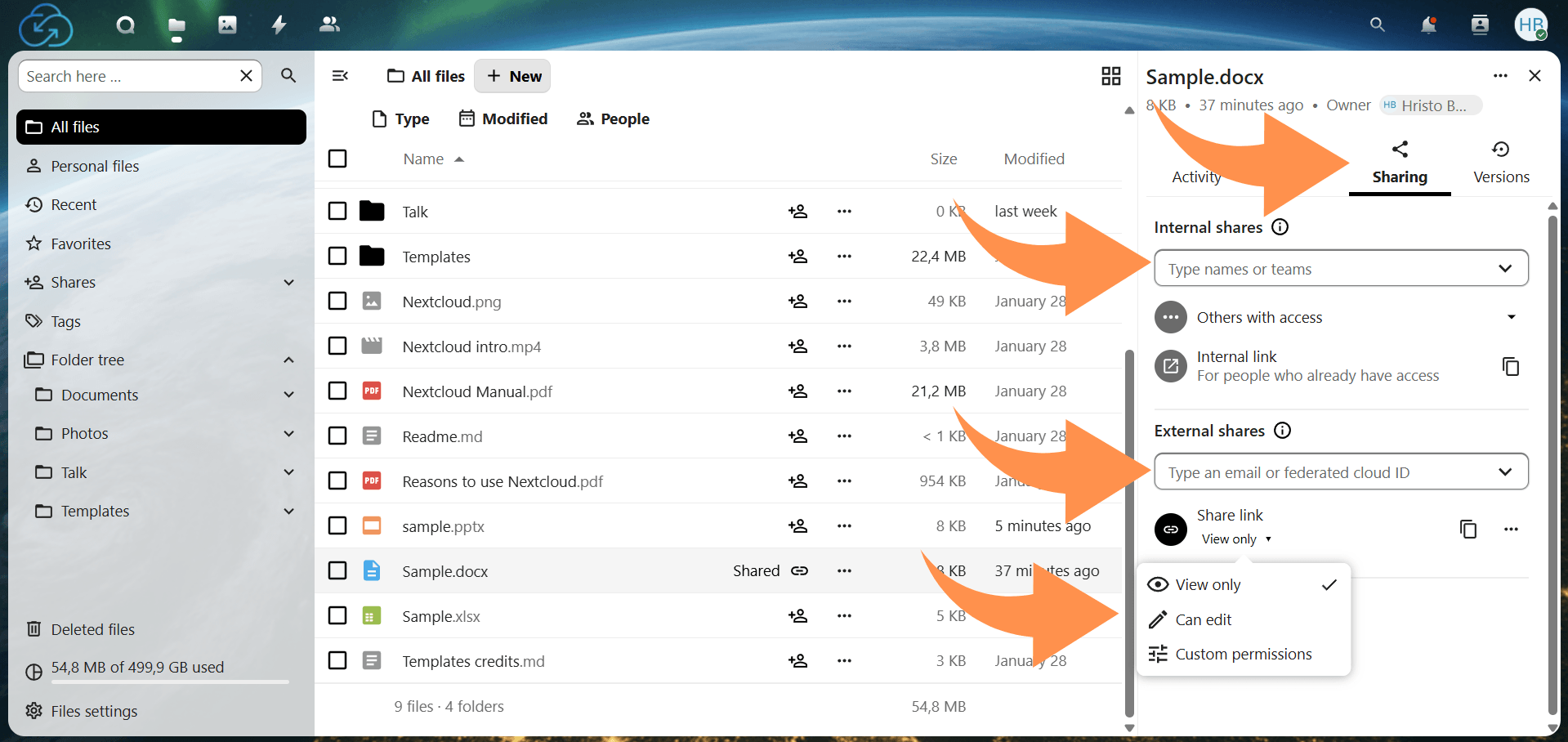
Advanced options like password protection, link expiration, and download restrictions enhance security for external collaborators.
Multiple users can edit a file simultaneously. Indicators show who is viewing or editing, and some setups highlight live cursor positions.
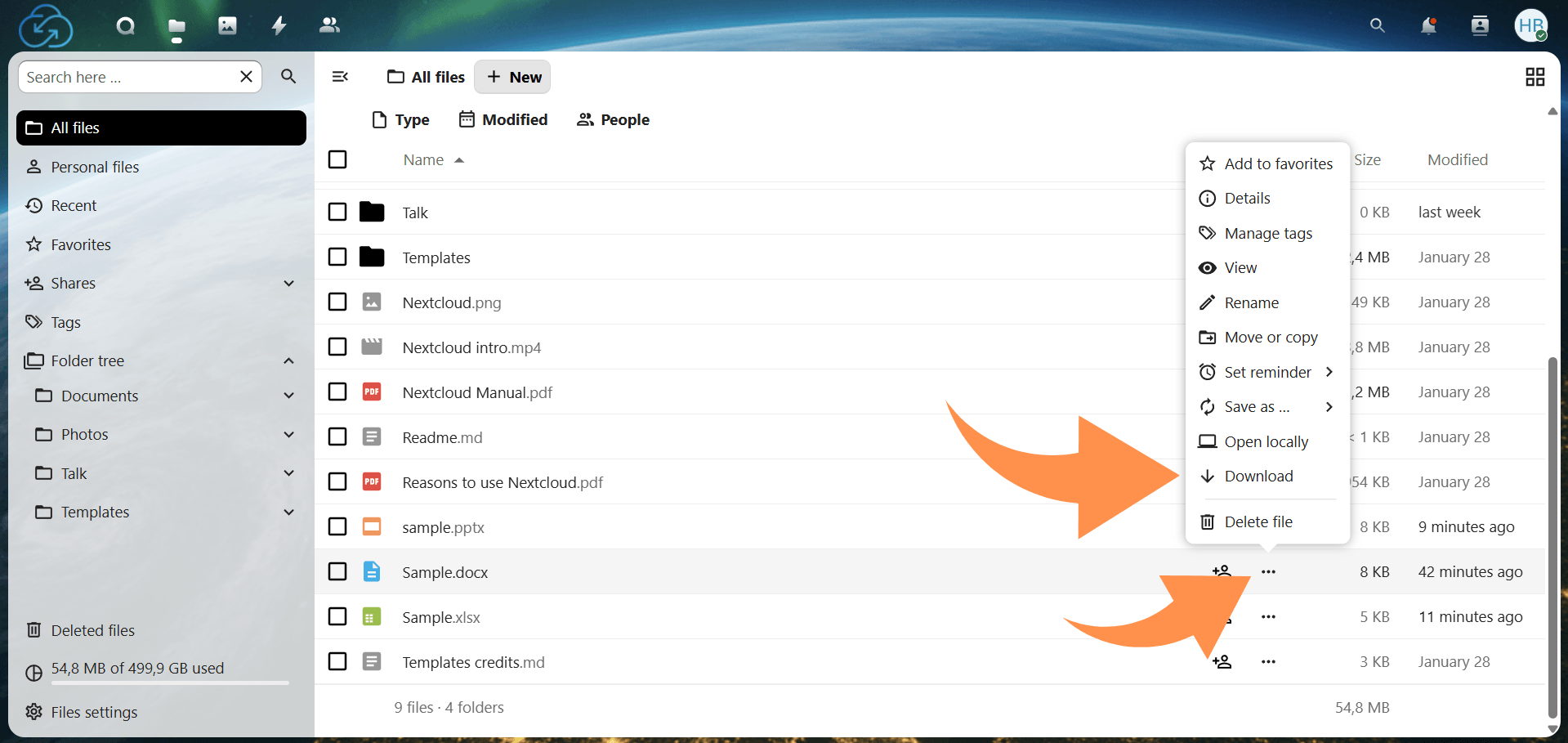
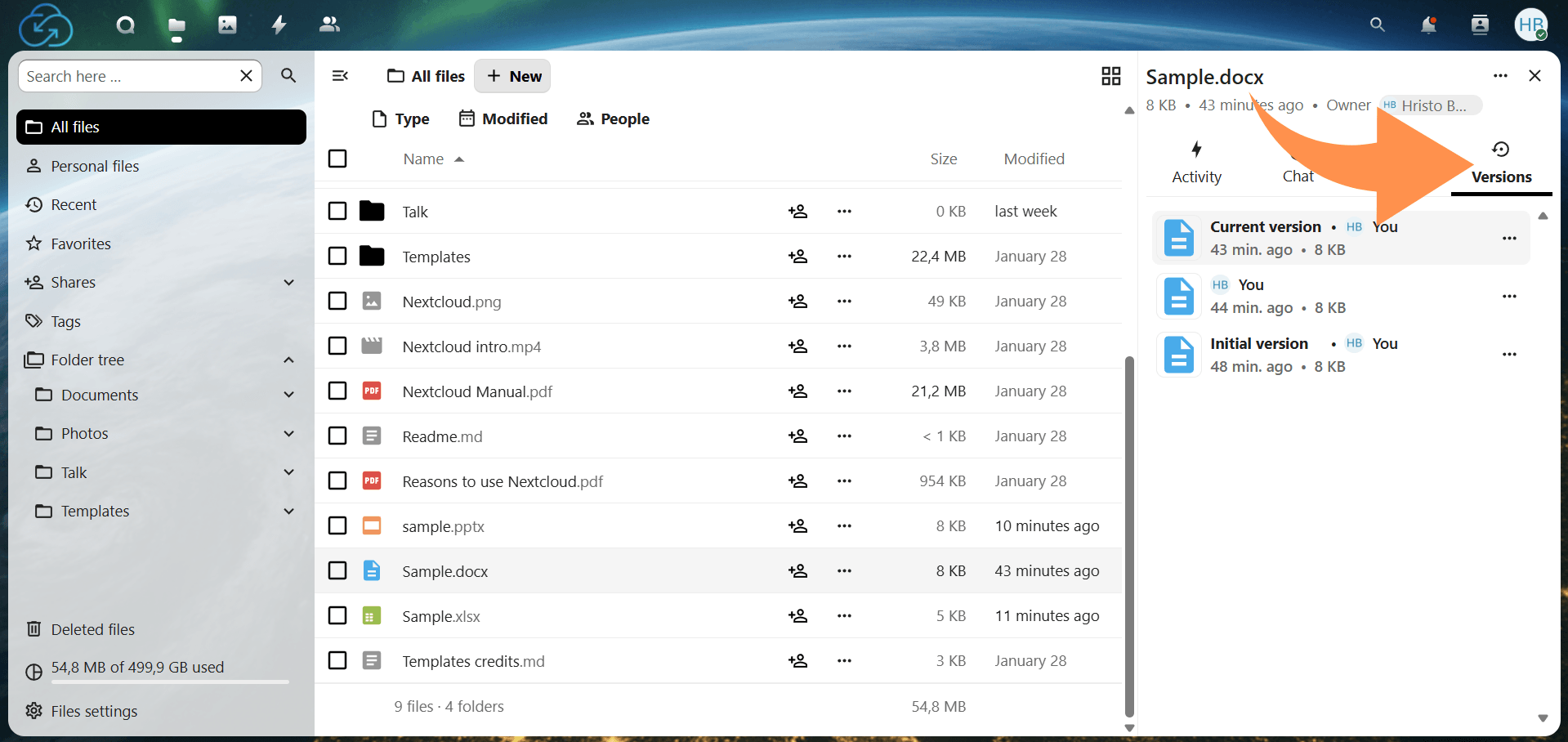
After editing, download or export files in standard Office formats or PDF. Version history lets you restore previous edits when needed. Access it via the file menu, select the desired version, and restore it.
Large files or multiple editors may occasionally cause lag or conflicts. Regular syncing and clear communication help prevent issues.
Even with its intuitive interface, Nextcloud Office may present a few challenges. Here’s how to address the most common issues:
Nextcloud Office provides a secure, browser-based platform for creating, editing, and sharing documents, spreadsheets, and presentations. By understanding its features, following a clear workflow, and using troubleshooting strategies when needed, users can collaborate efficiently and maintain control over their files.
Whether working on internal projects or coordinating with external teams, Nextcloud Office keeps documents organized, accessible, and protected in your private cloud, enabling smoother collaboration and reliable version management.
6 min read · 12.10.2026
8 min read · 29.09.2026
9 min read · 22.09.2026
Hosted in
Germany
4.3on G2