How to Connect AI Tools to Nextcloud with MCP
6 min read · 12.10.2026
Our Blog / how-to-back-up-your-photos-to-the-cloud
← Back to overview
Photos often hold important memories, documents, and personal moments that are difficult or impossible to replace. Losing them because of accidental deletion, device failure, theft, or corrupted storage can be frustrating. That is why cloud photo backup has become an important part of managing digital files.
Many apps allow users to back up photos to the cloud. However, Nextcloud stands out for giving users more control over their data, supporting automatic syncing across devices, and offering a privacy-focused alternative to large third-party cloud platforms.
In this guide, you will learn how to back up your photos to the cloud using Nextcloud on Android, iPhone, and desktop devices. You will also learn how to set up automatic photo uploads, verify that your photos are backed up successfully, and manage your backups securely.
Backing up photos to the cloud with Nextcloud allows users to automatically sync and store images from Android, iPhone, and desktop devices in a secure cloud environment. Nextcloud supports automatic photo uploads, cross-device access, and greater privacy control than many mainstream cloud storage platforms. Regularly verifying backups and maintaining multiple copies of important photos help reduce the risk of permanent data loss due to device failure, accidental deletion, or storage corruption.
Cloud photo backup stores copies of your photos online so they remain accessible even if your phone or computer is lost, damaged, or replaced. Most services can also automatically sync photos, which helps keep your image library available across multiple devices.
Common benefits include:
Nextcloud is a popular choice because it gives users more control over privacy and storage management than many mainstream cloud platforms. It can be self-hosted or deployed through a private hosting provider while still supporting automatic uploads, cross-device syncing, and web-based access to your photo library. This can be particularly useful for photographers managing large photo libraries, who need reliable access to their files, sufficient storage, and greater control over their data.
At Cloud Based Backup, we provide managed Nextcloud hosting for users who want the flexibility of Nextcloud without having to manage their own server infrastructure. Our platform supports automatic photo backups, secure cloud storage, and cross-device syncing while helping users maintain greater control over their files and privacy.
Download the Nextcloud app from the Google Play Store and sign in using your server address, username, and password. After logging in, allow the app to access your photos and storage so it can upload images automatically.
Open the app settings and enable Auto Upload to start syncing photos automatically. Most users select the default camera folder, but Nextcloud can also upload images from other folders, such as:
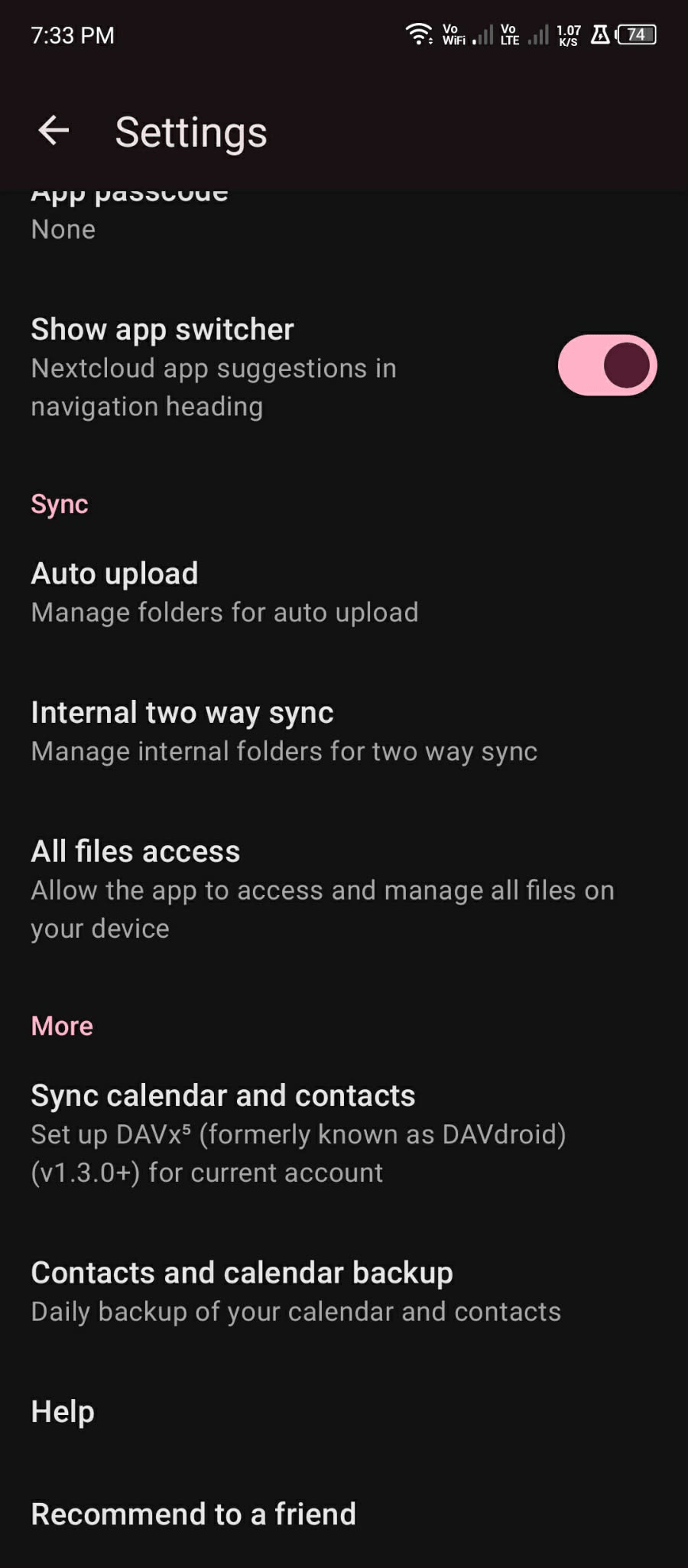
Nextcloud includes several settings that help manage how uploads behave in the background. Many users enable Wi-Fi-only uploads to reduce mobile data usage and charging-only uploads for large photo libraries.
If uploads stop unexpectedly, check whether Android battery optimization settings are restricting the Nextcloud app from running in the background.
After setup is complete, take a test photo and confirm that it appears in your Nextcloud photos folder through the mobile app or web dashboard.
Download the Nextcloud app from the App Store and sign in using your server address and account credentials. After logging in, allow the app to access your photo library so it can upload images automatically in the background.
Open the app settings and enable Auto Upload to start syncing photos and videos to your Nextcloud account. The app can automatically upload camera photos, videos, Live Photos, and other supported media folders.
For more reliable syncing, many users enable:
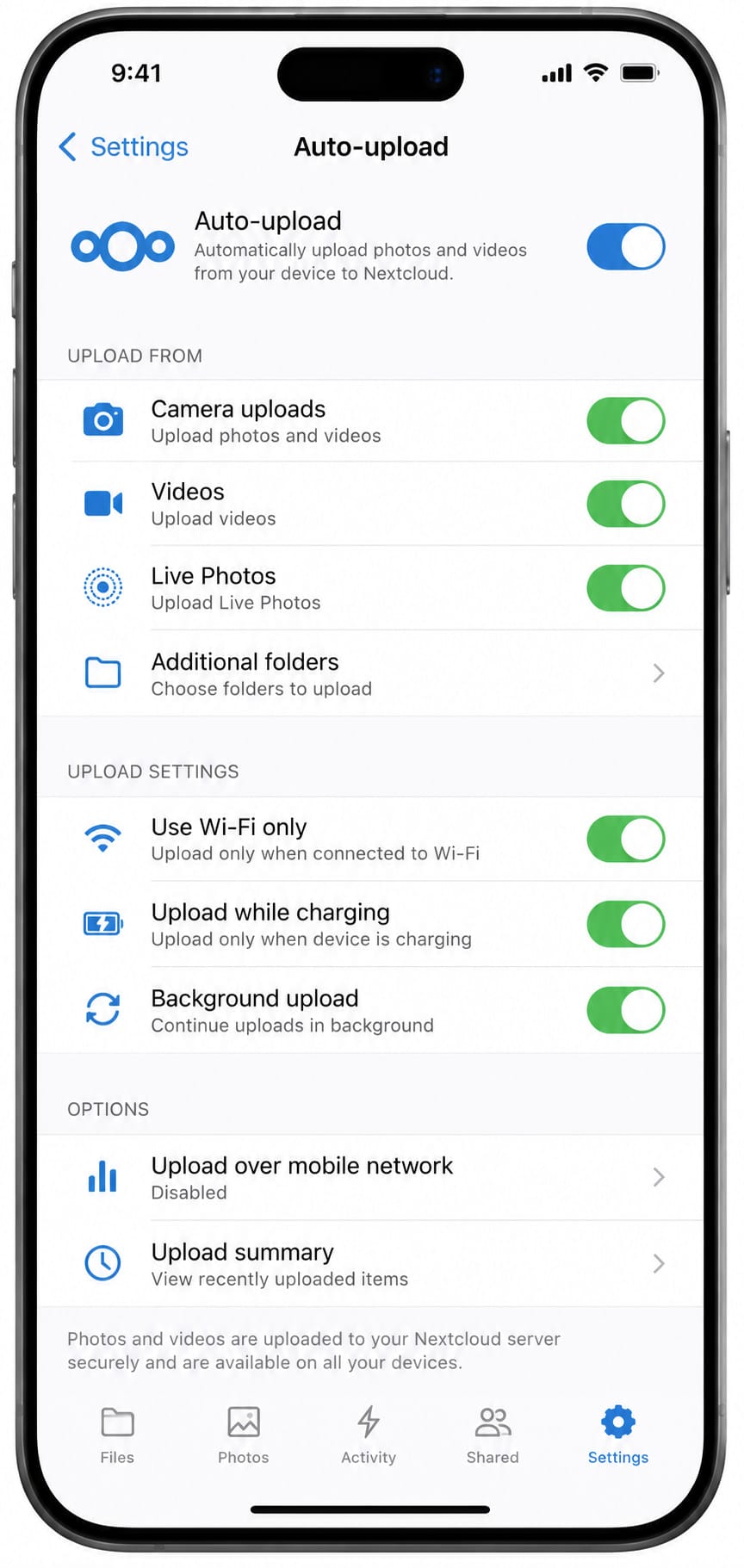
If you manage a large photo library, it helps to monitor both device storage and the available space on the Nextcloud server. Removing duplicate images and archiving older photos can also improve upload performance.
If you use iCloud Photos alongside Nextcloud, make sure original photos remain accessible on the device during uploads, rather than being stored only in iCloud.
After setup is complete, take a test photo and confirm it appears in your Nextcloud account via either the mobile app or the web dashboard.
If you already store photos locally on your computer, you can create a manual backup through the Nextcloud web interface. After signing in through a browser, drag and drop images directly into folders without installing additional software.
This method works well for smaller photo collections, occasional backups, or organizing images by project, event, or date before automatic syncing is enabled.
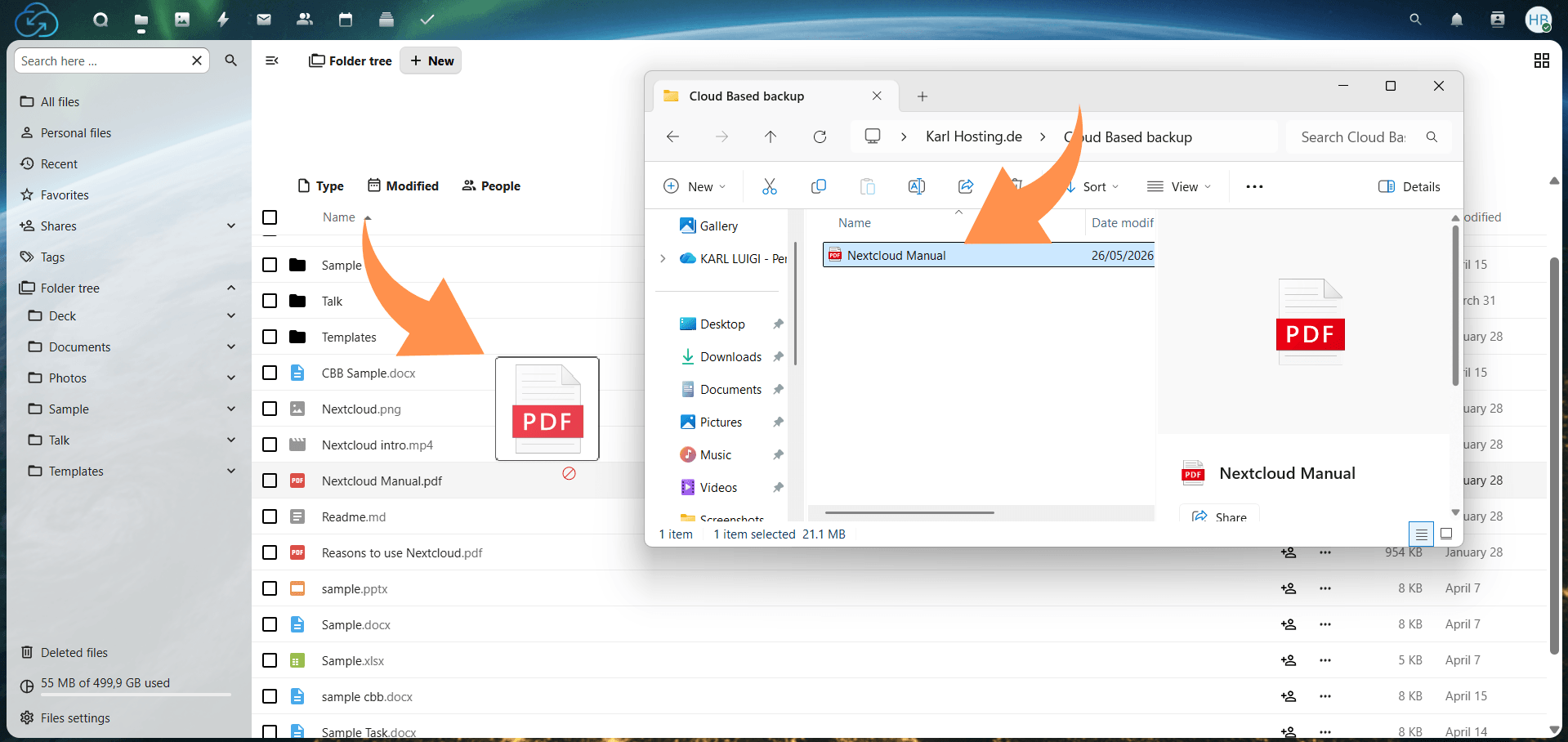
For automatic backups, install the Nextcloud desktop application on Windows, macOS, or Linux. The sync client can monitor selected folders and upload new photos automatically whenever files are added or updated.
This setup is especially useful for:
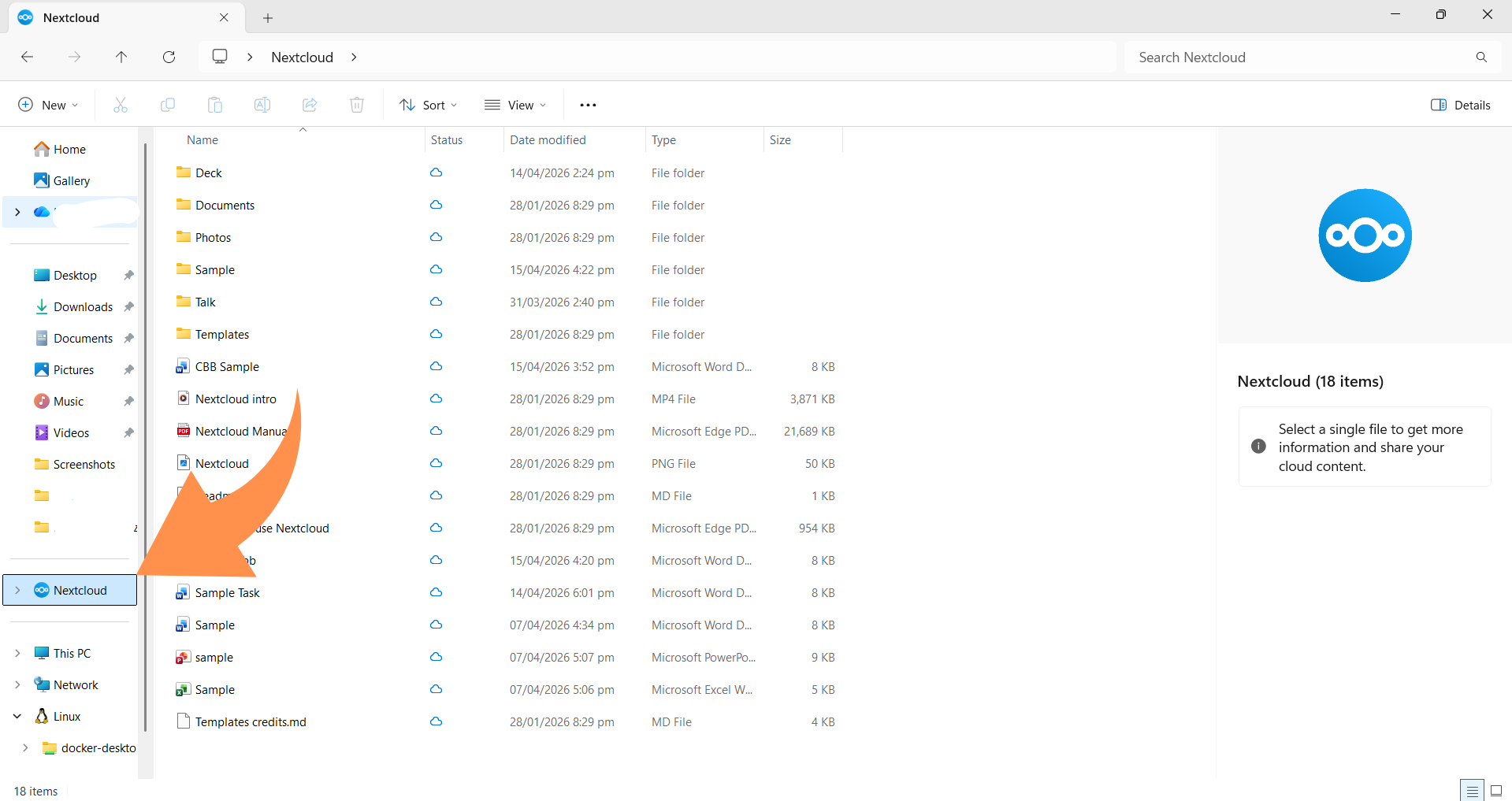
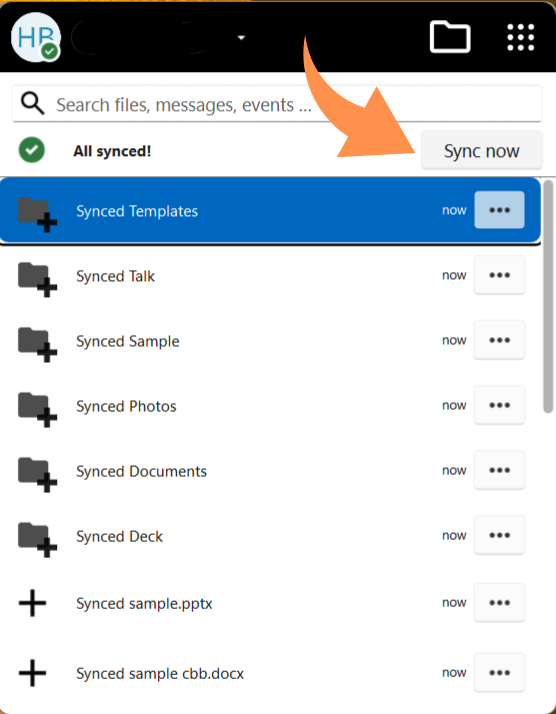
Once syncing is enabled, photos added to selected folders automatically back up to your Nextcloud storage in the background.
If your photos are stored on SD cards, USB drives, or external hard drives, organize the files before uploading them to Nextcloud. Removing duplicate images and using clear folder names can make large libraries easier to manage later.
For large RAW image collections, uploading files in smaller batches can also improve sync reliability and reduce failed transfers.
After uploads finish, confirm that your folders and images appear correctly inside your Nextcloud account. The desktop sync client can also display sync notifications and upload status information to help identify incomplete uploads or connection problems.
Verifying backups is especially important when transferring large photo libraries or uploading files from external storage devices.
Backing up photos to the cloud helps protect important images from device loss, hardware failure, accidental deletion, and storage limitations. Whether you use an Android phone, iPhone, or desktop computer, setting up automatic backups can make managing large photo libraries much easier over time.
While services like Google Photos, OneDrive, and Dropbox all support cloud photo syncing, Nextcloud remains a strong option for users who want more control over privacy, storage management, and file ownership.
No matter which platform you choose, regularly verifying backups and maintaining multiple copies of important photos can help prevent permanent data loss.
6 min read · 12.10.2026
8 min read · 29.09.2026
9 min read · 22.09.2026
Hosted in
Germany
4.3on G2