How to Connect AI Tools to Nextcloud with MCP
6 min read · 12.10.2026
Our Blog / how-to-migrate-google-drive-to-nextcloud-a-simple-guide
← Back to overview
If you are moving from Google Drive to Nextcloud, the files are only one part of the process. You also need to make sure your folders stay organised and the right files are shared with the right contacts. This guide explains two simple migration options: manually moving smaller file libraries and using Google Takeout for larger exports.
Google Drive is convenient, especially when you need a quick place to save and share files. But it may not be the right fit if you want more control over where your files are hosted and how your cloud storage is managed. This can matter when you store family photos, client documents, creative work, private records, or project files.
Nextcloud gives you a private cloud workspace where you can manage your files, folders, sharing, and access in one place.
The everyday experience remains familiar. You can upload files, create folders, synchronise files across devices, and share links with clients, colleagues, friends, or family. Nextcloud also supports practical sharing controls, including password-protected links and expiry dates, which can be useful when sending sensitive files.
Nextcloud is actually more than file storage. It can also bring file collaboration, calendars, contacts, online document editing, chat, and calls into the same private workspace.
A little preparation makes the migration much easier. Before downloading anything from Google Drive, take a few minutes to:
If you only have a small collection of files in Google Drive, moving them manually is usually the easiest option. This method works best when the amount of data is small enough to download and upload comfortably from your computer. The time required depends on your internet connection and the number of files. You download the files from Google Drive to your computer, then upload them to the folder you created in Nextcloud.
Take your time with shared folders and Google Docs, Sheets, and Slides. Check that they open correctly after the upload, then recreate any sharing permissions in Nextcloud.
When your Google Drive contains a large number of files or several gigabytes of data, downloading folders one by one can become slow and frustrating. Google Takeout gives you a simpler way to create an export of your Drive files, download it to your computer and then move the exported content to Nextcloud.
Before you begin, make sure your Nextcloud plan has enough available storage for the full migration. Your computer also needs enough free space to download and extract the Google Takeout archive. Create your main migration folder in Nextcloud first, so you know exactly where the files will go once the export is ready.
Go to Google Takeout and sign in to the Google account that contains the Drive files you want to move.
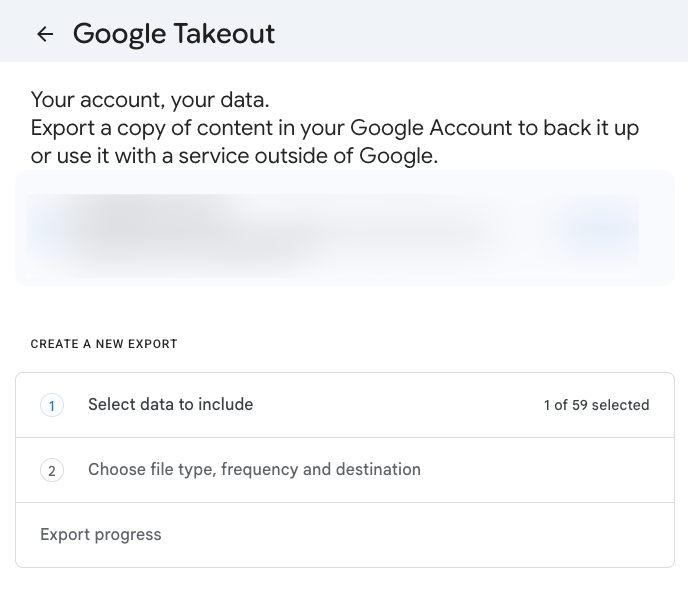
Under Create a new export, select the data you want to include. Deselect other Google services if they are selected, then select Drive.
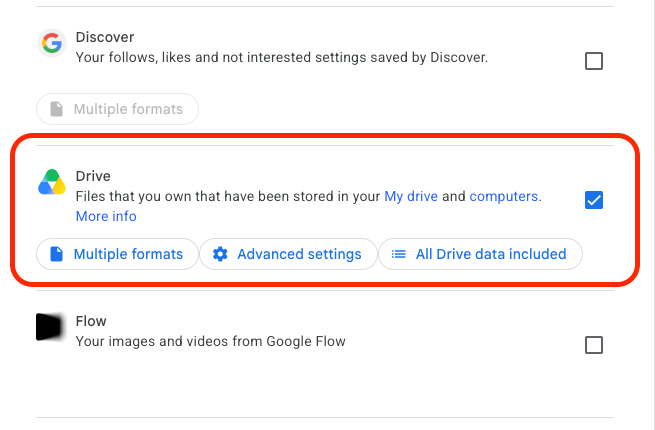
In the Drive settings, choose whether you want to export all Drive data or only selected folders. Review the available format options, especially if your Drive contains Google Docs, Sheets, or Slides.
Select Next step. Choose Send download link via email as the delivery method, select a one-time export, and choose ZIP as the file type.
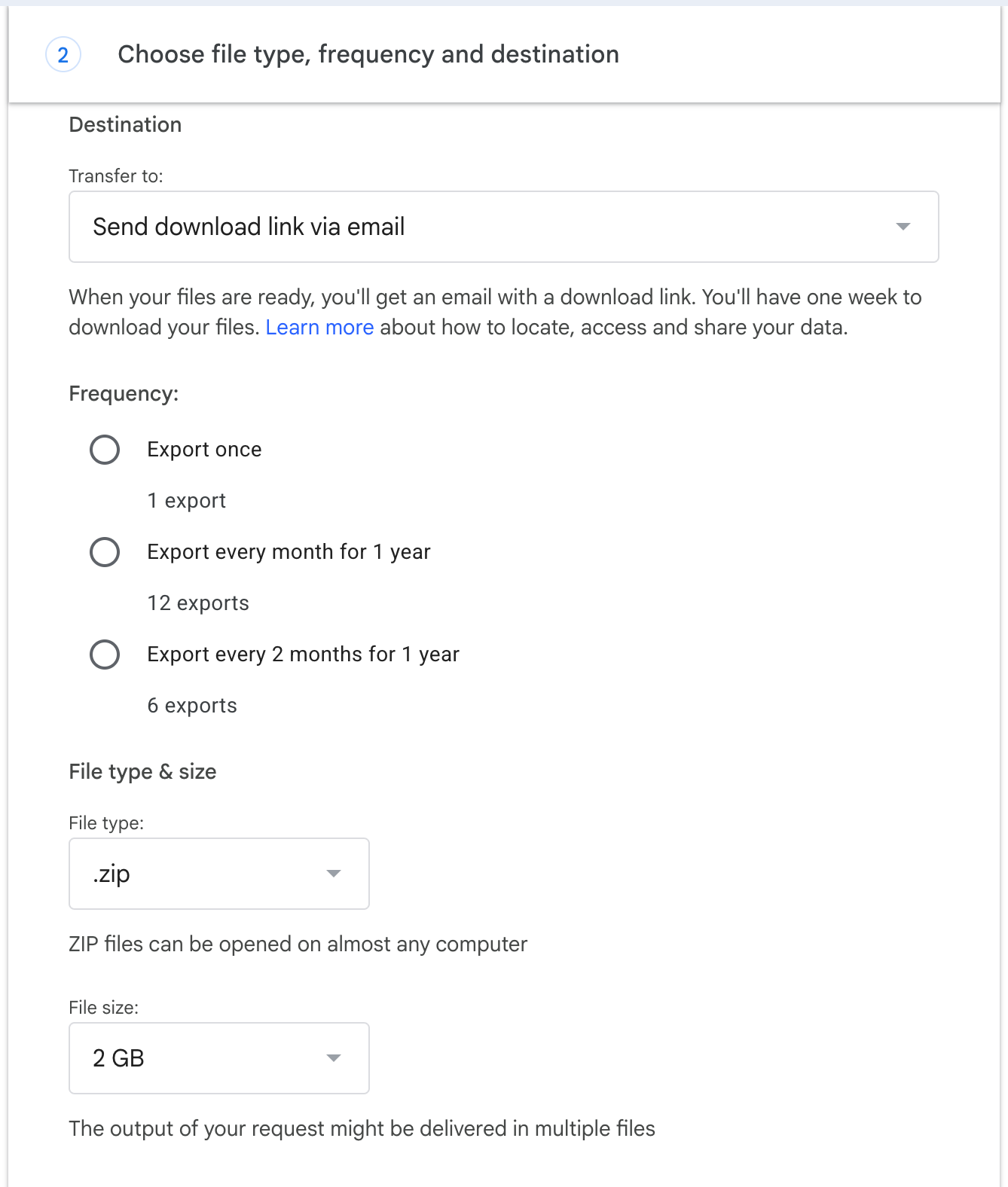
Then select an archive size that is practical for your computer and internet connection.
Select Create export. Google will prepare the archive and send an email when it is ready. Large exports can take some time, and Google may split them into several ZIP files if the export is larger than the archive size you selected.
Download every ZIP file from the Google Takeout email. The files will usually appear in your computer’s Downloads folder and have a name beginning with “takeout.”
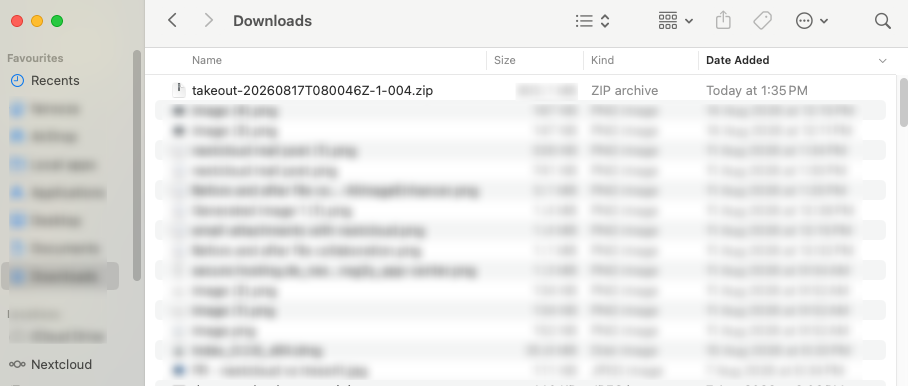
Double-click each ZIP file to extract it. If Google created multiple ZIP files, extract every archive. Open the Takeout folder and then the Drive folder inside each extracted archive. Together, these folders contain your exported Google Drive files.
Sign in to Nextcloud and open the migration folder you created earlier. Upload the contents from all extracted Drive folders to Nextcloud.
Once the upload is complete, check important folders and open a sample of files. Keep your original Google Drive files until you are confident that everything you need is available in Nextcloud.
Google Takeout makes a copy, so your original files stay in Google Drive. Sharing permissions also need to be checked and recreated in Nextcloud and files changed after you request the archive may not appear in that export.
Getting your files into Nextcloud is one part of the move. Once everything is in Nextcloud, the cloud still needs to be hosted, maintained, secured, updated, and backed up. You should not need to become a server administrator just to use a private cloud.
That is where CloudBased Backup helps. We provide managed Nextcloud hosting in German data centres and handle the technical work behind the scenes, including infrastructure, security updates, maintenance, and backups. You can focus on your files, folders, sharing settings, and day-to-day work, while we take care of keeping your Nextcloud environment running smoothly.
6 min read · 12.10.2026
8 min read · 29.09.2026
9 min read · 22.09.2026
Hosted in
Germany
4.3on G2